
Hot

AnyRec Screen Recorder
Capture every moment. Record like a pro.
Secure Download
How to Make a Tutorial Video: Complete Guide with Easy Steps

Whatever the reason you want to create a tutorial video, whether it is to educate others on a specific process or concept, to grow an audience, or to generate income, you need to continue reading this post! Here, you get to explore all the necessary information that you need to know to create a practical tutorial that will surely capture lots of audiences. It features that information along with the steps to create training videos using proper tools. Dive in now.
Guide List
Define Your Goal, Audience, and Plan for Your Tutorial Video How to Make an Instructional Video How to Edit Your Tutorial Video Where to Publish Your Video Tutorial Common Mistakes and Fixes While Making Tutorial VideosDefine Your Goal, Audience, and Plan for Your Tutorial Video
Learning how to make a tutorial video requires proper preparation for better results. So, here are some of the essential tips that you need to acquire to achieve better results.
Define Your Goal
Before you start planning content, you first decide why you're making this tutorial. You should identify what you want viewers to learn or accomplish after watching. Having a clear goal in mind will keep your content focused and help you avoid unnecessary steps or confusing explanations. When your goal is specific, you can also determine the right length and depth for the video tutorials.
Define Your Audience
Aside from identifying your goal, you must also define your audience. Understanding who will be watching your instructional video is one of the most crucial steps for you to acquire the best results. You should know your target audiences or viewers and why they need help with the topic. For example, whether they want to learn a game trick, understand how to use software, or gain a new skill. Additionally, there are different types of audiences. Some beginners need detailed steps, and advanced users mostly prefer a concise walkthrough. Matching your content to their level ensures it's useful.
Plan of Your Tutorial Video
The last thing you need to know or prepare when you create tutorial videos is to plan them. You must plan the structure and content of your video by preparing your ideas, listing the topics, what you will be covering, and outlining the steps before taking the recording process. With this, you can organize your thoughts, create a flow, and ensure you cover all the essential points clearly. It is basically the storyboard or outline.
How to Make an Instructional Video
Now that you have defined your goal, your audience, and planned your tutorial, it is time to make a training video, and you need to start by performing the recording process!
Record Screen Video
If you want to create tutorial videos that feature a specific software/app or platform, the best tool that this post would like to recommend is the professional AnyRec Screen Recorder. This desktop-based tool can record any area of your computer screen. It can record full screen, window, and partial screen, all of which are captured in high quality in up to 4K. Aside from that, it not only records your screen, but it is also capable of recording the system audio and your voice on the microphone. Additionally, it also provides you with the option to show mouse click effects and keyboard strokes while recording, making it a perfect option as a video tutorial software.
Record Screen Video with Webcam
Aside from AnyRec Screen Recorder's ability to record the screen, it can also record your screen along with your webcam. With this tool, you can record yourself with a camera or an external camera, and it provides you with options to set it up based on your preferences. These options include setting up an input audio source, resolution, rotation, and volume. It is easy to record and create tutorial videos with this tool's capability for facecam videos, live reactions, presentations, interviews, and more.

Lets you record system audio with noise removed and echo reduced.
Create a how-to video in 4K 120 FPS with GPU acceleration.
Allows you to capture picture-in-picture video.
Supports all cameras with customizable audio input.
Secure Download
Secure Download
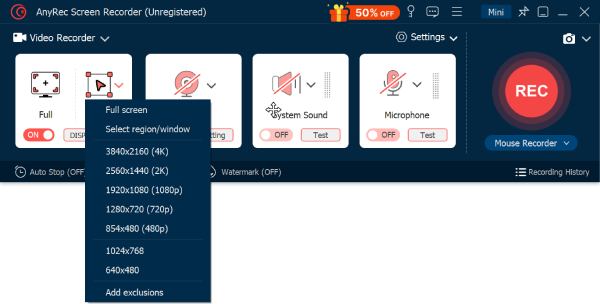
Step 1.Install the AnyRec Screen Recorder on your PC. After that, run it, and decide whether to capture your screen in "Full" screen or a customized area from 480P to 4K. If you wish to record your screen with a webcam, just toggle on the "Webcam".
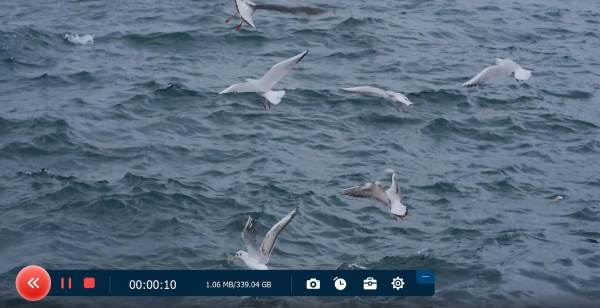
Step 2.After selecting the desired area, click the "REC" button to start recording your tutorial. During the recording process, you can take snapshots, edit the recording, set record length, etc.
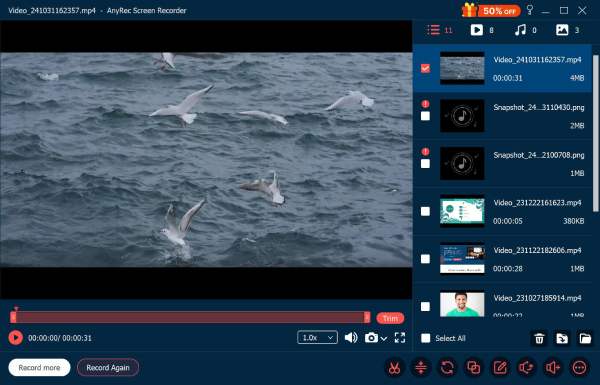
Step 3.Once done, click the "Stop" button. Then, in the preview section, you can edit the video by speeding it up, trimming, rotating, etc.
Secure Download
Secure Download
Camera Recording with a Tripod
Aside from those screen-based recordings, you can also create instructional videos using a tripod. A tripod keeps your camera stable and your video professional looking. It prevents shaky footage, keeps your recordings' frames consistent, and lets viewers focus instead of getting distracted by movements. So, before capturing your tutorial, prepare the set first, including putting your camera on a tripod. Then, once everything is set, you can start the recording process.
How to Edit Your Tutorial Video
Now that you have explored the ways how to create instructional videos (tutorial) and have already gathered footage, it is time to edit them. And the best tool for the job is the professional AnyRec Video Converter. This desktop-based tool supports the necessary features that enable you to edit your tutorial recordings. It supports trimmer, option to add text, intro/outro, sync audio with video, rotate, flip, crop, and more! All of these features are easy to use, enabling you to edit all of your recorded tutorials quickly and effectively.

Allows you to incorporate subtitles and audio tracks for your recorded tutorial video.
A video trimmer that you can use to cut off unwanted parts from the start, middle, or end.
Offers a library of effects and filters to choose from.
Supports output tweaking options that let you enhance the captured tutorial quality.
Secure Download
Secure Download
Step 1.Install AnyRec Video Converter on your computer. Then, run it, click the "Add Files" button to import the tutorial video you wish to edit. Next, click the "Edit" button with the "Starwand" icon to access the tool's editing features.
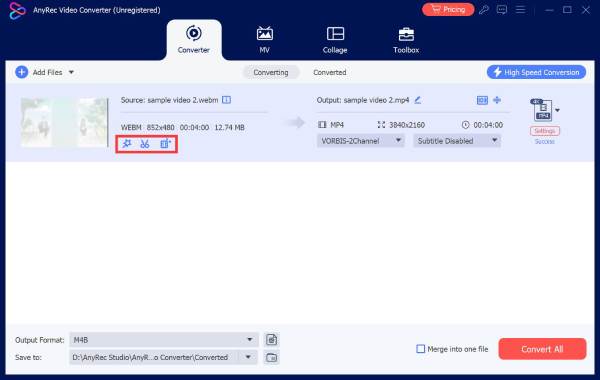
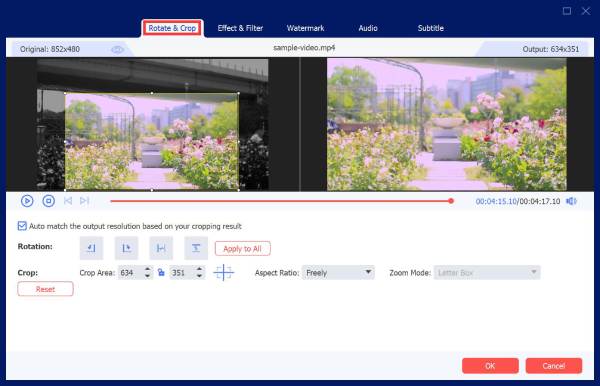
Step 2.In the new window, you can use the following options to either rotate or crop the recorded tutorial video, add effects and filters, a watermark, audio, and subtitles. Once done, you need to click the "OK" button.
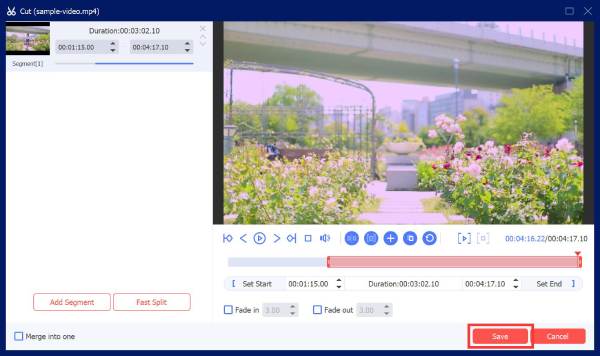
Step 3.If the tutorial video comes with unnecessary parts, click the "Cut" button with the "Scissors" icon. Then, you can set the start and stop times manually to cut the unwanted parts. Or you can drag with the slider instead.
Where to Publish Your Video Tutorial
There you have it! That's the comprehensive and practical guide on how to make a tutorial video. With that guide, you can for sure attain the best results for your tutorial videos. Now, after you have created it, where will you publish or upload it? Well, there are a lot of platforms where you can upload your tutorial. One of them is YouTube, which is a common choice because it's easy to access and helps videos show up in search results. It also works well for step-by-step tutorials that people may want to rewatch.
On the other hand, if your tutorials are short or casual, they will work well on social media like Facebook, Instagram, or TikTok. These platforms come with a lot of active users, so there is a possibility of gaining a huge audience here.
Common Mistakes and Fixes While Making Tutorial Videos
Even small mistakes can affect how helpful your tutorial video is. Below are some common issues video tutorial makers face and simple ways to fix them.
- • Low engagement - Long or unfocused videos can lose viewers' attention. Therefore, you need to keep your tutorial a little short and highlight the key steps.
- • Background noise - Distracting sounds make it hard to follow instructions. Record in a quiet space and use a microphone if possible. Or you can remove background noise from this video manually.
- • Unclear tutorial steps - Skipping steps or moving too quickly can confuse viewers. Explain each action clearly and demonstrate on-screen when needed.
- • Poor video quality - A tutorial video with blurry or shaky footage is difficult to watch. In that case, always use good lighting and utilize a tripod for a stable recording.
- • Lack of planning - Recording without an outline can lead to rambling or missing points. A simple plan helps keep your tutorial organized and easy to follow.
Conclusion
Having this guide to make a video tutorial will help you create tutorial videos easily and effectively, achieving the purpose you have in mind. Keep these tips in mind before creating a tutorial: use professional software like AnyRec Screen Recorder to capture and edit your videos, consider uploading them to the mentioned platforms, and be aware of common mistakes so you can avoid them. So, what are you still waiting for? Go plan your first tutorial video, set up your shooting area, and use the professional tools! Do it today.
Secure Download
Secure Download
Related Article
About Our Author




