
 Best video, audio, and webcam recorder for everyone.
[Trustworthy] Top Picks of Video Recorders for Windows 10

Several activities are happening on your Windows computer, whether enjoyable or fantastic; therefore, it seems to be a good idea to record them as your precious memories. And when it comes to the recording process, a powerful video recorder for Windows 10 becomes a necessity, whether capturing game highlights, online meetings, or tutorial content. Among numerous choices, this guide picks the most reliable video recorders for Windows 10, offering practical selections for you to choose from.
Guide List
Tips on Selecting a Video Recorder for Windows 10 An All-in-One Solution: Best Video Recorder for Windows 10 Video Recorders for Windows 10 in Various ScenariosTips on Selecting a Video Recorder for Windows 10
Before installing a video recording tool, it's essential to know what makes a recorder suitable for Windows 10. Different software varies in output quality, performance impact, features, and pricing. Understanding key selection criteria avoids unnecessary compatibility problems and ensures the best recording experience. This part focuses on the must-check factors to keep in mind when choosing a video recorder for Windows 10.
Check the Output Quality
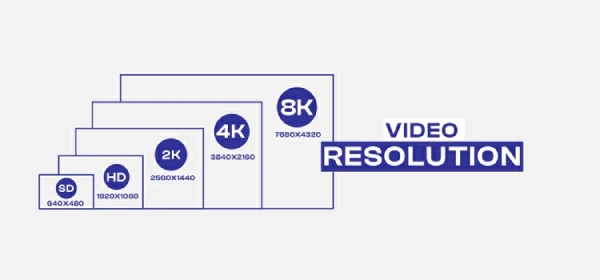
The first thing to check is output quality. A powerful Windows 10 video recorder should support high-resolution recording, with stable frame rates and sync between audio and video. This basic function can make sure all the content is recorded clearly without any blur or lag, especially for gameplay, tutorials, or business presentations.
Check the System Performance
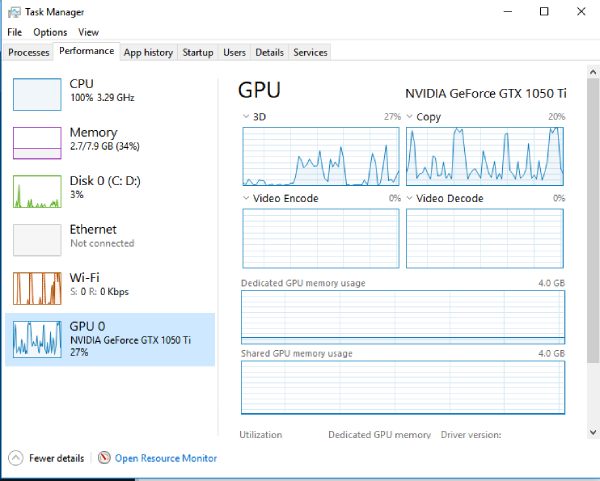
Another critical factor is system performance impact. While providing solid recording capability, some recorders consume considerable CPU or GPU resources, causing issues like lag in your ongoing process. This is why those video recorders for Windows 10 that are equipped with optimized hardware acceleration are recommended.
Consider the Pricing and Usage Limits
Finally, consider pricing and usage limits. Free recorders may add watermarks or restrict recording time, while premium plans offer more formats and editing tools. Choosing a recorder depends on how often and how professionally you plan to record, but ensuring compatibility and smooth performance on Windows 10 should always come first.
An All-in-One Solution: Best Video Recorder for Windows 10
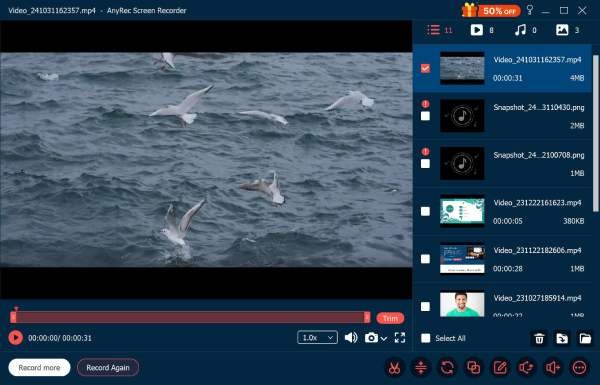
In short, to record any activities on your Windows computer, you will always need a powerful yet beginner-friendly recording tool, as they can provide a single comprehensive solution rather than juggling multiple pieces of software. AnyRec Screen Recorder offers high-quality capture, long-duration recording, advanced audio control, flexible output formats, and editing options - all in one place. This section introduces this best video recorder for Windows 10 that stands out for versatility and reliability across all recording scenarios.

You can freely choose the area where you want to record videos.
Activities on Windows 10 will not be affected while recording.
Edit your recordings as you want before saving the videos.
Save the recordings in more than 30 kinds of output formats.
Secure Download
Secure Download
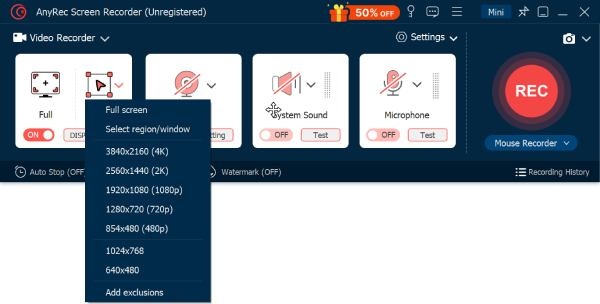
Step 1.Launch AnyRec Screen Recorder on your Windows 10 computer and click the "Select region/window" button.
Step 2.Once the region is selected, click the "Record" button to start video capture on the chosen area.
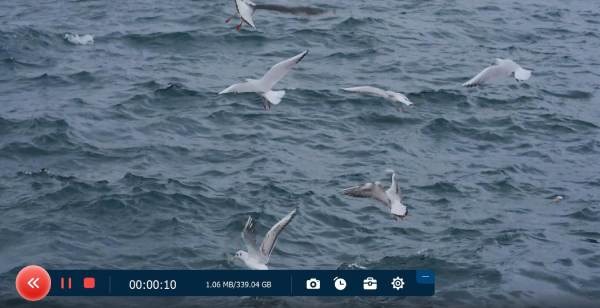
Step 3.Click the "Stop" button when you finish recording. Before exporting the recording, you can edit it as you want.
Video Recorders for Windows 10 in Various Scenarios
When it comes to video recording on Windows 10, it's pretty apparent that not everyone records videos for the same purpose. So, some users might want to search for a recorder that suits the scenario. For example, some need stable gameplay recording without lag, while others focus on online meeting capture, tutorial creation for content sharing. This part lists recommended Windows 10 video recorders for multiple scenarios, helping you quickly locate the software that best matches their specific recording needs.
1. OBS Studio - For Live Streaming
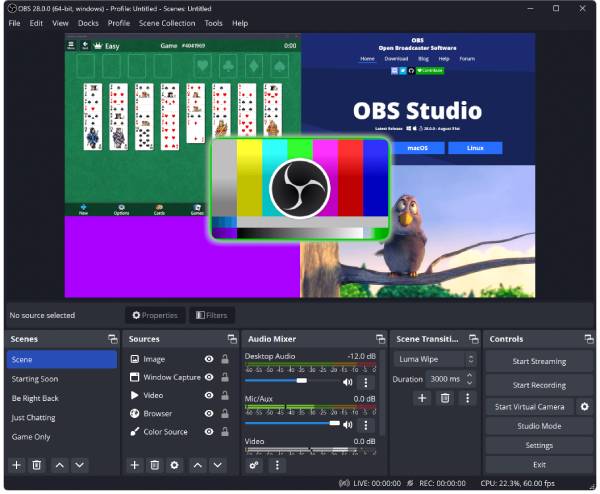
OBS Studio is a free, open-source Windows 10 video recorder widely used for live streaming. Actually, lots of content creators tend to use OBS Studio to record their content as it offers advanced scene transitions and high-performance recording using GPU acceleration. Its flexibility makes it suitable for experienced creators who want complete control over streaming layouts and video output.
- Pros
- Completely free and highly customizable with plug-ins.
- Cons
- Steep learning curve for beginners with the complex interface.
2. FlashBack Express - For Educational Videos
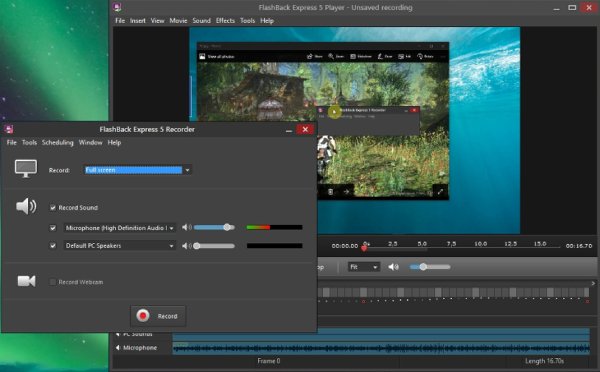
If you happen to have the need to record educational videos, FlashBack Express will provide you with smooth screen recording without time limits or watermarks. All functions that you need for education are concluded. You can use this video recorder for Windows 10 with webcam and microphone, plus almost every editing tool you can imagine. Its interface is beginner-friendly and doesn't require technical setup.
- Pros
- No time limit and no watermark in the free version.
- Cons
- Advanced editing tools are locked behind the premium version.
3. Bandicam - For High-Resolution Video
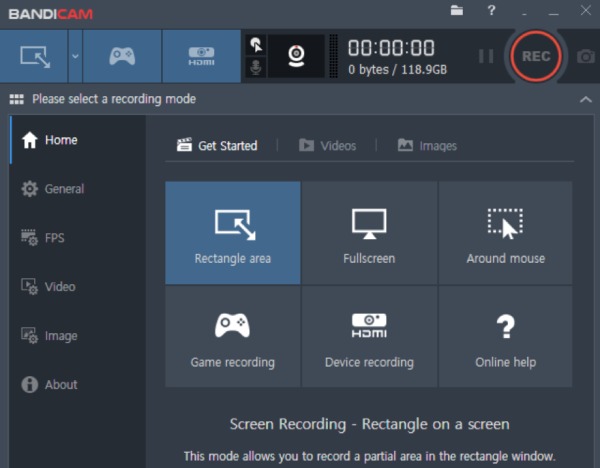
Bandicam is known for compressing recorded video without loss of quality, making it popular among gameplay and tutorial creators. This video recorder for Windows 10 enables long-duration recording, supports external devices such as webcams and consoles, and offers real-time drawing features.
- Pros
- Lightweight with powerful compression and minimal lag.
- Cons
- Watermark appears in the free version.
4. Camtasia - For Tutorial Video
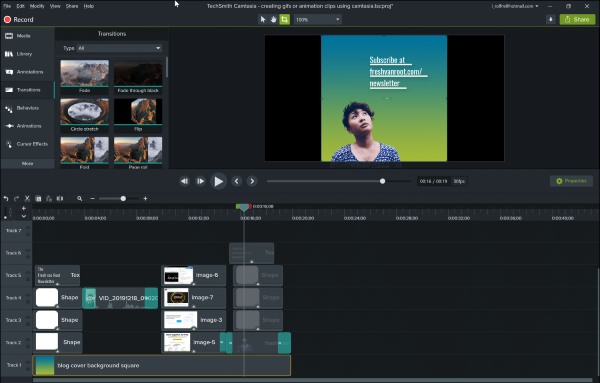
Camtasia is perfect for tutorial production thanks to its integrated recording and video editing suite. Users can add annotations, transitions, effects, and voiceovers without using additional editing tools. This video recorder for Windows 10 is widely used for creating courses, workplace training content, and presentation videos.
- Pros
- Provide many editing tools to highlight your tutorial content.
- Cons
- High price compared with similar recording tools.
5. VLC Media Player - For Video Playback
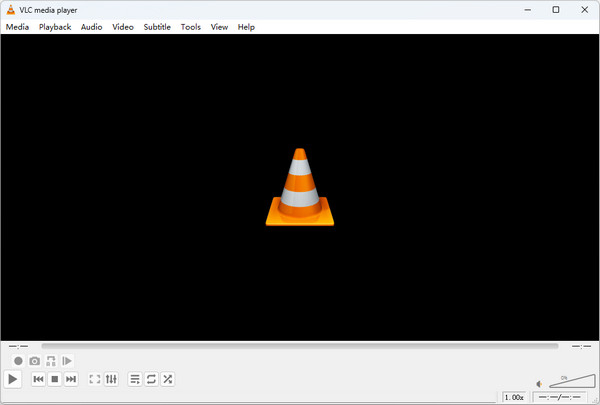
VLC can not only play videos but also record on-screen content and capture desktop activities. It's ideal for users who want occasional screen capture without installing heavy software. Its recording function is simple enough for beginners. Plus, during the process, you are also allowed to take screenshots of any part of your screen on Windows.
- Pros
- Free, lightweight, and widely trusted.
- Cons
- Limited video recording options and no built-in editing features.
6. Loom - For Online Meetings
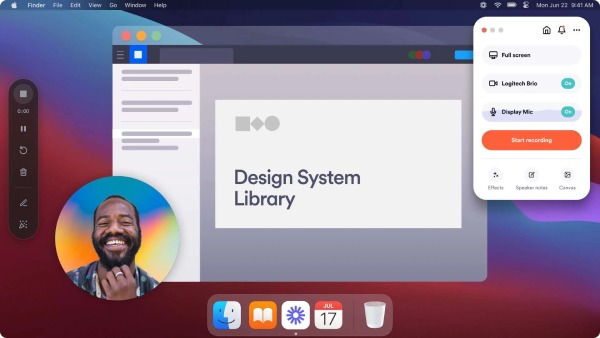
Loom is designed for fast communication and remote work. You are allowed to record both the screen and the webcam simultaneously. When you want to cooperate with others, you can simply share a viewing link without exporting. With this video recorder for Windows 10, you can edit the recording even during the process of recording in case you forget to highlight important points.
- Pros
- Instant cloud sharing streamlines remote collaboration.
- Cons
- Free version restricts recording length and video quality.
7. Xbox Game Bar - For Gameplay
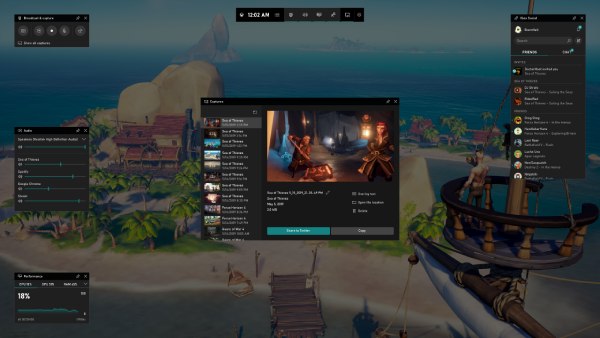
For those who play games on their Windows computer a lot, the Xbox Game Bar is one of the best options to record gameplay. As a built-in Windows 10 video recorder that is ideal for quick gameplay capture, it can record screens while displaying FPS, CPU, and GPU performance. The tool works smoothly in the background, causing nearly no interruptions during your gameplay.
- Pros
- Built-in, convenient, and doesn't require installation.
- Cons
- Recording limits and lacks advanced settings and editing tools.
8. ShareX - For Quick Sharing
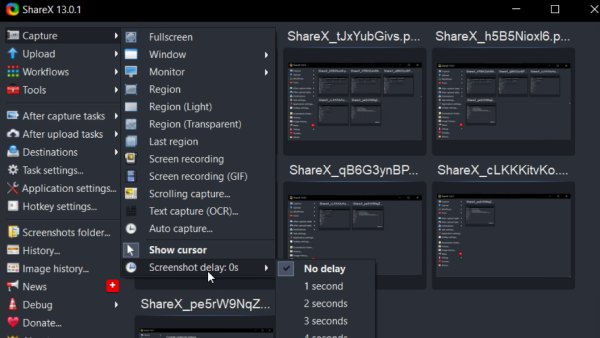
ShareX is an open-source recorder dedicated to productivity and screen capturing for demonstrations or recording online meetings. One of the most significant advantages is that this Windows 10 video recorder is linked to cloud platforms, making sharing a smooth process. Its customizable workflows benefit users who create frequent instructional content.
- Pros
- Compelling automation and sharing workflows.
- Cons
- The interface can be overwhelming for casual users.
Conclusion
Video recording on Windows 10 has become more versatile than ever, and choosing the right tool largely depends on recording scenarios and workflow preferences. No matter what you intend to record, there is a recorder that fits every level of need. To record all scenarios on your Windows 10, AnyRec Screen Recorder is the one-in-all solution with powerful features.
Secure Download
Secure Download



