
Hot

AnyRec Screen Recorder
Capture every moment. Record like a pro.
Secure Download
[All Devices Included] Best Sound Recorders in 2026

A wide variety of options will be available for sound recorders. But how can you choose a proper one that meets your requirements? This guide introduces the most reliable sound recorders across all platforms, helping you pick the ideal tool for your device, ensuring every recording is captured with clarity and efficiency.
Guide List
Part 1: The Most Powerful Sound Recorder That Suits All Devices Part 2: [For Windows] Audacity as a Popular Sound Recorder Part 3: [For Mac] How to Record Sound with Built-in QuickTime Player Part 4: [Web-Based] A Trustworthy Online Sound Recorder Part 5: [For Android] Built-in Sound Recorders with Efficiency Part 6: [For iPhone] How to Use Voice Memos to Record SoundPart 1: The Most Powerful Sound Recorder That Suits All Devices
For users who need a versatile and reliable tool to record audio across multiple devices, AnyRec Screen Recorder stands out as a top choice. Compatible with all devices, including Windows, Mac, Android, and iPhone, it delivers high-quality sound capture while offering additional features. No matter what the content is, AnyRec Screen Recorder ensures every detail is preserved. Its intuitive interface makes it easy for beginners while still providing advanced options for professionals, combining convenience, flexibility, and reliability into one comprehensive audio recording solution.

It can be used as a sound recorder for all devices, from computers to phones.
Record all sounds and voices clearly on your device without any interruption.
Provide advanced algorithm support to reduce the influence of background noise.
Save your sound recording in the format you desire, such as MP3, FLAC, and so on.
Secure Download
Secure Download
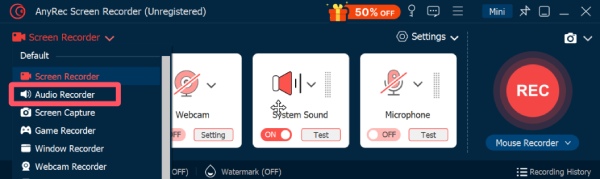
Step 1.Launch AnyRec Screen Recorder on your device, click the "Audio Recorder" button under the "Screen Recorder" tab.
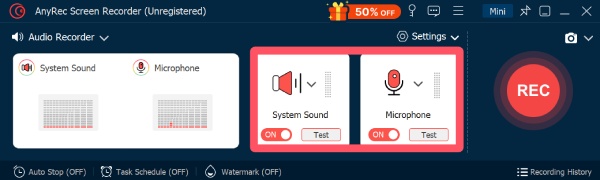
Step 2.Click the "System Sound" button and the "Microphone" button to apply both system sound and microphone for the recording.
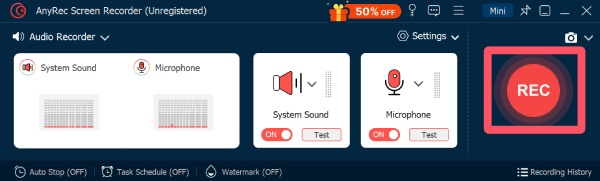
Step 3.Click the "Record" button to run the sound recorder with its background noise removal. And click the "Stop" button when the recording is done.
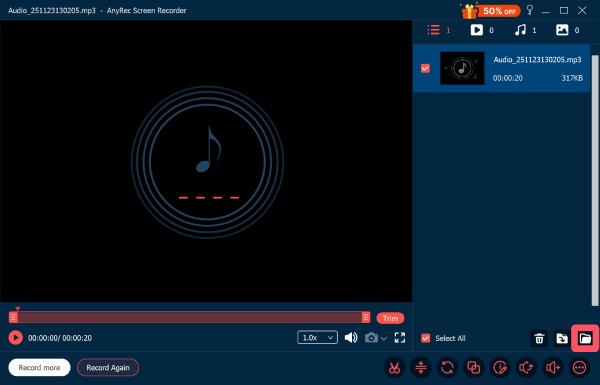
Step 4.Before saving, you can further edit it for better effects. To find the file, click the "Open Folder" button and navigate to the recording.
Part 2: [For Windows] Audacity as a Popular Sound Recorder
If you're using a Windows computer, Audacity is a good choice as a free yet powerful sound recorder. Popular among users for years, Audacity has solid capabilities to complete recording tasks stably. The basic feature includes recording from multiple sources, editing tracks with precision, and exporting audio in various formats. Following the steps below can help you record all sounds on your Windows computer without effort.
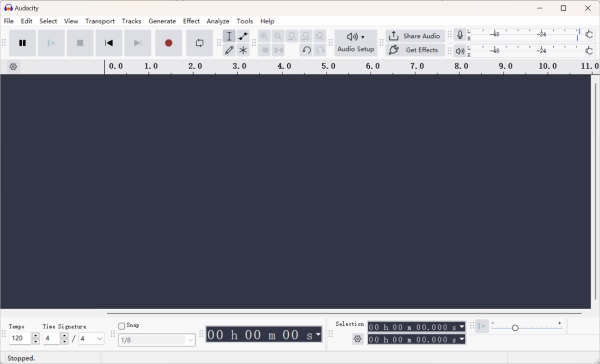
Step 1.Launch Audacity on your Windows computer and start to play the sound you want to record.
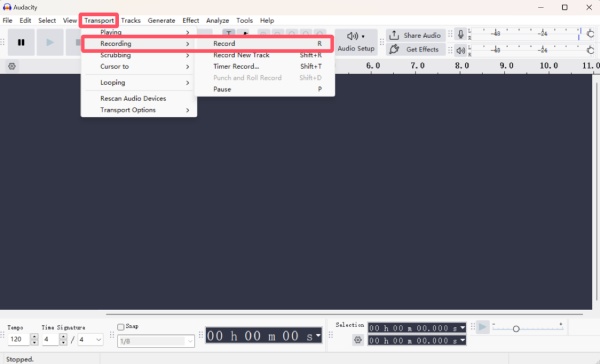
Step 2.Under the "Transport" tab, click the "Recording" button and then the "Record" button to run the sound recorder within Audacity.
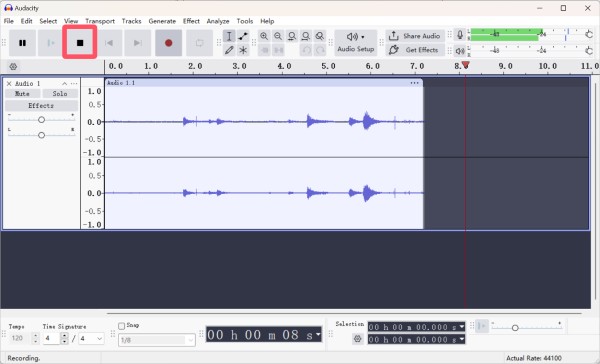
Step 3.The process of recording will start automatically. When finished, click the "Stop" button.
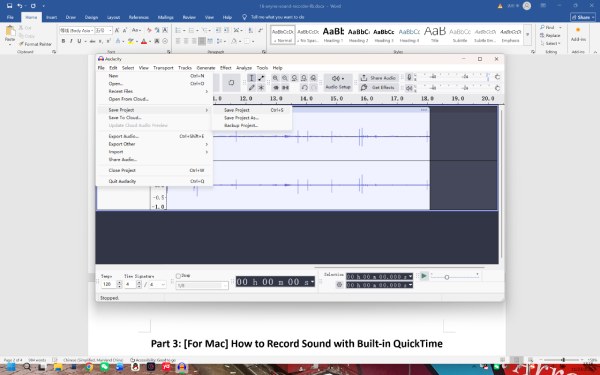
Step 4.Under the "File" tab, click the "Save Project" button to save the recording to your computer.
Part 3: [For Mac] How to Record Sound with Built-in QuickTime Player
Since Mac provides so many valuable tools for your workflow, a sound recorder is also included. QuickTime Player comes pre-installed and offers a straightforward way to capture high-quality sound. From recording voiceovers to system audio, it allows users to start, pause, and save recordings effortlessly. And one of the most significant advantages is that you can share the recording with other Apple devices across iCloud. To record sound on a Mac, you can follow the steps below:
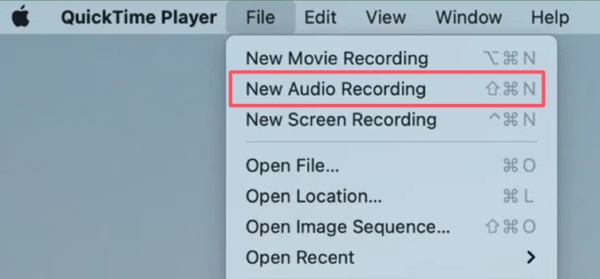
Step 1.Launch QuickTime Player on your Mac. Under the "File" tab, click the "New Audio Recording" button.
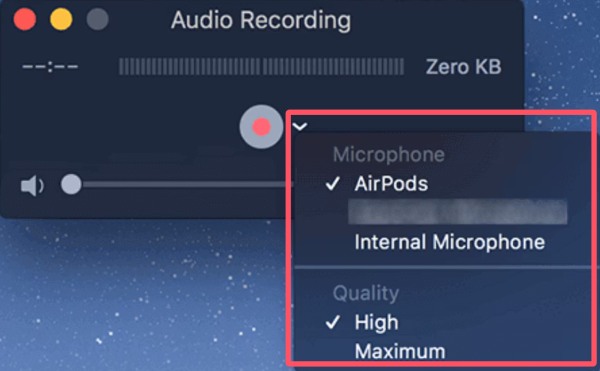
Step 2.You can click the "Options" button to adjust record settings like the microphone and recording quality.
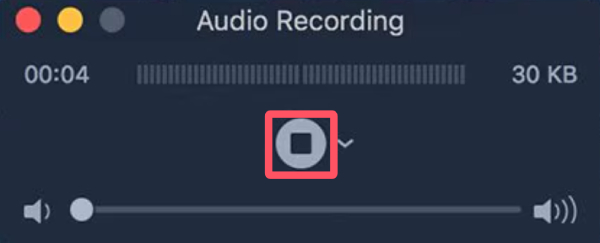
Step 3.When you're ready, click the "Record" button to run the sound recorder on your Mac. To stop the process, click the "Stop" button.
Part 4: [Web-Based] A Trustworthy Online Sound Recorder
Sometimes, recording software can be troublesome, such as using another computer temporarily. And in these situations, a web-based sound recorder comes as a better choice. You can record all the sound on the device without installing any software. Online sound recorders offer convenience and speed, while providing accessibility from any device with an internet connection. While they may rely on a stable internet, many online recorders offer decent audio quality and simple export options for instant use.
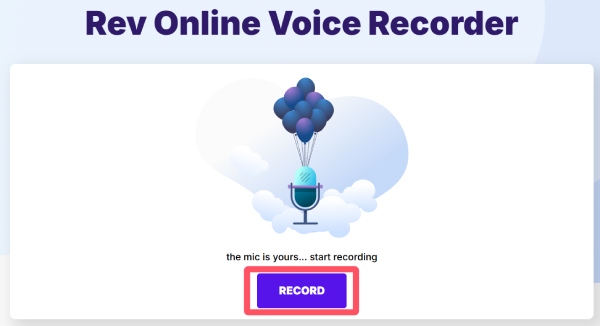
Step 1.Navigate to the official website of Rev Online Voice Recorder and click the "RECORD" button.
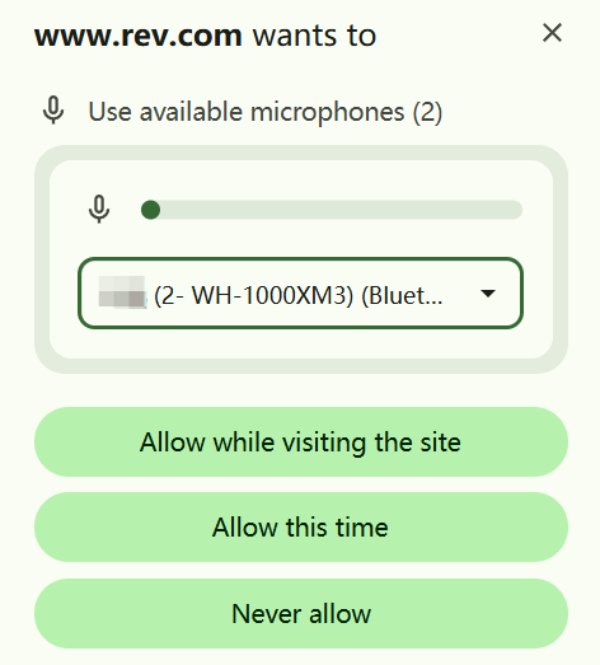
Step 2.A pop-up window will appear, requesting permission for the usage of your microphone. Click the "Allow this time" for one-time use.
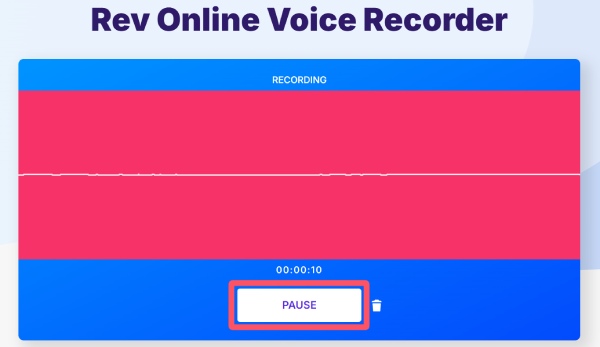
Step 3.The sound recorder will start automatically. When finished, click the "PAUSE" button.
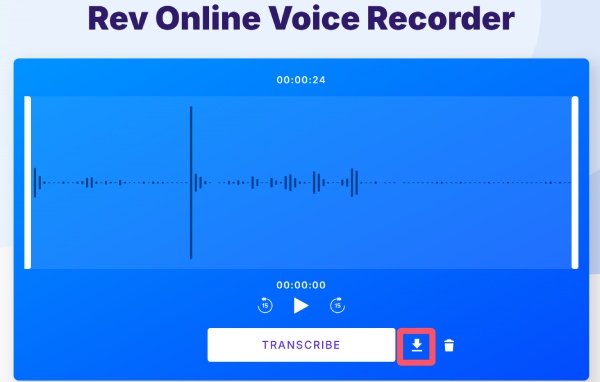
Step 4.Click the "PREVIEW" button to proceed. To save the recording, click the "Download" button.
Part 5: [For Android] Built-in Sound Recorders with Efficiency
For Android devices, every model of device provides a particular way of sound recording in general. Despite a few differences in the operation, these tools can ensure your recordings are organized and accessible. Some voice recorder apps also offer basic editing features, making it easy to trim or enhance audio without switching devices. This section will take the Samsung Galaxy as an example.
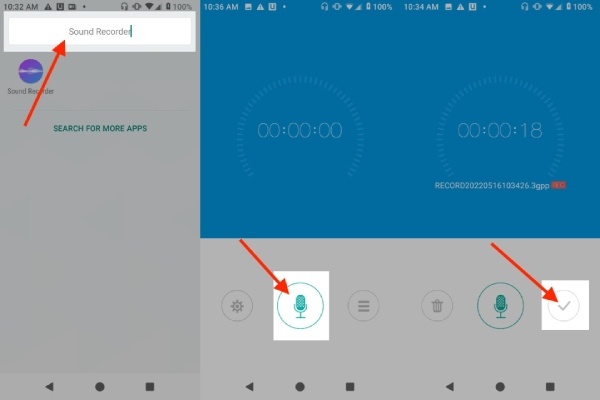
Step 1.Navigate to the sound recorder of the phone by searching or simply finding it among the apps.
Step 2.Tap the "Record" button to start the process of recording the sounds and voices on your device.
Step 3.When finished, tap the "Stop" button. Then, tap the "Save" button to save the recording on your phone.
Part 6: [For iPhone] How to Use Voice Memos to Record Sound
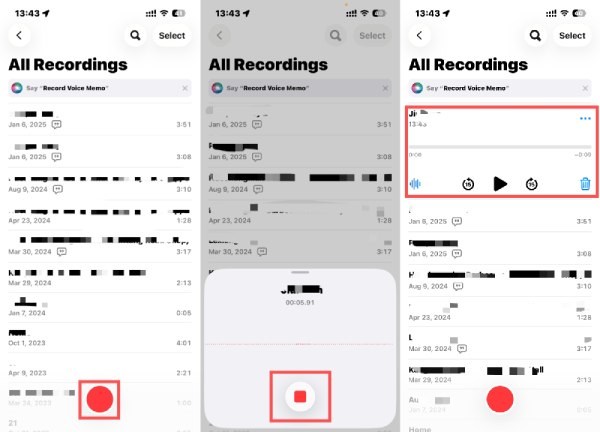
If you're an iPhone user, the Voice Memos app provides a simple yet effective way to capture audio. This built-in sound recorder supports high-quality recording, easy labeling, and sharing across Apple devices via iCloud. Whether you want to record for interviews, lectures, or quick notes, the app requires no additional installation. While it's straightforward, advanced editing might require exporting recordings to other apps for more precise adjustments.
Step 1.Launch Voice Memos on your iPhone and simply tap the "Record" button to start the process of recording.
Step 2.Tap the "Stop" button when you finish the recording with this default sound recorder on your iPhone.
Step 3.The recording will be saved automatically and displayed on the list. You can listen to it right away.
Conclusion
There will always be the best sound recorder, no matter what kind of devices you are using. Each tool is capable of capturing clear, reliable audio. Understanding each tool's strengths and limitations ensures smooth audio capture, whether for work, study, or personal projects. Among all these choices, AnyRec Screen Recorder works for all devices with powerful features. You can download and try it for free right now.
Secure Download
Secure Download
Related Article
About Our Author




