
 Take a full/custom/scrolling screenshot with annotations.
Hot

AnyRec Screen Recorder
Screenshot in full screen, entire page, or custom region.
Secure Download
Quick Tutorial: How to Convert Screenshots to PDF Format

Converting screenshots to PDF helps you keep important information clear and makes it convenient to share across different devices. When you save important information as screenshots, you may find that the image format is not conducive to subsequent work. Regardless of whether you are using Windows, Mac, or a mobile device, there are practical methods for converting screenshots to PDF. This guide will provide you with reliable methods for various operating systems or devices, helping you convert screenshots to PDF for a smooth workflow.
Guide List
Part 1: How to Take a Screenshot with Original Quality Part 2: [Windows] How to Convert Screenshot to PDF Format Part 3: [Mac] How to Turn Screenshots into PDF Files via Preview Part 4: [Android] How to Save Screenshots as PDF Using Google Photos Part 5: [iPhone/iPad] A Default Screenshot-to-PDF ConverterPart 1: How to Take a Screenshot with Original Quality
Before converting screenshots to PDF files, your primary task is to ensure the screenshots themselves are clear and complete; otherwise, important information may be lost during the conversion process due to blurry and unrecognizable image content. Therefore, a reliable screenshot tool is essential when using screenshots to save important information. Using professional tools to capture images can help you preserve the original quality, accurate colors, and readable text of the screenshots, ensuring that important information is not lost.
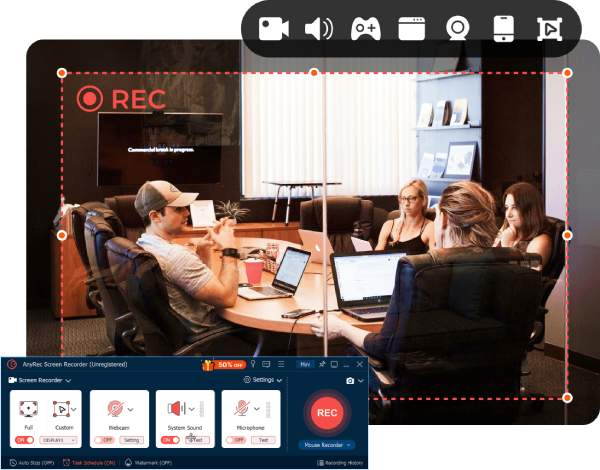
When it comes to taking clear screenshots on any device, AnyRec Screen Recorder stands out as a stable and flexible solution for maintaining its original quality. When you take screenshots using AnyRec Screen Recorder, you'll find that your screenshots have remarkably clear details, maintaining sharp resolution. As for advanced features, quick editing is allowed to crop or adjust screenshots before saving. These features are crucial for converting screenshots to PDF files.

Customize the area that needs to be captured on the screen.
Preserve the screen content according to the original quality.
Edit the screenshot the way you want before saving it.
Support custom shortcut keys to facilitate operation easily.
Secure Download
Secure Download
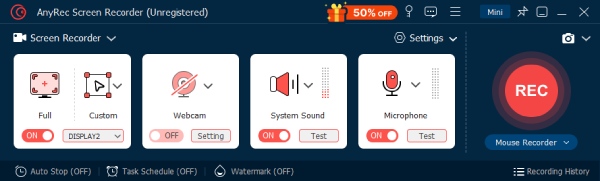
Step 1.Launch AnyRec Screen Recorder and navigate to the process that you want to take a screenshot of.
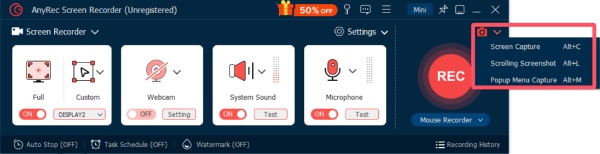
Step 2.Click the "Screenshot" button and select the capture mode that suits your needs. And the tool will run automatically.
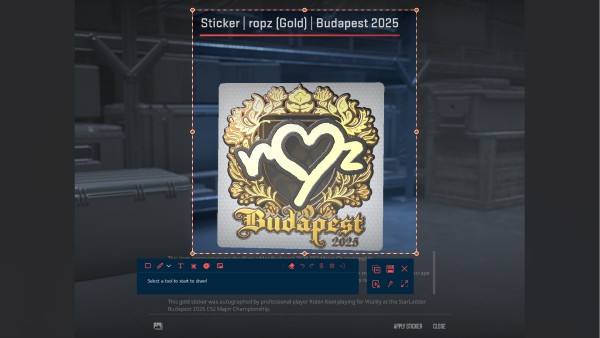
Step 3.Drag and select the specific area that you want to take a screenshot. Then, click the "Save" button.
Part 2: [Windows] How to Convert Screenshot to PDF Format
After cropping screenshots on Windows, it also offers several built-in ways to convert screenshots into PDF files. You can take Print to PDF as a default way to help you complete the task without installing extra software. This method works well for simple conversions and is suitable for users who only need to convert screenshots occasionally.
Step 1.Launch the Photos app and open your screenshot. Click the "Print" button and then the "Microsoft Print to PDF" button.
Step 2.Click the "Print" button. A window will pop up for you to select the destination folder.
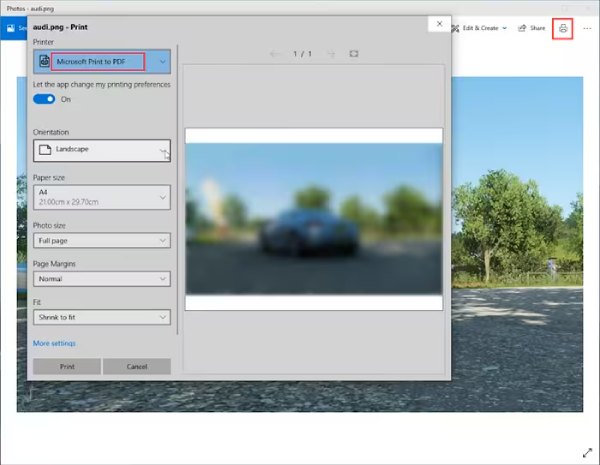
Step 3.Finally, click the "Save" button, and your screenshot will be saved as a PDF.
Part 3: [Mac] How to Turn Screenshots into PDF Files via Preview
If you're using a Mac, Preview serves as a convenient built-in tool for converting screenshots to PDF. You will find it a very easy task to open image files, adjust layout, and export them directly as PDFs. This approach is efficient for Mac users who want a quick and native solution without relying on third-party applications.
Step 1.After you screenshot a part of your screen on Mac, right-click the screenshot file, click the "Open With" button, and then the "Preview (default)" button.
Step 2.Within the "Preview", click the "File" button on the menu and then click the "Export to PDF" button.
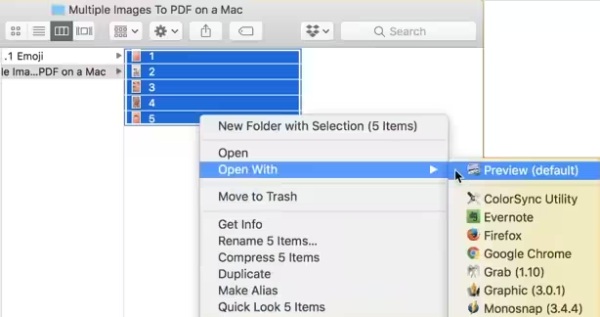
Step 3.Type the name of your file, and then your screenshot will be turned into a PDF file on your Mac.
Part 4: [Android] How to Save Screenshots as PDF Using Google Photos
Android users can convert screenshots to PDF directly through Google Photos. As a powerful gallery app to manage your images, this app also provides a simple "Print" or "Save as PDF" option, making it easy to turn screenshots into documents for sharing or storage. This method is beneficial for mobile users who need quick conversions on the go.
Step 1.Navigate to the "Screenshot" folder after you open Google Photos, tap to select the screenshot you want to convert.
Step 2.Tap the "Options" button, and then tap the "Print" button, and a new page will pop up.
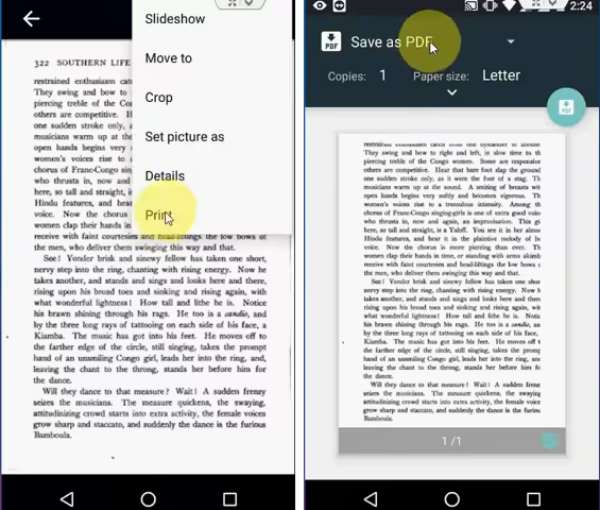
Step 3.You can preview the PDF file before saving it. Finally, tap the "Save" button and convert your screenshot to PDF format.
Part 5: [iPhone/iPad] A Default Screenshot-to-PDF Converter
And this task can be as simple as using your iPhone or iPad. After capturing a screenshot, users can instantly save it as a PDF without complex operations. This built-in solution supported by iOS and iPadOS is efficient and requires no additional apps. You can follow the steps below and finish the task in no time:
Step 1.Open the Photos app on your iPhone and find the screenshot for conversion to PDF format. Tap the "Share" button.
Step 2.On the pop-up window, tap the "Print" button to open a new page.
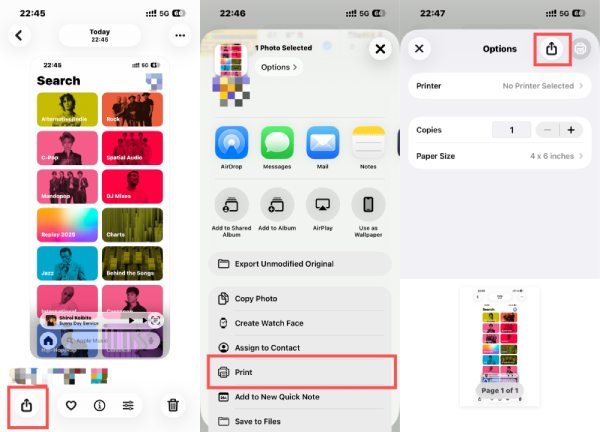
Step 3.Tap the "Share" button under the "Options" tab. Finally, tap the "Save to Files" button.
Conclusion
Conversion from screenshots to PDF can help you better manage important information in a suitable format. Regardless of your device, you'll find that they offer a quick and easy way to convert file formats. The more critical and challenging aspect is preserving sufficiently clear and complete screenshots to ensure no information is lost. AnyRec Screen Recorder can help you with this; download and try it for free now if you need it.
Secure Download
Secure Download



