
Hot

AnyRec Screen Recorder
Capture every moment. Record like a pro.
Secure Download
How to Record Video Call on Viber [3 Ways with Quick Guide]

How to record a video call on Viber? Well, you probably wish to save one of your conversations or those upcoming ones, maybe for personal memories, documentation, content creation, etc. If you do, unfortunately, you can't do that since Viber doesn't support a built-in recorder, which you might already know. In that case, you can follow steps below to record Viber calls with audio, along with some information you need to know. So, dive in below!
Guide List
Is It Legal to Record Viber Video Calls How to Record Viber Calls on Windows and Mac How to Record Viber Video Calls on iPhone How to Record Viber Calls on Android Troubleshoot Viber Call Not RecordingIs It Legal to Record Viber Video Calls
Before diving into this post's three simple walkarounds to record video calls on Viber on desktop, iPhone, and Android, you first need to know where it is legal to record Viber video calls. So, is it legal? Well, it depends on the laws of various countries or locations.
• One-party consent regions (e.g., some U.S. states, Singapore)
In one-party consent, only one participant in the conversation must be aware of the recording. This means that if you are part of the conversation that takes place, of course, in Viber, you may legally record it without informing the other party, as long as local laws apply.
• Two-party (or all-party) consent regions (California, EU countries, Australia, etc.):
In two-party or all-party consent regions, on the other hand, all participants must give their consent before any recording activity takes place. In that case, recording a Viber video call without permission in these locations may be illegal and could result in penalties.
Sometimes, Viber calls often involve people from different countries or regions, which might apply on your end; it's safest to assume that all participants, of which you are part, must agree before recording. It would be better always to inform the other person and obtain explicit consent to avoid legal and ethical issues.
How to Record Viber Calls on Windows and Mac
If you are using a desktop and wish to record a video call on Viber, you can use the professional AnyRec Screen Recorder to capture everything with ease and in high quality. This desktop-based video recorder allows you to record Viber video calls in full screen, a specific window, or any selected area of your screen where the call is displayed. It can also record not only system audio but also your voice from a microphone at the same time. All those are recorded in 4K video and in the highest audio quality, with noise removed and echo. With that, you can obtain the best recording experience and output from this Viber call recorder! Just don't forget to prioritize consent laws and ask for permission. So, how to start a Viber call recording on Mac/Windows? See the steps below.

Enables you to record yourself on a webcam during a Viber video call.
Supports showing mouse clicks and keystrokes for the Viber video call presentation.
Lets you take screenshots during the Viber video call recording and apply annotations.
Capable of recording Viber video and audio calls with maintained original audio quality.
Secure Download
Secure Download
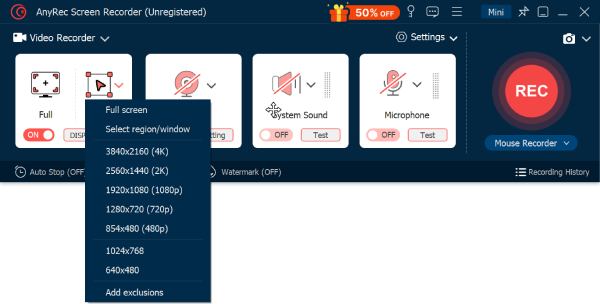
Step 1.Install AnyRec Screen Recorder on your computer. Next, run it and decide whether to record the Viber video call in "Full screen" or a specific "region/window".
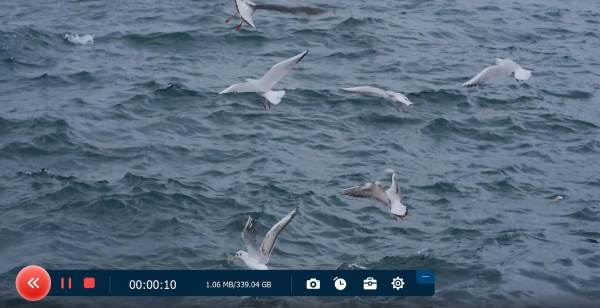
Step 2.Next, click "REC" to start recording the Viber video call. During the recording process, you can adjust the record length, take screenshots, edit the recording, or adjust the volume.
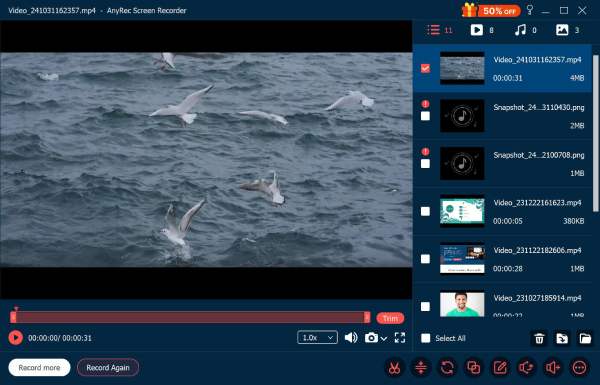
Step 3.Once done, click "Stop" to finish the recording process. In the preview section, you can modify the recording based on your preferences. And that's it! That's the simple steps on how to record a Viber video call on PC using this professional tool.
Secure Download
Secure Download
How to Record Viber Video Calls on iPhone
You can use the built-in iOS screen recorder record Viber calls on iPhone and iPad. With its built-in iPhone recorder, you can screen record on iPhone without installing extra apps. So, how to record a video call on Viber using your iPhone? Here are the steps you need to follow:
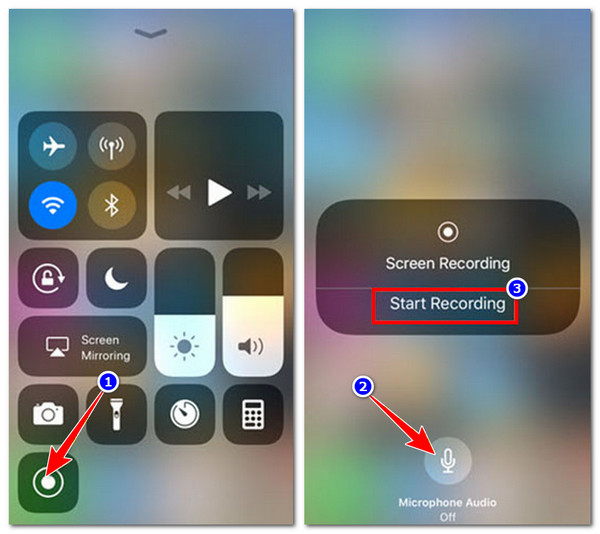
Step 1.Ensure that the Viber video call is already ongoing or the call is just about to start. Then, swipe from the top-right corner of the screen to access the "Control Center".
Step 2.From there, press and hold the Screen Record button. Turn on the Microphone to capture your voice, and select your preferred audio source if prompted.
Step 3.After that, tap the "Start Recording" button to start the recording process after the 3-second countdown. Once done recording, tap the "red recording bar" button to stop it.
How to Record Viber Calls on Android
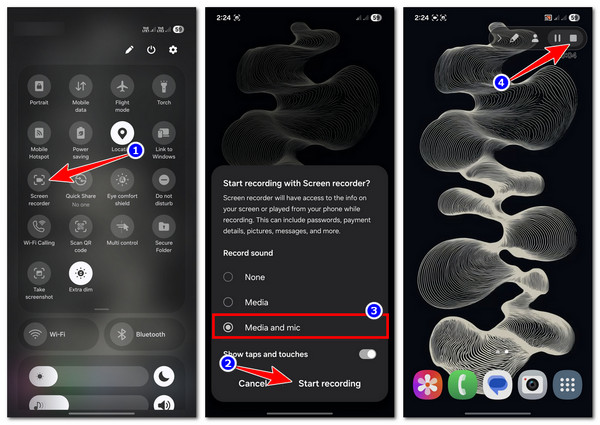
Recording a Viber video call on Android is the same goes with iPhone. Android also supports a built-in screen recorder, which is enough to help you record all the moments you will have during your Viber call. Here are the steps to screen record on Android of Viber calls.
Step 1.Ensure that the Viber video call is already ongoing or the call is just about to start. Access the Quick Settings panel by swiping down the top-right section of the screen.
Step 2.Next, look for the "Screen recorder" option and tap it. Then, choose "Media and mic" to capture both media and your voice on a microphone.
Step 3.Then, tap the "Start recording" button to start recording the Viber video call. Once done, tap the "Stop" icon to stop and save the recording.
Troubleshoot Viber Call Not Recording
There you have it! Those are the three best ways you can record Viber calls, and some critical information you need to know before recording a Viber video call. Now, in case you are having an issue while recording a Viber video call, here are some of the best troubleshooting steps you can take.
1. No sound in the recording
If the recorded Viber video call doesn't have any sound, then you probably forgot to turn on the microphone audio. Make sure the microphone audio is turned on and check the volume levels on your device. Later, you can record Viber video calls with audio.
2. The screen recorder doesn't start
If the screen recorder doesn't start, then your device might not support Viber video recording. Otherwise, try to close other apps running in the background that might interfere, and try restarting your device if the recorder still doesn't launch.
3. Video quality is blurry
Another thing that might bother you is the video quality of the recording, which is blurry. To prevent this from happening again, make sure the Viber call is in full-screen mode and check your internet connection. Why? Poor connectivity can reduce the call resolution.
4. Phone overheats
Recording video calls for hours can put a heavy load on your device's CPU and battery, which results in overheating. To prevent this, keep your phone in a cool place, avoid charging while recording, no direct sunlight, and close unnecessary apps to help reduce heat buildup.
5. General tips
Other tips you also need to remember are to always make sure there is enough free storage space, as low storage can stop recordings. If mobile recording consistently fails, consider using a desktop recorder, like AnyRec Screen Recorder, for better quality and reliability.
Conclusion
Now that you know whether it's legal to capture Viber video calls, the three best ways to do it, and helpful troubleshooting tips, it's time to start capturing all your special moments during your Viber calls! You can record your video call moments on Viber through the simple yet effective ways mentioned here! However, this post suggests using the desktop-based solution, which is AnyRec Screen Recorder for smooth, high-quality, and trouble-free Viber video call recording! Feel free to try this too today and witness its excellent service.
Secure Download
Secure Download
Related Article
About Our Author




