
 Capture everything. Miss nothing. Crystal Clear.
Hot

AnyRec Screen Recorder
Record and screenshot any video on Windows and Mac.
Secure Download
Guide to Bypass Screen Recording Restrictions on Andorid/iPhone

Some apps on Android and iPhone don't allow screen recording. This is often done to protect private or paid content. When you try to record, you may see a black screen, lose the audio, or get a message that recording isn't available. What you can do depends on the app and your phone. Some restrictions can't be removed. This guide covers the options that are available, including AnyRec Screen Recorder for content you have permission to record.
Ask AI for a summary
Whether documenting bugs, capturing essential content, or just saving content, you need to record your Android and iPhone screen. But what if you only see a black screen? Is it possible to screen record restricted apps on Android/iPhone? Today's guide will give answers, sharing five practical ways to capture protected content from iPhone and Android and tips to bypass those limitations. Start looking for the best way recording solution!
Guide List
Why Can't I Screen Record Certain Apps Record Restricted Apps with AnyRec Screen Recorder [No Root] Which Method Actually Work for Recording Restricted Apps Can a Capture Card Record a Restricted App Why Airplane Mode, Virtual Spaces, Zoom, and Mirroring Usually Fail to Unrestrict Screen Recording Use Another Phone or Camera to Capture Restricted Apps Legal and Privacy Considerations of Recording Restricted Apps Tips to Bypass Record Restriction on iPhone and Android FAQsWhy Can't I Screen Record Certain Apps
If a recording fails, your phone's recorder may be fine. The block usually comes from the app, the video, or a setting on the device.
Android: Apps can mark a screen as secure with a setting called FLAG_SECURE. Once it's on, Android stops screenshots and keeps that screen out of most casting and screen-sharing tools. Banking, payment, password, and work apps often turn it on.
iPhone: Apps can detect an active recording and hide sensitive content. Video protected by Apple's FairPlay Streaming is left out of screen recordings, mirroring, and AirPlay. That's why you may see the app interface but a black video area.
Device restrictions: A parent may have turned on Screen Time or parental controls, or an employer may use mobile device management (MDM) to block screen capture. In that case, the recorder might not work even before you open the app.
Check this table to know problems, reasons and troubleshootings about screen recording block bypass.
| Problem | Possible Reason | Solution |
| Entire app is black. | Secure window or device policy. | Check app and device policies. |
| Only video area is black. | DRM or protected rendering. | Use official download or viewing options. |
| Recording fails to start. | Permissions or capture session issue. | Check system recording settings. |
| Video works but no audio. | Audio capture restrictions. | Check supported audio sources. |
| Recording works in other apps. | App-specific restriction. | Contact app provider. |
| Screen mirroring is also blocked. | Secure display restrictions. | Use approved export or sharing. |
Record Restricted Apps with AnyRec Screen Recorder [No Root]
When recording restricted apps on Android and iPhone, it is crucial to navigate carefully to avoid violating the app’s policies or terms of service. Since they have built-in protections, how can you screen record restricted apps without root on Android and iPhone? Record with AnyRec Screen Recorder! This versatile tool lets you capture screen activity on your mobile device using the Phone Recorder by mirroring it first and then recording on a bigger screen. It also offers an intuitive interface and features like system audio capture, mic input capture, annotation tools, and more, which make it great for various recording tasks.
Record in full HD up to 4K, giving you a crisp, detailed video recording.
During recording, you can annotate on the screen and take a screenshot.
Preview and trim your video, removing unnecessary parts before saving.
Ensure a smooth phone recording with no lag or any interruptions.
Secure Download
Secure Download
Step 1.Fire up the AnyRec Screen Recorder and choose "Phone Recorder" from the main screen. A window will pop up asking you to determine your device type: Android or iOS.
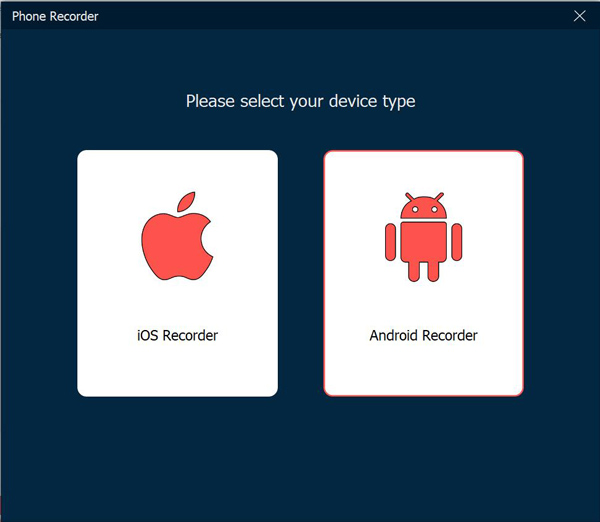
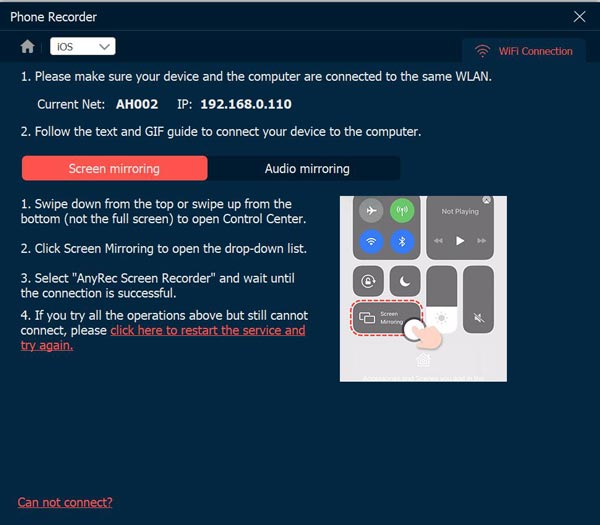
Step 2.Follow the steps for your respective device type:
• For iOS: After clicking "iOS", select "Screen Mirroring". Then, on your iPhone, open the "Control Center" and tap "Screen Mirroring". Then, tap "AnyRec Screen Recorder" to screen record on iPhone.
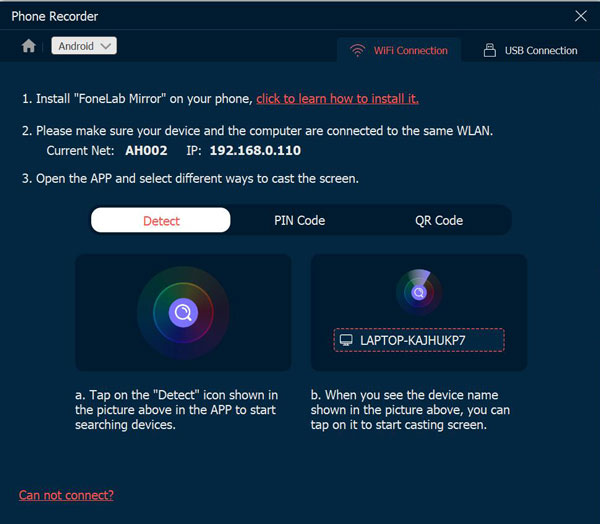
• For Android: Select "Android" and choose whether to connect via Wi-Fi or USB. For Wi-Fi, both your phone and computer need to be on the same network. Use "FoneLab Mirror" to connect.
Tap "Detect" to start mirroring; otherwise, enter the "PIN Code" shown or scan the "QR Code". For USB, simply connect your Android device to a cable.
Step 3.After connection, your phone screen will show up on your desktop. You can select the main sound source and start screen recording restricted Android and iPhone apps on PC.
Which Method Actually Work for Recording Restricted Apps
A screen recording method that works for a normal app is not automatically able to capture protected content. Instead of long paragraphs, you can check this table first.
| Method | When it can work | When it cannot work |
| Built-in Android/iPhone recorder | The app and content permit screen capture; the device has no policy blocking recording. | Cannot override FLAG_SECURE, FairPlay-protected video, or device-management restrictions. |
| AnyRec Screen Recorder | The phone can expose the screen through a supported mirroring/capture path and the app permits that output. | It does not remove Android secure-window flags or decrypt DRM. If the mirrored output is black, the desktop recorder cannot restore the missing pixels. |
| Virtual-space / cloning app | May help with app compatibility or account isolation in some unrelated use cases. | Not a dependable screen-capture workaround for FLAG_SECURE or DRM. Do not present it as a bypass. |
| Airplane mode | May help troubleshoot an app that requires a network connection, but it does not change OS capture permissions. | Does not remove FLAG_SECURE or DRM. Offline mode is not a general recording fix. |
| Zoom / screen sharing / wireless mirroring | Useful for collaboration when the app permits sharing and the device allows capture. | Secure windows and protected video may be hidden from the shared display. iPhone cannot screen-record and screen-mirror at the same time. |
| HDMI adapter + capture card | Can capture a supported, unprotected external video output when the phone, adapter, app, and capture card all support the required signal path. | Not universal. HDCP-protected output is blocked by compliant capture cards. Many phones/apps do not provide a usable HDMI output, and secure content may remain black. |
| Film the phone with a separate camera | Can document visible on-screen activity when you have permission and the display itself is visible. | Lower image quality, glare/flicker, reflections, and poor audio. It does not make unauthorized copying lawful. |
Can a Capture Card Record a Restricted App
Sometimes. It works only if your phone can send a compatible video signal and the content isn't protected by copy control. You'll need a phone or USB-C video adapter that supports video output, an HDMI cable, a capture card, and a computer with recording software. Not every phone supports video output over USB-C.
A capture card won't reliably record DRM-protected video. HDMI copy protection (HDCP) is designed to stop compliant capture devices from recording protected signals, and card makers say an HDCP-protected input won't display or record. Expect a blank screen or no signal.
Before you record a presentation, a training demo, or an app walkthrough, check that the app can output to an external display. Stick to content that's yours or that you have permission to record. If you want to keep a show or movie from a streaming service, use the download or share option built into that service.
Why Airplane Mode, Virtual Spaces, Zoom, and Mirroring Usually Fail to Unrestrict Screen Recording
These tricks can fix other recording problems, but they don't remove the security rules on a protected window or video.
- Airplane Mode: It only changes connectivity. It doesn't disable a secure-window flag or decrypt an offline DRM license.
- Virtual-space apps: They run another app in a separate environment. But don't gain permission to capture a secure window.
- Zoom and screen-sharing tools: Those apps use the same capture paths that protected apps can restrict.
- Screen Mirroring: It is another form of screen output. If the app blocks non-secure displays, the image may be black.
Use Another Phone or Camera to Capture Restricted Apps
Finally, using a second phone to screen record restricted apps on Android or iPhone is a simple yet effective method. While it may not provide the same quality as the direct screen recording, it is an ideal solution when the above methods fail. With the external camera, you can capture the phone’s screen, bypassing any software restrictions.
Step 1.First, ready a secondary device, it could be a phone or camera. Ensure it is appropriately placed to capture the screen of your mobile device without obstructions clearly.
Step 2.On your main phone, open the app and adjust the camera as needed. Start recording on the second device, and make it remain steady and focused on the main.
Step 3.Later, stop the recording and save and edit the video, if necessary, using a video editing app.
Video Guide: Bypass App Recording Restrictions on iPhone and Android
This video shows how to mirror your phone to PC and record apps that block screen recording. So, you can record any app freely.
Watch the video tour
Secure Download
Secure Download
Legal and Privacy Considerations of Recording Restricted Apps
A recording restriction may protect personal data, confidential business information, or copyrighted media. Being able to view something doesn't mean you can copy, store, or share it. Get permission from the app owner, content provider, employer, or anyone whose information appears.
In the US, Section 1201 of the Digital Millennium Copyright Act (DMCA) covers circumventing certain technological measures that control access to copyrighted works. It has exemptions, so the outcome depends on the facts. Recording or distributing copyrighted material may also raise copyright, contract, privacy, or workplace-policy issues. This is general information, not legal advice.
Tips to Bypass Record Restriction on iPhone and Android
Bypassing record restrictions on iPhone and Android can be tricky due to security features made to protect their content. While there are already mentioned ways to screen record protected apps on Android and iPhone, here are some tips to bypass these restrictions while keeping things in fair use:
1. Use the Built-in Screen Recording Features.
Fortunately, both iPhone and Android offer built-in recorders. For iPhone, you can get it from Control Center, while Android has it in the Quick Settings menu. With this feature, you can start recording your screen quickly with no third-party apps.
2. Get Third-Party Apps.
Suppose the built-in recorder does not work. Try apps like AZ Screen Recorder for Android and Record It! for iPhone. These tools offer extra features like adding annotations or editing tools after recording. It can also possibly bypass the restriction that limits the built-in recorders.
3. Check Screen Time/Parental Control.
Restrictions on recording may happen because of parental controls or screen time settings set on both mobile devices. Check for them in Settings and make some adjustments or disable the restriction if you know the password or have permission to do so.
4. Use a Computer for Recording.
If the phone recording capabilities are limited or disabled, you can bypass these restrictions using computer software. For iPhone users, QuickTime on Mac will mirror your screen and record from there.
5. Rooting Android and Jailbreaking iPhone.
This solution means you bypass most software restrictions. However, this comes with risks like voiding warranties, exposing your device to security issues, system instability, and more.
FAQs
-
Can Airplane Mode remove restrictions?
No. Airplane Mode just turns off Wi-Fi, mobile data, and Bluetooth. The protections on your phone, like Android's FLAG_SECURE, iOS capture limits, and DRM, are built into the app and the system, so they keep working with or without a connection.
-
Is my phone or the app blocking recording?
Test the built-in recorder on your home screen, then in an ordinary app. If it only fails in one app, or only while a video is playing, the problem is with that app or video. If it fails everywhere, the cause is probably a setting: Screen Time, parental controls, or a work (MDM) policy.
-
Does rooting or jailbreaking help?
No. Rooting or jailbreaking leaves your phone more exposed, can void the warranty, and may break the service's terms. Even after you do it, DRM often still blocks the recording. It is not worth to take the risk.
Conclusion
Now you know how to screen record restricted apps on Android/iPhone! While there are many tools that can help, it’s crucial to stay within the bounds of guidelines, ensuring your recording complies with their security measures. For those seeking an easy and reliable way to record protected content on iPhone and Android, AnyRec Screen Recorder offers an excellent solution. With this powerful tool, you can capture high-quality recordings on any device and enjoy tons of exciting features like annotating, webcam integration, customization, and more, making it ideal for your recording needs.
Secure Download
Secure Download
Related Articles
About Our Author