
How to Compress Videos on iPhone: A Beginner-Friendly Guide

How to compress a video on an iPhone? This is a question many people may face, especially when sharing videos with others or trying to save space. By reducing the video's size, you can make it easier to share and save it. This post provides you with five effective methods. Whether you are looking for default, convenient, or efficient options, you can find a suitable iPhone video compressor.
Guide List
iMovie: A Default Tool to Compress Videos on iPhone Handily How to Compress a Video on iPhone via the Files App for Easy Sharing 3 Web-Based Options: How to Compress Videos on iPhone Online A Powerful Solution - How to Compress Videos on iPhone EfficientlyiMovie: A Default Tool to Compress Videos on iPhone Handily
When it comes to how to make an iPhone video smaller, Apple offers you a built-in option to accomplish this task quickly. All you need to do is find the pre-installed iMovie on your iPhone, and you can quickly start the entire task process. Although there are not many customization options, iMovie offers several preset options to directly adjust the video's file size by modifying its quality. Follow the steps below to complete the process quickly.
Step 1. Launch the iMovie app on your iPhone, then tap the video you want to compress under the "Projects" tab. If it's not there, create a new project to import it.
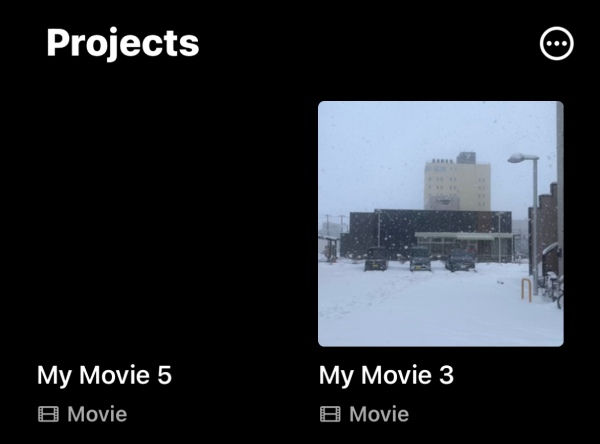
Step 2. At the bottom of the screen, tap the "Share" button and then tap the "Save or Share Video" button.
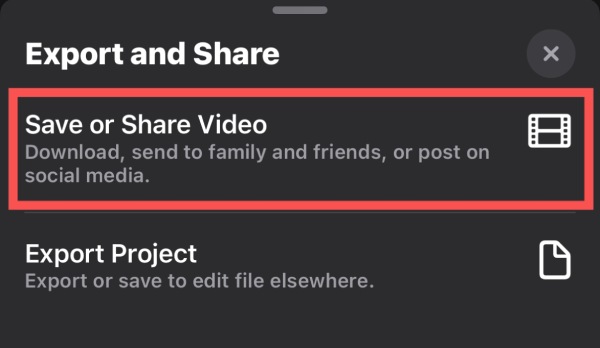
Step 3. In the pop-up window, tap the "Options" button to proceed with reducing the size of iPhone videos.

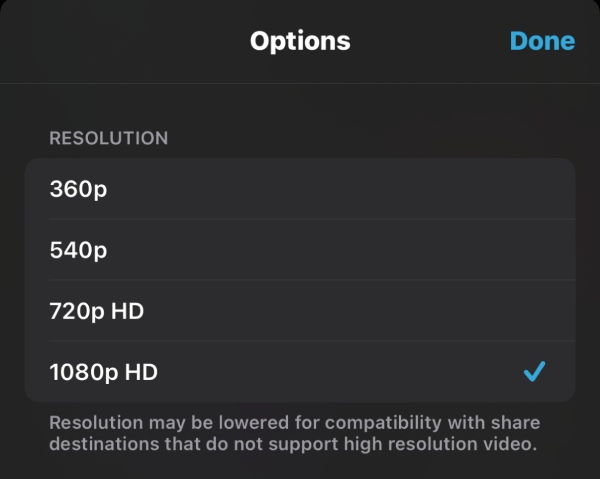
Step 4. Under the "Options" tab, several options are available to adjust the video quality and reduce its size.
How to Compress a Video on iPhone via the Files App for Easy Sharing
For sharing videos, compressing them into ZIP archives is more common. ZIP files have significant advantages during file transfer, as they can reduce the total number of bits and bytes, enabling faster transfer over slower internet connections. So, how do you zip a video on an iPhone? This task can also be completed quickly within the built-in Files app. If you don't know how to zip a video on iPhone, just follow the steps below to get started.
Step 1. Launch the Files app on your iPhone and navigate to the location of your video file.
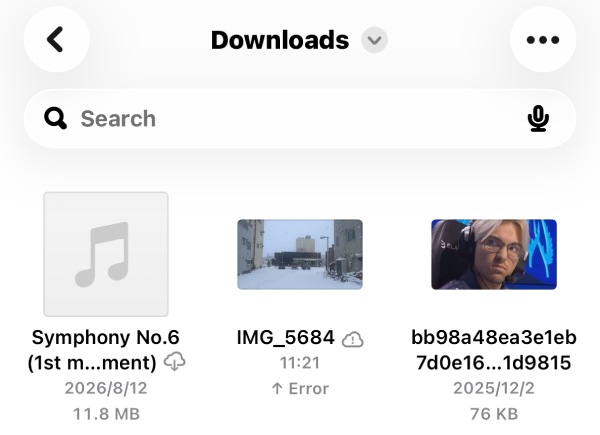
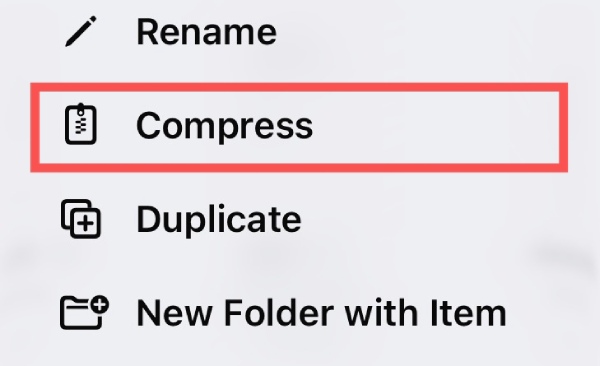
Step 2. Long-press the video file to display more options. Tap the "Compress" button to zip a video on iPhone.
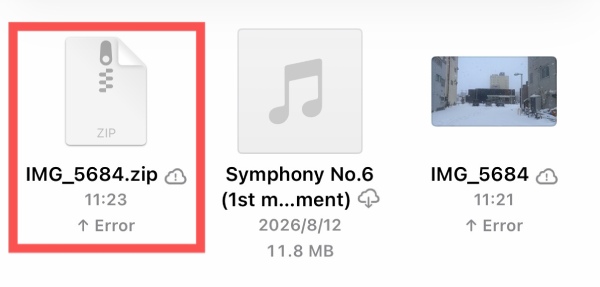
Step 3. A new ZIP file will appear in the same folder as the video. You can share the ZIP file without any loss of quality.
3 Web-Based Options: How to Compress Videos on iPhone Online
When you are curious about how to reduce the size of videos on iPhone, the default tools can quickly assist you. However, the custom options they offer are very limited. You can only roughly adjust the size of the video file, but you cannot compress it to a specific size. If you need this, you can use online tools in Safari or other browsers instead of downloading extra video compressor apps. This section provides you with 3 trustworthy tools to help you.
1. AnyRec Free Video Compressor - For Precise Control
For users who want to know how to compress iPhone videos for email, the first factor to consider is the exact size of the video file. Although different email services have varying limits on video file size, they usually range from 5MB to 10MB. This means you need to strictly control the size of the video files to stay within the specified limit. In this situation, you can use AnyRec Free Video Compressor to precisely control the video size by making specific adjustments to detailed parameters.
Step 1. Navigate to the official website of AnyRec Free Video Compressor on your iPhone. Tap the "Add Video" button to upload the video.

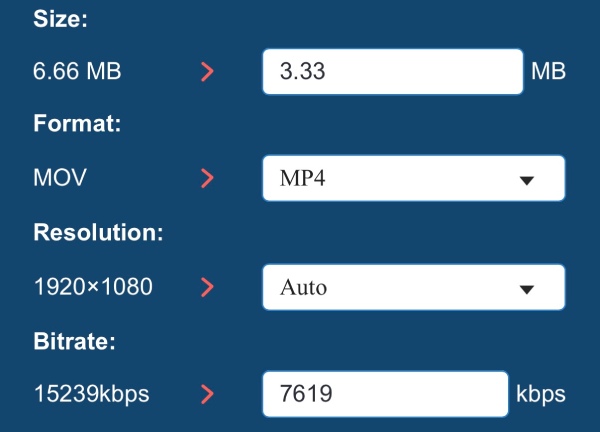
Step 2. After a short processing time, a new window will pop up. You can adjust the detailed parameters or enter a precise size.
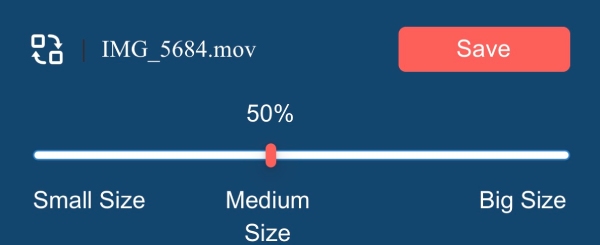
Step 3. Finally, tap the "Save" button to reduce iPhone video size and save it on your iPhone.
2. Clideo - For Quick Options
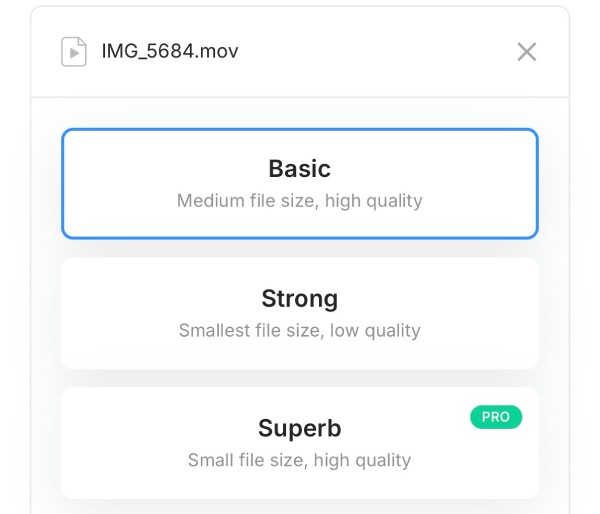
Convenience and speed are other important considerations for an online iPhone video compressor. Such a tool is not only user-friendly for beginners but also can save you a lot of time. Clideo is precisely the option that suits these scenarios best. This tool directly provides three different compression options to suit various scenarios. Although it cannot achieve extremely precise file-size adjustments, its intuitive setup still earns the trust of many users seeking efficiency.
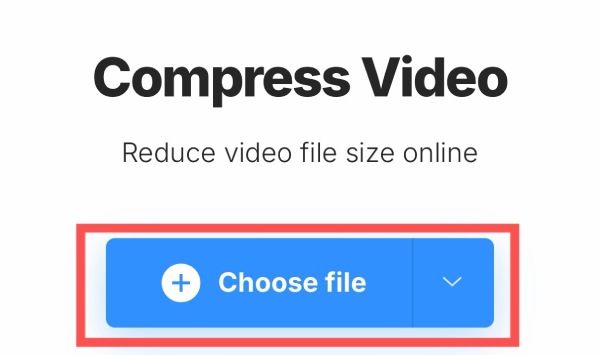
Step 1. Navigate to the official Clideo website and tap the "Choose file" button to upload the video to compress.
Step 2. Tap to select the compression setting from three options. The expected file size will be displayed.
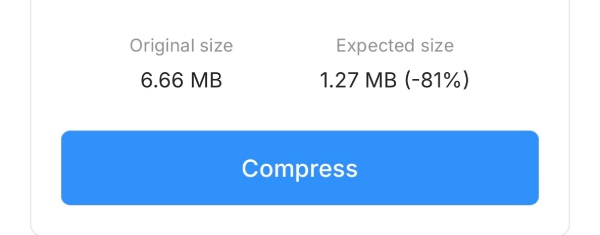
Step 3. Finally, tap the "Compress" button to start the iPhone video compressor in your browser.
3. FreeConvert - For Large Size
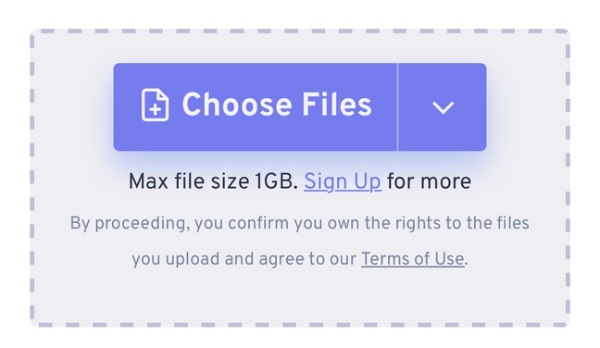
Many people's videos on their iPhones are not just short clips of a few seconds. Videos that are several minutes long also exist, and their size can be up to 500 MB or even 1GB. To handle videos of this size, an online tool with a relatively generous video size limit is required. FreeConvert lets you upload video files up to 1GB and quickly compress them for Instagram. However, it should be noted that your video quality will also be significantly affected after you use FreeConvert to compress a video on an iPhone for free.
Step 1. Navigate to the official FreeConvert website and tap the "Choose Files" button to import the video file.
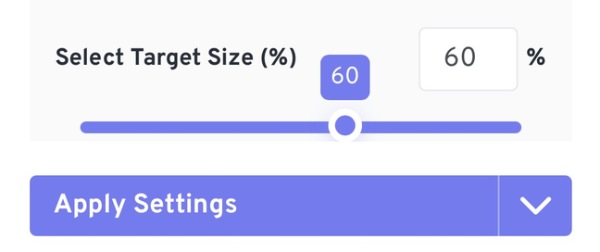
Step 2. Enter the number in the "Select Target Size (%)" tab to adjust.
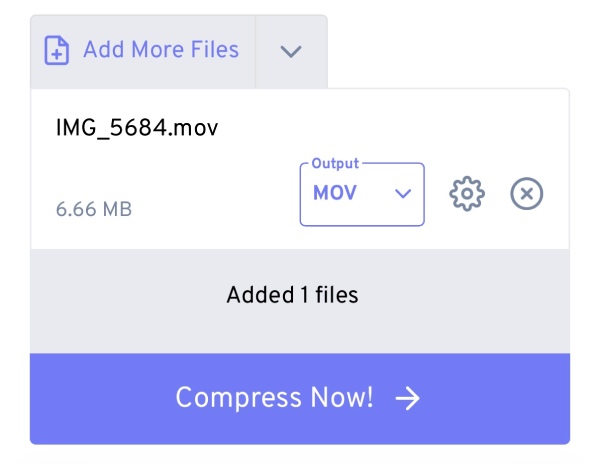
Step 3. Finally, tap the "Compress Now!" button to reduce the size of an iPhone video using FreeConvert.
A Powerful Solution - How to Compress Videos on iPhone Efficiently
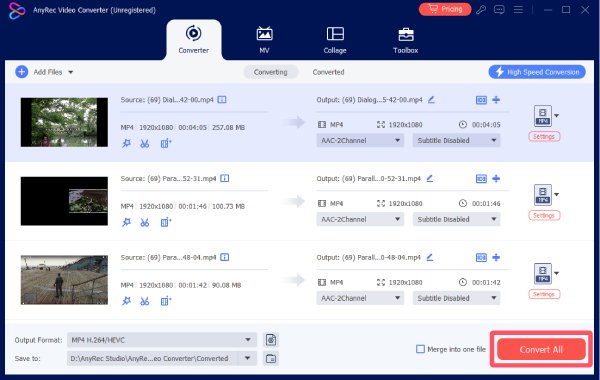
Whether using the default method or an online tool, you will find that they are unable to assist you when dealing with multiple videos and large video files. Either they do not support compressing multiple files simultaneously, or they do not support compressing videos with an excessively large original size. This has made many people wonder how to batch reduce the size of videos on an iPhone. AnyRec Video Converter is specifically designed to meet this kind of demand. You can simultaneously compress multiple large video files while ensuring that video quality and size strike the perfect balance.

Compress multiple video files at once from your iPhone.
There are no restrictions on reducing the size of video files.
Provide hardware acceleration to speed up video compression.
Support multiple common video formats for compression.
Secure Download
Secure Download
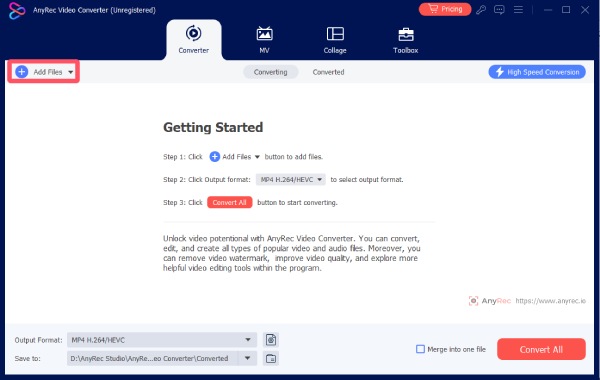
Step 1. Launch AnyRec Video Converter on your device and click the "Add Files" button to import the video files from your iPhone.
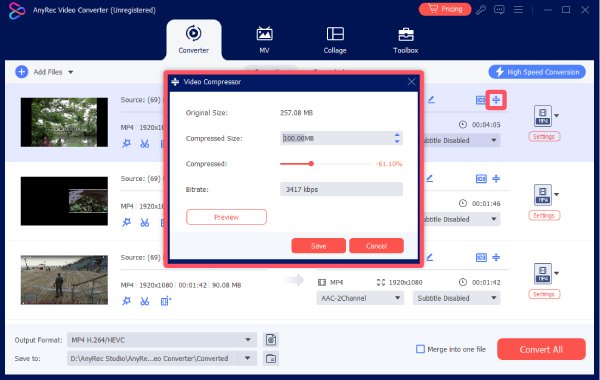
Step 2. Click the "Compress" button and adjust the video file size one at a time.
Step 3. Finally, click the "Convert All" button to reduce iPhone video sizes in batch.
Conclusion
Now you have learned how to reduce the size of a file on an iPhone in various ways, including video compression. Although the default methods and online tools can help you complete the task to some extent, they still have various limitations. If you want to compress multiple large video files at once, then AnyRec Video Converter is the best choice.
Secure Download
Secure Download
Related Articles:
About Our Author




