
4 Ways to Edit TikTok Captions after Posting (after 7 Days)

Ever posted a TikTok and noticed a typo or awkward wording right after hitting publish? You are not alone. The good news is that editing a TikTok caption is easier than it looks. You can generally edit the text, hashtags, and cover thumbnail within a 7-day window after posting TikTok videos. Even though the TikTok caption editing availability is down, you can still solve the problems with some tricks here.
Guide List
How to Edit a TikTok Caption after Posting Why Can't I Edit the Caption on My TikTok Video 3 Alternative Ways to Change a TikTok Caption Bonus Tips to Add Subtitles to TikTok VideosHow to Edit a TikTok Caption after Posting
TikTok now allows some users to edit captions on posted videos. But the caption editing feature is not available to everyone. And it may vary by app version, region, or account type. Here are the actual working methods that you can follow.
Steps:
- 1. Open the TikTok app. Go to your profile. Find the specific TikTok post you want to edit.
- 2. Tap the three-dot "Menu" button on the top right side of your phone screen.
- 3. Tap the "Edit post" button. (Or "Edit caption" button.)
- 4. Now you can edit caption text, hashtags, and more.
- 5. Tap the "Save" button to apply changes and repost the video on TikTok.
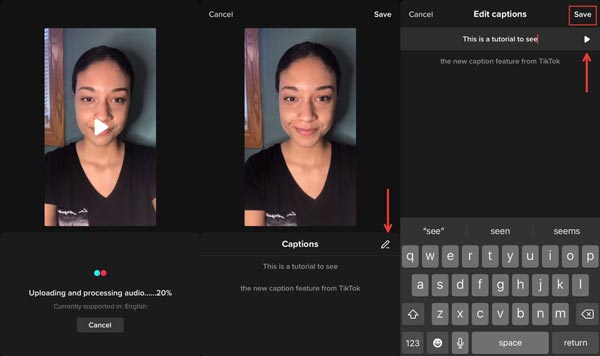
What you can edit: caption text, hashtags, mentions.
What you cannot edit: the video content, music or sound, filters, effects, or transitions.
My experience: The minor TikTok caption edits (typos, hashtags) save successfully. However, it may fails while doing extensive rewrites or revert.
Why Can't I Edit the Caption on My TikTok Video
Sometimes the TikTok caption edit option is invisible. The possible reasons are:
- • Caption editing function is available within 7 days of the original posting date.
- • You can edit the TikTok post once per day.
- • Your TikTok app is outdated.
- • This feature hasn't roll out to your region.
- • Your TikTok account isn't included in the current test group.
- • This TikTok video was posted before the caption editing feature was enabled.
So here are some quick fixes of TikTok caption editing you can try:
- • Update to the latest TikTok app.
- • Restart the TikTok app. (You can restart iPhone too.)
- • Log out and then log back in to the TikTok app.
- • Try to post a new video to see if the edit button shows.
3 Alternative Ways to Change a TikTok Caption
If your account does not support post editing, here are some possible methods to replace TikTok captions.
1. Delete and Reupload the Video
- 1. Tap the "Save Video" button in the three-dot "More" button. Save this TikTok video.
- 2. Edit the caption of this TikTok video.
- 3. Reupload the video with correct caption on TikTok.
- 4. Delete drafts on TikTok, as well as this post with wrong caption issues.
You will lose views, likes and comments of this TikTok video with incorrect captions. But the fresh algorithm exposure may bring more views and likes after reposting.
2. Pin a Comment as a Cpation Replacement
- 1. Leave a comment with the correct text or clarification.
- 2. Then pin it to the top of the TikTok comments.
You can add missing context, update CTA or links, and fix typos in this way.
3. Edit Descriptions on TikTok Desktop
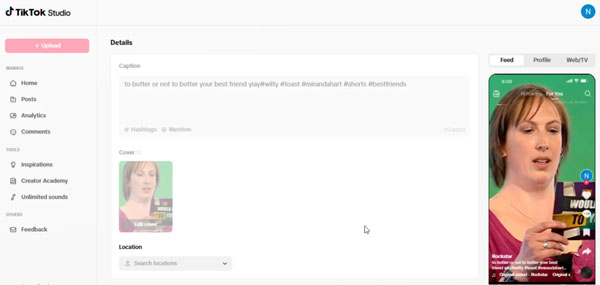
Do the same steps on the TikTok web version. Sometimes there are sync issues that may cause problems while editign descriptions after posting.
Bonus Tips to Add Subtitles to TikTok Videos
If you want to add in-video captions (subtitles), you can use AnyRec Video Converter. It provides a built-in subtitle editor, video editor, and video converter. You can crop this video into 9:16, 1;1, or 16:9 to macth the TikTok video aspect ratio. Later, you can add subtitles and captions to a video, then export this video with TikTok pre-made profiles.

Add subtitles in SRT, VTT, SSA, and more formats.
Adjust position, font, color, outline, and opacity of subtitles.
Cut, trim, merge, rotate, and edit videos for TikTok.
Export videos to TikTok compatible formats.
Secure Download
Secure Download
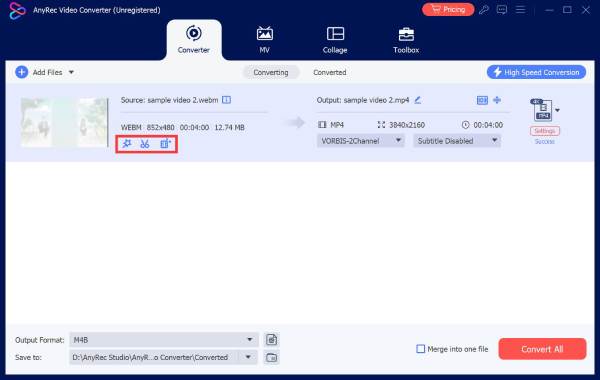
1. Open AnyRec Video Converter on your computer. Drag and drop your video file into the main interface. Click the "Edit" button under this video. Then go to the "Subtitle" section.
2. Click the "Add" button to add your target subtitle file. Now you can use the subtitle editor to edit details. To save all changes, click the "Save" button.
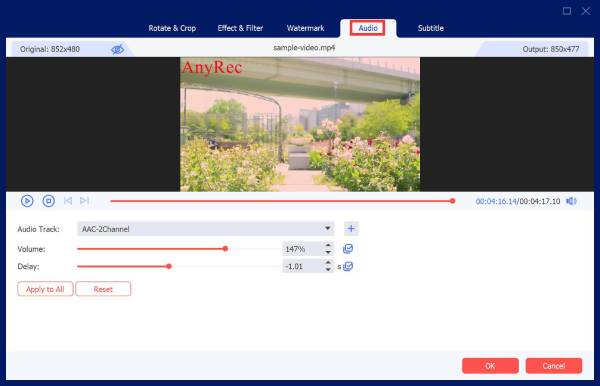
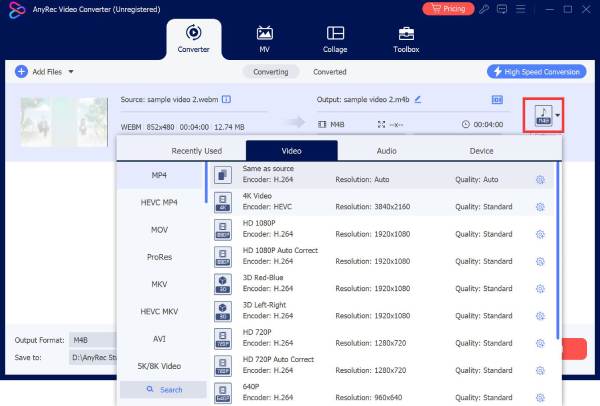
3. To change the output video format, click the "Format" button. Set the output format to MP4 or MOV. At last, click the "Convert All" button.
Conclusion
In most cases, editing captions on TikTok is better than reuploading. But the caption editing function on TikTok is limited and inconsistent. If the edit button is unavailable, you can update hashtags by reuploading videos, pinning comments, and edit with TikTok desktop. For people who are looking for a powerful and easy-to-use TikTok video editor, AnyRec Video Converter can be your first choice. Free download the program to get 1000+ formats, 20+ editing tools, and 120× faster speed now!
Secure Download
Secure Download



