
Hot

AnyRec Screen Recorder
Capture every moment. Record like a pro.
Secure Download
5 WebM Recorders for Desktop and Online [and Some Tips]

WebM has become a popular video format for online playback due to its efficient compression and high quality. Whether you want to record online videos, gameplay, or any content, the right WebM recorder can enhance the video clarity and file size. Therefore, this guide explores the top 5 tools to record WebM, both desktop and online tools. Along the way, you'll see how to record WebM videos and pick up tips for improving recording quality.
Guide List
Why Choose WebM for Recording? Top 5 WebM Recorders [Software/Online/Extension] How to Record Video in WebM Format Tips for High-Quality WebM Recording FAQs About WebM RecordingWhy Choose WebM for Recording?
When it comes to video recording, the correct format plays a huge role in both quality and usability. So, since WebM is an open-source video format made specifically for web-based playback, it makes it an excellent choice for you to share recordings online. Plus, the WebM format balances high visual quality with smaller file size, helping it reduce storage space and upload time.
Here is the list of advantages to record with WebM format:
- • Smaller file sizes with high quality. WebM offers clear video output while maintaining very small file sizes.
- • Optimized for web playback. WebM videos play smoothly in modern browsers without extra plugins.
- • Efficient compression. WebM formats lessen bandwidth usage while keeping sharp visuals and stable frame rates.
- • Open-source and royalty-free. You can use a WebM file without licensing fees, making it ideal for both personal and professional projects.
- • Quicker upload and streaming times. Smaller files are equal to quicker upload and less buffering times for viewers.
Top 5 WebM Recorders [Software/Online/Extension]
With the right WebM screen recorder, you can significantly enhance the quality, file size, and your overall recording experience. The top five here cover different platforms and use cases; pick the one that matches your recording needs.
1. AnyRec Screen Recorder
The first one here is a reliable and feature-rich option for WebM recording on Windows and Mac named AnyRec Screen Recorder. It covers WebM output while keeping excellent video quality, making it great for online meetings, gameplay, tutorials, and more browser-based recordings. Furthermore, you can select recording areas here, even frame rate, resolution, audio sources, and more settings, giving you complete control over the final output. Unlike many other basic options, this program ensures stable performance even during long WebM recording sessions.

Record high-quality WebM videos from tabs, windows, full screens, and webcams.
Supports multiple export formats, including WebM, MP4, MOV, WMV, GIF, etc.
Includes drawing and annotation tools, letting you add arrows, text, shapes, and more.
Adjust output settings such as video resolution, frame rate, and format.
Secure Download
Secure Download
2. OBS Studio
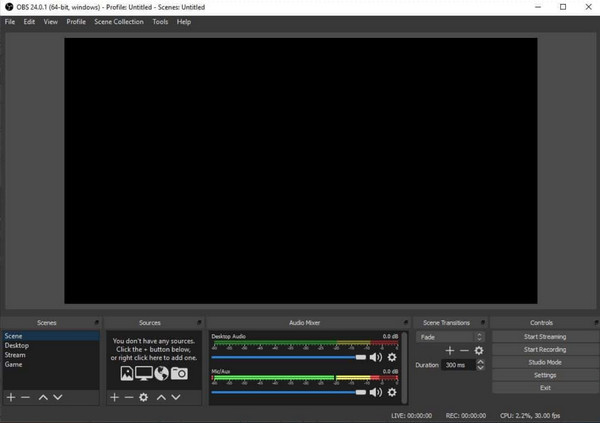
Another tool for WebM recording here is OBS Studio. This popular open-source screen recorder is widely used for streaming and high-quality screen capture. It offers powerful customization options, such as audio mixing, scene switching, and bitrate control. You may find it overwhelming at first, but OBS is a strong WebM recording solution if you wish for complete control and free access.
3. Screencastify
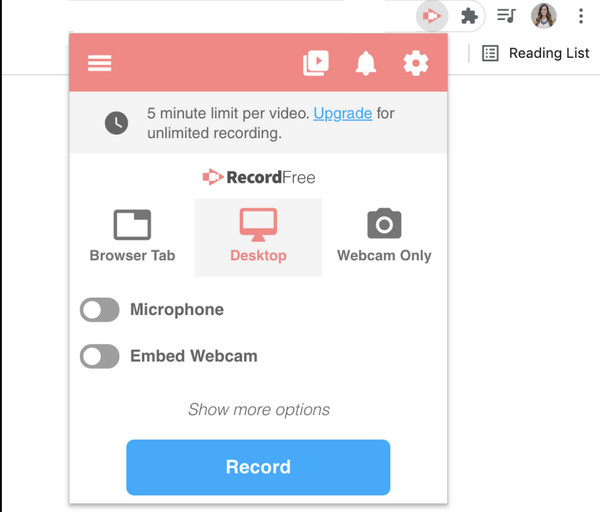
Meanwhile, Screencastify is a lightweight Chrome WebM recorder extension for quick recordings online. It is particularly great for recording tabs, webcams, and tutorials, and automatically saves them in WebM format. While it is convenient to use, its free version has recording time limits. Still, it is a great choice for casual users for a fast, browser-based recording.
4. Clipchamp

Next is Clipchamp, an online video editor that works as your free WebM recorder, too. Here, you can record your screen, webcam, or both, without getting any heavy software. Using this tool's basic editing tools, you can trim and enhance your WebM recordings before exporting. However, since it works on a web browser, the recording quality depends on your internet connection.
5. Loom Screen Recorder
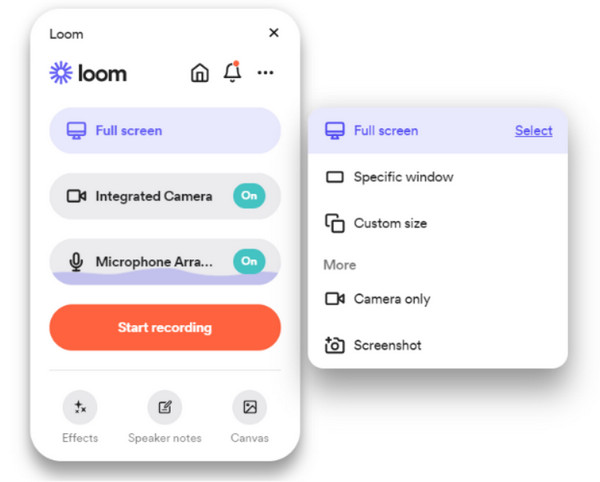
A popular screen recording tool, Loom Screen Recorder, can be used as your web-based WebM recording software. It works ideally for team communication, tutorials, and presentations. Although it is focused on simplicity and advanced output settings, it is still a solid option for anyone who values speed and collaboration.
How to Record Video in WebM Format
One reliable tool that makes WebM screen recording easy is AnyRec Screen Recorder. This WebM video recorder supports flexible recording controls, allowing you to capture browser tabs, windows, full screens, or webcams while keeping clear visuals.
See below to record a video in WebM format:
Step 1.Launch AnyRec Screen Recorder on your computer, and choose "Window Recorder" mode. Next, click on "Select the window" and choose a tab or browser window you wish to capture in WebM format.
Secure Download
Secure Download
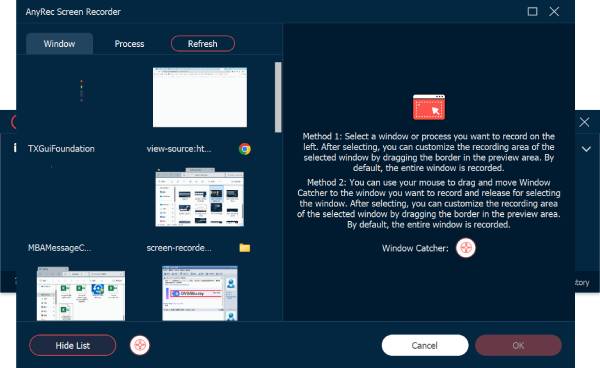
Step 2.Confirm your selection by clicking "OK", then click the "REC" button to start recording the WebM video. While recording, use the on-screen toolbar to add text, draw lines, shapes, or highlight important areas in real time.
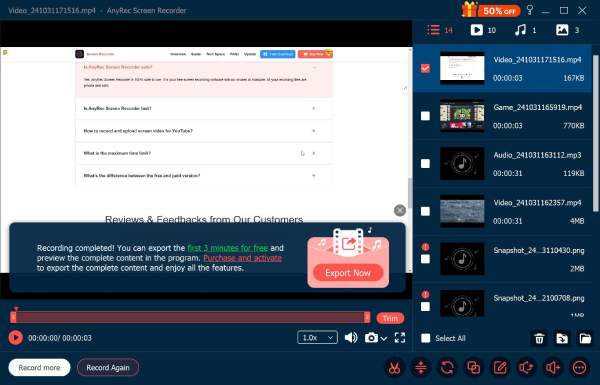
Step 3.Once you're done, click "Stop" to end the recording. You will then have access to basic editing options, like trimming extra sections. After making adjustments, save the recording in WebM format.
Tips for High-Quality WebM Recording
The final quality of your WebM format recording depends largely on how you set up and record it. Even with a powerful WebM recorder, following practical best tips can help you produce clean and professional-looking recordings.
- 1. Choose the right resolution. Record at a resolution that matches your content, like 1080p or 4K.
- 2. Set a stable frame rate. Use a consistent frame rate like 30 fps for standard recordings or 60 fps for gameplay. You can start with a 60 FPS screen recorder first.
- 3. Close unnecessary apps. Removing unused programs can help free up system resources during recording.
- 4. Use a clear audio source. Choose the correct mic and test audio levels beforehand to avoid noise.
- 5. Record in a quiet environment. Minimizing external noise enhances audio quality and lessens the need for heavy post-editing.
- 6. Enable hardware acceleration. Improves recording performance and helps keep a smooth video output.
- 7. Preview and test before recording. Doing a quick test recording ensures your settings are correct before recording WebM videos.
FAQs About WebM Recording
-
Why is the WebM format suitable for recording?
WebM is an open-source video format that is made for web playback. It offers high quality with smaller file sizes, making it great for recordings, tutorials, and quick online sharing.
-
How to avoid lag when recording WebM?
To avoid performance issues, close unnecessary background apps, use a stable frame rate, and make sure your system meets the recorder's requirements.
-
Can all recorders save videos in WebM format?
Unfortunately, not all recorders cover WebM output by default. Some tools need specific settings or plugins, so it's nice to check the supported formats before recording.
Conclusion
Choosing the right WebM screen recorder is helpful for both video quality and recording efficiency. As you have learned, each of the top WebM recorders has its strengths, from advanced customization to simple online recording. If you want a balanced solution that is easy to use yet powerful enough for high-quality WebM recording, AnyRec Screen Recorder is a great option. It covers WebM output, offers flexible recording modes, and includes real-time annotation and editing features for a smoother workflow.
Secure Download
Secure Download
Related Article
About Our Author




