
Convert QuickTime to MP4: 7 Free Desktop and Online Tools

QuickTime MOV files are perfect for Apple devices, but once they are shared or uploaded, you may find them incompatible. So, you can convert QuickTime movies to MP4 to fix incompatibility issues! MP4 is among the most universal formats, supported by nearly every device and platform. Which tool is best for the job? This guide lists 7 of the best QuickTime to MP4 converters, covering both desktop and online tools. Choose the suitable option for your video files here.
Guide List
Best QuickTime to MP4 Converter for Mac with Quality Handbrake - Open-Source QuickTime to MP4 Converter with Powerful Presets VLC Media Player - All-in-One Player and QuickTime Converter FFmpeg - Free QuickTime Converter with Command-Line Customization Freemake Video Converter - Easy-to-Use Interface QuickTime to MP4 Converter Convert QuickTime to MP4 in 2 Online ToolsBest QuickTime to MP4 Converter for Mac with Quality
Struggling to play or share QuickTime MOV videos on other platforms? If so, converting MOV QuickTime to MP4 really is the best solution. And for doing so, AnyRec Video Converter is suggested among many options available. Not all converters maintain the same video quality during conversion, but this software guarantees lossless conversions with hardware acceleration to save time. It is made to handle high-resolution files, such as 4K and HD videos, while allowing you to fine-tune settings like resolution, bitrate, and encoder. Moreover, it lets you edit, compress, and merge clips, making it an all-in-one video solution for anyone.

Change the QuickTime MOV format to MP4 and other 1000+ formats.
Edit MOV files by trimming, compressing, merging, etc.
Convert multiple MOV videos with120× faster speed.
Batch conversion processing with GPU acceleration technology.
Secure Download
Secure Download
Step 1.Launch AnyRec Video Converter on your computer. In the main interface, click the "Add Files" to import your QuickTime MOV videos that you wish to convert. You can upload one or multiple files at the same time.
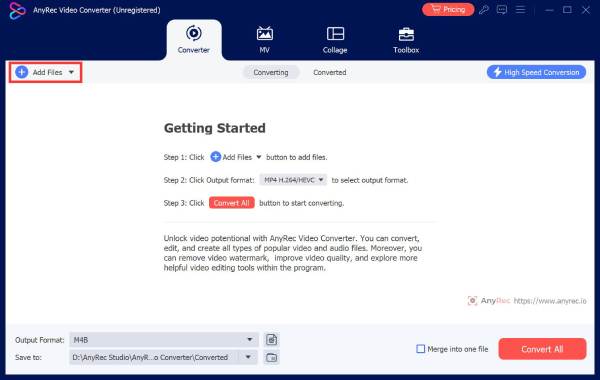
Step 2.Once your video is loaded, head to the "Format" dropdown menu. Under the "Video" category, choose "MP4" as your output format.
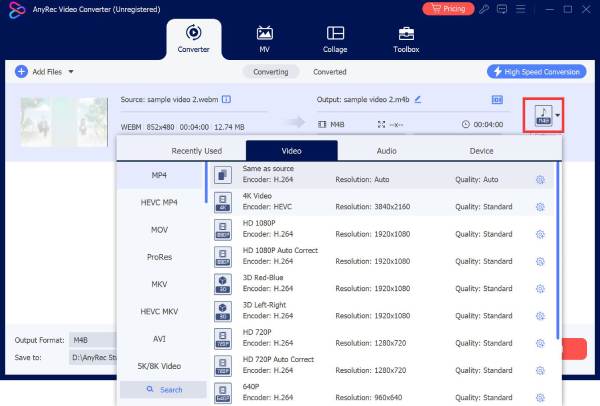
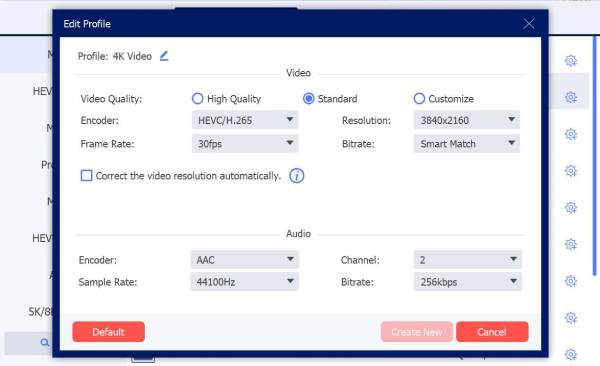
If you wish to refine your export quality, click the "Custom Profile" button to modify parameters such as resolution, frame rate, and bitrate based on your preference.
Step 3.After setting up your output format, choose a destination folder for your MP4 file. Once ready, click the "Convert All" button to begin converting your QuickTime MOV to MP4.

Handbrake - Open-Source QuickTime to MP4 Converter with Powerful Presets
If you prefer a free and open-source option for converting .mov to .mp4, Handbrake is one of the best choices you can get! It is known for its wide range of built-in presets, making it easy to optimize videos for specific devices like iPhones, Android phones, and smart TVs. Moreover, Handbrake covers advanced encoding settings such as H.264 and H.265, ensuring your output balances both quality and file size.
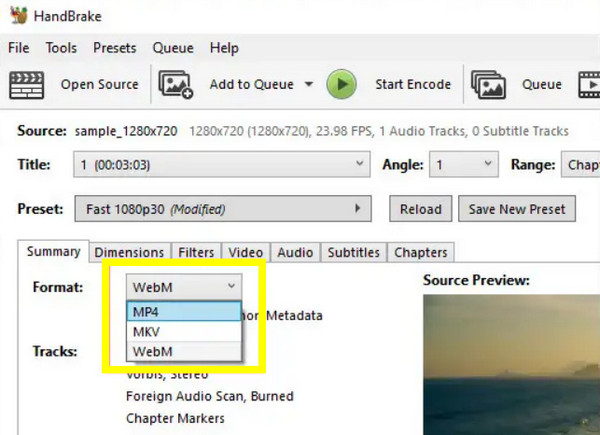
- 1. Once Handbraked is launched, click the "Open Source" button and choose your MOV file.
- 2. Under the "Summary" tab, click the "Format" dropdown and select "MP4".
- 3. Optionally, you can pick a preset on the right panel or select a device-specific one. Select a destination folder, then click the "Start Encode" button.
VLC Media Player - All-in-One Player and QuickTime Converter
If you need a HandBrake alternative to convert MOV files, you can use VLC Media Player. You might be surprised that it can do more than just play videos, as it can convert QuickTime video to MP4, as well. What makes it stand out is that it has a built-in codec library, supporting almost every media format. Plus, it is able to maintain a stable video playback quality while offering basic adjustments for settings like frame rate and resolution.
- 1. Launch VLC Media Player. Click "Media" and select the "Convert/Save" button from the menu.
- 2. Now, in the pop-up window, click the "Add" button to import your MOV video, then click the "Convert/Save" button.
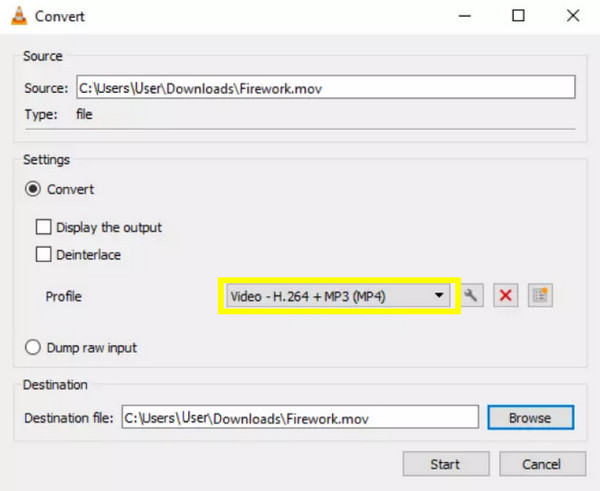
- 3. Under "Profile", aim for "Video - H.264 + MP3 (MP4)" for your output. You can customize it afterwards if you like.
- 4. Click the "Start" button to change MOV to MP4 files.
FFmpeg - Free QuickTime Converter with Command-Line Customization
FFmpeg is a compelling option for converting QT movie to MP4, especially for advanced users. FFmpeg operates video conversions through command-line instructions. You can control over codecs, filters, bitrate, and more with more customizations. And this level of customization makes it perfect for a professional who aims for precise control over every bit of the conversion process.
- 1. Open the "Command Prompt" on Windows (Terminal on Mac), then open the folder where your MOV file is stored using the "cd" command, then press "Enter".
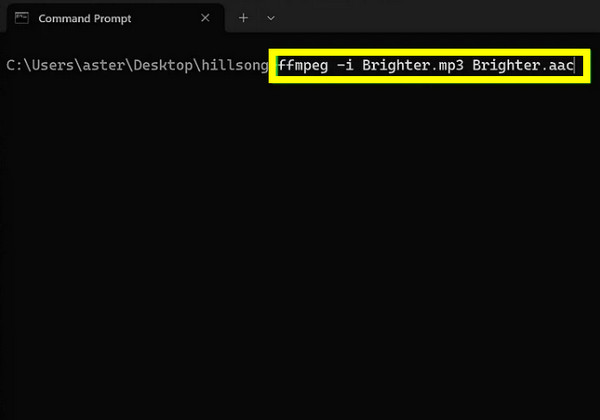
- 2. Use the following command, you will replace the input and output with the name of the QuickTime MOV file: ffmpeg -i input.mov -vcodec libx264 -acodec aac output.mp4
- 3. Wait for the FFmpeg to process the QuickTime conversion. When complete, you will find the converted file in the same folder.
Freemake Video Converter - Easy-to-Use Interface QuickTime to MP4 Converter
Lastly, if you want a more user-friendly alternative to convert QuickTime to MP4, Freemake Video Converter is made with that in mind. It features a clean and intuitive screen that allows you to complete the conversion in just a few clicks. It has drag and drop functionality and a wide variety of format support. In addition, it provides editing tools like trimming, rotating, adding subtitles, and more before conversion.
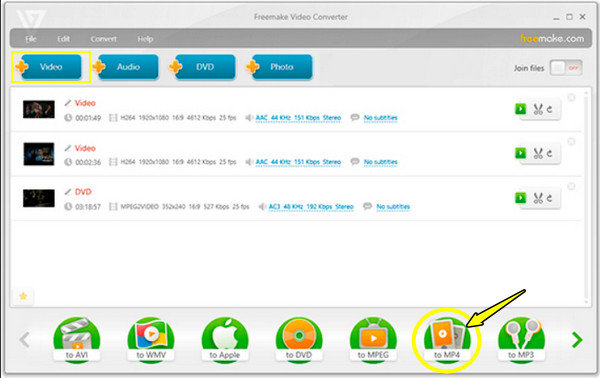
- 1. Once the Freemake Video Converter is launched, click the "Add Video" button to import your MOV file.
- 2. At the bottom, select "to MP4" as your format.
- 3. Optionally, you can aim for the "Settings" buttons to adjust output settings.
- 4. Then, choose the destination folder, and click the "Convert" button.
Convert QuickTime to MP4 in 2 Online Tools
Besides desktop tools, there are online converters if you don't wish to download or install anything, and it is a fast and convenient way to convert QuickTime to MP4. These tools work right from your browser and download videos with just a few clicks.
See below the two most reliable online services you can use: CloudConvert and Convertio.
1. CloudConvert
CloudConvert is among the most established file converters out there due to its broad format and secure cloud-based process. This online solution lets you convert QuickTime to MP4 while keeping the same high-quality output. It also integrates with Google Drive and Dropbox, allowing you to upload and save files to your cloud storage.
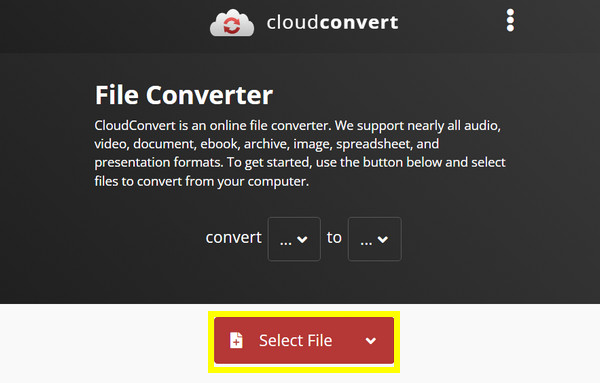
- 1. Visit the official CloudConvert website, and click the "Select File" button to start importing your QuickTime MOV file.
- 2. Next, open the "Convert to" dropdown menu and select "MP4". You can then click the "Settings" button to customize video output.
- 3. Click the "Convert" button to begin the conversion.
2. Convertio
Another excellent web-based QuickTime to MP4 converter to try is Convertio, which is famous for its clean interface and fast upload speed. Aside from its cloud integration, it also automatically gets rid of your uploaded files to ensure your security and privacy during the process.
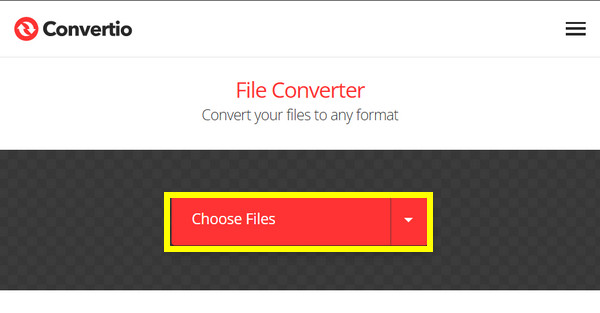
- 1. Open the Convertio website, click the "Choose Files" button to upload your MOV video.
- 2. Then, in the "Output format" menu, select "MP4". Optionally, click the "Settings" button to open advanced settings and modify output.
- 3. Once everything is set, click the "Convert" button, and later click the "Download" button to save it.
Conclusion
From a desktop program to an online converter, there's always a tool that fits your needs to convert QuickTime to MP4! You can have VLC, Handbrake, and CloudConvert; each option offers unique conversion advantages. However, if you want a more reliable and efficient way to convert QuickTime MOV to MP4 while preserving the original quality, AnyRec Video Converter is your best choice. With its lightning-fast speed, powerful performance, and full-format support, you can enjoy smooth, high-quality conversions anytime.
Secure Download
Secure Download



