
Top 7 WhatsApp Call Recorders & How to Record WhatsApp Calls

Perhaps to save important WhatsApp conversations? Then recording WhatsApp calls can be helpful! However, choosing the right WhatsApp call recorder is challenging due to the platform's limitations and legal considerations. Thus, this guide brings together seven reliable WhatsApp call recorders for iPhone, Android, and desktop. Also, you'll understand the legal responsibilities that come with recording audio and video calls. Jump in now!
Guide List
Legal Tips When Recording WhatsApp Calls How to Record WhatsApp on iPhone How to Record WhatsApp on Android Easily Powerful and Clear WhatsApp Call Recorder on PC Other Tools as WhatsApp Call Recorder for DesktopLegal Tips When Recording WhatsApp Calls
Before pressing the record button in a WhatsApp call, it's nice to understand the legal boundaries. Even if your goal is to keep the WhatsApp calls for personal record or save important information, make sure you are not violating anything.
So, to avoid trouble, here are the key legal tips you must keep in mind:
- 1. Check Local Recording Laws. Since different regions follow one-party consent or two-party/all-party consent rules, ensure to research the laws in your country or state.
- 2. Always Get Consent from the Other Person. Many countries need one person or all participants to agree to be recorded; this is to stay safe and respectful.
- 3. Avoid Sharing the Call Recording Publicly. Recording a WhatsApp call for personal use is not the same as sharing and uploading it without consent.
- 4. Use Secure Storage for Recordings. If you save the recording file on your device, make sure it is stored safely. Unauthorized access can violate privacy rights even if you do it legally.
- 5. Never Record Confidential Conversations. Some topics, such as financial, medical, or other work calls, must not be recorded without approval.
How to Record WhatsApp on iPhone
While iPhones have no direct recorder due to Apple's privacy restrictions, there are still workarounds and tools to record WhatsApp calls on iPhone. Here are two approaches to capture WhatsApp conversations:
1. Use iPhone's Built-in Screen Recorder
Step 1.If the feature is not already enabled, head to "Settings", go to "Control Center" and add the "Screen Recording" feature.
Step 2.Then, open the "Control Center" by swiping down from the upper-right corner, and long-press on the "Screen Recording" icon; tap "Microphone" on.
Step 3.Start your WhatsApp call now. Then tap "Start Recording" to record your WhatsApp call or conversation.
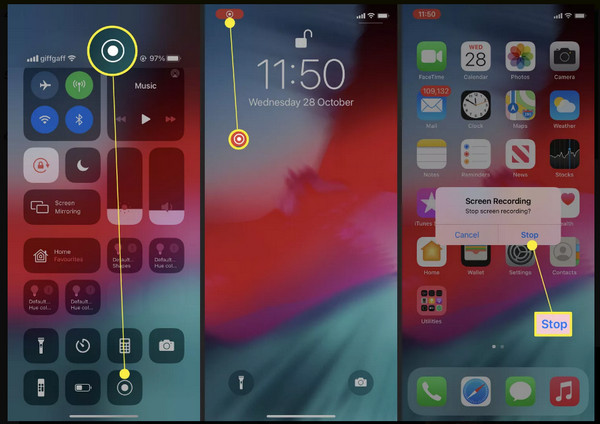
Step 4.Once the call ends, stop the recording by tapping the "Red bar" above, and your file is automatically saved to the Photos app.
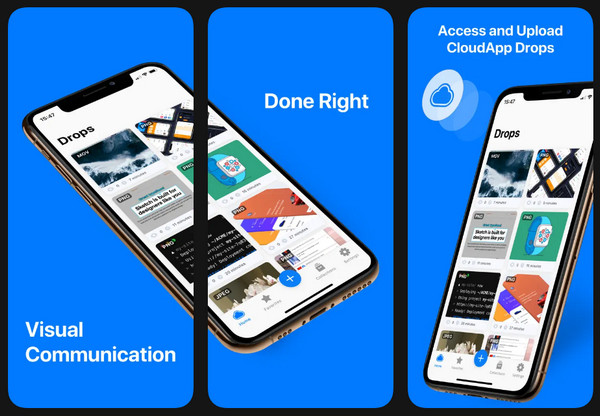
2. Use a Third-Party App Zight
Step 1.Get Zight launched. Allow all screen recording permissions, then choose "Record Screen", and enable the "Microphone" toggle.
Step 2.Start your WhatsApp call, and tap the "Start Recording" button. When finished, go back to the app and stop the recording. You can then review and upload your file.
How to Record WhatsApp on Android Easily
Depending on the model, Android has a built-in recorder too that works seamlessly as your WhatsApp call recorder app. It also offers more flexibility since certain phones allow call audio recording. Here are two effective ways to record WhatsApp calls on Android:
1. Use Android's Built-in Screen Recorder
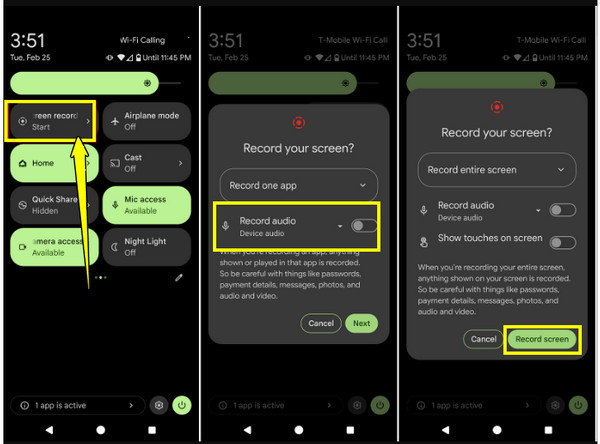
Step 1.Swipe down to access the "Quick Settings" panel. There, look for "Screen Recorder", long-press, and set the audio source.
Step 2.Once ready, start the WhatsApp call. Tap the "Record" button to begin.
Step 3.Later, stop the recording from the pane, and your call recording is saved to the Gallery.
2. Use a Third-Party App Cube ACR
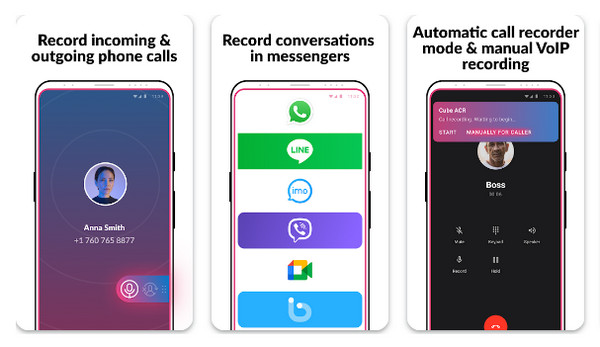
Step 1.Open the Cube ACR app and grant all recording permissions. Make sure to enable "VoIP call recording" in the app settings.
Step 2.Start the WhatsApp call, and the CubeACR WhatsApp phone call recorder app should begin recording.
Step 3.End the call and review the recording within the app.
Powerful and Clear WhatsApp Call Recorder on PC
Designed to capture everything, such as WhatsApp calls, with outstanding clarity, AnyRec Screen Recorder makes sure both your and the other person's audio is captured perfectly. It is a professional recording software that can start recording without dealing with complex settings. Also, this tool ensures no lag and frame drops throughout the WhatsApp conversation. Whether you wish to save meaningful conversations, this WhatsApp call recorder provides a stable, high-quality recording experience every time.

Can record WhatsApp calls with crisp system and microphone audio.
Allows you to adjust audio levels, quality, format, and more settings.
Provides real-time preview and editing tools after recording.
Gives you more export format options like MP3, AAC, FLAC, WAV, MP4, etc.
Secure Download
Secure Download
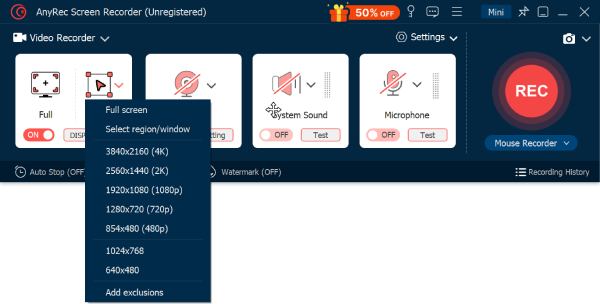
Step 1.Launch AnyRec Screen Recorder on your computer. Select "Video Recorder" from the recording mode options. Then choose either "Full Screen" to capture your whole desktop or "Custom" to focus only on the WhatsApp window.
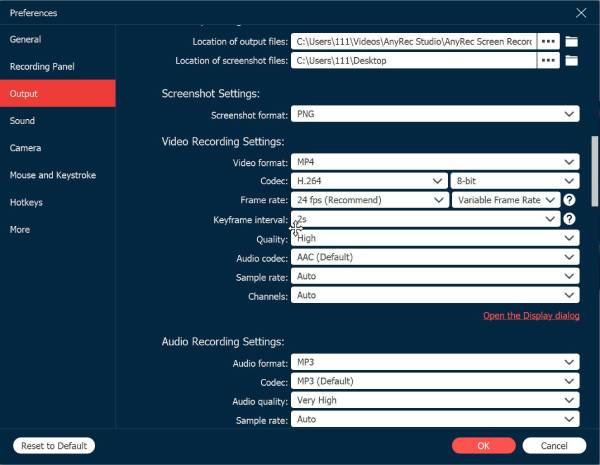
To adjust your preferred file format, resolution, or location, go to "Settings" then "Output" before starting the recording.
Step 2.Enable "System Sound" to capture the other person's voice during the WhatsApp call. Turn on the "Microphone" switch to record your own voice. Adjust the volume for both system sound and mic for balanced audio levels.
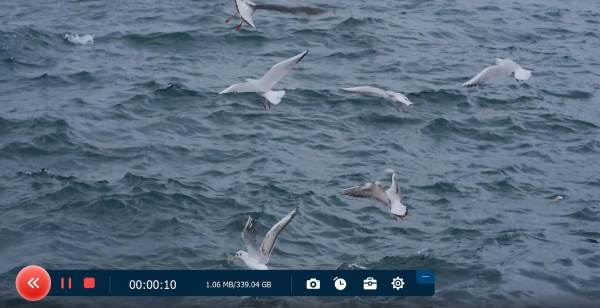
Step 3.Click the "REC" button to begin recording. While recording, you can use the floating toolbar to annotate or click the "Camera" button to take screenshots if needed.
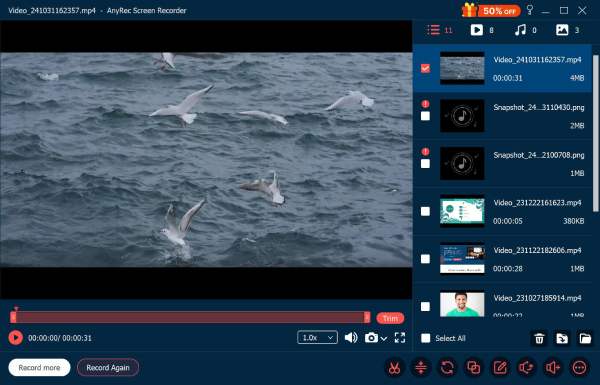
Step 4.Once your call is finished, click the "Stop" button. In the preview window, you can review the recording and trim extra sections. Finally, click the "Save" button to export the file in your desired format and location.
Secure Download
Secure Download
Other Tools as WhatsApp Call Recorder for Desktop
Before wrapping up your WhatsApp call recorder options, here are more apps for desktop to use to capture WhatsApp calls. These desktop recorders offer higher-quality sound, longer times, and easier file management.
1. OBS Studio
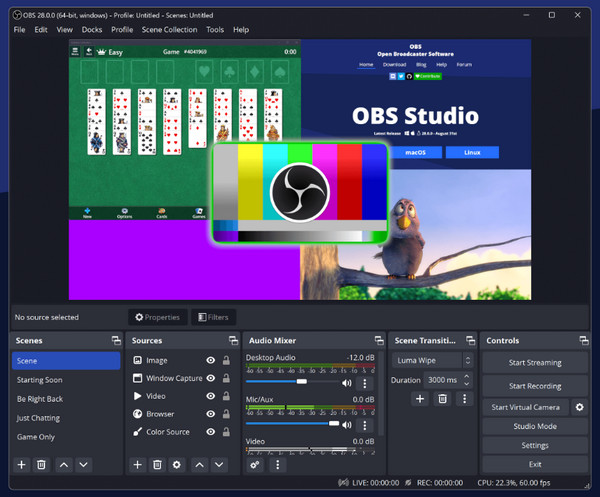
OBS Studio is a very popular, free, and open-source recorder that can be accessed on Windows, macOS, and Linux. This free WhatsApp call recorder for desktop captures both screen and audio, letting you record your screen or multiple sources at once. Since it mixes audio sources, it is perfect for WhatsApp recording, meetings, and tutorials.
2. Bandicam
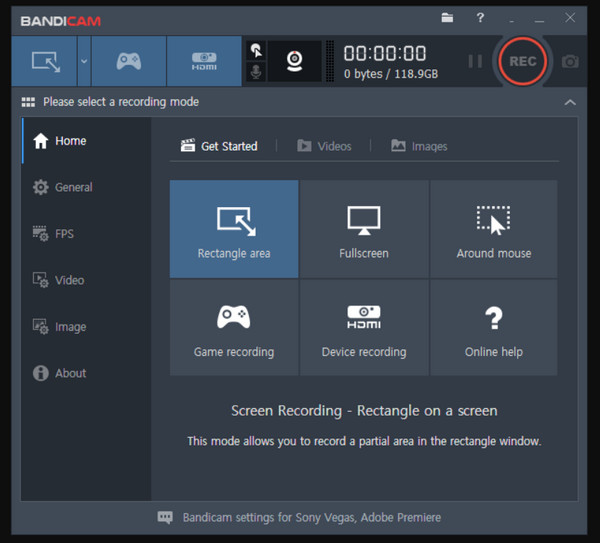
Next for desktop WhatsApp video call recorder is Bandicam, a program that supports capturing screen, system audio, mic input, webcam, and even external devices. It is designed to be lightweight and run without straining your CPU, so it is ideal for lengthy recording sessions like WhatsApp calls or gaming.
Conclusion
Recording WhatsApp calls can be useful, whether it is for interviews, business discussions, or keeping personal conversations safe. With the seven WhatsApp call recorders, you now have a wide selection for both mobile and desktop, made to fit different workflows and preferences. But if you want a powerful, stable, and friendly solution in one WhatsApp call recorder for desktop, AnyRec Screen Recorder is an excellent choice. It delivers clear audio, flexible recording modes, and more exciting features that make call capturing effortless and reliable.
Secure Download
Secure Download



