How to Convert TIFF to JPG Files without Quality Loss

Got a TIFF file that is hundreds of megabytes, but only need to upload or share it? Converting TIFF to JPG is usually the easiest fix. Many people use TIFF for scanned documents, film scans, or high-quality images, only to run into file size limits when they actually need to use them. A JPG can be much smaller and easier to open almost anywhere. The tricky part is keeping the image looking sharp and the colors close to the original.
Guide List
The Three TIFF Types That Cause Conversion Problems How to Batch Convert TIFF to JPG Images Online for Free How to Convert TIFF to JPG Images on Windows How to Convert TIFF to JPG Images on Mac TIFF vs. JPG: What's the Difference Why Convert TIFF to JPGThe Three TIFF Types That Cause Conversion Problems
Not every TIFF file converts to JPG smoothly. The problem often stems from how the TIFF was created, rather than from the converter itself.
32-bit HDR TIFF
JPG supports up to 8 bits per channel. Thus, a 32-bit HDR TIFF must be converted to a lower bit depth first. In Photoshop, this can make the JPG option unavailable or greyed out.
CMYK TIFF
If your TIFF is in CMYK, watch out for color changes. JPG uses RGB. Thus, the colors may shift during conversion. Converting to RGB first usually gives better results.
Multi-page TIFF
A multi-page TIFF can contain several scanned pages in one file. Some converters only save the first page. If you need every page, use a converter that supports multi-page TIFF files.
How to Batch Convert TIFF to JPG Images Online for Free
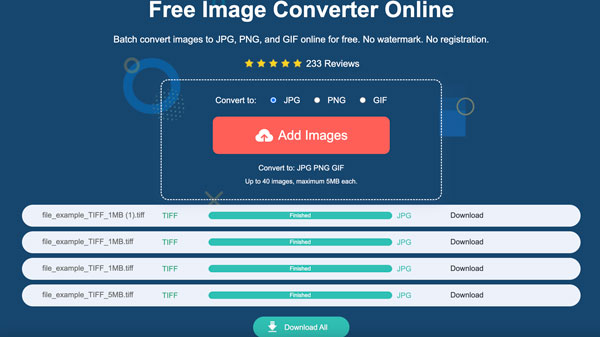
If you don't want to install anything, you can use AnyRec Free Image Converter Online to change .tiff to .png directly in your browser. There is no need to create a user account. You don't need to pay to remove the watermark additionally. Moreover, it supports batch conversion. So, you can convert multiple TIFF files at once. The standard RGB TIFFs can be converted without complicated settings.
- • Convert TIFF to JPG, PNG, or GIF in bulk on all browsers.
- • Handle standard RGB TIFFs cleanly without color shifts.
- • No watermark. Each image should be up to 5MB.
- • Works on iPhone and Android devices too.
- 1. Open AnyRec Free Image Converter Online in your browser.
- 2. Make sure JPG is selected as the output image format.
- 3. Click the "Add Images" button to import your TIFF files.
- 4. The TIFF to JPG image conversion completes in seconds.
- 5. Click the "Download All" button. Thus, you can save all your JPG images in bulk.
How to Convert TIFF to JPG Images on Windows
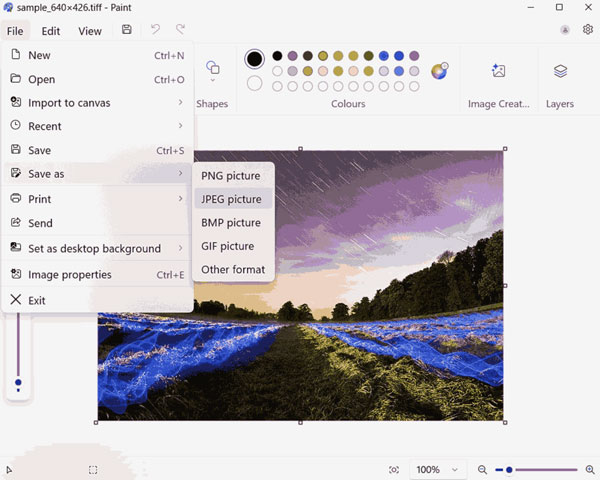
Windows users can convert a standard TIFF to JPG with Paint. This works best for a normal, single-page 8-bit RGB TIFF. Moreover, you can also use the Microsoft Photos app for basic single-page TIFF files. However, built-in Windows tools are not ideal for every TIFF. CMYK, 32-bit HDR, and multi-page TIFFs may fail to convert correctly or may only save one page.
- 1. Right-click the TIFF file. Choose "Paint" from the "Open with" submenu.
- 2. Click the "File" button in the top left corner.
- 3. Select "Save as" and then choose "JPEG Picture".
- 4. Enter a new file name and set the output path.
- 5. Click the "Save" button to create the JPG file.
- 6. Open the new JPG image and check that the colors and image details look correct.
How to Convert TIFF to JPG Images on Mac
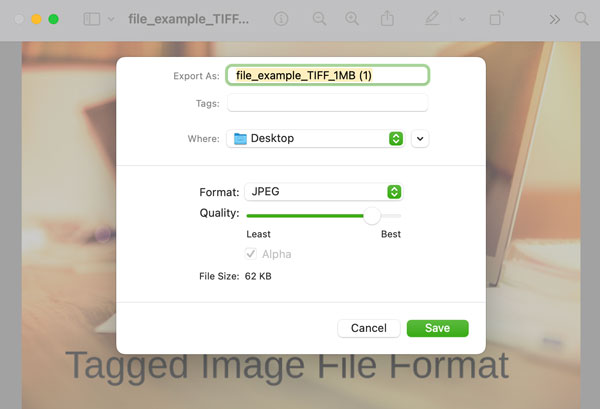
Mac users can use Preview as your free TIFF to JPG converter, which is already included with macOS. It is a simple option for converting standard TIFF images and gives you control over the JPG quality.
- 1. Double-click on your TIFF file to open it in Preview.
- 2. Click the "File" button in the top menu bar.
- 3. Click the "Export" button.
- 4. Choose "JPEG" from the "Format" menu.
- 5. You can move the "Quality" slider aroud 80% to 90% to adjust the output quality. By doing so, you can compress TIFF while keeping the image looking sharp.
- 6. Select a save location. Later, click the "Save" button to turn a TIFF into a JPG.
TIFF vs. JPG: What's the Difference
What Is a TIFF File
A TIFF is a high-quality image file used by scanners, cameras, and design software. It keeps every detail. So, it's great for editing and printing.
What Is a JPG File
A JPG is a small, compressed image file. It works on almost any device, which makes it a handy choice for websites, email, and social media.
Why TIFF Files Are So Large
TIFFs store extra data: layers, color information, and uncompressed pixels. That's why a single scanned page can be 20MB or more.
When JPG Is the Better Choice
If you're uploading or emailing a file, or need to view a file quickly, JPG is the easier option. It loads faster and takes up way less space.
| Format | Best For |
| TIFF | Editing, scanning, printing |
| JPG | Sharing, websites, email |
Why Convert TIFF to JPG
TIFF files are great for keeping image quality. However the large TIFF file size can make everyday tasks difficult. Converting TIFF to JPG gives you a smaller file that is easier to use.
Reduce File Size
JPG is one of the most common image formats. Its small file size makes it easy to upload, send, and share almost anywhere.
Upload Images to Websites
Many websites do not accept TIFF files or have strict file-size limits. Most platforms support JPG.
Share Images Through Email
Smaller JPG pictures are easier to attach and send without hitting attachment limits.
Open Images on Any Device
JPG works with most phones, computers, browsers, and apps. Therefore, you are less likely to run into compatibility issues.
Conclusion
The best TIFF to JPG method depends on what you need to do. Built-in tools like Paint and Preview work well for occasional conversions, while an online converter is more convenient for multiple files. If your main goal is to reduce file size and get a JPG ready for a website, email, or phone, AnyRec Free Image Converter Online is worth trying. It works directly in your browser and supports batch conversion. Thus, you do not have to convert every TIFF one by one. After conversion, check the JPG for color, sharpness, and overall quality before using it.
About Our Author