
 Best video, audio, and webcam recorder for everyone.
AZ Screen Recorder Review and Alternative: Should You Use It

AZ Screen Recorder remains one of the most downloaded Android screen recorder apps (over 100 millions of installtion with 4.8 ratings in Google Play Store) in 2026. The no-watermark, unlimited-time, and excellent internal audio capture functions are attractive for gaming, tutorials, and video calls. But there are also many negative feedback about AZ Screen Recorder, especially in ads and Pro-locked extras. You can dive into this AZ Screen Recorder review to know the latest features, pros, cons, and an alternative here.
Guide List
AZ Screen Recorder Overview AZ Screen Recorder Review How to Use AZ Screen Recorder AZ Screen Recorder for PC AlternativeAZ Screen Recorder Overview
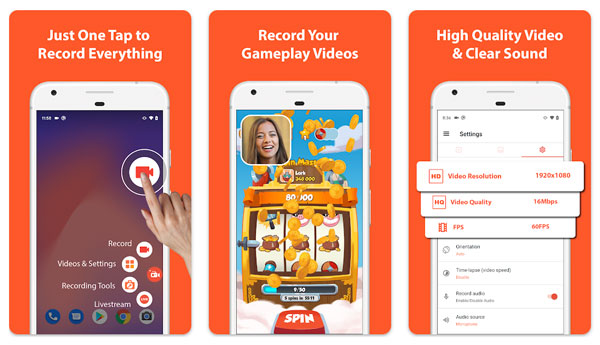
The no watermark and no time limit promise makes AZ Screen Recorder stand out in early times. Moreover, it adds many recording-related features to imrpove or overall experience. Check those main features here.
Unlimited Recording with No Time Limit
You can make continuous screen recording without paying extra fees. Many AZ Screen Recorder alternative apps restrict to 5 to 10 minutes. If you want to record long gameplay or full tutorials, you can use AZ Screen Recorder for Android and iPhone apps.
Up to 1080p 60FPS Recording
With adjustable resolution, frame ratem and bitrate, you can record sharp and smooth footage on your phone. The recording video looks professional for YouTube and TikTok.
Internal audio and microphone recording
No matter whether you want to capture game sound, streaming audio, or other in-app audio, you can use AZ Screen Recorder to record them. Moreover, you can mix in a microphone voice without virtual drivers.
Facecam Overlay
If you want to record yourself, you can enable the Facecam recording to capture both the phone screen and your face simultaneously. It is super handy for reactions and tutorials.
Built-in Video Editor
You can get basic video editing tools in the AZ Screen Recorder app, including trimming, cropping, merging, compressing, and even turning into GIFs. Thus, it will be easier to edit screen recordings quickly without extra apps.
Pricing: Free vs. Pro
The AZ Screen Recorder free version is ad-supported and has no watermark attached. You can upgrade to its Pro version to get an ad-free experience and unlock advanced features. The price starts from $4.49 per month for a subscription or $17.99 for a one-time lifetime on the AZ Screen Recorder for Android app. As for the AZ Screen Recorder for iPhone app, the one-time lifetime price is $29.99.
AZ Screen Recorder Review
AZ Screen Recorder is widely used for beginners, mobile gamers, and casual content creators. However, there are still limitations in this recording application. Many users expect more stability, better audio control, and a smoother ad experience. What are the strengths and weaknesses of the AZ Screen Recorder app? Check these.
Pros
• No watermark & no time limit in the AZ Screen Recorder for Android app.
• Internal audio recording support. You can grab game sounds, online playback, and more from your phone (Android 10+) directly.
• No root required. It can work out of the box on most Android devices with stable performance.
Cons
• Some apps may restrict audio recording due to privacy or copyright policies.
• The AZ Screen Recorder for iPhone app is more restricted. It has recording length restrictions, export limitations, and features locked behind paywalls.
• The Control button or orange circle sometimes stays in the recorded video.
• Have occasional performance issues on low-end devices, including frame drops, laggy recording, overheating during long sessions, etc.
How to Use AZ Screen Recorder
It is straightforward to record screen with AZ Screen Recorder. Follow the steps below to start your first experience.
- 1. Download AZ Screen Recorder from Google Play or the App Store. Install and open it. Confirm with related permissions.
- 2. Adjust recording settings and select the input audio sources (internal audio, microphone, or both).
- 3. Tap the "Record" button to start recording on Android (or iPhone) after a 3-second countdown.
- 4. You can pause, resume, and stop screen recording. Later, trim, cut, compress, and add text or more to your recording video.
- 5. At last, save, share, or send your recording file.
AZ Screen Recorder for PC Alternative
There is no AZ Screen Recorder for Windows or Mac version. During this time, you can use AnyRec Screen Recorder to record everything on your computer and phone screen. It contains all the above features. You can get smooth and high-quality recordings with easy clicks.

Record video in full, custom, and program-only screens.
Capture system audio and microphone voice without external drivers.
Mirror the iPhone and Android screens to the PC for smooth recording.
Add annotations and edit recording videos with built-in tools.
Secure Download
Secure Download
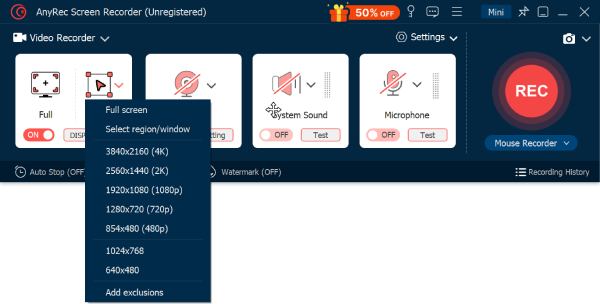
Step 1.Open AnyRec Screen Recorder. In the default Video Recorder mode, select the recording area. Turn on toggle buttons before "Webcam", "System Sound", and "Microphone" based on your needs.
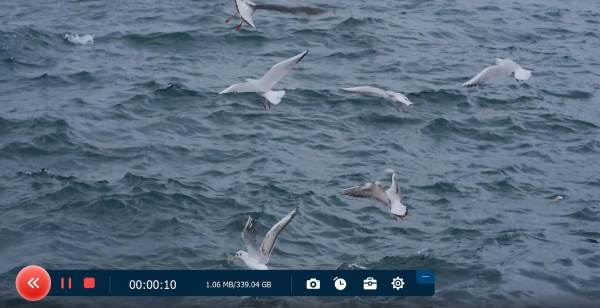
Step 2.Click the "REC" button to start recording. You can take screenshots and add annotations using the floating bar.
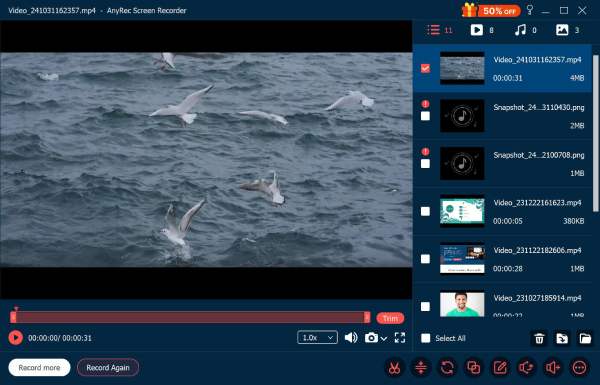
Step 3.Click the "Stop" button to finish it. In the Preview window, you can use advanced editing tools if necessary.
Conclusion
Is AZ Screen Recorder worth It? The answer is Yes, especially for its Android version. The internal audio recording, no watermark, and no time limit make AZ Screen Recorder popular among everyday recordings. If you want to record screen video without interruptions (annoying ads) and occasional failures, you can upgrade to its paid version. Or you can try AnyRec Screen Recorder for better phone and computer recordings.
Secure Download
Secure Download
About Our Author




