
Add GIF to Video: Top 8 Tools to Try on PC/Mobile/Browser

When you add GIFs to videos, it becomes easier to make them more engaging and enhance them by adding visual cues, arrows, or highlights. Aside from that, you can also add them as animations within your videos to increase viewer attention and retention. However, how do you add a GIF to a video? Continue reading this post, as it features eight of the best tools along with simple steps you can follow to make a GIF into a video. So, start exploring them and use what works best for you.
Guide List
Preparation for Embedding GIFs in Videos How to Add GIFs to Videos on Windows How to Add GIFs to Videos Online How to Add GIFs to Videos on iPhone and Android Troubleshoot GIFs Not Adding to VideosPreparation for Embedding GIFs in Videos
Before making your fingertips busy trying this post's eight best tools, along with their corresponding steps on how to add an animated GIF to video files, take a moment to prepare these things first. This helps avoid playback issues and keeps your video looking clean and professional.
- • Choose the right background - If possible, use a GIF with a transparent background. If not, make sure it has a solid background color that blends well with your video so it doesn't look out of place.
- • Check file compatibility - Some video editors don't support GIF files directly. If that's the case, convert your GIF to MP4 format for smoother editing and better compatibility.
- • Keep the file size small - Try to keep your GIF under 5 MB. Smaller files reduce lag, load faster, and make the editing process easier.
- • Match the frame rate - For smoother playback, use GIFs with a 30fps frame rate, which matches the standard frame rate used by most videos.
How to Add GIFs to Videos on Windows
If you prefer to use a computer to add GIF images to videos, whether on Windows or Mac, you can try these two best desktop-based tools. Explore each one and identify which works best on your end.
AnyRec Video Converter
If you want an easy yet effective way to add GIFs to a video, you must try AnyRec Video Converter. This tool is packed with video editing-related features that you can use to modify any video, including the option to embed GIFs in a video. Along with that option, it also supports features that allow you to alter the position, opacity, and more, enabling you to achieve the way you want your GIF to appear in your video.

Resize, crop, and rotate your GIF files.
Get pre-made themes and effects for GIF to video insertion.
Add filters and adjust video effects before export.
Enhance video quality and get 20+ video editing tools.
Secure Download
Secure Download
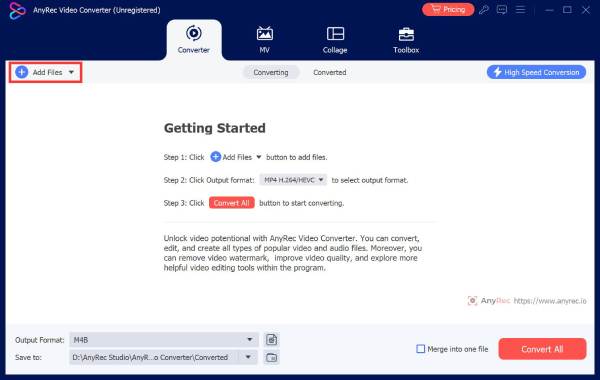
Step 1.Download and run AnyRec Video Converter on your Windows or Mac. Then, click "Add Files" to import the video you wish to embed with GIF.
Step 2.Next, click the "Edit" button with the "Starwand" icon, then click the "Watermark" tab. After that, select the "Image" option by ticking its radio button and import the GIF file you wish to add.
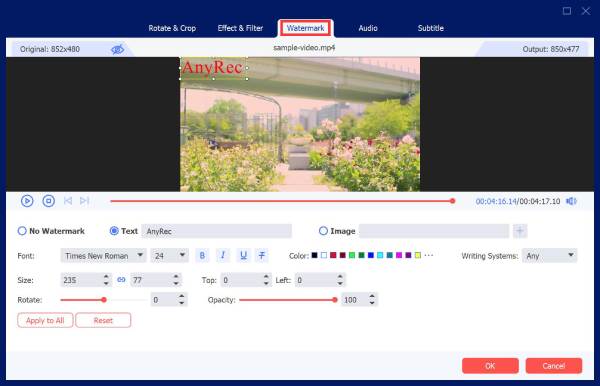
Step 3.Then, use the following options to adjust the size, position, rotation, and opacity of the GIF you embedded according to your preferences. After that, click "OK" to save the alterations.
Step 4.Once you are satisfied with the results, click "Convert All" to start exporting the video with the embedded GIF.

Secure Download
Secure Download
Adobe Premiere Pro
Another tool you can use to add a GIF image to an MP4 video is Adobe Premiere Pro. This one is among the best and most popular video editing tools you can use. It is packed with a variety of media editing features that will surely help you perfectly modify your video. With that, adding a GIF to a video with this tool is a piece of cake. However, if your GIF is animated and not supported by this tool, you'll need to convert it to MP4 before adding it to your video. If you wish try this, here are the steps to add animated GIFs to videos using Adobe Premiere Pro:
Step 1.To convert an animated GIF to MP4, you can use an online third-party converter tool. After completing that, you can move forward.
Step 2.Run Adobe Premiere Pro on your computer, and then import the video and GIF (which is now an MP4 file) to the tool's interface. To do this, head to the "File" tab and click "Open".
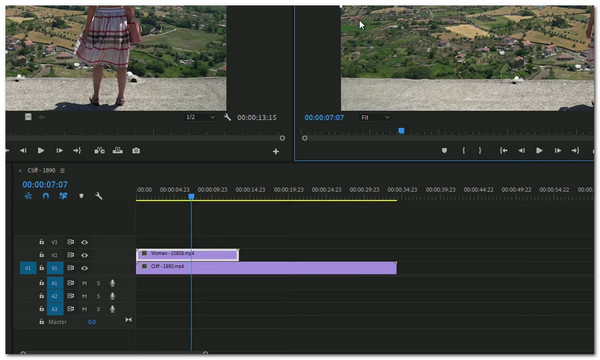
Step 3.Next, drag the video into the tool's timeline. Then, drag the GIF and place it above your video to make it appear as an overlay.
How to Add GIFs to Videos Online
If you prefer not to download a third-party tool just to add GIF to a video, here are the five best online tools you can try.
1. Clipchamp
The first online tool you can use to integrate animated GIFs to videos is Clipchamp. This is a web-based editor packed with options that enable you to edit any media, including videos. What makes it a great choice is its integration with GIPHY, allowing you to access a library of animated GIFs that you can add to your video. Additionally, these GIFs can also be cropped, resized, and have their position adjusted.
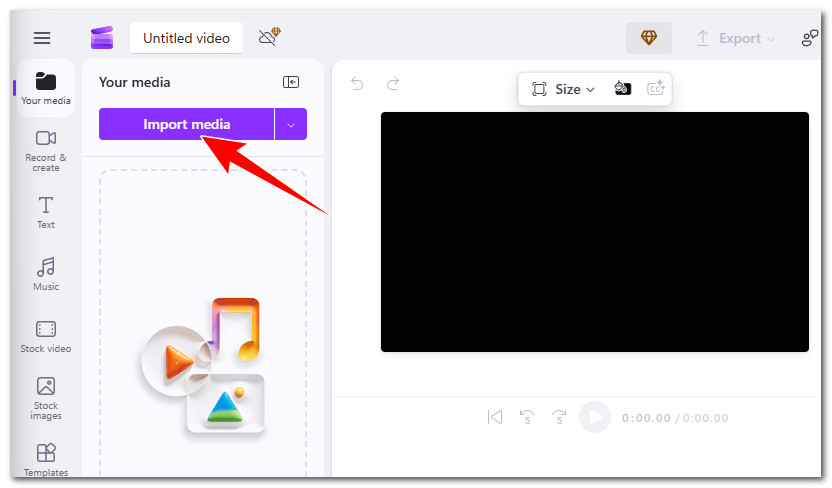
Step 1.Visit the Clipchamp official website and click "Import media" to import the video you want to add a GIF to. Once the video is imported, drag it to the timeline.
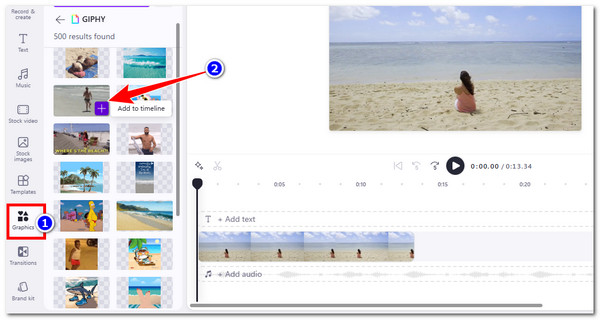
Step 2.After that, click the "Graphics" tab on the left menu, scroll down, and select the "GIPHY" option. From the list of animated GIFs, choose the one you prefer and click its "Plus" icon.
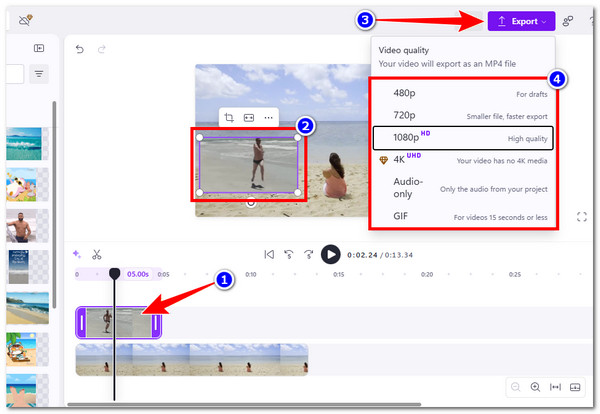
Step 3.Next, once the GIF is added to the timeline and your video, you can adjust it based on how you want it to look in your video. Once you're satisfied, click "Export" and choose a video quality.
2. Kapwing
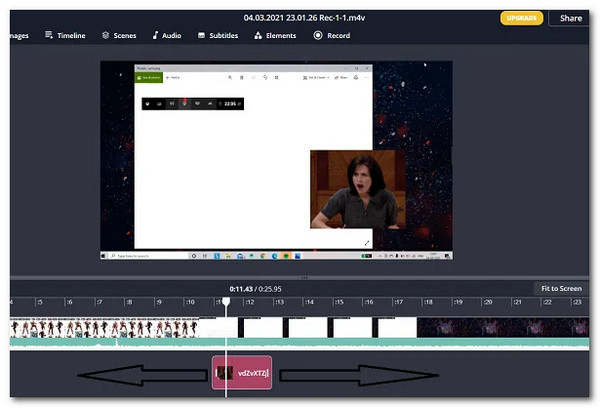
Another tool you can use to add GIF to video online is Kapwing. Like the first online tool, this one is also a platform where you can create and edit videos using its range of editing features. What sets this one apart from Clipchamp is that Kapwing doesn't just let you add GIFs from GIPHY; it also allows you to access animated GIFs from Pixabay's library. Additionally, Kapwing features an AI background remover that can instantly turn any GIF into a transparent overlay, a tool currently unavailable in Clipchamp.
3. FlexClip
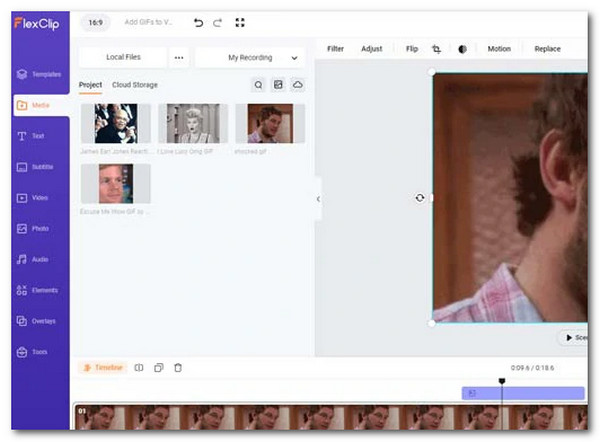
Aside from those two online tools, you can also add a GIF overlay to a video online using FlexClip. It provides the same functionality as the earlier tools and is also integrated with GIPHY, allowing you to get GIFs directly without needing to import them from your device. This is an excellent option if you want to add multiple GIFs from a single clip, as it allows you to do just that. Additionally, it supports various options to edit GIFs, such as adjusting their position and duration, cropping them into specific shapes, and more.
4. Canva
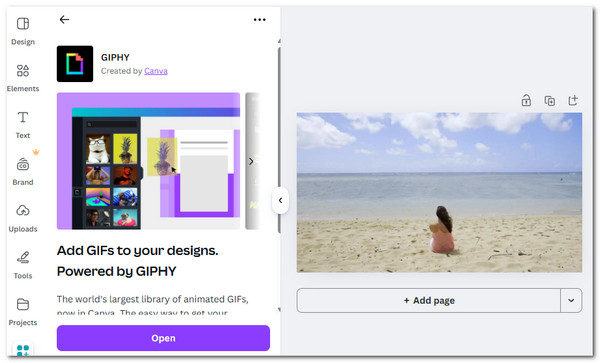
You must also try Canva, as it also enables you to add GIF to video for free. This is an online tool that lets you add GIFs to your videos. You can upload your video and GIF files, then drag, drop, resize, and position the GIF exactly where you want it. What sets Canva apart from other online solutions is that it combines video editing and design in one platform, offering access to animations, stickers, and templates so you can customize your video creatively.
5. Clideo
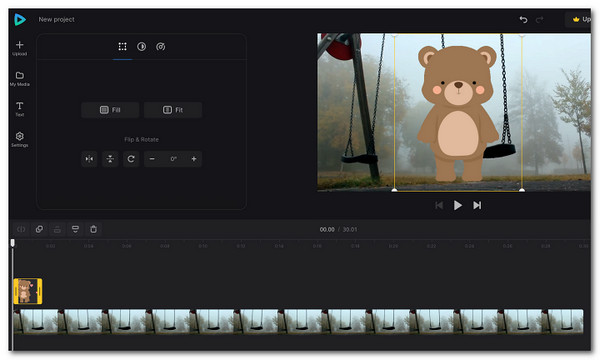
The last option you can use to add a GIF to video online is Clideo. It is one of the easiest online solutions for adding GIFs to a video. If you only want to add an animated GIF to a specific video using simple options and a straightforward process, this is a great choice. However, unlike the previously mentioned tools, this one doesn't integrate with GIF libraries.
How to Add GIFs to Videos on iPhone and Android
Aside from those desktop and web-based tools, there are also applications you can use to add an animated GIF as an overlay to a video on iPhone and Android, and one of the best apps you can try is CapCut. This is a popular mobile-based video editing app that makes it easy to add GIFs to videos directly from your phone. You can import your video, add a GIF as an overlay, and then resize, move, and adjust its timing with simple touch controls.
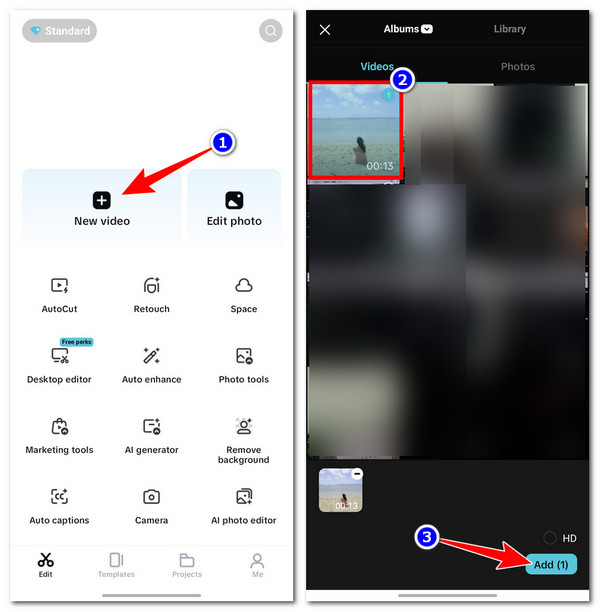
Step 1.Prepare a GIF file on your device. You can download one from the GIPHY website or its app. Then, launch the CapCut app, tap "New Video," select the video to which you want to add a GIF, and tap "Add" in the lower-right corner.
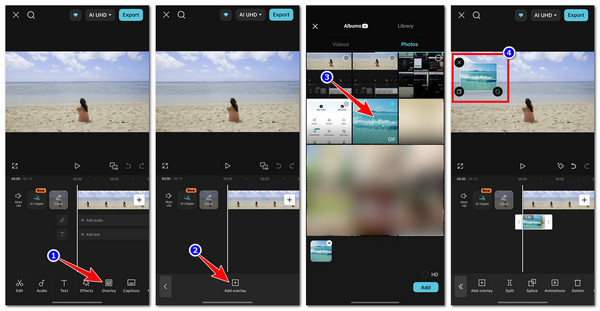
Step 2.Once the video is imported, tap the "Overlay" button, then tap "Add Overlay." After that, select the downloaded GIF to import it. After that, tap "Add" in the lower right corner.
Step 3.Once added, you can adjust the GIF according to your preferences. When you're finished, tap "Export" to save the video with the embedded GIF. That's it!
Troubleshoot GIFs Not Adding to Videos
There you have it! Those are the 8 best tools you can use to add GIF to video. Now, if your GIF doesn't work as expected after adding it to a video, don't worry, these are common issues with simple fixes.
- • GIF doesn't play in the preview - This usually happens when the editing tool doesn't fully support animated GIFs. Try converting GIF to MP4 and re-importing it to ensure smooth playback.
- • Transparent background is lost - Some editors don't preserve GIF transparency. If this happens, use a GIF with a solid background or switch to a tool that supports transparency correctly.
- • Video freezes or lags - Large GIF file sizes can cause performance issues. Reduce the file size/resolution of the GIF before adding it to your video.
- • GIF loops infinitely - Many GIFs are designed to loop by default. Adjust the clip duration or loop settings in your editor, or convert the GIF to MP4 to control playback more easily.
- • Watermark appears in the final video - This usually means the tool or app is using a free version. Check export settings or consider switching to a watermark-free editor.
- • GIF is not animating - If the GIF appears as a still image, the editor may not support animation. Converting the GIF to MP4 often solves this issue.
- • Can't extend or shorten the GIF duration - GIF timing is sometimes locked. Converting it to a video format allows you to trim, extend, or duplicate the clip as needed.
Conclusion
Now that you have the right tools that can help you add a GIF to video content, it is time for you to choose which one to use. If you have already decided which one to use, you can refer to its corresponding steps for guidance. Although all the tools mentioned here are reliable, only the AnyRec Video Converter can provide you with an efficient way to add an animated GIF to video content. This tool offers a straightforward interface, is easy to initiate the process of adding GIFs, and is infused with necessary features for adjustment. Try it today and see how it works!
Secure Download
Secure Download



