
 Record system audio and microphone voice.
4 Ways to Add and Record Audio on PowerPoint Slides in 2026

A slide deck on PowerPoint looks great, but it can be too…quiet, especially when you're presenting a classroom lesson. Adding a quick voiceover can keep your audience engaged. The question is, how can you record audio on PowerPoint presentations? Read on here to see the four different ways to record voiceover on PowerPoint, from the quick record button to a more robust solution. Choose the proper method for your slide!
Guide List
Record Audio in a PowerPoint with a Built-in Tool The Best Method to Record Audio for PowerPoint How to Add Existing Audio to a PowerPoint How to Convert Text to Audio in PowerPointRecord Audio in a PowerPoint with a Built-in Tool
Microsoft PowerPoint has a native recording tool designed for quick, slide-by-slide annotations. This approach is perfect to add and record audio on PowerPoint, mainly short explanations or voice notes for each slide, without affecting the rest of the presentation. Since the audio is connected directly to the slide, you can easily move or delete it as you organize your PowerPoint presentation.
Step 1.Once your presentation is opened, choose the specific slide where you wish to record audio.
Step 2.Then, head to the "Insert" tab and click the "Audio" dropdown menu, and click "Record Audio".
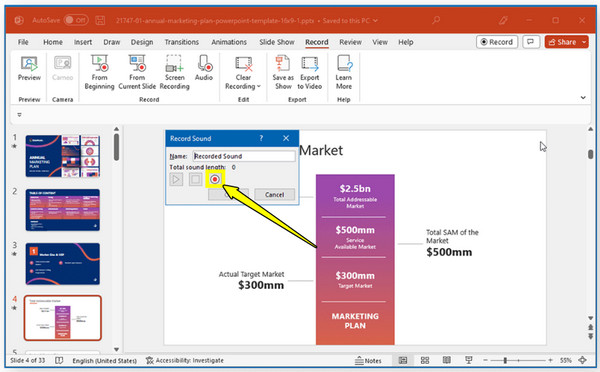
Step 3.Type a name for your audio recording, and once ready, click the "Record" button.
Step 4. Later, click the "Stop" button, and click the "OK" button to add the audio icon onto your slide. Now you can create a narrated video in PowerPoint.
The Best Method to Record Audio for PowerPoint
While recording audio narrations on PowerPoint's built-in features is handy, you may find your PowerPoint presentations sound thin or not of the quality you want. For this, it is better to use AnyRec Screen Recorder, a dedicated, superior alternative for anyone who needs crystal-clear sound. Here, you can record system sound and microphone audio at once, ensuring your background narration is well-balanced. It also has real-time noise cancellation and microphone enhancements that cut away annoying background sounds. More importantly, it gives you total control over the final output before the audio ever touches your slides.

Audio Recorder mode for high-fidelity voice and system recording.
Exports the audio directly to MP3, WAV, and other PowerPoint-friendly formats.
Includes a built-in trimmer to clean up your audio before exporting.
Advanced enhancements for mic and noise to have clean results
Secure Download
Secure Download
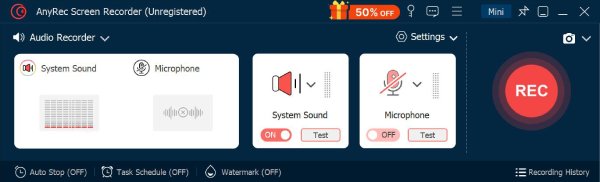
Step 1.Fire up AnyRec Screen Recorder and go straight to the "Audio Recorder" from the dropdown menu. You'll then see the controls you will need for your PowerPoint audio recording.
Step 2.Decide what you wish to record. Toggle "System Sound" ON to add music or videos, and ensure "Microphone" is turned ON for your voice narration.
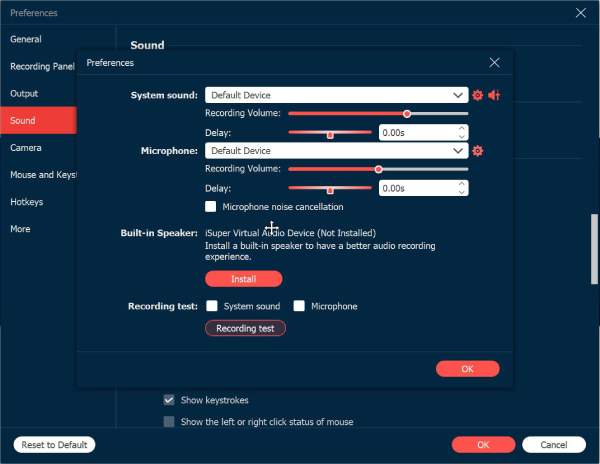
Before you start, click the "Settings" button and go to the "Sound" tab. Check the boxes for "Microphone Noise Cancellation" and "Microphone Enhancement".
Step 3.When you are ready, click the "REC" button. Use the floating menu if you want to adjust volume if needed.
Step 4.Once you're done, click the "Stop" button to open the preview window. Trim off any awkward silences at the start or end before clicking the "Save" button to create the file for your PowerPoint presentation.

Secure Download
Secure Download
How to Add Existing Audio to a PowerPoint
If you have recorded a high-quality voiceover or have a music track ready, you can quickly add audio to PPT. By bringing in your files, you can make sure that your audio quality will be consistent regardless of which device you use to edit. Plus, this method lets you layer complex soundscapes that other recording tools cannot handle. See below to add audio to a PowerPoint presentation. (Solutions you may need to remove background noise from audio.)
Step 1.Open the PowerPoint slide where you wish the audio to start.
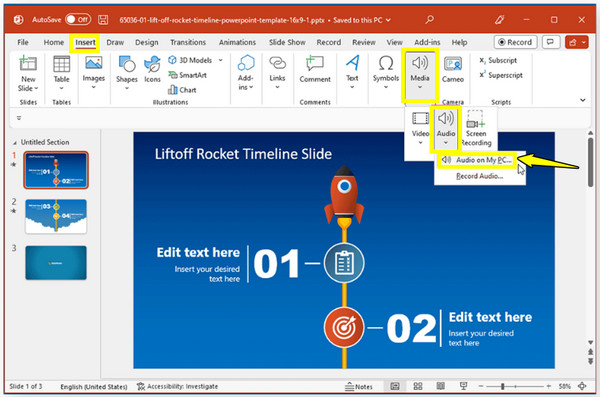
Step 2.Click the "Insert" tab and choose "Audio", then select "Audio on My PC" from the dropdown menu.
Step 3.Find your file on your computer, and click the "Insert" button.
Step 4.Later, use the "Playback" tab to decide if your added audio will play automatically or on click.
How to Convert Text to Audio in PowerPoint
For those who simply wish for a perfectly consistent voiceover, try to convert text to speech! This approach of PowerPoint audio recording is helpful for technical presentations where you need precise terminology every time. You can just type out your script, eliminating the need for a mic or quiet room, and it will transform into a professional narration. It is helpful when you create video presentations. Here's how it works:
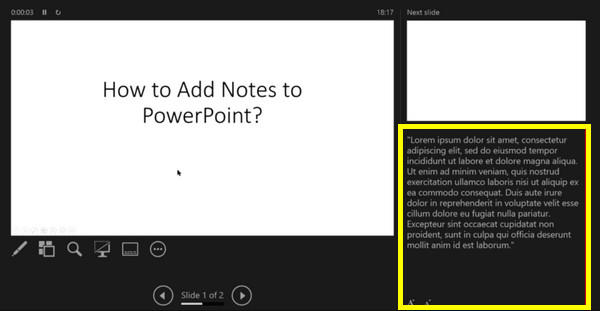
Step 1.At the bottom of each slide is "Notes"; type your script there.
Step 2.Then, use a "Text to Speech" generator and export an MP3 of your text.
Step 3.After that, insert the MP3 file into your slide from "Insert" to "Audio" method mentioned above
Conclusion
Whether you need audio for a single slide or a narrated audio, you have learned enough today to record audio onto a slide in PowerPoint. You can use the built-in flexibility of PowerPoint, import audio files, and even convert AI text to speech. While the native tool is great for convenience, to ensure a clean, professional audio sound, use AnyRec Screen Recorder to record audio for your presentations. It has the control and enhancement you need, making it the ultimate companion for your PowerPoint project.
Secure Download
Secure Download



