Hot

AnyRec Screen Recorder
Capture every moment. Record like a pro.
Secure Download
3 Ways to Record 3DS Gameplay (with or without Capture Cards)

Unlike modern consoles that come with handy Share buttons, capturing 3DS gameplay is difficult, as Nintendo did not make it easy for you to share your adventures. In fact, if you have spent time searching for how to record 3DS gameplay, you might have faced some expensive suggestions. To help you out, today's post breaks down the three best ways to screen record your Nintendo 3DS gameplay. Along the way, you'll see tips and common fixes to get that perfect recording.
Guide List
Record 3DS Gameplay with Physical Capture Card Record 3DS Gameplay on a PC [without a Capture Card] Capture 3DS Gameplay with External Camera or Phone Tips for Better 3DS Gameplay Recordings Common Problems and Solutions about 3DS Gameplay RecordingRecord 3DS Gameplay with Physical Capture Card
For you to get stutter-free 3DS gameplay, you need a physical capture card. This approach allows you to have a flawless, high-definition video of both screens directly on your PC. Instead of aiming a camera at your console, a capture card will intercept the video signal from the 3DS hardware.
Here's how to capture 3DS gameplay with a capture card:
Step 1. Get an internal capture card like Loopy mods installed. Then, connect the console to an open USB port on your computer using a USB or USB-C port on the back of your 3DS.
Step 2. Then, install the specific viewer software by the capture card manufacturer to decode the signal and display the dual screens on your monitor. Launch it and turn on your 3DS.
Step 3. Now, both screens should appear. Use the software's settings to adjust the layout. Most 3DS capture cards transmit video over USB but need a separate cable for sound, so route your audio by using a 3.5mm auxiliary cable to your computer's port.
Step 4. Launch your desired recording software like OBS Studio. Add a new "Window Capture" source and choose your 3DS viewer software. Adjust the frame and click the "Start Recording" button.
Record 3DS Gameplay on a PC [without a Capture Card]
Was it too extreme for you? Well, you can still record 3DS gameplay without a capture card. You can turn to a much more accessible route on your PC, and you need a lag-free screen recorder to capture the action. For this, AnyRec Screen Recorder is recommended. It is a very lightweight, professional-grade tool that handles ship-paced gameplay without affecting your PC's performance. Whether you're recording a 3DS emulator run or dual screens mirrored from your physical console, this software is a reliable digital VCR.
Lock onto your active window, recording at a smooth 60FPS in 1080p or 4K.
Capture your internal system audio and mic at once with zero loss audio syncing.
Custom region selection, capturing both screens perfectly, or just focus on one.
Preview and trim the video to cut out extra parts before exporting.
Secure Download
Secure Download
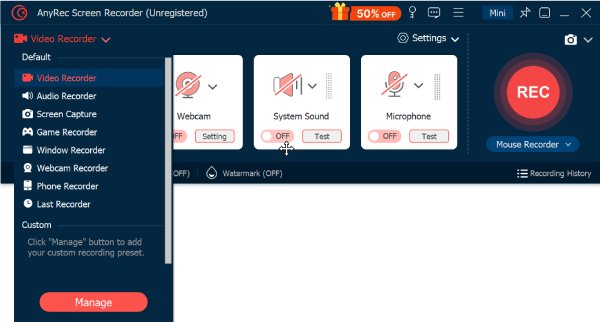
Step 1. Launch your 3DS emulator or open your wireless stream window. Then, start the AnyRec Screen Recorder on your computer. Select the "Game Recorder" button from the main menu.
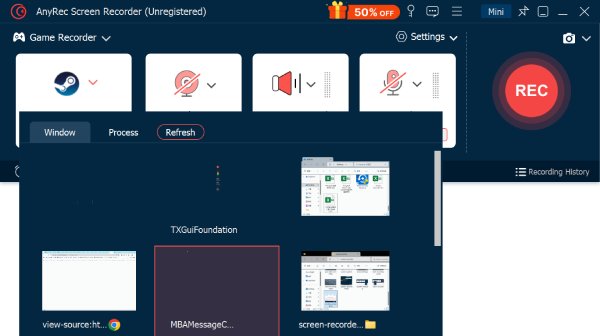
Step 2. Use the "Select the game" dropdown to choose the emulator or window running your 3DS game. Turn on "System Sound" for the game audio, and enable "Microphone" if you want to add your own commentary.
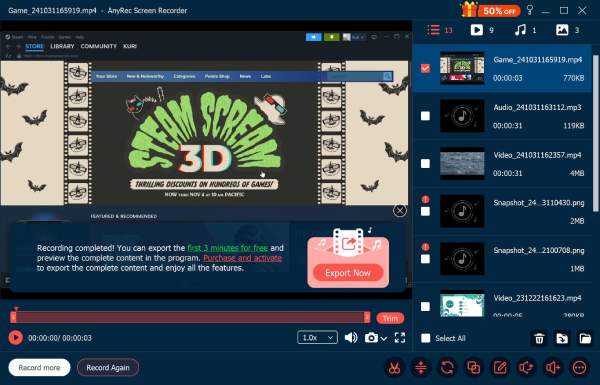
Step 3. Click the "REC" button once ready. Play your game as you normally would. Later, click the "Stop" button, watch your video, and trim off those awkward parts. Click the "Save" button to export your high-quality file.
Capture 3DS Gameplay with External Camera or Phone
You may want to keep things uncomplicated to record 3DS gameplay. So, try using an external camera or phone setup. Before you think of a blurry video, a careful camera is a surprisingly decent way to enjoy and share your gameplay. (Or you can make a blurry video clear with third-party tools manually.) Here's how to get the cleanest recording possible:
Step 1. Mount your smartphone or camera onto a tripod, and position it above or in front of your console. Then, secure your 3DS by placing a mat under your console or using anything to prevent it from sliding around.
Step 2. Next, control your lighting to avoid any reflections. Then, open your phone's camera and make sure it is focused on your 3DS screen.
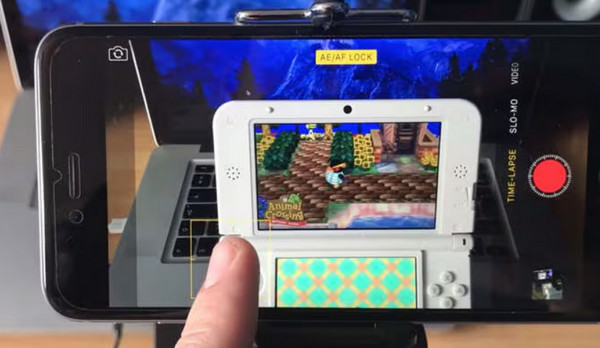
Step 3. When everything is ready, click the "Record" button on your camera and play your game! Be sure the in-game sound can be heard very clearly on your recording.
Tips for Better 3DS Gameplay Recordings
Now that you know how to capture 3DS gameplay, learn how to make it look and sound better. Even with using the best tools, sometimes, settings can turn your recording into a laggy one. Try the following tips to make sure your 3DS recordings are better to watch.
- Record Only the Game Window. Always set your recording software to capture your specific game window or app rather than your entire display.
- Close Hungry Background Programs. Close any resource-heavy background apps since streaming a 3DS needs more system resources than you might think. Freeing up your RAM and CPU will leave room for your recorder to capture a steady gameplay.
- Balance Your Game and Microphone Audio. Adjust your audio levels, both the microphone and the game's internal audio. Make sure your voice shines, with the game music as the backdrop.
- Run a 10-Second Test Recording. Before you start playing, record a quick 10-second clip. Play your game, speak into your mic, and watch the playback to avoid finding out your mic was muted or your video was a black screen after the recording's done.
Common Problems and Solutions about 3DS Gameplay Recording
3DS recording can sometimes come with a few annoying problems. Lag, missing audio, and poor video quality are common ones. The good news is that small setting changes can often help.
1. The Gameplay is Laggy. Your Wi-Fi router may be struggling to handle a heavy stream of video data.
To fix this, move your 3DS close to your router or connect your PC directly to it to free up wireless bandwidth. Turn off QTM in your NTR settings from your streaming client, like Snickerstream, to give the tip screen more processing power.
2. No Game Audio. You're likely recording using a USB or wireless stream, which transmits only video signals.
To fix this, use a 3.5mm auxiliary cable from your 3DS headphone jack into your computer's port. In your recording software, set your audio input capture to listen to that specific port.
3. The Video is Blurry or Pixelated. The 3DS's native resolution is very low, which looks blurry when stretched to a modern monitor.
To fix this, go to your graphics settings and increase the resolution. For a physical camera, lock your camera's focus on the 3DS screen.
4. The Recording App is Dropping Frames. Your recording software is fighting too many tasks for CPU power.
To fix this, go to your recorder settings and switch your format to MP4 and make sure hardware acceleration is enabled. For an emulator, disable V-Sync in its settings and force it through your GPU's control panel.
Conclusion
It's all about choosing the 3DS gameplay recording method that fits your budget, comfort level, and how much patience you have for cables! It may feel complex at first, but with the right lighting balance and correctly routed audio, you can record 3DS gameplay successfully. And to skip all the problems with capture cards, use AnyRec Screen Recorder. Download it from its official website and record your game window and crystal-clear audio with zero hassle.
Secure Download
Secure Download
Related Articles:
About Our Author