Hot

AnyRec Video Converter
Convert videos in MPEG4 and MP4 fliexbly.
Secure Download
Comparing MPEG4 vs. MP4: Definition, Use Cases, & Contrast

Looking for a guide that offers a comprehensive exploration of MPEG4 vs. MP4 differences to identify which one suits your needs? Well, both MPEG-4 and MP4 are popular and widely used for video files because of their compatibility; however, some people, like you, might still be confused about their differences or think they are the same. Let this post help you identify their differences by providing a comprehensive, detailed comparison between MPEG4 and MP4 comparisons.
Guide List
What Is MPEG4 What Is MP4 Key Differences Between MPEG4 vs. MP4 Which Is Better, MPEG4 or MP4 How to Convert MPEG4 to MP4 (Or Vice Versa) FAQsWhat Is MPEG4
Before exploring this post's MPEG4 vs. MP4 comparison to discover their differences, you can first review their descriptions to understand what they are, their codecs, and their purposes. This will help acquire the key differences already between them. You can start with what MPEG-4 is, its codec, and its purpose.
MPEG-4 is a compression standard for video and audio files. It shrinks file sizes, making them easier to store, share, and stream. It works as a video codec, encoding video when you save it, and decoding it when you play it back. The result is smaller files without a big drop in quality.
MPEG-4 is found in popular formats such as MP4, MKV, and MOV, which can store video, audio, and other media. Compared to newer codecs like H.264, it usually creates larger files and slightly lower quality, which is why many platforms now prefer newer compression technologies.
What Is MP4
On the other hand, the MP4 format (MPEG-4 Part 14) is a container format commonly utilized to bank video, audio, and subtitles in a single file. With that, MP4 videos are easy to play on various devices, such as computers, smartphones, and more. Aside from that, MP4 files can use different codecs, such as MPEG-4, H.264, or HEVC, which compress video to reduce file size while keeping high quality. Its main purpose is to make media files easy to store, share, and play across different platforms.
Key Differences Between MPEG4 vs. MP4
Now that you have explored the descriptions of the MPEG4 format and MP4, you have probably already noticed some of their differences. To make their differences clear and easy to see, this post features a simple table outlining their differences across various aspects. So, without any further ado, explore the table containing the key differences between MPEG4 vs. MP4 below.
| Feature | MPEG-4 | MP4 |
| Type | Video codec/compression standard | Multimedia container format |
| Quality | High-quality video compression | Depends on the codec and settings used inside the MP4 file |
| Frame Rate | Up to 30 fps | Depends on the codec used; not limited by MP4 itself |
| Compression | Motion-compensation-based compression | Usually uses H.264 / MPEG-4 AVC |
| Usage | Video editing, digital distribution | Social media, general video playback |
| Compatibility | Some formats may not play on all devices | Works on most media players and devices |
Type
MPEG-4 is a video codec, meaning it compresses and decompresses video for storage and playback. MP4 is a container format that stores various elements like video, audio, subtitles, and other media in a single file.
Quality
MPEG-4 can make videos smaller without losing much quality. MP4 videos can look different depending on which codec and settings were used.
Frame Rate
MPEG-4 supports up to 30 frames per second, while MP4 itself does not limit the frame rate and depends on the video codec used inside.
Compression
MPEG-4 shrinks video files while keeping the quality intact. MP4 uses a codec called H.264 to do this compression.
Usage
MPEG-4 is often used for video editing and sharing digital content, while MP4 is popular for social media, streaming, and general video playback.
Compatibility
MPEG-4 files may not work on all devices, depending on the format and codec. You can play MP4 videos on almost any computer, phone, or media player.
Which Is Better, MPEG4 or MP4
After reading the differences between MPEG4 and MP4, what do you think of them so far? Have you decided which one to choose, or do you need help identifying which is better? Well, if you do, then you need to continue reading this section! This section can help you decide between MP4 and MPEG4. Dive in below.
Choose MPEG4 Instead of MP4
- • Choose MPEG-4 for better video quality when editing or for professional use.
- • It is good when you need to keep the video size small while keeping it clear.
- • MPEG-4 lets you adjust video settings for more control.
Choose MP4 Instead of MPEG4
- • Choose MP4 if you want a video that works on almost any device.
- • It is best for sharing videos online or on social media.
- • MP4 is simple to use because you don't need to worry about technical settings.
How to Convert MPEG4 to MP4 (Or Vice Versa)
That's it! That's the comprehensive review of MPEG4 vs. MP4 differences. Now, if you have videos in formats like AVI, MKV, or MOV, they might not play on all devices. You need to convert them to MP4 with the MPEG-4 codec to make your files more compatible while keeping good video quality. Tools like AnyRec Video Converter make this process simple! This desktop-based tool lets you convert files from 1000+ video and audio formats, including MP4, quickly. Aside from that, it lets you adjust settings such as codec, resolution, bitrate, and encoder, offering MPEG4 as an option, to your needs.

Supports output-tweaking options that let you set the encoder to MPEG4 or H.264.
Lets you export high-quality videos to HD, 4K UHD, 5K, and 8K.
Equipped with options to rotate, crop, add effects and filters, and more to your video.
Allows you to automatically upscale resolution, remove video noise, and more.
Secure Download
Secure Download
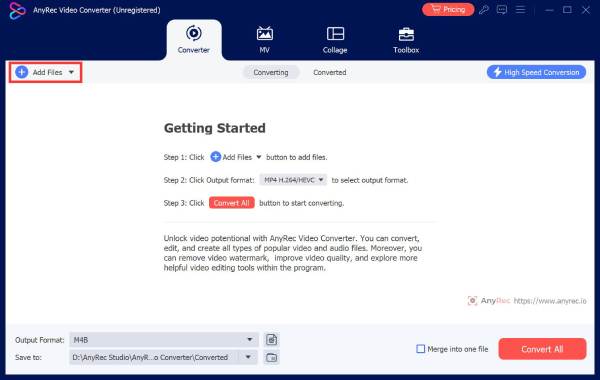
Step 1.First, install the AnyRec Video Converter on your desktop, then launch it. Next, import the MKV/MOV/AVI video file by clicking the "Add Files" button.
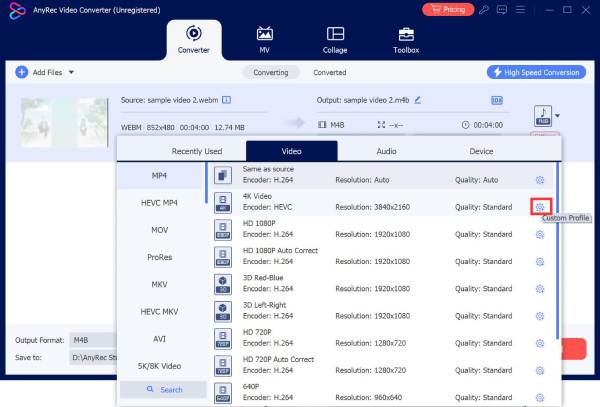
Step 2.After that, click "Format" on the right-side section and click the "Video" tab. Then, search and select "MP4" from the list. Then, click the "Custom Profile" button with the "gear" icon.
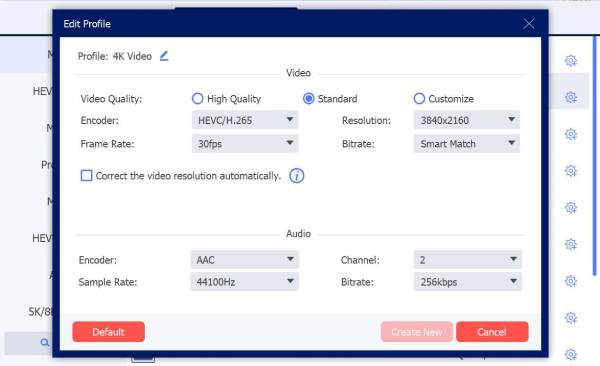
Step 3.Next, in the "Edit Profile" section, set the "Encoder" to MPEG-4 to preserve the original quality. You can also set the frame rate, resolution, and bitrate. Once done, click "Create New".
Step 4.Once done, select your preferred output file location, then click the "Convert All" button. And that's it! That's how you use this tool to convert a video file to MP4 or MPEG4.

FAQs
-
1. Is MP4 and MPEG4 the same?
No, MP4 and MPEG-4 are not the same. MP4 is a container file format for video, audio, and subtitles, while MPEG-4 is a codec used to compress video within the file.
-
2. Which devices can play MPEG4 videos?
You can play video files encoded with MPEG4 on most computers, phones, tablets, and media players. Some older devices might need the video converted to MP4 to work properly.
-
3. Does an MP4 using the MPEG-4 codec take up a lot of storage space?
No. MP4 files don't take up much space on your device. That's because MPEG-4 compresses video well, providing smaller file size and decent quality.
Conclusion
And that's the differences between MPEG-4 and MP4. MPEG-4 is a codec, it compresses the video. MP4 is a container, it holds the video, audio, and subtitles together. MPEG-4 keeps the video quality good. MP4 makes the file easy to play and share. This post also provides a bonus tip that can help you convert files to MP4 or MPEG4 if you can't play them on your devices through AnyRec Video Converter. Try it today!
Secure Download
Secure Download
About Our Author