
6 Ways to Convert iPhone Video to MP4 - VLC, iMovie, etc.

The iPhone records stunning footage in high-efficiency formats like MOV or HEVC. While these two offer exceptional quality and small sizes, they often have compatibility problems. Here comes the need to convert iPhone video to MP4, a universally accepted format. This post today will guide you to the 8 effective ways to change iPhone video format to MP4, from desktop and online tools. By the end, you'll have the perfect method to ensure your stunning video plays everywhere.
Guide List
Convert iPhone MOV Video to MP4 with High Quality Easily How to Use VLC to Save iPhone Video as MP4 Use iMovie on Mac to Change iPhone Video Format to MP4 3 Quick Online Tools to Convert iPhone Video to MP4 for FreeConvert iPhone MOV Video to MP4 with High Quality Easily
Videos from an iPhone are often exported in high-quality MOV format, and while it is excellent for viewing on Apple devices, MP4 is the more universal format for uploading and playing back on any device. Thus, here's AnyRec Video Converter for you. It is a Windows and Mac-friendly and powerful converter that not only converts iPhone MOV videos into MP4 but also preserves their original clarity. Also, thanks to its advanced GPU acceleration, the conversion runs so smoothly and quickly as many similar tools. Whether your video is meant for social media or presentations, this software ensures your iPhone videos become MP4 files without any issues.

Convert iPhone video to MP4 and many other formats on Windows and Mac.
Batch-convert multiple iPhone videos at once without losing quality.
Accelerated by powerful GPU technology for much quicker conversions.
Includes built-in editing tools like trimming, cropping, merging, and more.
Secure Download
Secure Download
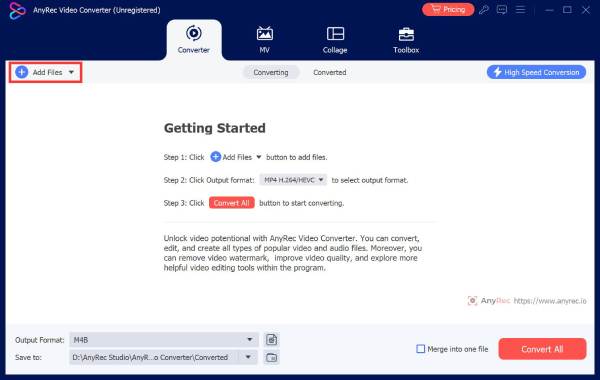
Step 1.After launching AnyRec Video Converter on your computer, click the "Add Files" button on the main screen. Select and upload the iPhone MOV video you want to convert.
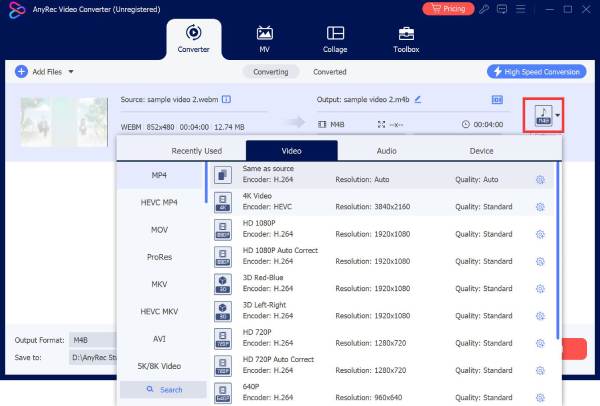
Step 2.Next, to the uploaded file, select the "Format" menu. Go to the "Video" section and choose "MP4" as your desired output format.
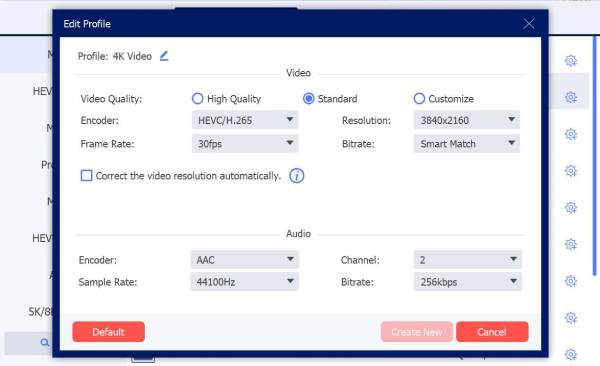
If you want to fine-tune your video, click the "Custom Profile" to adjust the resolution, bitrate, frame rate, and other settings.
Step 3.Return to the main window, pick a folder to save your output, and rename the file if needed. Finally, click the "Convert All" button to convert iPhone .mov to .mp4 now.

Secure Download
Secure Download
How to Use VLC to Save iPhone Video as MP4
Besides being a free, widely compatible player, VLC Media Player can convert almost any video format, including MOV files, into MP4. It works flawlessly on both Windows and macOS, making it ideal regardless of your computer. Plus, the iPhone video to MP4 conversion process is straightforward once you know where the settings are located. Now, let's convert iPhone videos to MP4 using VLC Media Player.
Step 1.Launch the VLC Media Player on your computer, click the "Media" menu (File menu on Mac), select "Convert/Save" (Convert/Stream on Mac).
Step 2.There, click the "Add" button and select the iPhone video from your computer that you wish to convert. Click the "Convert/Save" button at the bottom to proceed.
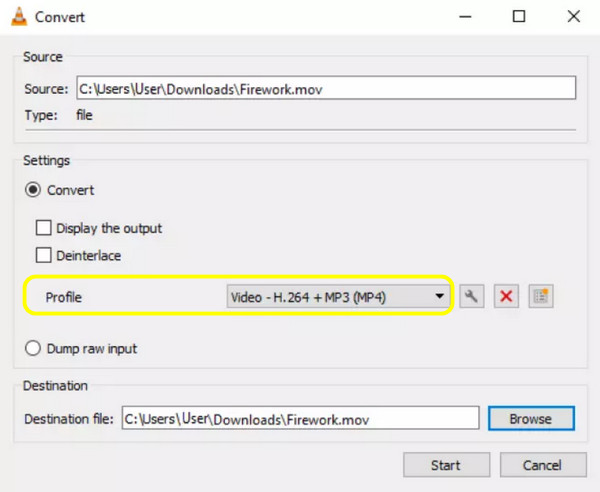
Step 3.Now, in the "Profile" field, pick "Video - H.264 + MP3 (MP4)". Then, click the "Browser" button to choose the destination folder and name your video file, and click the "Start" button to transfer video from iPhone to MP4 format successfully.
Use iMovie on Mac to Change iPhone Video Format to MP4
Meanwhile, iMovie is Apple's built-in editor for macOS, and it also supports iPhone video to MP4 conversion. As it supports iPhone video formats, you can export your iMovie project in MP4 format, making it a reliable, high-quality solution to convert videos without the help of third-party apps.
Step 1.Open iMovie on your Mac and click the "Create New" button, then select "Movie". There, drag and drop your iPhone video into the project timeline.
Step 2.Click the "Share" button in the upper-right corner of the window. Select "File" from the options, set the "Format" to "Video and Audio", and make sure "Quality" is set to your needs.
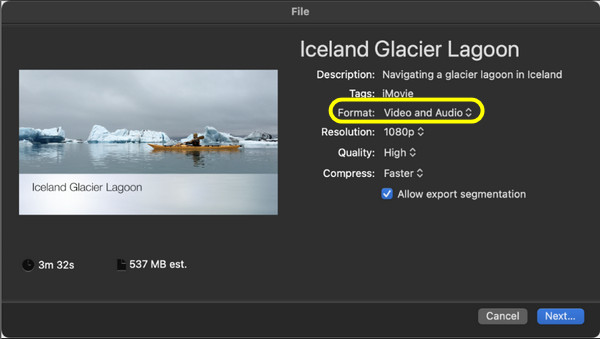
Step 3.After that, click the "Next" button and choose where to save the file. Name your video and click the "Save" button, and iMovie will export it as an MP4 file.
3 Quick Online Tools to Convert iPhone Video to MP4 for Free
Still, many users prefer converting iPhone video to MP4 directly through online tools due to their fast, convenient, and require no installation. These web-based video converters can be accessed on any device with a browser, making them perfect for a quick iPhone video to MP4 conversion.
See below the three reliable online converters that offer a simple conversion process. Check their maximum file size limit for the free version before the conversion.
1. CloudConvert
One of the most popular online iPhone video to MP4 converters because it covers a wide range of video formats, including MOV and HEVC. It also includes customization options like codec control, resolution adjustments, and bitrate settings.
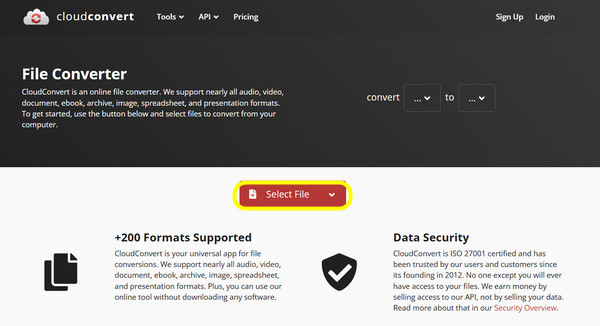
Step 1.Head to the CloudConvert website, and there, click the "Select File" button to upload your iPhone video.
Step 2.Choose "MP4" as your output format, and adjust settings as needed.
Step 3.Click the "Convert" button to download your MP4 video file.
2. Zamzar
Zamzar is known for its simple interface and quick upload process, making it great for anyone who wants to convert iPhone video to MP4 with no hassle. It covers many video formats and also sends an email notification when your file is ready.
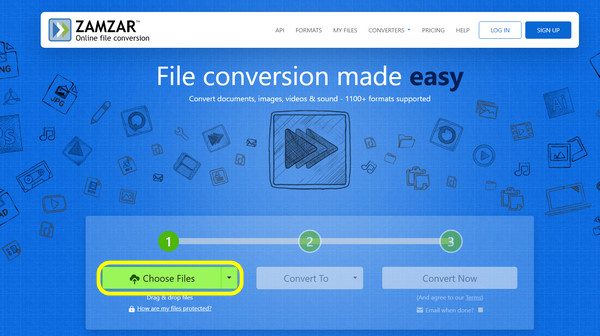
Step 1.Visit the Zamzar website. Click the "Choose files" button and select your iPhone video file from your computer.
Step 2.Set "MP4" as your output format, then click the "Convert Now" button to start the process.
Step 3.Later, download your converted MP4 video.
3. Online-Convert
Online-Convert here is another simple tool that helps you convert iPhone video to MP4 without any complications. It features device-specific presets, making it easier for anyone who wishes for a particular video size or quality.
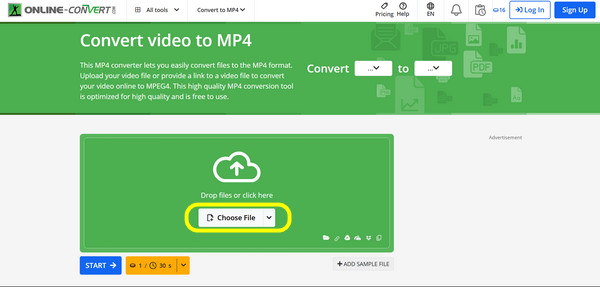
Step 1.Search for the Online-Convert official website. Select "Convert to MP4" from the options. Then, upload your video file or paste a URL.
Step 2.Adjust advanced settings if needed.
Step 3.After all that, click the "Start" button to begin the conversion and get the MP4 result.
Conclusion
What an essential step for sharing, uploading, and playing back is to convert iPhone .mov video to .mp4! Today, you have explored six varied methods, from desktop and online solutions, you can convert your converted iPhone to an MP4 video file right away! While there are a lot of free and quick options, for users who value speed, quality, and flexibility, use AnyRec Video Converter. This tool is the superior choice for its GPU acceleration to change iPhone videos to MP4 faster than almost any other solution. It also has built-in editing features and quality-preserving methods, making it the best desktop solution for all conversion tasks.
Secure Download
Secure Download



