4 Easy Ways to Record Dota 2 Gameplay in High Quality

Want to record Dota 2 games to review your mistakes, post a highlight clip or something else? Not everyone has a high-end PC, and Dota 2 is not exactly a lightweight game. It is true that can you drop FPS from 160 down to 60 or lower for no-lag OBS recording. Or you can get other ways to capture clean Dota 2 footage without turning your game into a lag fest.
Guide List
Use Steam Game Recording for Easy Clip Sharing Record Dota 2 Gameplay on Windows/Mac with High Quality How to Record Dota 2 Gameplay through Xbox Game Bar Record Dota 2 Gameplay with OBS as Streamers and Content Creators FAQsUse Steam Game Recording for Easy Clip Sharing
Valve introduced Steam Game Recording as a built-in feature. It works directly within Steam for all games, with special Dota 2 support for automatic highlight markers. The background recording mode automatically saves up to 120 minutes of your gameplay. Moreover, you can use Steam's integrated editor to clip, mark highlights, and share directly to Discord, Steam Chat, or your phone via QR code. So, you can record Dota 2 gameplay on Windows directly. However, its Mac support is limited.
- 1. Open Steam. Click the "Steam" button in the top menu. Then click the "Settings" button.
- 2. Select the "Game Recording" button from the left panel.
- 3. Choose the "Record in Background" button for automatic capture. Or you can choose the "Record on Demand" button for manual control.
- 4. Set your maximum recording duration (up to 120 minutes) and storage limit.
- 5. Launch Dota 2. Game recording starts automatically.
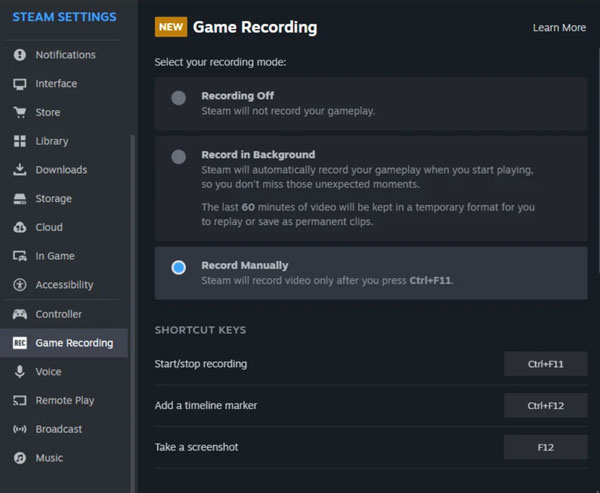
Here are default hotkeys to enable Dota 2 game recording in background mode.
- Shift + F11 - Save current clip
- Ctrl + F12 - Add a timeline marker manually
- F12 - Screenshot
If you want to view and clip your Dota 2 game recording footage, follow the steps below.
- Press the "Shift" and "Tab" keys on your keyboard to open Steam Overlay while in-game.
- Click the "View Clips" button at the top.
- Select any recorded session, scrub the timeline, trim to your highlight, and then you can export or share.
Limitation: Steam Game Recording currently cannot capture Discord audio. It only records in-game voice. If your squad communicates over Discord, your friends' voices won't be in the recording.
Record Dota 2 Gameplay on Windows/Mac with High Quality
AnyRec Screen Recorder is one of the best game recorders for capturing Dota 2 gameplay. It has an intuitive interface for beginners while having powerful functions for professionals. You can get high-quality output by adjusting the video resolution, quality, and frame rate. It also supports real-time drawings to add annotations and point out highlights.
Record Dota 2 gameplay with the full-screen or a selected game window.
Capture yourself and your voice through the microphone and webcam.
Customize the recording quality and frame rate to keep the high quality.
Hotkeys to start/pause/stop recordings at any time to capture the highlights only.
Secure Download
Secure Download
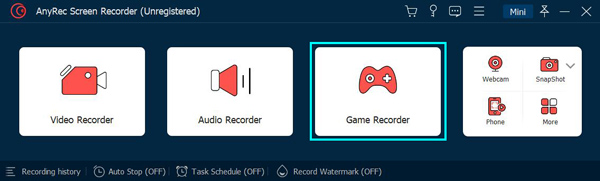
Step 1.Download and launch AnyRec Screen Recorder on your Windows/Mac. Click the "Game Recorder" button on the main screen to record Dota 2 gameplay.
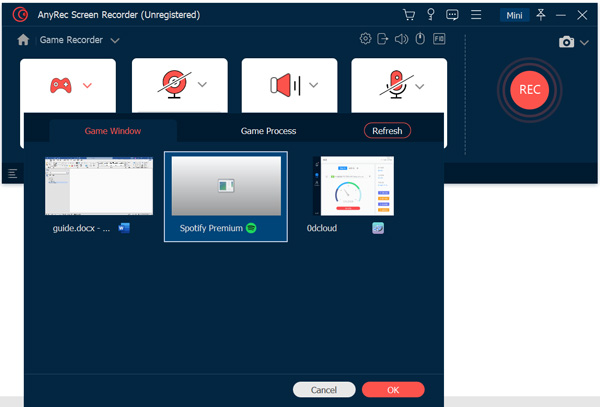
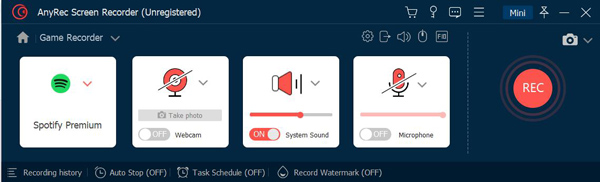
Step 2.Run Dota 2 gameplay and AnyRec Screen Recorder will automatically recognize it. You can click the button with downward arrow icon to choose the screen of Dota 2 to capture. Then, you can change the volume of "System Sound" and "Microphone" separately. If you want to show your facial expression, you can also turn on the webcam and put it in the corner.
Step 3.To record Dota 2 gameplay with high quality, you need to adjust the recording settings. Click the "Menu" button and click the "Preferences" button. In the "Output" menu, you can change the quality, frame rate, keyframe, etc. Just choose the Lossless quality and the maximum 60 fps frame rate.
Moreover, you can enable the voice enhancement and noise cancellation in the "Sound" menu to improve the audio quality when recording Dota 2 gameplay.
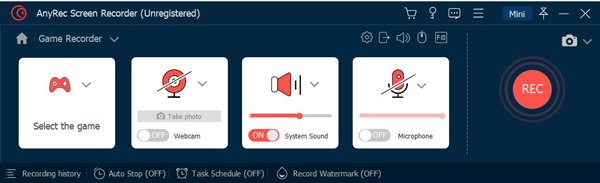
Step 4.After clicking the "OK" button to save the changes and go back to the main screen, you can click the "REC" button to start recording. And you can finish the recording at any time by clicking the "Stop" button.
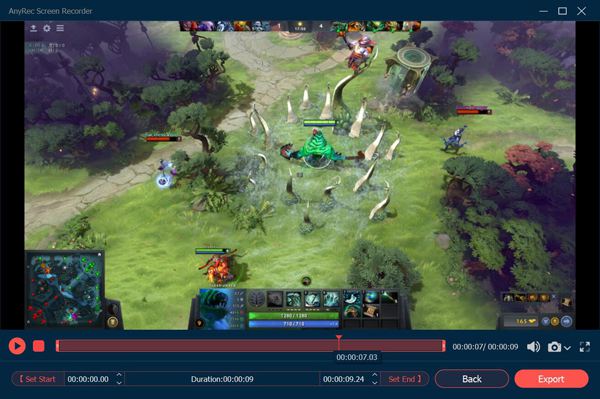
Step 5.At last, you can clip the extra parts at the beginning and the end and only remain the highlights. Then, click the "Export" button to save the Dota 2 gameplay recordings on your computer. Or you can find them in the "History Recordings" and directly share them on YouTube, Facebook, Twitter, etc.
How to Record Dota 2 Gameplay through Xbox Game Bar
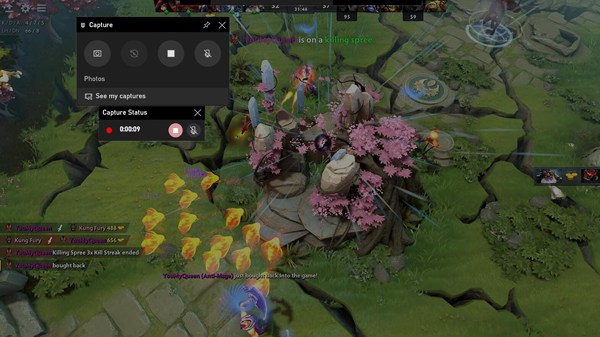
If you are using Windows 10, you can also use the default Xbox Game Bar to record Dota 2 gameplay. Although it is said to be designed for game recording, you can’t even change the output quality and frame rate. Here are the steps:
Step 1.Open Dota 2 gameplay on your Windows, and then press the "Windows + G" keys on your keyboard to launch Windows 10 Xbox Game Bar. Or you can directly press the "Windows + Alt + R" keys to start recording Dota 2 gameplay.
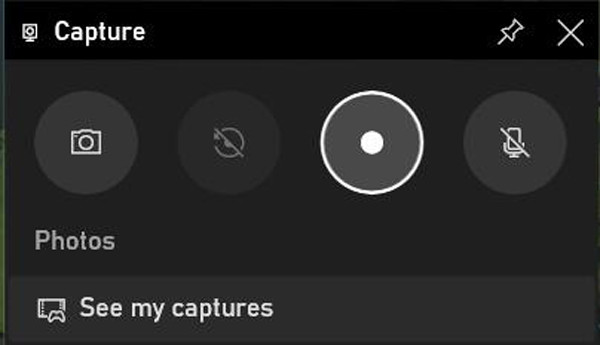
Step 2.Click the "Capture" button in the popping-up window to record the full screen of your computer. You can also click this button to stop recording at any time. Once you finish the recording of Dota 2 gameplay, the recordings will be automatically saved in MP4 format on your computer. You can find them in the "Captures" folder.
Record Dota 2 Gameplay with OBS as Streamers and Content Creators
If you want to get complete control over output quality, encoding, and workflow, you can choose OBS. Check the recommended OBS settings for Dota 2 recording.
Go to Settings > Output > Recording:
- Recording format: MKV (safer than MP4. If OBS crashes, MKV videos are recoverable; but MP4 videos are corrupt.)
- Encoder: NVENC or AMD AVC (based on which GPU you have). Use x264 on CPU only if you have no dedicated GPU.
- Bitrate: 5,000-8,000 kbps
- Keyframe interval: 2
Go to Settings > Video:
- Base resolution: Match your monitor
- Output resolution: 1920×1080 for 1080p, or 1280×720 for lower-end PCs.
- FPS: 60 FPS
- Downscale filter: Lanczos
Go to Settings > Audio:
- Audio bitrate: 160 kbps minimum; 320 kbps if you record voice commentary.
Now you can set up game capture for Dota 2:
- 1. Launch OBS and Dota 2.
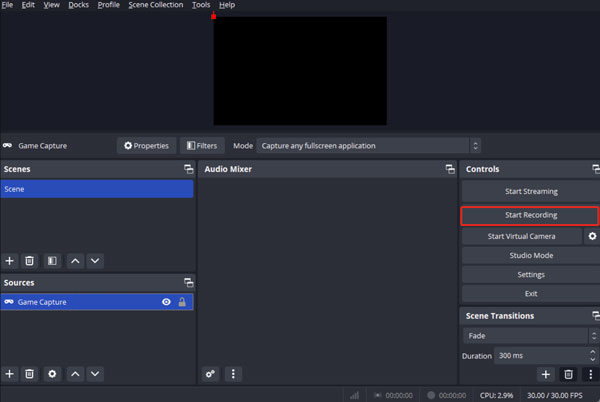
- 2. In OBS Sources panel, click the "+" button and then click the "Game Capture" button.
- 3. Set Mode to "Capture specific window". Then Select Dota 2.
- 4. Click the "Start Recording" button to record Dota 2 game with OBS.
- 5. Your Dota 2 recordings save to the folder set in Output settings.
FAQs about Recording Dota 2 Gameplay
-
1. Where can I find the Dota 2 gameplay replay?
Click the "Profile" button on your Dota 2 game to see the recent match lists. Just click the "View all games" button to see the desired Dota 2 replays. If you want to upload them on social platforms, you can use AnyRec Screen Recorder to record Dota 2 replays.
-
2. How to record Dota 2 gameplay through OBS?
Launch OBS and click the "Sources" option. Click the "Add" button and click the "Game Capture" button. Then enter the name of Dota 2 and choose the desired game window.
-
3. Can I watch Dota 2 gameplay replays on my phone?
You can record Dota 2 gameplay in MP4 format and save them on your phone.
Conclusion
Here you have known 4 ways to record Dota 2 gameplay on Windows/Mac. The Windows Xbox Game Bar and the free online recorder are easy to use. But to get the high-quality and smooth gameplay recordings, have a try on AnyRec Screen Recorder to record Dota 2 gameplay with 1080p and 60 fps.
Secure Download
Secure Download
About Our Author