
 Record games up to 4k UHD in 60 FPS.
4 Ways to Record Fortnite on Switch (Replays & Game Clips)

Fortnite on Nintendo Switch is a fast-paced action game that players like you want to save or share online. However, knowing how to record Fortnite on Switch is not as simple as on PC, especially for longer recordings. The good news? Several ways to record Fortnite on Switch, whether you want the quick built-in solution or a more advanced setup. This guide shares four different ways to help you capture Fortnite gameplay with ease.
Guide List
How to Record Fortnite on Nintendo Switch for Hours How to Record the Last 30 Seconds of Fortnite Gameplay on Switch How to Nintendo Switch Gameplay with OBS How to Record Gameplay on Nintendo Switch without a Capture Card Quick Summary of Recording Fortnite on Nintendo Switch FAQs about How to Record Fortnite on SwitchHow to Record Fortnite on Nintendo Switch for Hours
To record Fortnite on Switch in 120 FPS without lag, you can use AnyRec Screen Recorder. Using this game recording software, you can save long-duration Fortnite gameplay without lag, usually used for full matches, sessions, or streaming highlights. Besides that, it allows you to adjust video resolution, frame rate, format, and other settings, ensuring your Fortnite gameplay looks sharp and fluid.

Game Recorder mode for capturing Nintendo Switch gameplay like Fortnite.
Advanced hardware acceleration for a smooth, lag-free game recording.
Real-time preview with basic editing tools, letting you quickly trim gameplay.
Export recording in formats like MP4, MOV, AVI, and more for easy sharing.
Secure Download
Secure Download
Step 1.Connect the Nintendo Switch to a capture card, then plug it into your computer. Launch AnyRec Screen Recorder, click "Game Recorder" from the dropdown options.
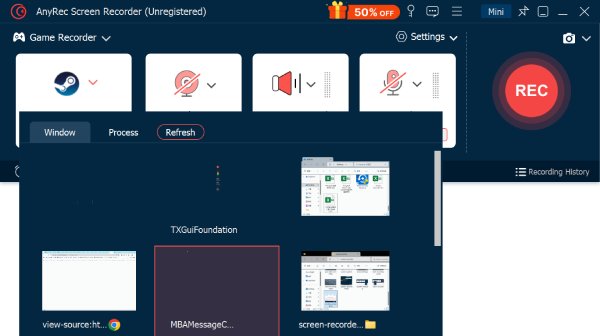
Step 2.Click "Select the game" and choose the Fortnite gameplay that is being streamed through your capture card. You can turn on the toggle button before "Webcam" to record yourself playing Fortnite gameplay.
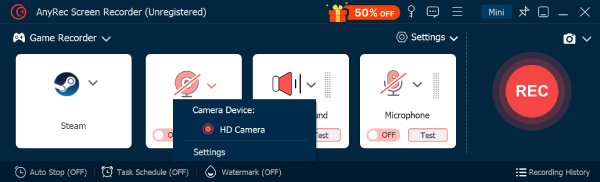
Step 3.Turn on "System Sound" to capture in-game audio. For voice commentary, enable "Microphone", too. You can activate the "Webcam" option as well for face reactions.
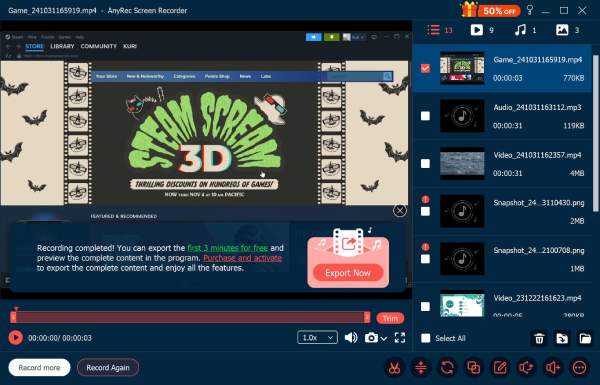
Step 4.Click the "REC" button to begin; play Fortnite as usual. Once your session is over, click the "Stop" button to preview the footage and do quick edits if needed. Click "Done" to save your Fortnite gameplay recording.
How to Record the Last 30 Seconds of Fortnite Gameplay on Switch
While long recordings are perfect for full matches, you may want to save a clutch moment only on your Fortnite gameplay. Luckily, you can record Fortnite on Switch of the last 30 seconds using a built-in capture feature. Here how to record Fortnite replay.
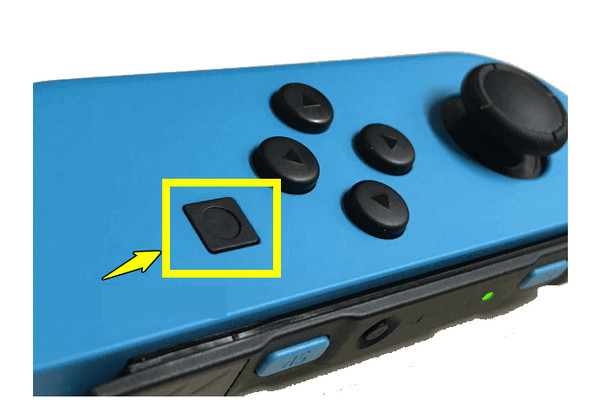
Step 1.While playing Fortnite, find the "Capture" button on the left Joy-Con. Press and hold the "Capture" button for about one second.
Step 2.The Switch will automatically save the last 30 seconds. You can clip Fortnite replays now.
Step 3.Next, go to "Album" from the home screen to view your clip. There, trim or share it directly to social media platforms.
How to Nintendo Switch Gameplay with OBS
If you want advanced control over your Fortnite recordings, OBS Studio offers a powerful and free way! This method is famous among streamers since OBS lets you customize video quality, audio sources, and overlays. Once it is set up correctly, you can record Fortnite on PC with stable performance.
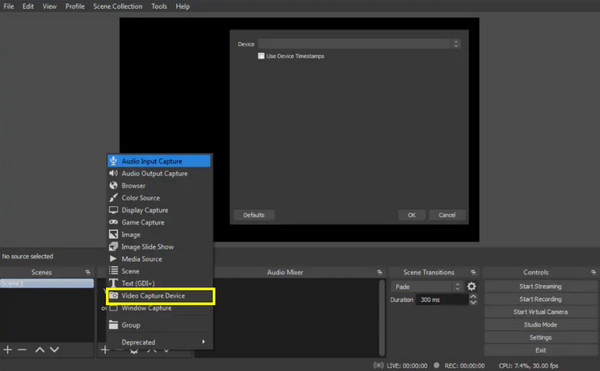
Step 1.Link your Nintendo Switch to a capture card. Then connect it to your computer. Open OBS Studio. Click the "Add" button from "Sources". Then select "Video Capture Device".
Step 2.Select your capture card from the device list. Set your resolution and frame rate in "Settings", then "Video". Adjust OBS recording settings to make it run fast. Later, click "Start Recording" to record Fortnite on PC.
Step 3.When you're done gameplay video recording, click "Stop Recording" and access your saved video.
How to Record Gameplay on Nintendo Switch without a Capture Card
Finally, if you don't have a capture card, there are still alternative ways to record Fortnite on Switch. While each approach has some limitations, these three can help you capture a Switch screen without a capture card.
Record Fortnite Gameplay on Switch Using Smartphone/Camera:
- 1. Upon positioning your Nintendo Switch on a stable surface, place your phone or camera facing the screen.
- 2. Then, start recording and play the game as usual.
- 3. Later, transfer and edit the gameplay video if needed.
Record Fortnite Game Video on Switch via Twitch:
- 1. Set up a Twitch account first and link it to your Switch.
- 2. Then, start streaming Fortnite gameplay.
- 3. End the stream once done, then download the recorded stream from Twitch.
Record Fortnite Clips on Switch with Switch Emulator:
- 1. Get a compatible Switch emulator on your PC, then run Fortnite gameplay through the emulator.
- 2. Now, use a screen recorder to capture gameplay.
- 3. Save and edit the game recording as needed.
Quick Summary of Recording Fortnite on Nintendo Switch
Now that you have explored all the methods to record Fortnite on Switch, quickly compare them here and see which solution works best for different recording needs. Here's a summary below that features the best Fortnite recording solutions on Switch based on user scenarios.
| Recording Scenario | Best Method |
| Short highlights | Built-in Switch Capture |
| Long Fortnite matches | AnyRec Screen Recorder with Capture Card |
| Beginner users | Built-in Switch Capture |
| Content creators/streamers | OBS Studio with Capture Card |
| Online sharing and live streaming | Twitch App |
| No capture card users | Smartphone or Camera |
| Advanced PC users | Switch Emulator with Screen Recorder |
FAQs about How to Record Fortnite on Switch
-
Can I record Fortnite gameplay directly on Switch?
Yes, the Nintendo Switch lets you capture Fortnite gameplay using the built-in capture feature, but this method is limited to saving only the last 30 seconds.
-
Does recording Fortnite on Nintendo Switch affect game performance?
A minimal impact on performance with the built-in capture button. Meanwhile, using a capture card and external software, the performance remains stable since your computer handles the process.
-
What's the best quality to use for recording Fortnite on Switch?
To get the best results, you can record the gameplay in 60/120 FPS using a capture card and a dedicated screen recording software.
Conclusion
That's all to record Fortnite on Nintendo Switch. You can choose from the built-in capture feature to a more advanced solution, each method here has its own advantages depending on your needs and setup. However, if you are a player who wants to capture the complete Fortnite matches, matching AnyRec Screen Recorder with a capture card is a reliable choice. Whether you want to preserve the quality of your matches, enjoy smooth performance, or record with clear audio and video, this tool captures Fortnite on Switch efficiently and professionally.
Secure Download
Secure Download



