
 Best video, audio, and webcam recorder for everyone.
A Comprehensive Guide - Best Voice Recorders for Mac

A voice recorder for Mac can be very helpful if there's something important to keep up with, whether from online meetings, podcasts, lectures, or else. Yet, many Mac users still struggle to find a proper one. One may intend to preserve essential conversations, but when others want to produce professional-level voiceovers or simply take quick audio notes, it seems not an easy task to pick up a proper tool. Fortunately, this guide introduces reliable and up-to-date voice recorder solutions for every type of Mac user, ensuring that recording audio on macOS becomes simple, stable, and precise.
Guide List
Default Solution: How to Record Voice on Mac High-Quality Output: Best Voice Recorder for Mac Other Options for Voice Recorders on MacDefault Solution: How to Record Voice on Mac
If you don't want to download any software, a built-in tool provided by macOS can handle daily tasks without requiring extra software. Whether the goal is to record a lecture, interview, meeting, or personal notes, Voice Memos makes the process straightforward and beginner-friendly. Pre-installed on every Mac, this tool is easy to access and supports microphone input adjustment for better clarity. For users seeking a simple and free method to capture audio instantly, this default voice recorder on Mac is a practical starting point.
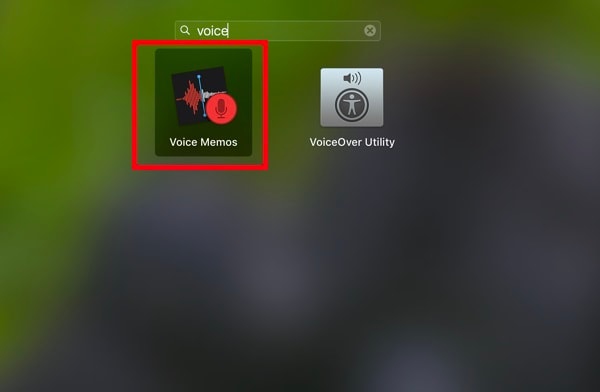
Step 1.Launch Voice Memos from Applications on your Mac. You can type "Voice Memos" to search for it.
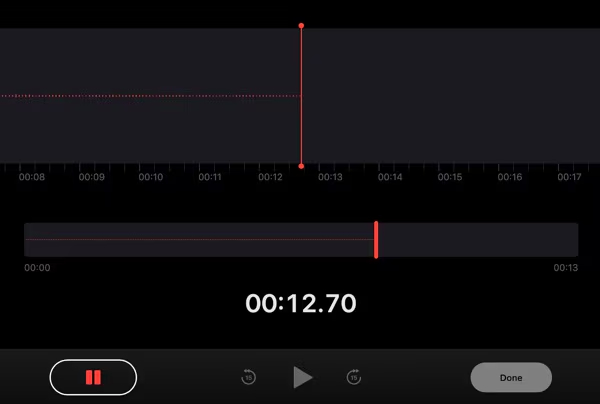
Step 2.When you determine the content for recording, click the "Record" button on Voice Memos.
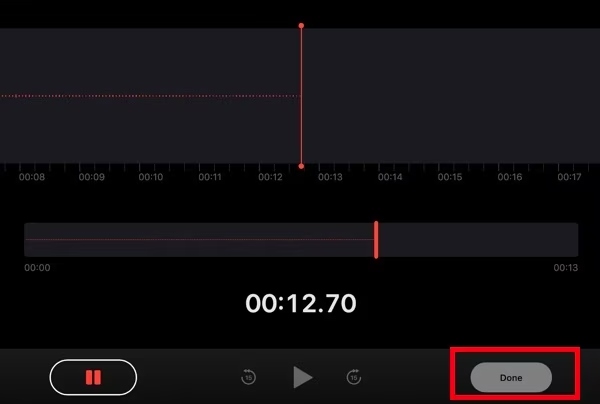
Step 3.Once the recording is done, click the "Done" button to end the process of voice recording.
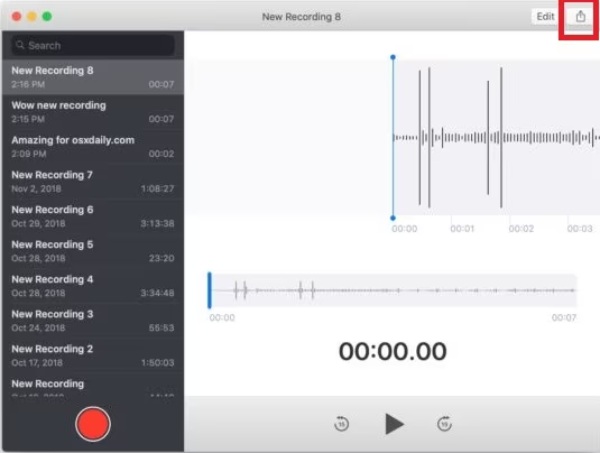
Step 4.To save the recording, click the "Share" button to save the recording within Voice Memos as the default voice recorder on Mac.
High-Quality Output: Best Voice Recorder for Mac
While Voice Memos provides a convenient built-in voice recorder for Mac, it still lacks professional voice recording features. When higher audio quality, advanced noise reduction, and flexible editing are required, a more powerful solution becomes essential. AnyRec Screen Recorder stands out as the best option for those who aim to produce studio-level sound. From podcast production to online meetings and voiceover prep, this tool delivers stable performance and high-resolution results that meet professional standards.

Record all the sounds on your Mac clearly.
Automatically eliminate noises to improve quality.
Save the Mac recording in the format you need.
Edit your Mac audio recording to adjust the effect.
Secure Download
Secure Download
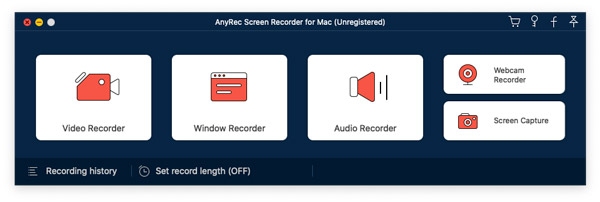
Step 1.Launch AnyRec Screen Recorder on your Mac and click the "Audio Recorder" button to select the voice recorder for your Mac.
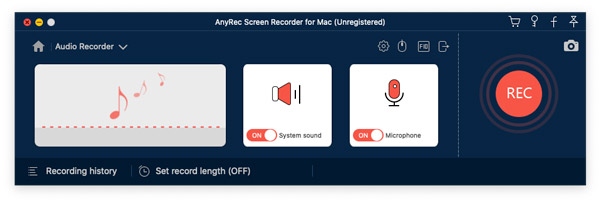
Step 2.To make sure voices from all resources can be recorded, click the "System sound" and "Microphone" buttons.
Step 3.After setting the permission with the instruction, click the "Record" button to start recording voices on your Mac.

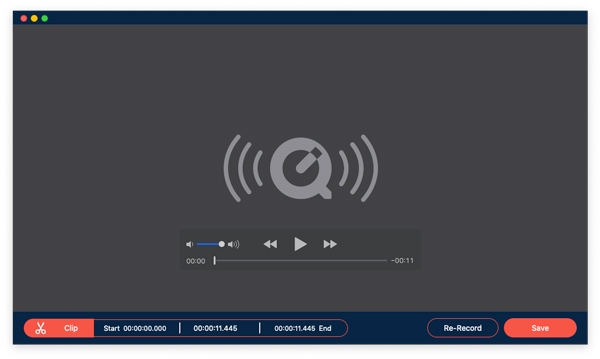
Step 4.Once finished, click the "Stop" button. You can edit the recording before saving it. Finally, click the "Save" button.
Other Options for Voice Recorders on Mac
Every user has different recording habits, so having multiple voice recorder choices can be valuable. Beyond built-in tools and professional software, there are third-party recorders that focus on convenience, real-time voice filters, cloud syncing, and lightweight operation. Free, premium, and browser-based options are available, making it easy to match recording needs with budget and workflow. This section explores additional Mac voice recorders that excel in portability, ease of use, and specialized recording features.
GarageBand
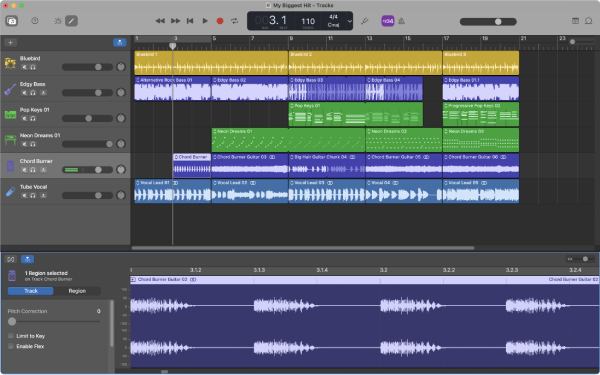
GarageBand is Apple's own audio workstation that supports voice recording along with music production. This Mac voice recorder allows multiple tracks, effects, and fine controls - even for simple voice capture. It's ideal for podcasters, musicians, or users wanting creative control over their audio recording on GarageBand.
- Pros
- Pros: Free, full featured for Mac users; support multi-track recording and effects.
- Cons
- Cons: Overkill for simple voice memos; steep learning curve for beginners.
Audacity
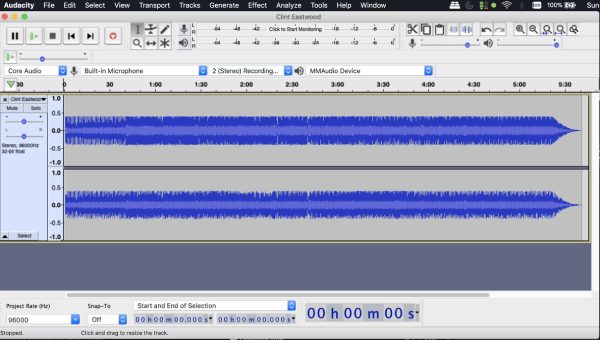
Audacity is a free and open-source cross-platform audio recorder and editor that works on Mac. It supports microphone capture, editing, and effects, making this Mac voice recorder popular for podcasting, interviews, or general voice recording tasks.
- Pros
- Truly free, large community, many plugins.
- Cons
- Interface looks dated; less suited for streamlined one-click recording.
Ocenaudio
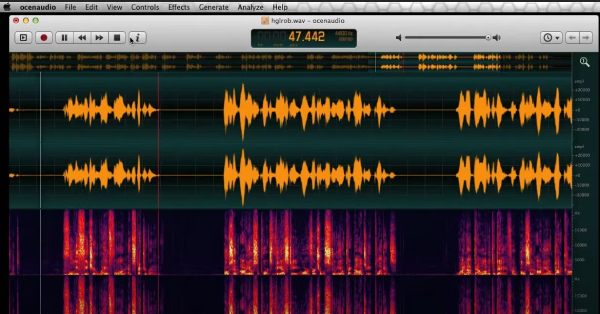
If you want a lightweight voice recorder for your Mac that takes up a small amount of storage space, then Ocenaudio would be a good choice. Known for simplicity, it cuts out some extra features and focuses on the high-quality recording on your device. Still, besides voice recording, it supports easy editing workflows without complex DAW features.
- Pros
- Free and easy to use; good editing for voice.
- Cons
- Not optimized for multi-track or professional audio projects.
Audio Hijack
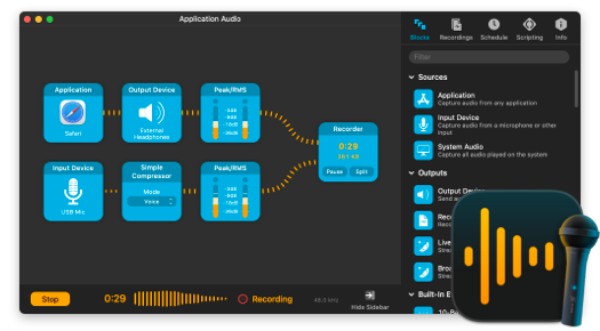
Audio Hijack is a Mac-specific audio capture tool that lets you record voice, system audio, and external sources. It supports scheduled recordings and advanced input routing—great for podcasting or call capture.
- Pros
- Powerful input routing, high flexibility for complex voice capture.
- Cons
- More expensive; many features not needed for basic voice recording.
WavePad
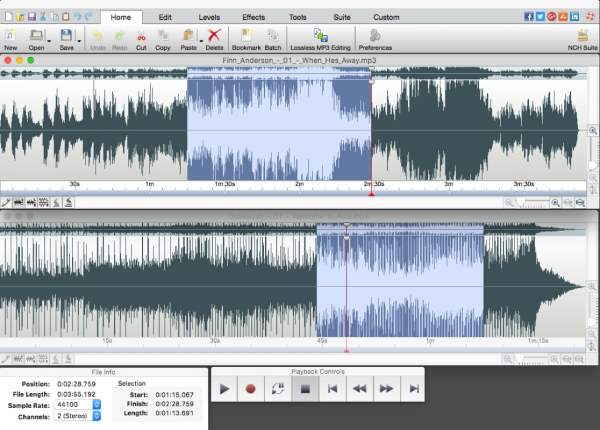
WavePad offers voice recording and editing with built-in effects, noise reduction, and trimming tools - suitable for voice memos, interviews, or audio notes requiring clean output.
- Pros
- Easy editing plus voice capture in one app.
- Cons
- Free version limits export formats; pro version has cost.
Descript
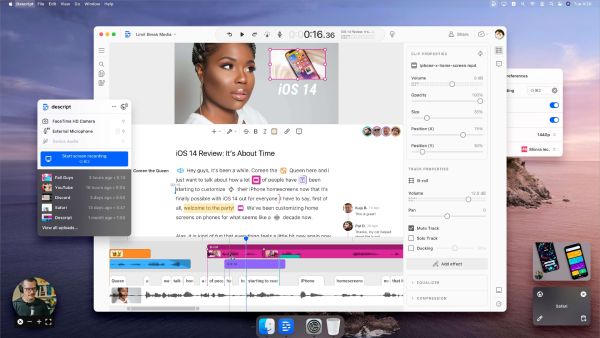
Descript combines voice recording with transcription and editing, making this Mac voice recorder excellent for recording lectures, voiceovers, or video narration.
- Pros
- Voice & transcript editing together; streamlined workflow.
- Cons
- Requires internet for some features; subscription model for full use.
Ardour
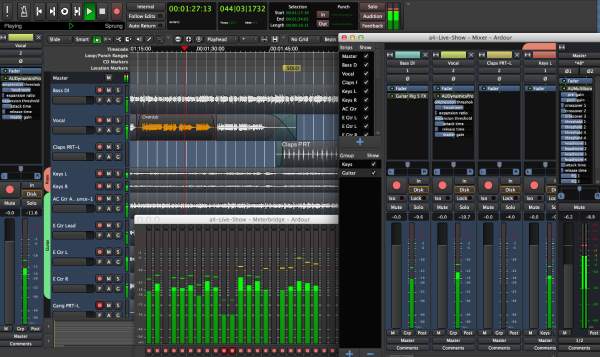
When a professional recording is required, many users prefer to take Ardour as their helper. This full-fledged audio workstation supports voice capture, plugins, and multi-track recording on your Mac. Ideal for advanced users who want pro-level control.
- Pros
- Professional-grade; support plugins and complex workflows.
- Cons
- Overly complex for basic voice recording.
Conclusion
Many Mac voice recorders are introduced in this post, considering simplicity, professional sound quality, advanced editing features, and other factors. You can choose the proper one according to your requirements. While Voice Memos provides convenience as a built-in solution, professional recorders work well for studio-level control. Among all these options, AnyRec Screen Recorder is the most reliable one that fits everyone, helping you capture crisp audio on a Mac with no effort.
Secure Download
Secure Download



