
Hot

AnyRec Video Converter
120× faster video conversion and editing. No waiting.
Secure Download
Can You Convert VLC to MP4? 5 Ways to Fix It Fast and Safe

You have a video that plays smoothly in VLC Media Player, but the moment you try to play it on your phone or edit it in a program, it simply does not work properly. In these scenarios, the universal solution is to convert VLC to MP4. Can VLC help you to achieve this? This guide covers everything about converting VLC to MP4, from VLC's own settings to using five tools that get the task done when VLC simply won't.
Guide List
Why Can't VLC Media Player Convert MP4 Files? Convert VLC to MP4 with a Quick and Functional Method How to Convert VLC to MP4 with 4 Online ToolsWhy Can't VLC Media Player Convert MP4 Files?
Since VLC Media Player is mainly designed as a powerful video player, converting videos may lead to occasional technical hurdles. You may face issues like no audio output, failure to save, or a corrupted file that won't play on other devices. Knowing the reasons why VLC can't convert to MP4 is the first step toward having a better solution for your media conversion.
- • Missing Codecs. VLC might lack a particular encoder required for the source file's format, especially with the latest high-efficiency codecs such as H.265.
- • Hardware Acceleration Conflicts. Settings that use your graphics card to speed up playback sometimes prevent the conversion process from happening.
- • Outdated Software Version. Older VLC versions do not have support for modern MP4 encoding standards, leading to errors.
- • Output Setting Errors. If the profile and container aren't synced, the conversion process will fail.
- • Strict Security Permissions. On some systems, VLC may not have the needed permissions to save the new file in the location folder you've set.
Convert VLC to MP4 with a Quick and Functional Method
Due to VLC issues for converting videos to MP4, you can use AnyRec Video Converter as an alternative. You can convert VLC video files to 1000+ formats, such as MP4, MOV, MKV, AVI, and more, with guaranteed results. It uses advanced hardware acceleration to ensure your files are processed so quickly, faster than traditional converters or players. Also, it holds a suite of creative tools like editing your videos by applying effects, rotating, trimming, cropping, and more, before turning them into a high-quality MP4.

Convert a wide variety of VLC files like MOV, MKV, WebM, etc., to MP4 format.
Utilizes advanced acceleration to deliver lightning-fast speed without quality loss.
Saves time by queuing and converting an entire VLC video to MP4 at once.
Full control over video settings; adjusting resolution, codec, frame rate, etc.
Secure Download
Secure Download
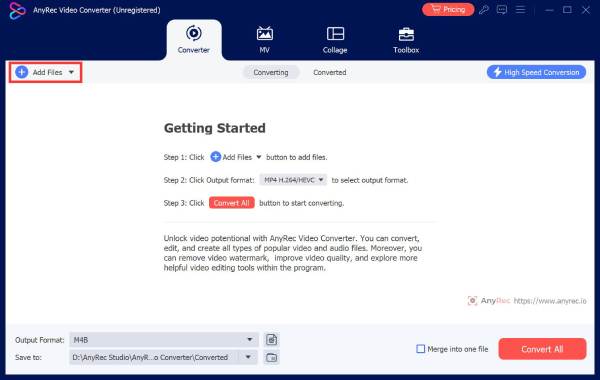
Step 1.Run AnyRec Video Converter on your computer. Import your video file/s that VLC was struggling to process by clicking the "Add Files" button.
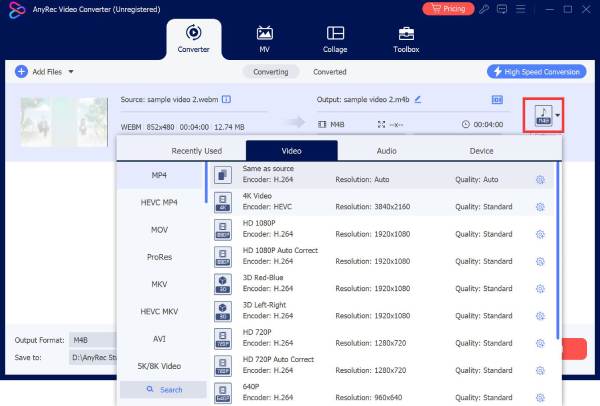
Step 2.Click the "Format" dropdown menu on the right side of the added video. There, select "MP4" from the "Video" tab with your selected profile. If you wish for a specific setting, use the "Custom Profile" button to fine-tune the bitrate, resolution, or codec.
Step 3.Select your output folder at the bottom of the main interface, and rename it, too. Click the "Convert All" button to start the VLC to MP4 video conversion process.

Secure Download
Secure Download
How to Convert VLC to MP4 with 4 Online Tools
If you don't want to install any software, several trustworthy online platforms handle the VLC to MP4 conversion directly. Each of the following tools has unique strengths, from cloud integration to editing features. See the top four options to convert VLC files:
1. Online-Convert.com
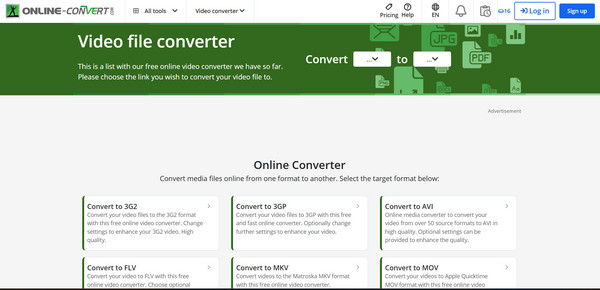
Online-Convert.com is a flexible VLC to MP4 converter that focuses on deep customization, giving you Optional Settings for every file type conversion. It is useful for advanced users who are looking to adjust the bitrate, screen size, or frame rate.
Step 1.From the Online-Convert.com website, go to the "Video Converter" section and select "Convert to MP4".
Step 2.There, upload your video file from your local files or cloud storage.
Step 3.Adjust any settings if needed, then click "Start".
2. FreeConvert
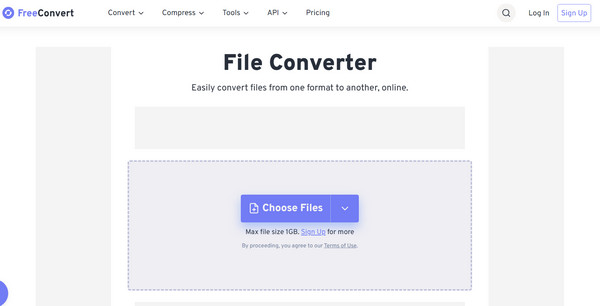
Up next for the online VLC to MP4 converter is FreeConvert. This web-based platform is known for its high file size limits, letting you turn files up to 1GB for free compared to other online tools. It features a clean interface, making it one of the favorites for anyone who wants a simple process.
Step 1.Visit the FreeConvert main page. There, click "Choose Files" to select your video.
Step 2.After that, set the output format to "MP4".
Step 3.Then, click "Convert to MP4" and download the result once the process is done.
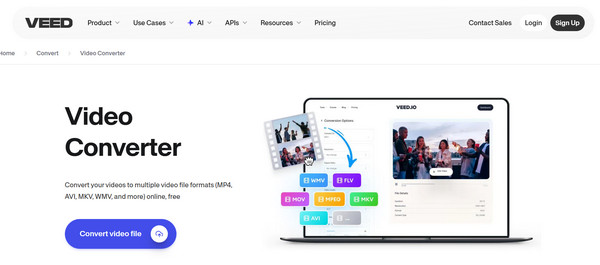
3. VEED.IO Free Video Converter
Meanwhile, VEED.IO works beyond just a VLC to MP4 converter; it can be your lightweight video editor that allows you to polish content before converting. It works great for your social media content since you can add subtitles, apply effects, and more.
Step 1.Upon going to the VEED.IO Free Video Converter website, upload your video to its workspace.
Step 2.Next, you can use the sidebar tools to edit your clip as needed.
Step 3.Later, click "Export", choose "MP4" as the format, and download the result.
4. CloudConvert
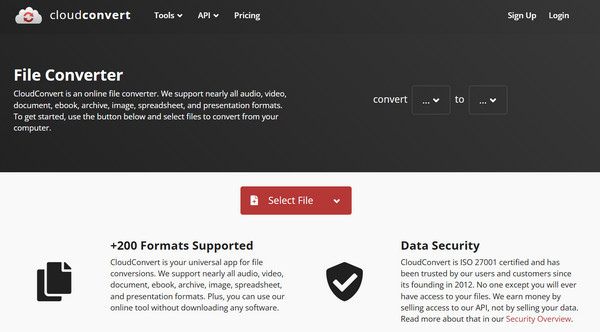
CloudConvert is one of the most well-known services in the online file conversion space. This VLC to MP4 converter supports more than 200 formats with incredible precision. It excels at keeping the file integrity, making sure both audio and video remain perfectly synced throughout the conversion process.
Step 1.Search for the CloudConvert official website.
Step 2.Once in there, click "Select File" to browse your local or cloud storage.
Step 3.Afterward, choose "MP4" from the "Convert to" dropdown menu, then click "Convert" to finalize.
Step 4.Download the finished video file.
Conclusion
VLC Media Player is no doubt an incredible tool for playing almost any video, but its conversion capabilities may fail due to several struggles with modern codecs and more. Due to this, you get quick online fixes to convert VLC files to MP4, ensuring your videos are ready for any device. But if you wish to guarantee high-quality results every time, go to AnyRec Video Converter. It not only converts videos to MP4 and other formats, but it also handles the process quicker than others and offers batch conversions with ease, making it the most efficient choice for all conversion tasks.
Secure Download
Secure Download
Related Article
About Our Author




