 Transfer selectively. No overwritting. Fast & Easy.
Transfer Photos from Android to Android: 6 Ways for You

Upgrading to a new Android is an exciting feeling, but not until you realize you need to move your memories from your old Android device. Whether you have a bunch of selfies or 4K videos, you may wonder how to transfer pictures from one Android phone to another. Today, six of the best ways are here to help transfer photos from Android to Android, from the ease of Bluetooth to lightning-fast direct USB cable. Get to know here which one is the right choice.
Guide List
The Simplest Method to Transfer Photos from Android to Android Transfer Photos from Android Wirelessly via Bluetooth Sync Photos from Android Using Google Photos Complete Data Transfer for Android with Samsung Smart Switch Use Nearby Share for Quick Android Photo Transfer Direct USB Cable Photo Transfer Between Android PhonesThe Simplest Method to Transfer Photos from Android to Android
Want a one-click solution for Android photo transfer, without worrying about file sizes or wireless stability? The dedicated AnyRec PhoneMover is the most effective route! It offers a powerful data migration tool made to handle huge libraries with high-speed precision. It bypasses the lag you may experience in cloud syncs and the pairing issues of Bluetooth. Furthermore, using this transfer software, you can guarantee that every image will keep its original quality and metadata throughout the process.

Can move all photos, videos, contacts, etc between Android devices.
Ensures zero compression during the photo transfer process.
Fast connection with both USB cable and wireless pairing for convenience.
Add, delete, or remove duplicate photos before the transfer.
Secure Download
Step 1.Start by using high-quality USB cables to connect your old and new Android devices to your computer. Start AnyRec PhoneMover and wait a moment for the software to identify both phones. Later, ensure to set the old one as the source device.
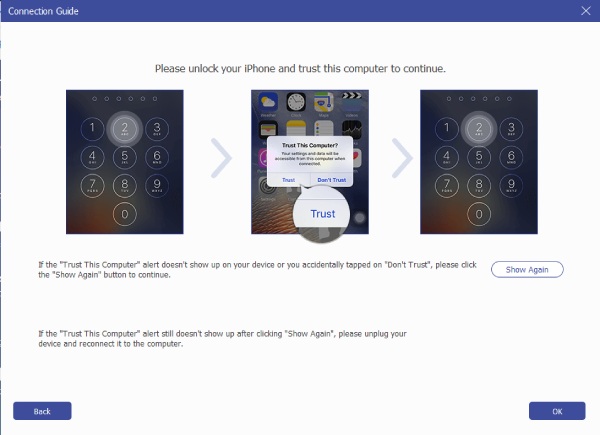
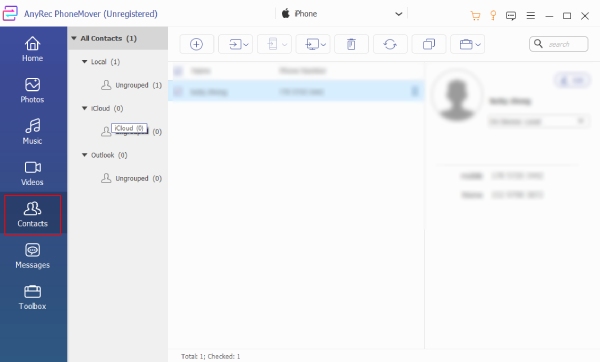
Step 2.Navigate to the left-hand sidebar and click on the "Photos" tab to load the gallery from your source Android. Browse through and preview selected images to ensure you pick the right files. You can select individual photos or entire albums.
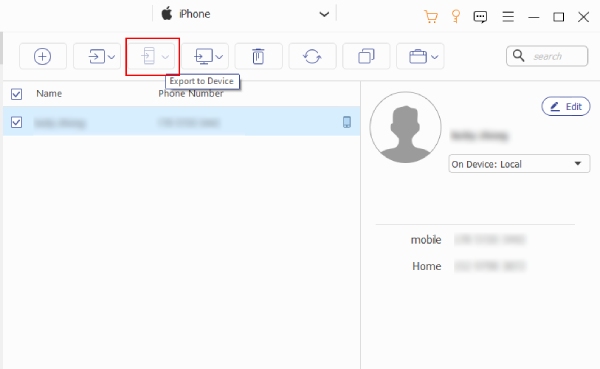
Step 3.After finalizing your selection, click the "Export to Device" button at the top and pick your new Android phone as the destination. Let the program take a few minutes to transfer only photos not everything to Android. Once finished, open your Gallery on your new device to check all the moved pictures.
Secure Download
Transfer Photos from Android Wirelessly via Bluetooth
Sometimes you need a quick solution for a small number of photos. So, Bluetooth remains the universal standard to move photos from Android to Android wirelessly. It does not need any internet connection or a computer, but its bandwidth is limited, so it is better suited for sending one or two photos instead of large albums.
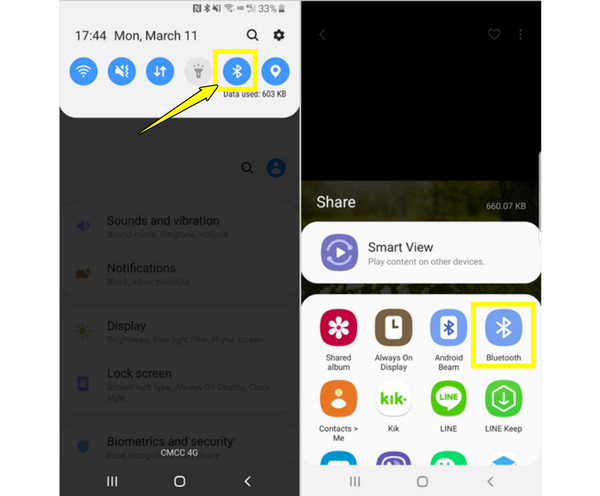
Step 1.Enable "Bluetooth" by swiping down the notification shade on both Android devices.
Step 2.Then, from the old phone's Gallery, choose the images you want to move and tap on "Share".
Step 3.Afterward, from the menu, select "Bluetooth" and tap on the name of the new Android phone.
Step 4.Open your new device, and tap "Accept" when the transfer request shows up.
Sync Photos from Android Using Google Photos
Moving to cloud synchronization, here's Google Photos for you to transfer photos from Android to Android without reset. This hands-free experience helps you keep your entire library updated across all your devices. Once your photos are uploaded from your old device, they appear on your new Android phone immediately. Moreover, you can use Google Photos to transfer photos to iPhone too.
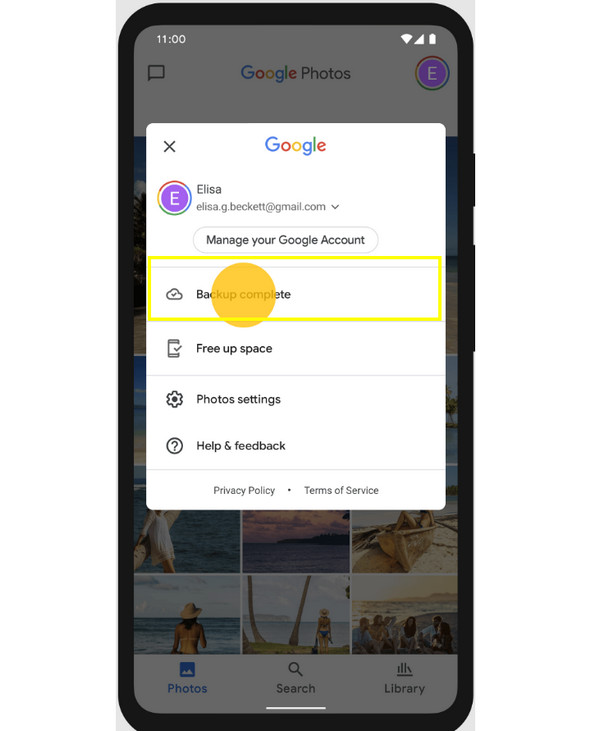
Step 1.Launch Google Photos on your old Android phone and tap your "Profile" icon to enable "Backup".
Step 2.Please wait for the "Backup Complete" status to make sure all images are in the cloud.
Step 3.Then, sign in to the same account on your new Android device and launch the app.
Step 4.Browse your library to see all synced photos; if you want to save them, select photos and tap "Download".
Complete Data Transfer for Android with Samsung Smart Switch
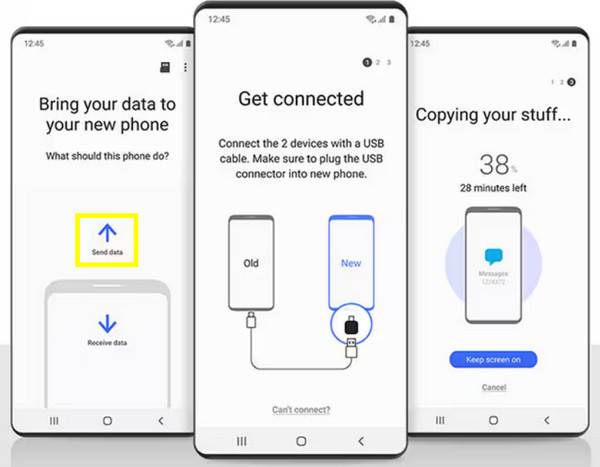
If your new Android device is a Samsung Galaxy, then you can transfer photos using Samsung Smart Switch from Android to Android. It is a specialized app made to recreate your phone's environments on your new phone, covering your photo albums and folder structures. It works great as it uses a physical cable to bypass slow wireless transfer speeds.
Step 1.Get the Smart Switch app installed on both your devices.
Step 2.From your old phone, tap "Send Data" and "Receive Data" on the new Samsung Galaxy.
Step 3.After that, select either "Wireless" or "Cable" to create a connection between the two.
Step 4.Then, start checking the data you want to move, and tap on "Transfer".
Use Nearby Share for Quick Android Photo Transfer
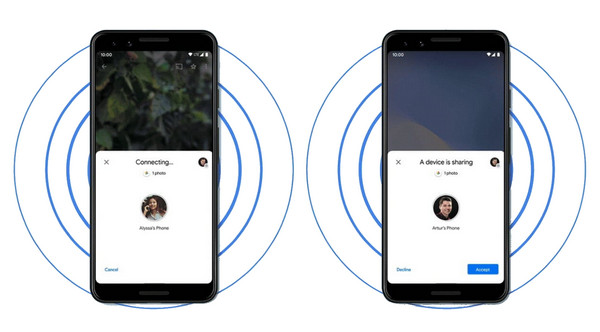
For anyone who isn't switching to a Samsung but still wishes for a high-speed wireless experience, Nearby Share is the answer. Here, you can transfer pictures from Android to Android via Bluetooth and Wi-Fi Direct. It works by generating a private, temporary network between the two Android devices. Here's how it works:
Step 1.Turn on "Nearby Share" and "Location" on both Android phones.
Step 2.Choose your pictures in the Gallery on your old phone, tap "Share", and pick the "Nearby Share" icon from the list.
Step 3.Next, tap the receiver's Android device icon once it shows up.
Step 4.Confirm the photo transfer on the new Android phone by tapping "Accept".
Direct USB Cable Photo Transfer Between Android Phones
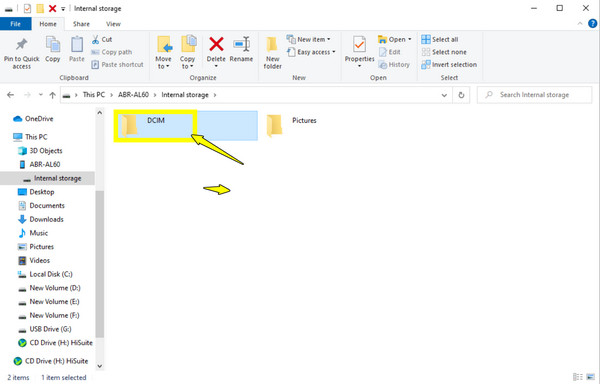
Finally, for a traditional approach with any apps, you can transfer Android photos via USB cables. By connecting your Android devices to your computer, you can drag and drop files from one folder to another. This approach will give you complete freedom on where you want your files to be placed.
Step 1.Pair both your Android devices with your computer via USB-C cables.
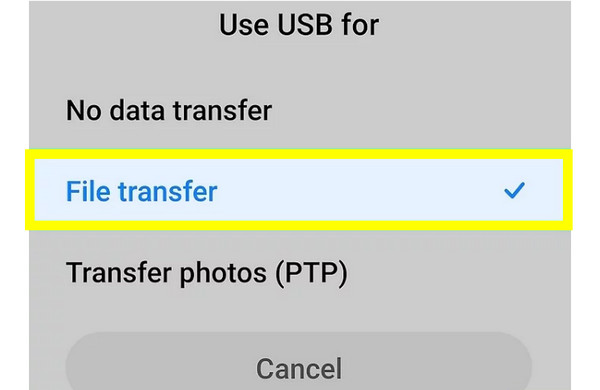
Step 2.On each phone, change the USB mode to "File Transfer" or "MTP" from the notification panel.
Step 3.On a Windows PC, launch two "File Explorer". There, locate the "DCIM/Camera" folder on your old Android phone.
Step 4.Then drag the selected pictures into the folder of the new Android phone.
Conclusion
You see here the wireless options you can use to transfer photos between Android phones, as well as a solution specifically made for Galaxy devices. The best method is the one that fits your number of photos, speed, and convenience needs. And if you're looking for the most powerful, all-in-one solutions, AnyRec PhoneMover is the superior choice. With its intuitive interface and transfer features, you can move your entire photo library in just minutes, making it the most reliable addition to your toolkit for your next upgrade.
Secure Download
Related Article
About Our Author