
Hot

AnyRec Video Converter
120× faster video conversion and editing. No waiting.
Secure Download
Mastering GIF Cropping Easily: A Comprehensive Tutorial

Cropping GIFs is usually performed to fit specific dimensions required by platforms or layouts. In this way, you can also remove unwanted parts from your GIF without affecting its original format. However, the task itself is not as simple as cropping static images, as GIFs involve multiple frames. This guide walks through what to know before cropping, reliable tools for precise editing, and practical solutions for desktop, online, and mobile users.
Guide List
Things You Should Know Before Cropping a GIF The Most Efficient Way to Crop a GIF Precisely Best Online GIF Croppers You Can TrustThings You Should Know Before Cropping a GIF
Cropping GIFs is not as simple as cropping static images because GIFs are actually dynamic images composed of multiple frames. This means that if you make a mistake in cropping a frame, the entire GIF will look jarring and may even fail to play correctly. The following tips will help ensure your cropped GIF remains smooth, clear, and suitable for its intended use before you start the process.
1. Make Sure All Frames Are Cropped Consistently
Since a GIF is essentially a series of images, you need to ensure your cropping operations are confined to the exact dimensions. That is, the output dimensions should be consistent. Inconsistent cropping across frames will result in a GIF that appears to be missing a section, producing effects such as flickering or misalignment.
2. Pay Attention to Resolution and Aspect Ratio
When you crop a portion of a GIF, not only does that part of the element disappear, but the entire image size changes. A change in aspect ratio will affect how the GIF will appear on the platform; an incorrect aspect ratio may result in stretching or black borders after uploading. At the same time, you need to ensure that cropping your GIFs doesn't significantly impact image quality.
3. Consider the Impact on File Size
Since cropping GIFs changes the overall image size, it also means the file size will be affected. Considering that GIF files themselves are not very large, this size reduction won't be noticeable. However, if your GIF files are already large, or if you need careful and precise management of file storage space, then you need to pay attention to the change in file size after cropping.
4. Preserve the Main Visual Focus
Although GIFs are animated images, that doesn't mean they lack a visual center. The content at the visual center is usually the core of the GIF. Therefore, after cropping GIFs, you need to consider whether the key content of the image remains at the visual center of the GIF, ensuring it is easy to understand.
The Most Efficient Way to Crop a GIF Precisely
For users who need complete control over GIF cropping without compromising animation quality, AnyRec Video Converter offers a reliable and efficient solution. Unlike basic image editors, this professional tool ensures every frame is cropped, as the process deals with your GIFs as dynamic images. You can manually enter exact pixel values or drag the frame to focus on the key action. In addition to cropping, AnyRec Video Converter supports frame rate adjustment and optional compression, helping reduce file size while keeping smooth motion.

It will not affect the quality of the GIF during the process.
You can perform other advanced editing on your GIF.
Preview to check if the GIF is cropped as the way you want.
Save the GIF in other formats according to your needs.
Secure Download
Secure Download
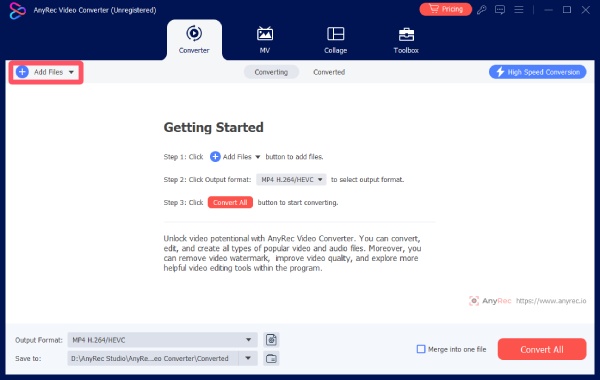
Step 1.Launch AnyRec Video Converter and click the "Add Files" button to import your GIF. Then, click the "Edit" button.
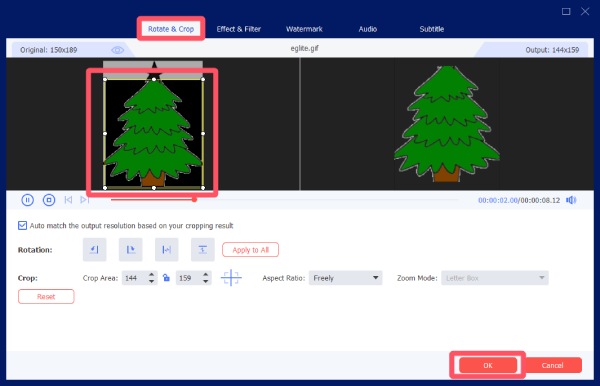
Step 2.Under the "Rotate & Crop" tab, click to adjust the area you want to crop on the GIF. Once finished, click the "OK" button.
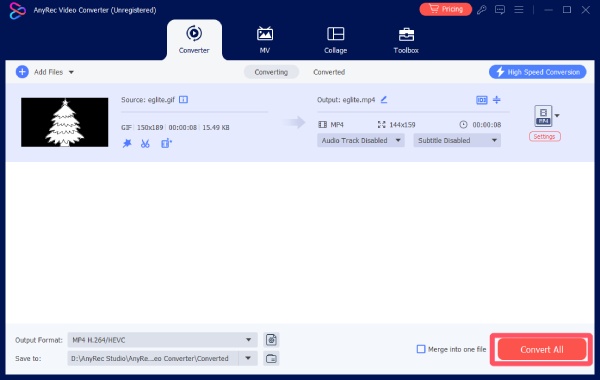
Step 3.You will be sent back to the main interface. Here, click the "Convert All" button to save the cropped GIF on your device.
Tips
Besides cropping GIFs for a better visual effect, you can also remove the background from GIFs to create a clearer vision using AnyRec Video Converter.
Best Online GIF Croppers You Can Trust
Online GIF croppers are a convenient choice when quick edits are needed without installing software. If you don't want to install any software and complete the task in the browser, you can check these trusted online GIF croppers that you can use according to your unique requirements.
1. EZGIF
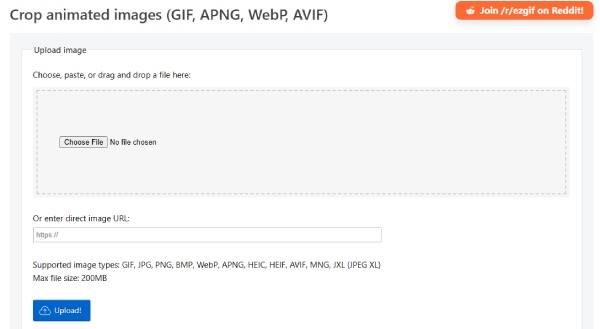
As one of the most well-known online tools for editing and cropping animated GIFs, EZGIF supports frame-based GIF editing, including cropping, resizing, and optimization. The interface is functional rather than stylish, but it gives users detailed control over dimensions and positioning, making it suitable for precise edits.
- Pros
- Support full animated GIF editing
- Offer detailed frame and size controls
- Free to use with no account required
- Cons
- Interface feels outdated
- Ads may distract during editing
- Upload speed depends on file size
2. Kapwing
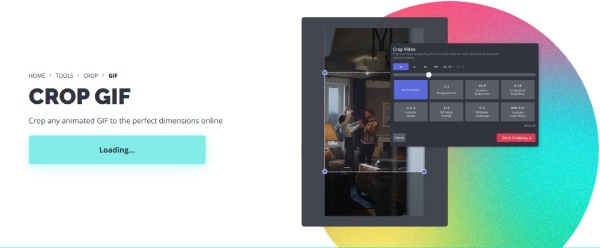
Kapwing is a modern editing tool designed for various file formats. This web-based editor can deal with almost all social media content online. It allows users to crop GIFs visually with a drag-and-drop interface and provides presets for common platforms. While powerful, some advanced export options are limited unless logged in.
- Pros
- Clean and beginner-friendly interface
- Support social media aspect ratios
- Work with GIFs and videos
- Cons
- Watermark on free exports
- Require an account for some features
- Slower processing for large GIFs
3. VEED.IO
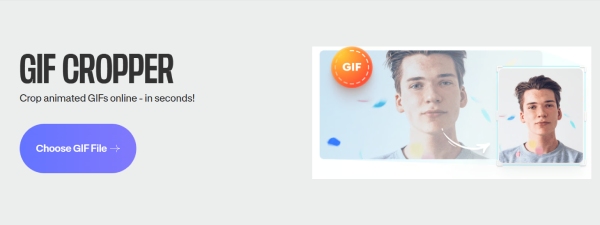
VEED.IO focuses on simplicity and speed, offering an intuitive timeline-based editor that supports GIF cropping. It is ideal for users who want quick visual adjustments without technical settings. The tool also supports converting GIFs into videos if needed.
- Pros
- Instructions are very clear
- Supports multiple formats
- UI and guide are easy to follow
- Cons
- Free version adds a watermark
- Limited control over GIF optimization
- Requires a stable internet connection
4. Online GIF Tools
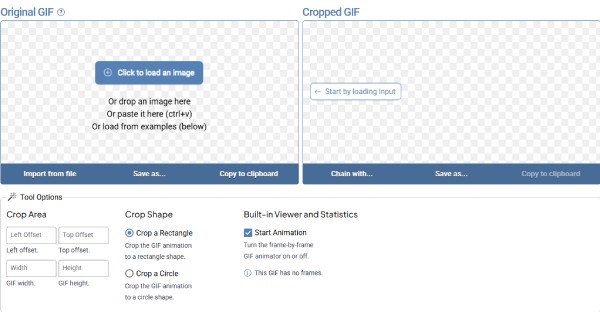
Online GIF Tools provides a lightweight, privacy-focused solution for cropping GIFs. Files are processed locally in the browser, which improves security. Besides cropping, this tool also helps you with tasks like compressing GIFs online for free. The tool is minimalistic and focuses purely on functionality without extra features.
- Pros
- No file uploads to servers
- Fast processing for small GIFs
- Simple and distraction-free
- Cons
- Lacks advanced editing features
- No visual preview during cropping
- Not suitable for large or complex GIFs
5. Adobe GIF Cropper
Adobe GIF Cropper is a professional GIF cropper under Adobe, supporting GIF uploads and cropping without downloading its professional desktop version. It works well for users who want to combine cropping with text or graphic elements. However, it is less specialized for technical GIF optimization.

- Pros
- Visual, design-oriented interface
- Easy integration with text and graphics
- Suitable for marketing content
- Cons
- Limited control over animation frames
- Export settings are basic
- Account required for use
Conclusion
Cropping an animated GIF effectively requires the right balance between precision, convenience, and output quality. While online tools are suitable for quick edits and light tasks, they often come with limitations. If you want to crop your GIFs with the highest level of accuracy and the most powerful advanced features, AnyRec Video Converter is the most reliable option.
Secure Download
Secure Download
Related Articles
About Our Author




