
Hot

AnyRec Video Converter
Upgrade 720p to 1080p, 4K and higher resolution.
Secure Download
How to Enhance Video from 720p to 1080p on All Devices

As larger-sized devices become increasingly common, low-definition 720p videos no longer suit these screens, resulting in a diminished viewing experience. Upgrading low-resolution 720p video to 1080p is the simplest solution. This article will introduce five methods to enhance the resolution of your low-definition videos and optimize color balance.
Guide List
Upscale 720p to 1080p with the Powerful and Functional Tool Use Limited HandBrake to Enhance 720p to 1080p for Free Enhance 720p Videos to 1080p with Popular VLC How to Upscale 720p to 1080p with Premiere Pro How to Use HDconverter to Convert 720P to 1080P OnlineUpscale 720p to 1080p with the Powerful and Functional Tool
Unlike other tools that upscale 720p videos to 1080p, AnyRec Video Converter offers a straightforward resolution enhancement feature. Simply select the tool and click to boost resolution. It also includes functions to optimize brightness, contrast, and reduce video noise for enhanced viewing quality. Additionally, you can crop specific sections, apply fade-in/out filters, and further customize video effects after upscaling 720p footage to 1080p.

Upgrade 720p videos in various formats to 1080p resolution.
Optimize video issues like noise and judder during the upgrade process.
Built-in editing tools allow you to trim videos, add filters, and more.
Supports converting videos to multiple popular formats, such as MKV, MOV, and others.
Secure Download
Secure Download
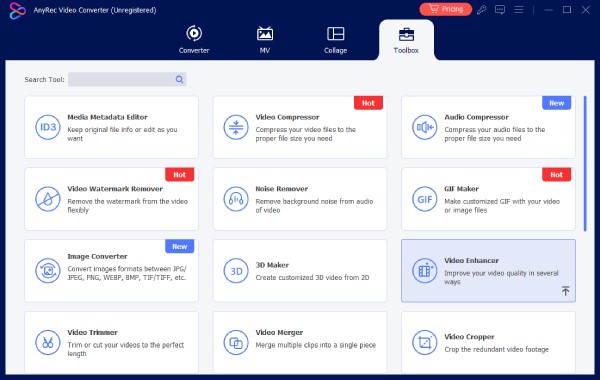
Step 1.Launch AnyRec Video Converter. Then click the "Toolbox" button and "Video Enhancer" button to add the 720P video.
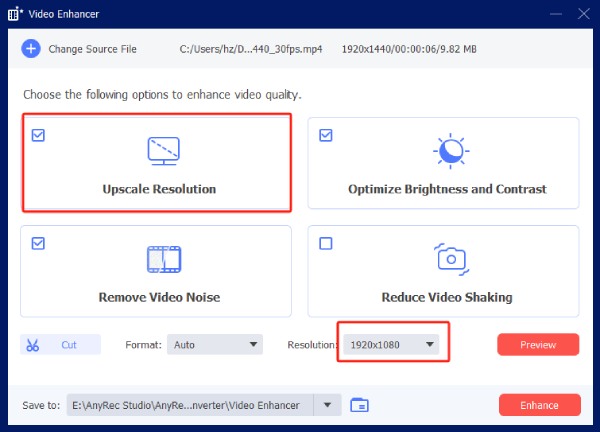
Step 2.Click the "Upscale Resolution" button or select all the options to enhance the video quality further. Set the resolution to 1920 × 1080.
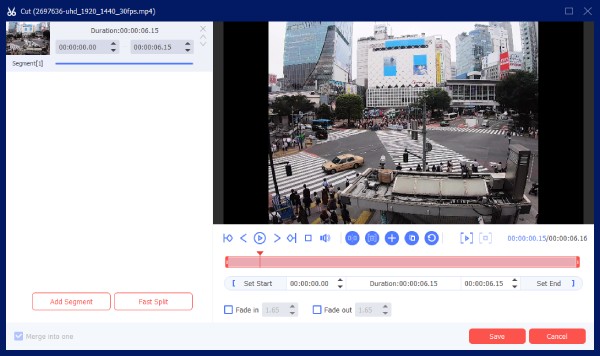
You can trim the video by clicking the "Cut" button and setting the start and end points. Additionally, it allows you to add new clips or quickly split video files. Once satisfied with the output, click the "Save" button.
Step 3.Select the save folder, then click the "Enhance" button to upgrade the 720P video to 1080P.
Use Limited HandBrake to Enhance 720p to 1080p for Free
HandBrake does not incorporate advanced AI upscaling technology. Its 720p-to-1080p upscaling primarily relies on re-encoding and interpolation algorithms, accommodating larger display devices or meeting platform requirements. It supports importing Blu-ray and DVD videos for conversion and, as open-source software, enables quick resolution adjustments.
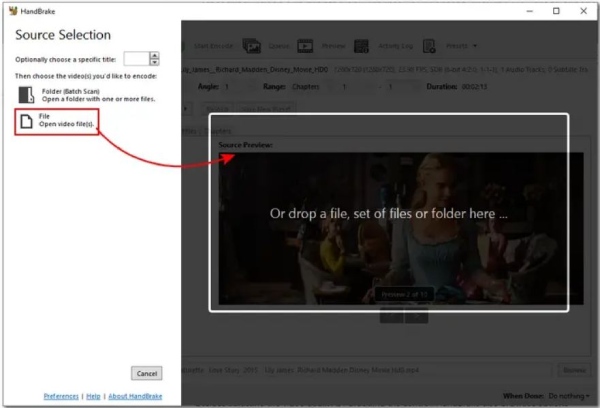
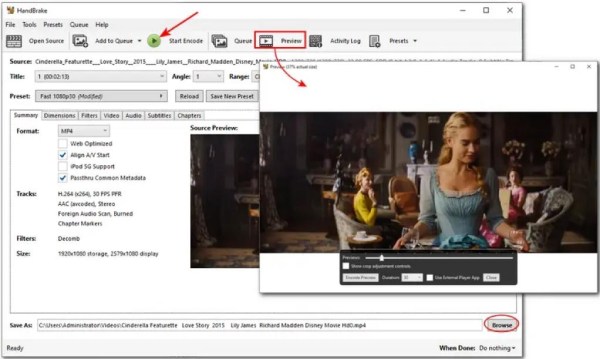
Step 1.Launch HandBrake and click the "Open Source" button to input your 720P video file.
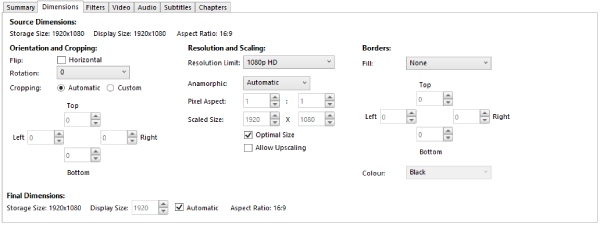
Step 2.Go to the "Dimensions" menu and change the "Width" option to 1920 and the "Height" option to 1080.
Step 3.Click the "Browse" button to find the save path. And click the "Start Encode" located on the bar menu to get the upscaled file.
Enhance 720p Videos to 1080p with Popular VLC
Using VLC to upscale 720p video to 1080p primarily relies on the player's built-in real-time scaling and basic sharpening filters. It stretches the original image to 1920×1080 during playback through upscaling, and enables processing like sharpness, color enhancement, or noise reduction. This method is suitable for making low-resolution videos appear more transparent during playback, but does not generate new 1080p files.
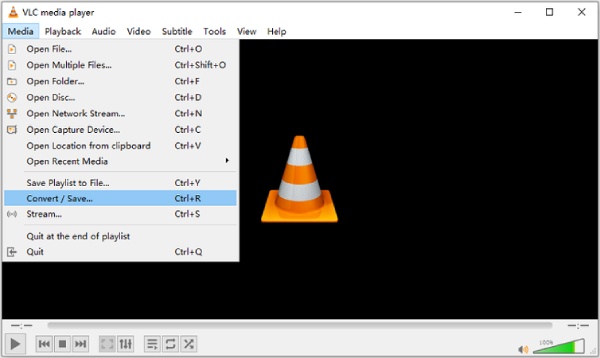
Step 1.Open VLC and click "Media" to find "Convert/Save". Then click "Add" to import your 720P video for conversion.
Step 2.Click the "Customize" button and "Video Codec", checkmark the "Keep original video track" option to expand the "Resolution" tab.
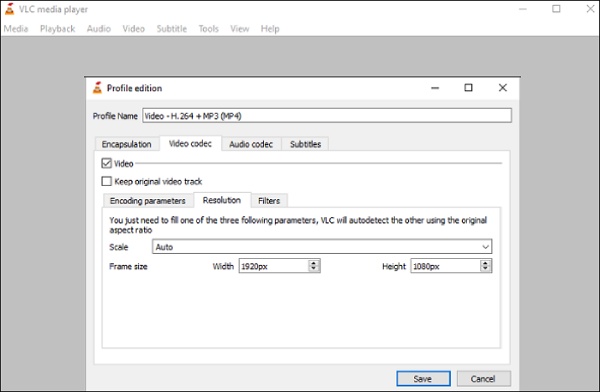
Step 3.Here, you have to select 1920 width and 1080 height from the "Frame rate" option.
Step 4.In the last step, click "Save". Browse the destination folder, and then click "Start".
How to Upscale 720p to 1080p with Premiere Pro
Premiere Pro uses AI technology to stretch image edges and employs detail-preserving interpolation techniques to upscale 720p to 1080p. When you place a 720p video into a 1080p sequence, Premiere automatically scales it. It also supports sharpening, removing video background noise, and further detail enhancement using plugins.
Step 1.Launch the Pr to create a new project, go to "File", click "New", "Sequence", and "Sequence Presets".
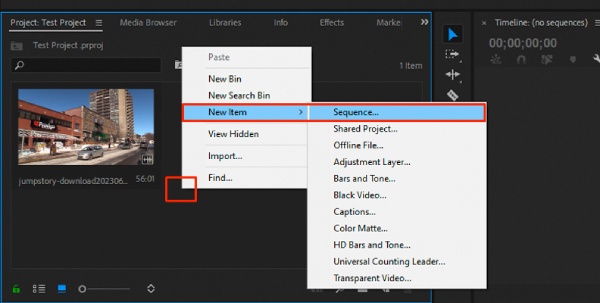
Step 2.Choose a 1080p output option. Then set the frame rate and aspect ratio to the same as your source file.
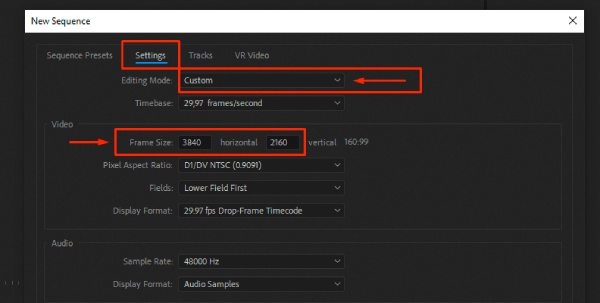
Step 3.Add your 720p source video to the project by dragging it onto the timeline. When the pop-up appears, click "Keep Current Sequence".
Step 4.To make the video fill the screen, right-click the cursor and select the "Set to Frame Size" button.
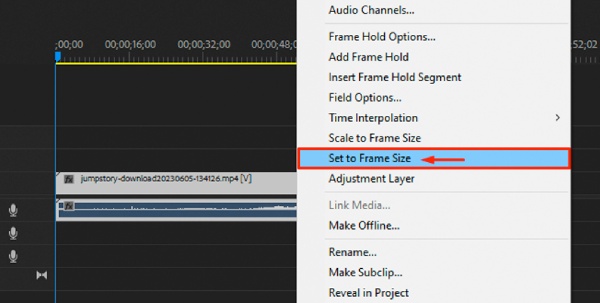
Step 5.Adjust other settings as needed, such as video noise and artifacts. Render the video and export it.
How to Use HDconverter to Convert 720P to 1080P Online
HD Convert can optimize 720p videos online to 1080p. It automatically enhances video clarity, contrast, and detail, making the upscaled images appear more natural. The entire process is completed within your browser, requiring no downloads or software installations.
Step 1.Open the website, click "CONVERT VIDEO" and "ADD NEW FILES" to upload your 720p video.
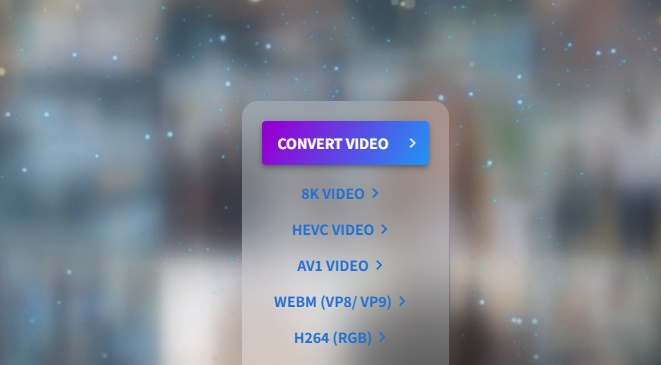
Step 2.Click "NEXT" to choose the output format, and on the next page, select Full HD 1080p.
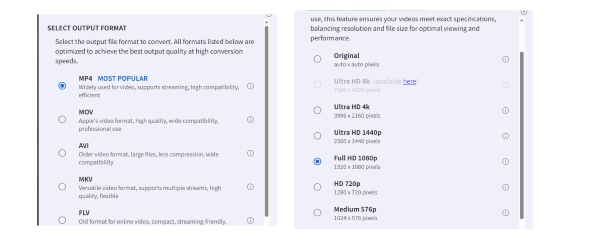
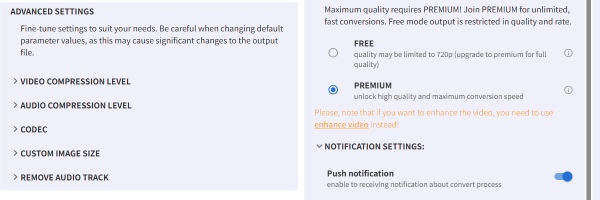
Step 3.You can change other parameters in the next window. When settings are done, choose a notification method, and wait for the pop-up window.
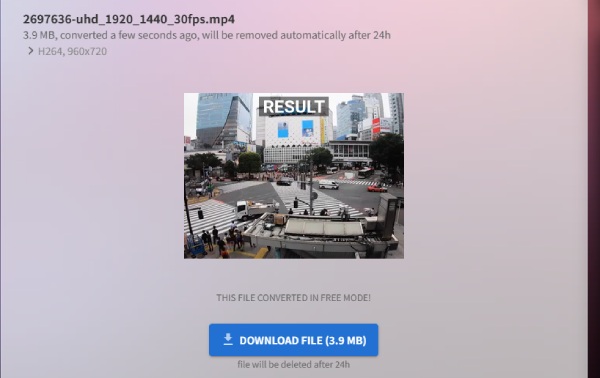
Step 4.Click the pop-up window to download the 1080p video.
Conclusion
Now that technology is changing so fast, upscaling video resolutions like 720p to 1080p is also necessary, especially when you need to add more TikTok filters before sharing them on social media. When you need to upscale the video resolution and enjoy the best watching experience, AnyRec Video Converter is the best choice you can take into consideration.
Secure Download
Secure Download



