
WebM vs. MP4: Comparison, Differences, and Convert Easily

A single second of lag can affect your streaming experience. As 8K streaming becomes the standard, the WebM vs. MP4 rivalry is a vital decision for creators and everyday users. While one remains the universal format, the other leads the web performance. Which one should you pick for your next project? Today's guide breaks down WebM vs MP4 differences and definitions, compares them, and shows you how to convert your files to ensure your content looks perfect on every screen.
Guide List
WebM vs MP4 Comparison Chart Definitions and Differences Between WebM and MP4 How to Convert Between WebM and MP4WebM vs MP4 Comparison Chart
It's just nice to demand a clear understanding of how different video formats impact your website's performance and accessibility. Navigating the technical specifications of WebM and MP4 can feel overwhelming without a clear visual of their unique strengths. So, first off, in this WebM vs. MP4 comparison chart, a quick-reference guide to both of their essential features
| Feature | WebM (Web Media) | MP4 (MPEG-4 Part 14) |
| Main Use | High-performance web streaming. | Universal playback and social media. |
| Initial Release | 2010 | 2001 |
| File Size | Smaller; highly compressed. | Larger; optimized for metadata. |
| Browser Support | Chrome, Edge, Firefox, Opera | All browsers and platforms. |
| Developer | ISO | |
| Licensing | Royalty-Free | Needs a license for some codecs |
| Video Codecs | VP8, VP9, AV1 | H.264, H.265 |
| Audio Codecs | Vorbis, Opus | AAC, MP3, AC3, DTS |
Definitions and Differences Between WebM and MP4
Beyond a simple comparison chart of WebM versus MP4, next is understanding why each format needs an in-depth look into its definitions. While they are both containers for your video and audio data, they are different regarding open access and compatibility. The following definitions clarify what these formats are and how they function. You'll also see their differences in size, quality, and more, so you can better identify which format is right for your next project.
What is WebM?
WebM is a royalty-free, open-source file format designed for the modern web. Made by Google, this format is based on a Matroska container and is made to offer high-quality video playback while keeping an incredibly small file size. Since it is optimized for HTML5, it's the ideal choice for web developers looking to lessen page load time without affecting the visual clarity.
What is MP4?
MP4 digital multimedia container format is commonly used to store video and audio. It can also store data like subtitles and still pictures. The MP4 format is developed by the International Organization for Standardization, and has become the universal standard for video distribution due to its huge compatibility across virtually every device, system, and social media platform.
Key Differences of WebM vs. MP4
WebM vs. MP4: Compression
WebM utilizes VP9 or AV1 codecs, which are more efficient than the H.264 codec used in many MP4s. Thus, WebM is generally 20% - 35% smaller in MP4 at visual quality. Moreover, you can reduce WebM file size for better sharing and saving manually.
WebM vs. MP4: Compatibility
MP4 works on almost every device, from TVs to the latest iPhones. The WebM support has improved over the years. However, some Apple devices and older hardware may still have trouble playing WebM files.
WebM vs. MP4: Licensing and Cost
WebM is an open-source format. There are no licensing fees to worry about. MP4 is more complicated. Some MP4 codecs come with licensing requirements for commercial use.
WebM vs. MP4: Transparency Support
WebM format natively supports alpha channels, making it perfect for web-based overlays and animations, which are much more complex to apply in standard MP4 files.
How to Convert Between WebM and MP4
Switching between WebM and MP4 formats should not feel like a chore. Whether you want the web-ready efficiency of WebM or the universal compatibility of MP4, having a reliable tool can transform your footage quickly. Your go-to solution: AnyRec Video Converter. This powerhouse video converter software is strongly built to handle different formats, such as MP4, WebM, MOV, MKV, AVI, and more, while maintaining professional-grade results every time. It also uses advanced hardware acceleration to process your files at lightning speed, outperforming traditional tools. Plus, you can enjoy its built-in editor to trim, crop, or apply effects to your videos before finalizing your newly converted file.
Easily switch between WebM, MP4, and many other formats with no hassle.
Queue up multiple files and convert the entire library in one click.
Save time with its advanced acceleration that still maintains original quality.
Take full control by customizing the resolution, frame rate, and bitrate.
Secure Download
Secure Download
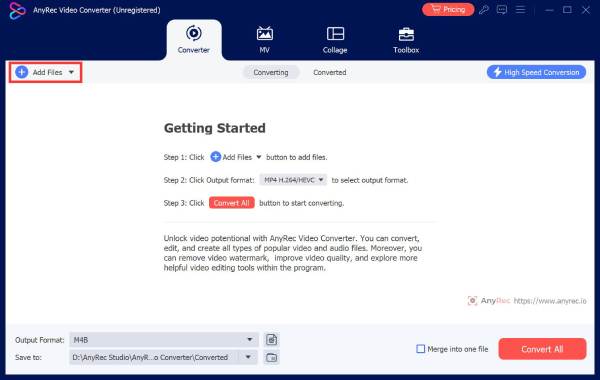
Step 1.Launch AnyRec Video Converter on your computer. Click the "Add Files" button to bring in the WebM or MP4 video files you need to transform.
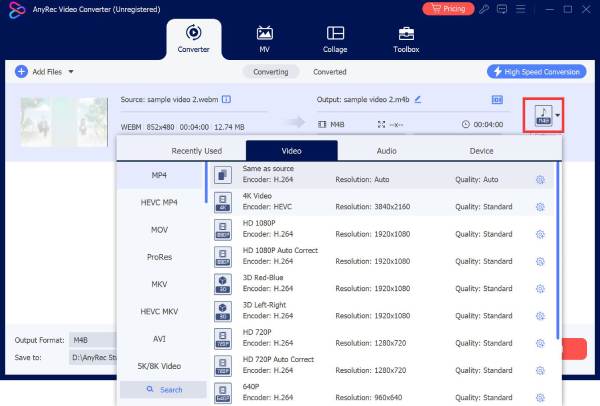
Step 2.Click the "Format" dropdown menu next to your file. From the "Video" tab, pick either "MP4" or "WebM". If you want to change the video settings, click the "Custom Profile" button to fine-tune settings.
Step 3.Choose your destination folder below and give your video file a new name if you want. Click the "Convert All" button to start the process and watch your high-quality video on your computer.

Conclusion
Picking the winner in this WebM vs. MP4 rivalry depends on your video requirements. You've seen here that WebM is perfect for lightning-fast web streaming while MP4 is the gold standard for playing across devices and platforms. With their strengths, you can ensure your content always loads without a hassle. But regardless of the two, having AnyRec Video Converter to switch between WebM and MP4 formats is a game-changer. With this tool, you can prepare your videos for a global audience in stunning quality, giving them the upgrade they deserve and ensuring they're ready to play for any platform.
Secure Download
Secure Download
About Our Author




