
Hot

AnyRec Screen Recorder
Record and screenshot any video on Windows and Mac.
Secure Download
Screen Record Any Activity on Windows with High Quality

Perhaps you need to record on your Windows 11/10/8/7 PC for a presentation for online classes or meetings, or you are cooking up something that you want to share with your viewers. Regardless of the reasons, you can easily make use of the built-in recorders on Windows PC. However, there are some limitations to the capture size, output settings, etc. Thus, here are 4 efficient ways for you to learn how to screen record on Windows.
Guide List
Ultimate Way to Screen Record on Windows 11/10/8/7 Use Game Bar to Capture Windows Screen How to Use Snipping Tool on Windows 11/10 Free Online Way to Screen Record on Windows PC FAQs| Method | Ease of Use Based on User Experience |
| AnyRec Screen Recorder | Come with a straightforward interface with clear options for screen recording and editing. It may be overwhelming for absolute starters, but it is well-suited for almost everyone. |
| Xbox Game Bar | It was designed for simplicity on Windows computers. It’s perfect for capturing gameplay or quick screen recordings. |
| Snipping Tool | Extremely easy to use for primary screen captures, even though it comes with limited functionalities, it makes it less suitable for complex recording needs. |
| AnyRec Free Screen Recorder | An excellent free online screen recorder alternative if you prefer not to install anything to record Windows 11/10. It can also produce high-quality putput. |
Ultimate Way to Screen Record on Windows 11/10/8/7
This guide will begin with AnyRec Screen Recorder, a versatile screen recording tool compatible with Windows 11/10/8/7. Featuring a clean interface, this program effortlessly captures any activity on your screen. Whether you're creating tutorials, recording gameplay videos, or capturing online meetings, AnyRec delivers a smooth recording experience. It offers multiple recording modes, allowing you to select your preferred recording area. With highly customizable video and audio recording settings, you gain complete freedom to capture video and audio tracks.
Can record system, sound, microphone, or both while recording screen.
Capture your Windows screen in various resolutions and frame rates.
Edit your recordings within the program with a trimmer, cutter, and more.
Save your screen recording in well-known formats, like AVI, WMV, MP4, etc.
Secure Download
Secure Download
Step 1.Once you have run AnyRec Screen Recorder, the main window will display clear options for recording the screen. Select whether to record the "Full" or "Custom Area".
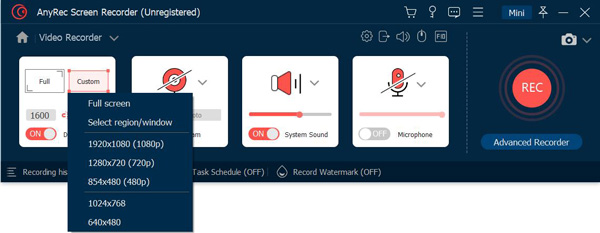
Step 2.Enable the "System Sound" switch button to record internal audio, the "Microphone" one to record your voice, or both, depending on your recording requirements.
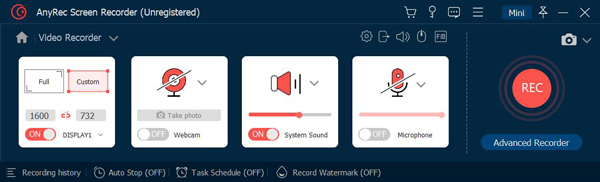
Step 3.After settling everything, click the "REC" button to begin recording your Windows 11/10/8/7 screen activity. Now, you can add annotations and take screenshots.
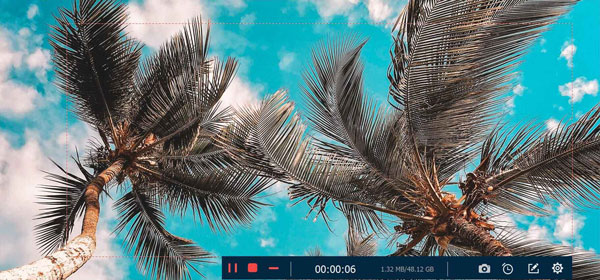
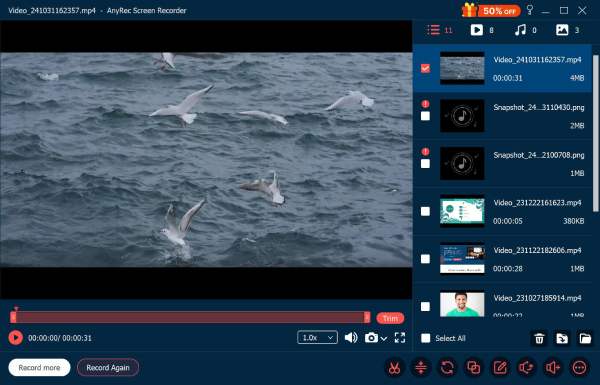
Step 4.Finally, it’s time to edit your recordings! Once you end the recording, you’ll go to the "Preview" window, where you are able to watch and trim your recording before saving it.
Secure Download
Secure Download
Use Game Bar to Capture Windows Screen
In addition to the software mentioned above, Windows 11/10 itself provides a built-in screen recording tool, making it easy to learn how to capture both screen and audio on Windows systems. The Xbox Game Bar, originally designed for recording gameplay, is also ideally suited for capturing any screen activity. It functions like a customizable overlay recorder, accessible without leaving your game via a keyboard shortcut.
Step 1.To launch the Xbox Game Bar, press the "Windows + G" keys. Click the "Capture" widget in the floating bar if the "Capture" window does not open automatically.
Step 2.Ensure the intended record window is open. Click the "Microphone" icon if you would love to record audio. Then, proceed to the "Red Circle" button to initiate and end the recording.
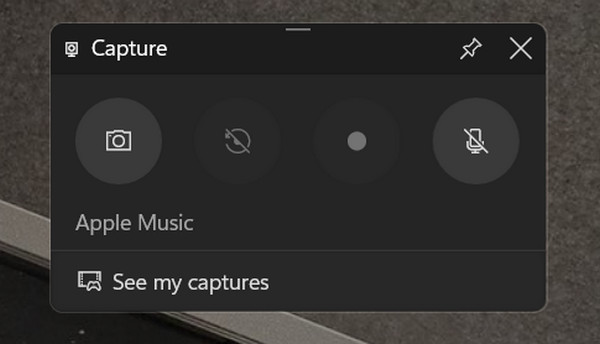
You can also use the shortcuts "Windows + Alt + R" to start and end the process of recording screen on Windows PC 10/11.
How to Use Snipping Tool on Windows 11/10
If you still want more built-in options in Windows 11/10 computers, you will surely be glad to know about the Snipping Tool! It is a handy application on Windows systems that permits you to screen record on Windows and capture screenshots of specific areas or your entire screen.
Step 1.Start by opening the Snipping Tool, which can be done in two ways:
• Search it in the Windows Search bar by clicking the "Start" menu or the "Windows" key and then typing the "Snipping Tool". Select it from the best results.
• Use the shortcut keys: "Windows + Shift + S" on your keyboard. This will present a small capture menu without launching the entire Snipping Tool window.
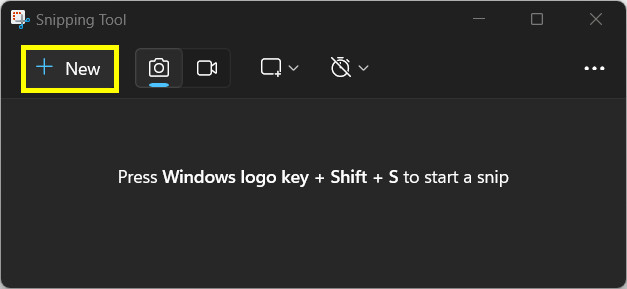
Step 2.Click the "small down arrow" next to the "New" button, then select the "Screen recording" option. Next, click the "New" button to beginning the Windows recording.
Step 3.To record microphone audio along with your Windows screen, don’t forget to enable the "Microphone" icon in the Snipping Tool toolbar.
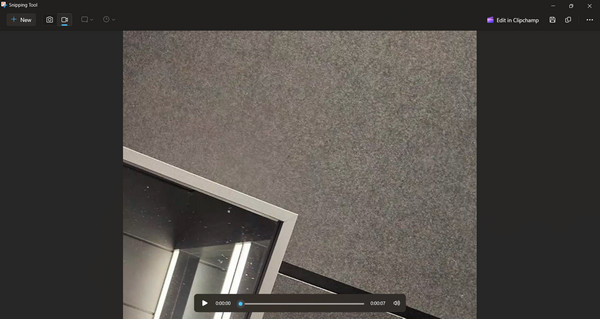
Step 4.If finished, click the "Stop" button or use your keyboard's "Esc" key to end the session. You can now proceed to edit your recording using the tool’s pen, highlighter, or eraser.
Free Online Way to Screen Record on Windows PC
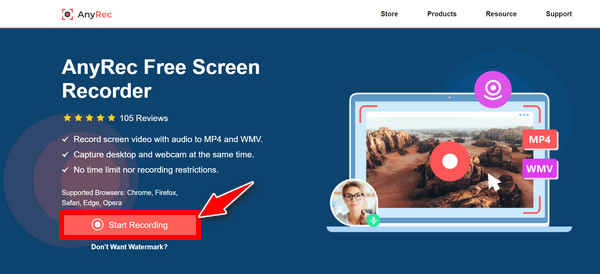
Are you looking for an easy way to screen record on a Windows 11/10 screen without breaking the bank or installing anything? AnyRec Free Screen Recorder provides a feature-packed solution that permits you to capture your desktop activity effortlessly. With this free online tool, you can expect a user-friendly layout and two popular formats, MP4 and WMV, for compatibility with most players and platforms. Also, you can record internal and external audio when capturing your Windows screen, even with a webcam screen.
Step 1.On the AnyRec Free Screen Recorder page, click the "Start Recording" button to begin the operation with the desired area to choose.
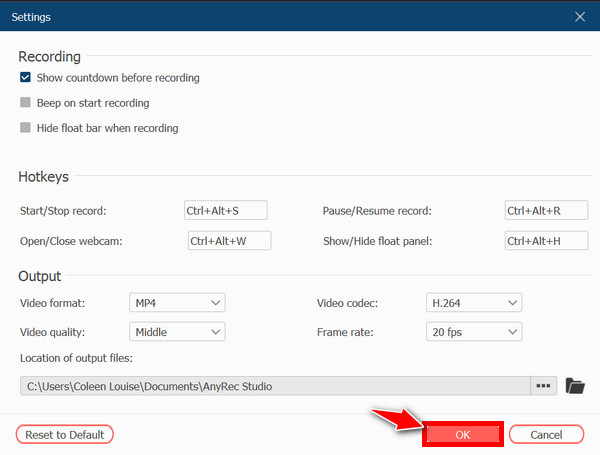
Step 2.Optionally, you can head to the "Settings" button to set your preferred format, quality, codec, and more. Click the "OK" button to put changes into action and record on Windows.
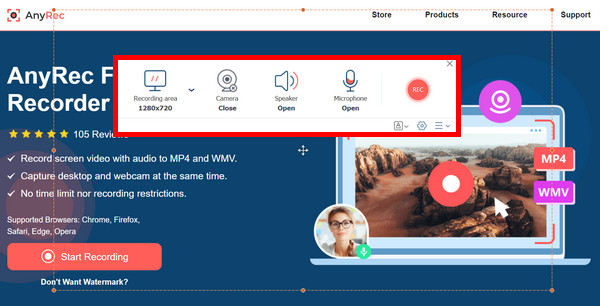
Step 3.After that, click the "REC" button to start capturing Windows screen. After a while, click the "Stop" button, save the video to your chosen format, or share it right now.
FAQs About How to Screen Record on Windows 11/10
-
Does the built-in screen recorder of Windows 11/10 come with editing features?
Unfortunately, no. The built-in tools like Xbox Game Bar and Snipping Tool are only basic recording tools. If you wish for a comprehensive set of editing functionalities, you will need a separate video editing software to trim and edit your recordings or a third-party screen recorder.
-
How to screen record on Windows 7?
Unlike Windows 11/10, if you’re using a Windows 7 computer, there’s no way you can find built-in tools like Xbox Game Bar to record your screen. Thus, just use AnyRec Screen Recorder or other online tools to capture old Windows.
-
How do you use the Snipping Tool to capture Windows screenshots?
Inside the tool, you can select a capture mode from the options: Rectangular Snip, Free-form Snip, Window Snip, or Full-Screen Snip. Then, click the "New" button right after to do the screenshot on your Windows 11/10 screen successfully.
-
Can I record the system sound together with the screen using the Snipping Tool?
Sadly, no. The Snipping Tool can only record your microphone audio, not the system sound from your computer. To do such actions, you will need the help of other tools, such as the Xbox Game Bar, which is a built-in tool on Windows 11/10 systems, too.
Conclusion
Easily capture your Windows 10/11 screen with the solutions introduced in this article. You can use built-in Windows tools like the Xbox Game Bar and Snipping Tool for quick screen captures. However, these tools only work on Windows 10/11. So, how do you record screens on earlier Windows versions? Use AnyRec Screen Recorder! This program runs on Windows systems, allowing you to record both internal and external audio while capturing your screen. Download it now to record high-definition videos!
Secure Download
Secure Download



