
 Screen mirror and record Android on PC.
Hot

AnyRec Screen Recorder
Record Samsung screen video and audio easily.
Secure Download
[100% Workable] How to Record Screen on Samsung with Ease

Knowing how to record screen on a Samsung device has become essential when it comes to capturing key moments. There are several feasible ways to complete the task in 2025, whether selecting the default solution or a professional tool. This guide will provide step-by-step insights into the most effective ways to record the screen on Samsung devices, helping you capture exactly what you need without unnecessary hassle.
Guide List
Part 1: An Ultimate Tool to Record Screen on All Phones Including Samsung Part 2: How to Record Screen on Samsung with the Built-in Feature Part 3: Reliable Options for Screen Recording on SamsungPart 1: An Ultimate Tool to Record Screen on All Phones Including Samsung
For users who want a reliable and high-quality way to record screens on Samsung phones as well as other devices, AnyRec Screen Recorder stands out as an ultimate solution. Unlike default screen recorders that may have limitations in recording time, resolution, or audio sources, this tool offers a comprehensive set of features to capture every detail of your screen effortlessly.

It supports full HD and 4K recording, allows you to record screens on your Samsung devices smoothly. Beyond recording, it also offers real-time annotation, screenshot capabilities, and easy export to multiple formats. With AnyRec Video Recorder, capturing gameplay, tutorials, or meaningful app interactions on a Samsung phone becomes seamless, smooth, and entirely under your control.

Ensure that the recording does not get interrupted by using a stable connection method.
During the recording process, it will not affect the operation of your Samsung device.
Record the screen activities with the original picture quality of your Samsung device.
Edit to emphasize the content on the recorded screen of your Samsung device.
Secure Download
Secure Download
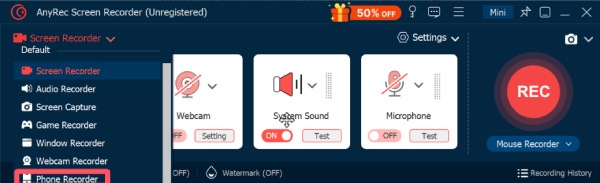
Step 1.Launch AnyRec Screen Recorder on your device. Click the "Phone Recorder" button under the "Screen Recorder" tab.
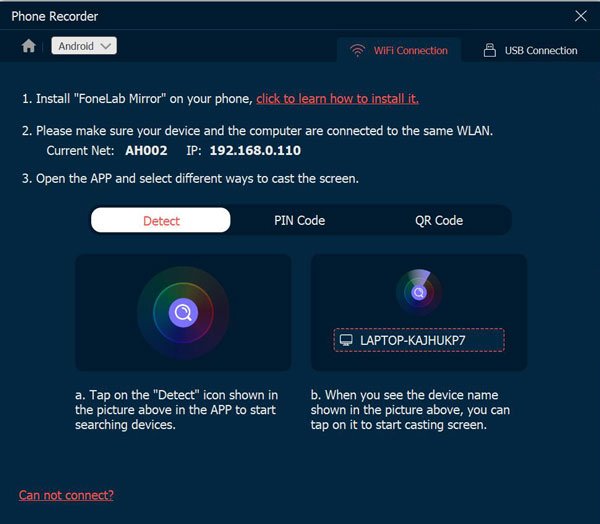
Step 2.In the pop-up window, click the "Android Recorder" button and connect your Samsung device to the computer following the instructions.
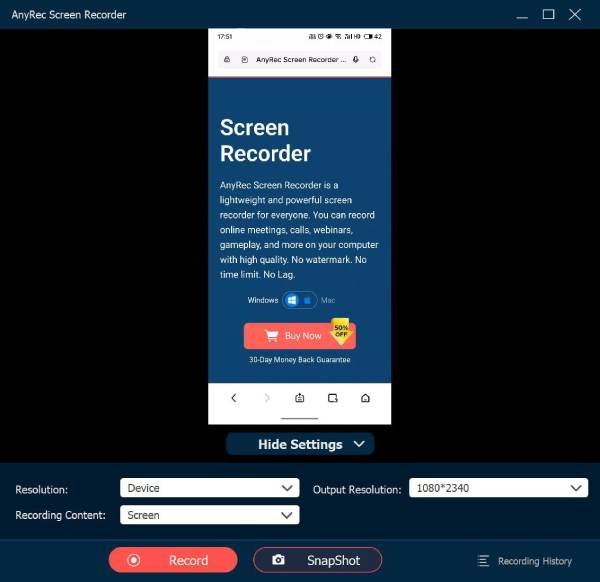
Step 3.Now, the whole screen of your Samsung device will be displayed on the screen. Click the "Record" button to start recording the screen on the Samsung device.
Part 2: How to Record Screen on Samsung with the Built-in Feature
Samsung devices come with a built-in screen recording feature that makes capturing on-screen activities quick and convenient. From the Quick Panel, you can easily access basic features of recording. While it may not offer advanced editing or annotation tools, it is enough for beginners to start their recording. If you don't know how to record screen on your Samsung device with the default tool, you can follow the steps below:
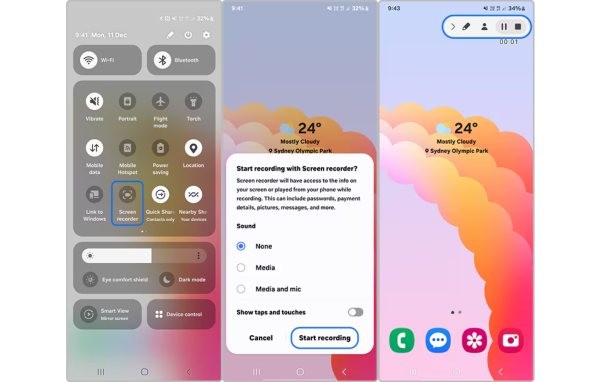
Step 1.Scroll down from the top screen of your Samsung device. Tap the "Screen Recorder" button on the Samsung Quick Panel.
Step 2.In the pop-up window, tap to select from the recording options available. Tap the "Start Recording" button to start screen recording on your Samsung device.
Step 3.Once finished, tap the "Stop" button from the floating box, and the recording will be saved automatically.
Part 3: Reliable Options for Screen Recording on Samsung
While basic tasks can be handled well, the built-in tool lacks more advanced features and flexibility. In this situation, a professional tool is required, as they are capable of providing higher-quality recordings combined with editing tools. The following five options are among the best for Samsung screen recording in 2025, offering a mix of powerful capabilities, ease of use, and cross-platform compatibility.
XRecorder
XRecorder is a robust Android screen recording app that works excellently on Samsung devices. It offers 1080p/60fps recording, no time limits, and both internal and microphone audio capture. The design appears to be lightweight, and it still supports smooth performance even on high-resolution displays. And due to this friendly interface, everyone can find themselves in no trouble dealing with the process of recording the screen on their Samsung devices.

- Pros
- High-resolution and smooth recording; no root required
- Cons
- Some advanced features are locked behind a paywall; occasional ads in the free version
AZ Screen Recorder
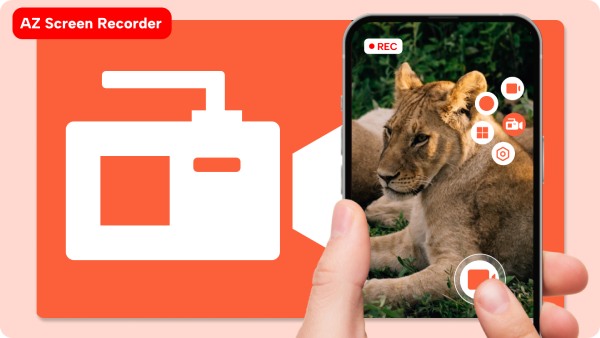
If you have searched for some screen recorders for Samsung before, you may have already heard the name of AZ Screen Recorder. This popular mobile app offers a smooth screen recording on Android without root. It provides features like trimming, live streaming, and front camera overlay.
- Pros
- Free basic version; no root needed
- Cons
- Watermark in the free version; limited editing
Mobizen Screen Recorder
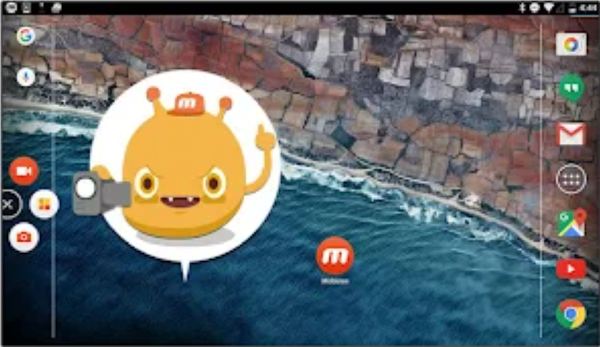
To record the screen on a Samsung device with high resolution, Mobizen Screen Recorder is considered a reliable option. Besides supporting high-resolution recording up to 1080p, this tool provides features like editing, facecam, and background music. You can make your recording an interesting video even if you're a beginner.
- Pros
- Support full HD; user-friendly
- Cons
- Ads in free version; occasional lag
DU Recorder
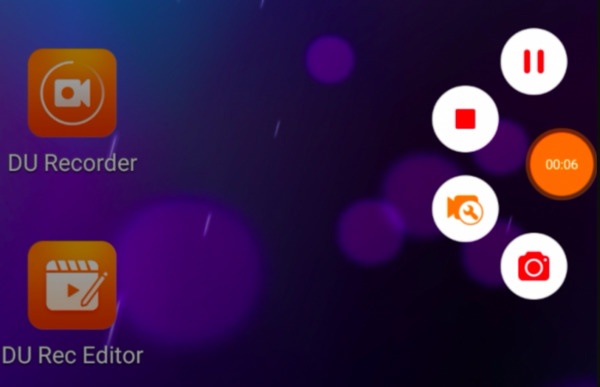
When it comes to stable screen recording on Samsung devices, DU Recorder performs well. Although it uses considerable resources of your device, it makes sure the process of recording is stable without lags. During the process, you can capture both internal and external audio, add text or stickers, and directly share videos to social platforms.
- Pros
- Work well for recording Instagram Stories; streaming support
- Cons
- Watermark in the free version, some features require payment
Google Play Games
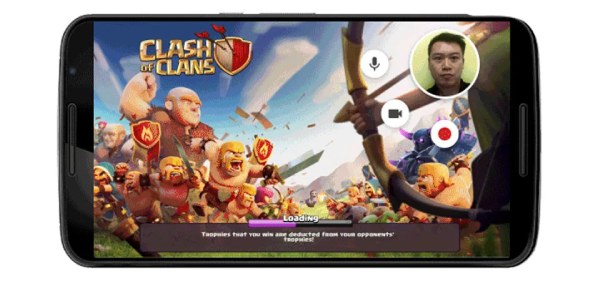
For those who are used to playing games on Samsung devices, Google Play Games can be perfect for recording. During the recording, it won't affect the running of your game, allowing you to record gameplay with minimal setup. In short, to record screen on your Samsung device for gameplay, Google Play Games suits you well.
- Pros
- Affiliated with Google apps; simple for gamers
- Cons
- Limited to games; the tool takes considerable storage space
Conclusion
Recording screens on Samsung devices can be an easy task with so many methods provided. You can select the proper recorder according to your requirements. Among all these choices, AnyRec Screen Recorder delivers a quick and stable solution for recording the screen on a Samsung with powerful features.
Secure Download
Secure Download



