
Hot

AnyRec Video Converter
Remove all kinds of text from your video wihthout blur.
Secure Download
6 Ways to Remove Text from a Video on Windows/Mac/Mobile

Easily remove text from any video on your computer or phone with those 5 ways.
- AnyRec Video Converter: Remove text without blur from any video on Windows and Mac. No file size limit.
- Hitpaw & Video Watermark Remover Tool: Remove text from a video no more than 500MB. Need to pay first (Hitpaw).
- Video Eraser & TouchRetouch: Delete unwanted text from video on iPhone and Android.
Secure Download
Secure Download

Text on videos can vary from watermarks to logos and subtitles. So many people want to remove text from the video. Especially when using a free app to create a video, the software will likely put the brand’s watermark on your work. Or sometimes, the downloaded video clip also has a watermark on it. Removing text from the video is almost impossible, but this article will give you the best solutions for Windows, Mac, Android, and iOS.
Guide List
Part 1: Ultimate Software to Remove Text from Video [Windows/Mac] Part 2: 3 Tools on Webpage to Erase Text from Video [Online] Part 3: 2 APPs to Eliminate Text from Video on iPhone/Android Part 4. Product Summary of Text Removers Part 5. How to Deal with Complex Text or Watermark Part 6: FAQs about Removing Text from VideoPart 1: Ultimate Software to Remove Text from Video [Windows/Mac]
An easier way to remove text from a video is to use AnyRec Video Converter. It is a Windows and Mac desktop program with a professional watermark remover for logos, date stamps, etc. Although its main use is for file conversion, the app also has built-in editing features to enhance, modify, or amplify your video and its details. Using AnyRec Video Converter is an excellent solution for related video editing purposes.

Remove text from a video in any format like MP4, MKV, MOV, AVI, etc.
Customize the remover frame size to fit the watermark on the video.
Have fewer blurry parts after removing the text from the video.
Add new text and caption to the video after removing the old ones.
Secure Download
Secure Download
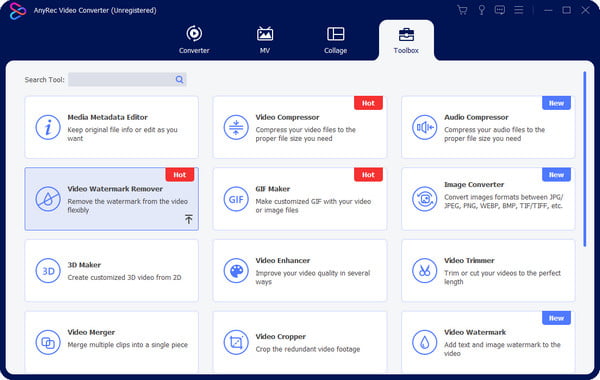
Step 1.Open AnyRec Video Converter prompts. Go to the "Toolbox" menu and choose "Video Watermark Remover" from the list. Click the "Plus" button to add the video from your computer.
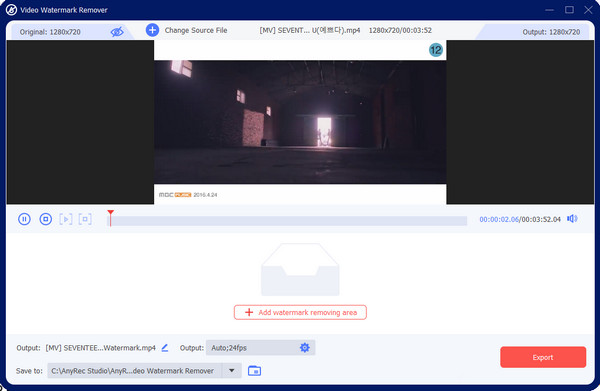
Step 2.Click the "Add Watermark Removing Area" button to reveal the watermark tool. Drag the remover to the desired area where the watermark is. Resize the tool by using functions from the lower right. If another logo appears in the video, add another watermark remover.
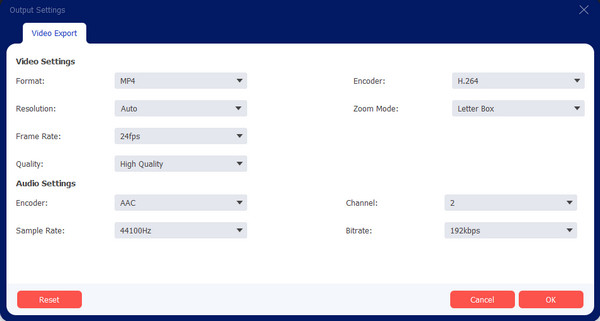
Step 3.Before saving the video file, go to the "Output" menu for the settings. Edit the video settings like format, resolution, frame rate, and quality. Edit the audio settings, too, if needed. Click the "OK" button to apply the changes.
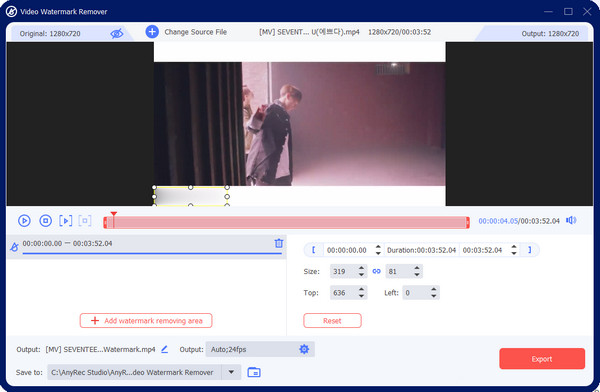
Step 4.Rename the video file or browse for a new destination folder to store the output. Finally, click the "Export" button to save the video file. You might need to wait a little longer if you uploaded a huge file size. Regardless, the exportation will be quick.
Secure Download
Secure Download
Part 2: 3 Tools on Webpage to Erase Text from Video [Online]
Online tools are also alternatives to remove text from a video. There are various watermark removers online if you don’t want to download software because of storage space. This part will show the two most recommended online tools.
1. Hitpaw Online Watermark Remover
Aside from deleting the watermark, Hitpaw Online Watermark Remover allows you to make your logo, giving you more functions to edit the footage. The free version restricts you from some features and limits the file sizes, but you can unlock these by purchasing the premium version for $39.95 per year.
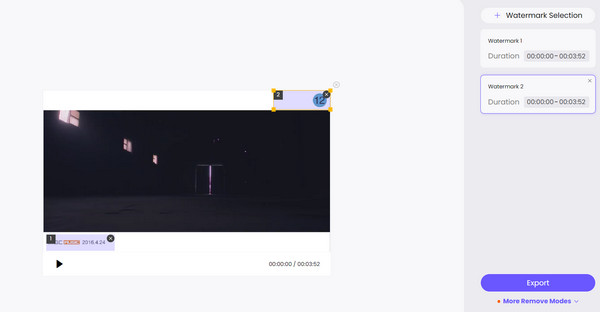
Step 1.Go to the Hitpaw Online Watermark Remover and click the "Remove Watermark Now" button to redirect to another webpage. Upload the video from your folder by dragging it to the site’s interface.

Step 2.Position the watermark remover in the desired area. If the video has more logos, click the "Watermark Selection" button to reveal another remover. Then, click the "Export" button to remove the logo. Proceed to save the output to your device.
2. Fotor
Although Fotor is primarily known for image editing, it also provides AI-powered video text removal through object removal and inpainting technology. It can intelligently detect overlaid text, subtitles, or logos and reconstruct the background with minimal visual artifacts. The tool is optimized for simple or static text overlays, delivering fast processing and clean results without requiring manual frame-by-frame editing.
Step 1.Open the official website and click the "Upload" button to import your video file into the editor.
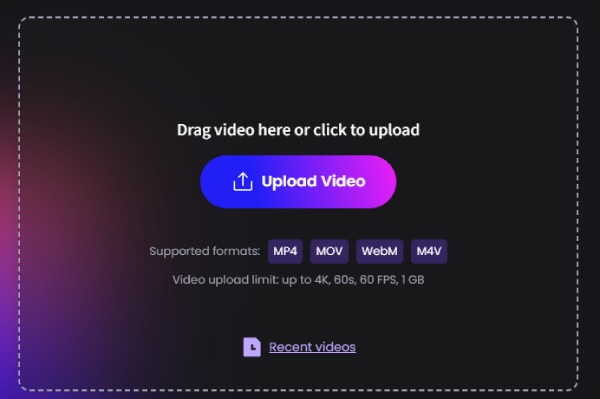
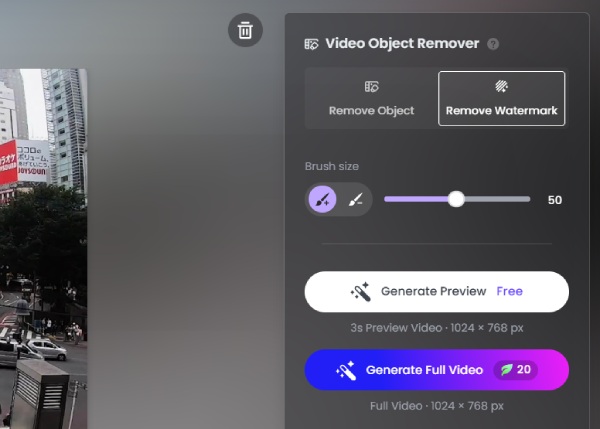
Step 2.Click the "Object Remover" tool and highlight the text or subtitle area you want to remove. Finally, choose the "Remove" button to process the video and export the final result.
3. Video Watermark Remover
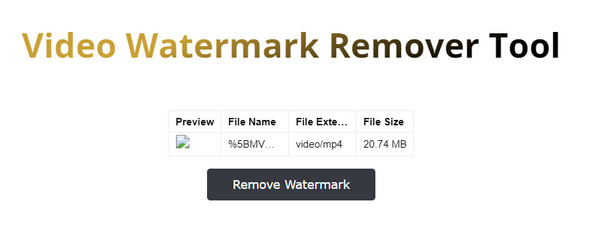
The online tool will remove text from a video using its auto-detect algorithm. It helps to delete other unwanted objects from video, such as text overlays, logos, stamps, etc. It is said to be effective as it does not leave any trace of a watermark on any video. Unfortunately, there is no output preview once you apply the effect.
Step 1.When you are on the website, drag and drop a video file on the interface to upload. Wait until the video is completely uploaded online.
Step 2.Click the "Remove Watermark" button to delete the logo on the video clip. Once done, download the output on your computer.
Part 3: 2 APPs to Eliminate Text from Video on iPhone/Android
Here are the best apps for smartphones to remove text from a video. You can download the recommended tools on Android and iPhone.
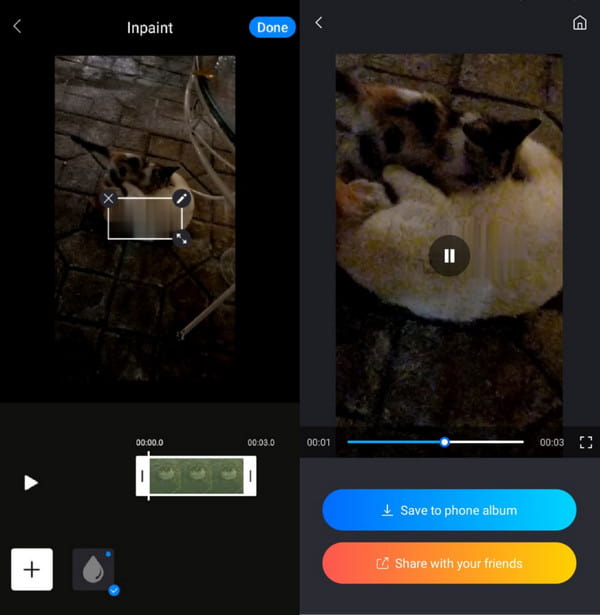
1. Video Eraser
It is also known as a logo cleaner available on Google Play and App Store. It is a convenient app, providing tools to add text, icons, and other elements. Moreover, Video Eraser also has a screen recorder for additional functions. Here’s how to use Video Eraser on your phone:
Step 1.Install the app on your phone and open it. Tap the "Remove Video Watermark" option from the main menu and allow the app to access your media files.
Step 2.Then, palace the watermark remover in the video area. Afterward, tap the "Done" button to export the video clip.
2. TouchRetouch
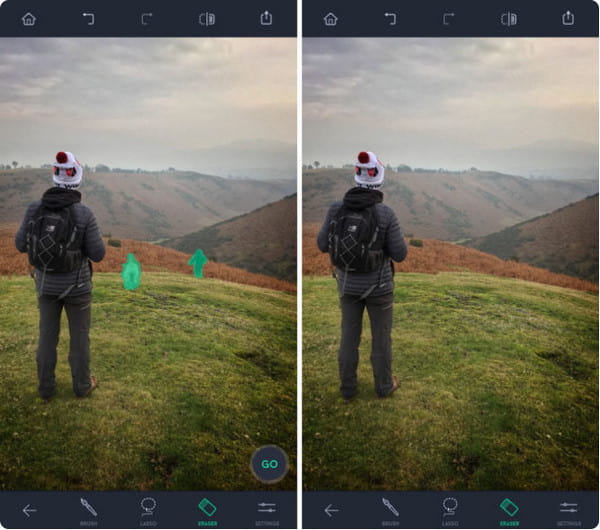
This app is not a free program on your phone but an effective tool to remove text from a video. In a few seconds, it can remove any watermark from the video, such as power lines, blemishes, etc. You can use its built-in video tutorial to maximize its utilities.
Step 1.After installing TouchRetouch on your phone, choose the file you want to edit from your gallery. Then, choose the "Object Removal" option from the toolbar at the bottom part of the screen.
Step 2.Use the "Lasso" feature and zoom in on the watermark you want to delete. Then, tap the "Erase" tool to apply the effect. Save the output by tapping the "Export" button.
Part 4. Product Summary of Text Removers
| Tool | AI Capability | Supported Watermark Types | Processing Speed | Output Quality | Format Support | Platform | Batch Processing | Ease of Use | Best Use Case |
| AnyRec Video Converter | Medium | Video text, logos, subtitles | Medium | Medium | MP4, MOV, other common formats | Windows / Mac | √ | Easy | Video editing + watermark removal |
| HitPaw Online Watermark Remover | High | Video & image watermarks, text, objects, people | Fast | High | MP4, MOV, AVI, etc. | Web | × | Very Easy | Quick online watermark removal |
| Video Watermark Remover | Medium | Video watermarks, text, logos | Medium | Medium | Common video formats | Windows / Web | × | Easy | Simple logo/text removal |
| Fotor | High | Image watermarks, objects, text | Fast | High | JPG, PNG | Web / App | × | Very Easy | Image watermark removal & retouching |
| Video Eraser | Low | Video watermarks, text | Medium | Low–Medium | Common video formats | iOS | × | Easy | Basic mobile editing |
| TouchRetouch | Medium | Image watermarks, objects, lines, wires | Fast | High | JPG, PNG | iOS / Android | × | Easy | Detailed image retouching |
Part 5. How to Deal with Complex Text or Watermark
Sometimes watermarks appear in unusual places and may cover important areas. In such cases, you can use these tips to find the right tool and remove the watermark more precisely.
• How to Remove Moving/Scrolling Text
Use the AI Auto-Tracking Feature
Use a tool to identify the text and automatically track its position in every frame, eliminating the need for manual frame-by-frame adjustments.
Combine with Timeline Keyframes
Set separate removal areas for the time periods when the text appears and disappears to improve accuracy.
Enable Timing Consistency Processing
Ensures the processed footage does not flicker or appear choppy.
Prioritize AI restoration over cropping
Cropping affects the composition of the frame, while AI restoration preserves the full frame.
• How to Handle Text That Obstructs People
Use AI Content Reconstruction
The AI infers the obscured facial/body areas based on surrounding pixels.
Restore Details Using Multi-Frame Information
If the person is not obscured in other frames, this information can be used to complete the current frame.
Manual Fine-Tuning Where Necessary
Perform precise repairs on complex areas (such as facial features).
Reduce the Repair Area to Avoid Over-Generation
Select only the text area to minimize impact on the subject.
Part 6: FAQs about Removing Text from Video
-
Is it possible to download a TikTok video without a watermark?
Yes, you can use SnapTik to download TikTok content without the logo. To do this, navigate to the video clip on your TikTok account and tap the "Copy Link" button. Open SnapTik on your browser and paste the link to the search bar. Select the "Download" button and enjoy.
-
How to remove text from a video without using a watermark remover?
Alternatively, you can remove the watermark on a clip by cropping it. If the logo is in a far corner of the video, it is easier to cut it out. However, this method will likely expand the video, resulting in lower quality.
-
How to paste another watermark on a video film?
Using a video editor to blur or crop the old video watermark is best. Since overlaying another watermark will ruin the visual, you may need to remove text watermark from a video first. After that, you can only place the new logo in the same area as the old one.
Conclusion
Now that you’ve learned how to remove text from videos, you can enjoy your videos without watermarks. The methods above work on all kinds of devices. Of course, some video watermark removal tools don’t perform very well, but AnyRec Video Converter can deliver the results you’re looking for and offers a variety of editing tools to choose from.
Secure Download
Secure Download



