
How to Remove Duplicate Photos on iPhone 17 (iOS 26)

Duplicate photos always take up a lot of space, so many people want to delete duplicate pictures from their iPhones. Searching through them one by one is inefficient and prone to accidental deletion. iOS 17 introduced a new feature to detect duplicate images, but what if you're not an iOS 17 user? Don't worry—this article provides three methods that work whether or not you're using iOS 17. You can use apps to automatically detect duplicates, or delete duplicate photos on your iPhone by properly organizing them on your computer.
Guide List
Part 1: Use Powerful Transfer to Find and Delete Duplicate Photos Part 2: Use Photo App to Detect Duplicate Photos and Remove Them Part 3: Install Gemini Photos to Locate Duplicate Photos below iOS 17 Part 4: FAQs about Removing Duplicate Photos from iPhonePart 1: Use Powerful Transfer to Find and Delete Duplicate Photos
If you remove duplicate photos on your iPhone 17 thoroughly, you can use AnyRec PhoneMover. This software will detect all pictures and categorize them well to find duplicate images easily. With good categorization, you can find your picture by different tags. In this way, you can easily find the same images. Unlike other app detection, which would miss some duplicates, this software could help you locate all duplicate photos to let you manage them. Moreover, there are models and iOS version limitations; all devices can be recognized in this software.

Categorize photos by people, times, places, and so on to find duplicates.
Preview the photo before deleting them in case they are not duplicate pictures.
Delete duplicate photos thoroughly without moving them to the trash bin album.
Back up duplicate photos to avoid you deleting all of them accidentally.
Secure Download
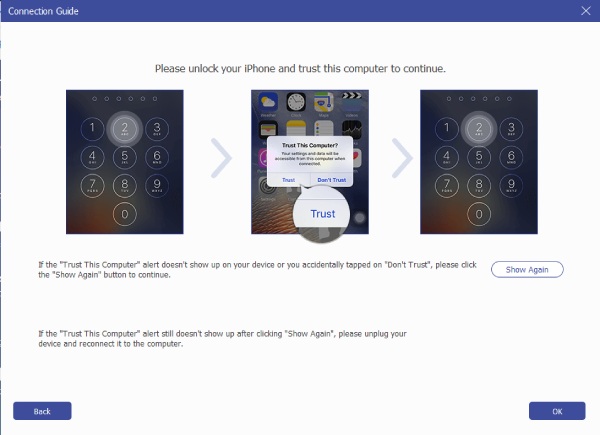
Step 1.Run AnyRec PhoneMover. Connect your iPhone to the computer; there will be a pop-up window. Enter your passcode and let your iPhone trust this computer.
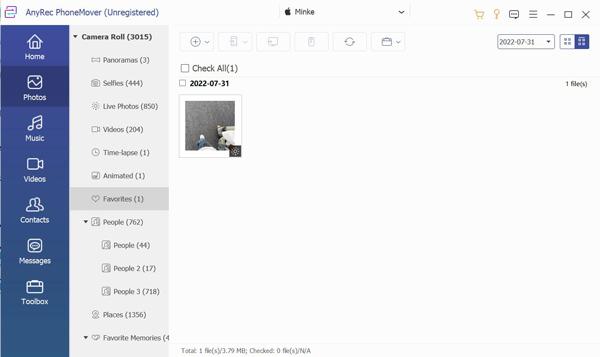
Step 2.You can click the "Photo" button on the left menu bar. Now you can see different categories that classify all pictures.
Step 3.The duplicate picture will be classified into the same category. You can easily find them. You can click the "Delete" button to remove those duplicate photos on your iPhone.
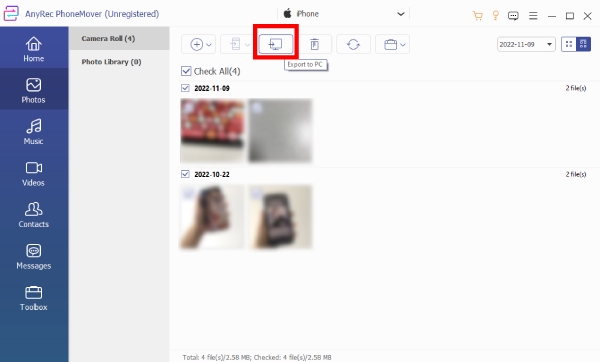
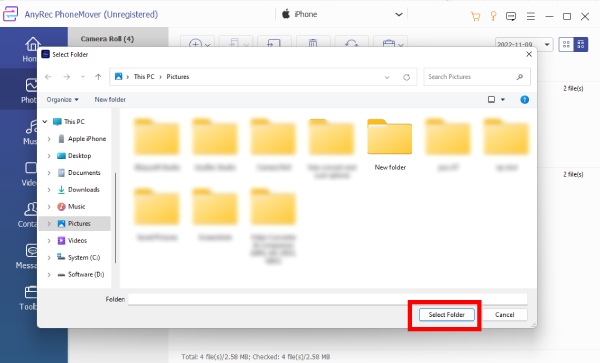
Step 4.You can also click the "Export to PC" button to send them to your computer as a backup.
Part 2: Use Photo App to Detect Duplicate Photos and Remove Them
iOS 17 published a duplicate photo detection feature in the Photos app. You can quickly check out your duplicate photo and manage it on your iPhone 17. And after all, this is a new feature that needs to be completed. You may only get some duplicate photos by its detection. So, if you want to remove duplicate photos from your iPhone thoroughly, use AnyRec PhoneMover than the Photos app.
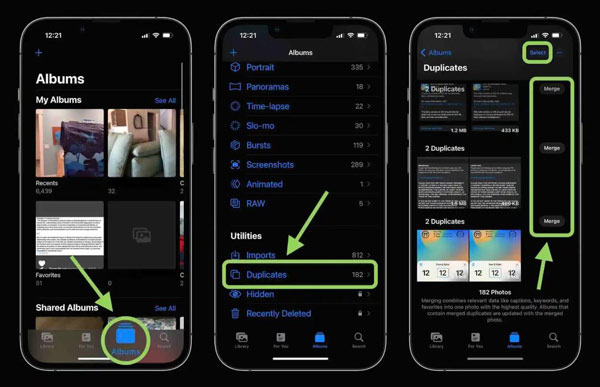
Step 1.When you open the "Photos" app on your iPhone, you should tap "Albums" at the bottom.
Step 2.Scroll down your screen until you see the Utilities section. And you can see there is a "Duplicates" option on the list.
Step 3.Then, the duplicate photos will be listed. Now you can remove them by deleting them by tapping "Selecting". And if you do not want to delete them, you can tap "Merge" to the right of the images.
Part 3: Install Gemini Photos to Locate Duplicate Photos below iOS 17
As you can see, if you are not an iOS 17 user, you may not remove duplicate photos on your iPhone with the Photos app. But another app called Gemini Photos could help you detect the same images.
Step 1.After you give Gemini Photos permission to access your photos, you can begin to scan your photos. When the scan process is complete, open the duplicates folder.
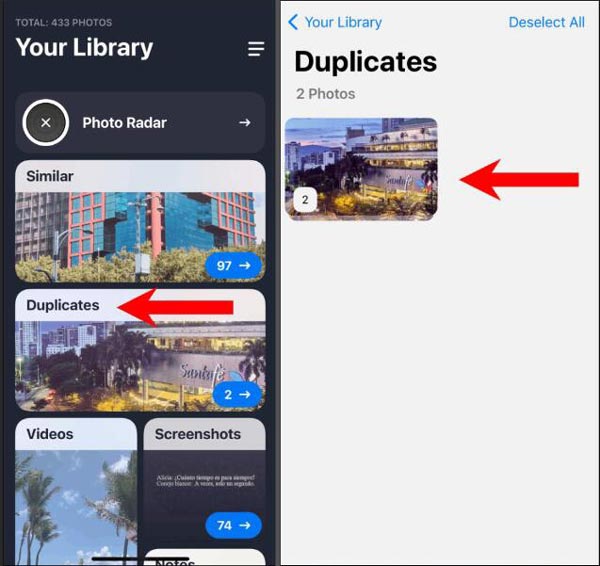
Step 2.This app will put every duplicate photo into each folder. You can tap those folders to see the details of those images.
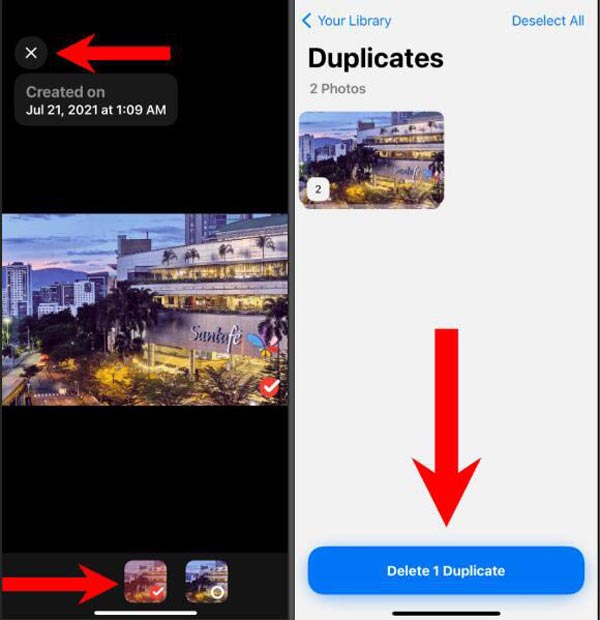
Step 3.Once in the folder, tap the pictures at the bottom of the screen that you wish to delete. You can tap the duplicate photo folder to delete the whole folder.
Part 4: FAQs about Removing Duplicate Photos from iPhone
-
Does only iOS 17 support remove duplicate photos with the Photos app?
Yes, it does. iOS 17 updates the new feature to detect duplicate photos on your iPhone. So, if your iOS version is below 16, you cannot use this feature on your iPhone. But you can use AnyRec PhoneMover on a computer or Gemini Photo to scan your phone briefly.
-
Why does my iPhone still have duplicate photos after removing them?
Those duplicate photos are synced from iTunes or iCloud by default. You need to turn off the HEIC feature on iPhone manually to stop it.
-
Can I restore the removed duplicate photos on my iPhone?
Yes, you can but depending on which way you are using it. If you use the Photos app to delete them, you can get them back. But restoring them on your phone may not be possible if you use other methods to delete them.
Conclusion
Now, you must know how to remove duplicate photos on your iPhone 17. Although you can use the Photos app or Gemini Photos to scan your iPhone, there will also be some images, like logs, you cannot detect. So, the best way is to use AnyRec PhoneMover to check and remove them from your phone. By the way, you can resize photos on iPhone to free out more storage space. This software can handle all iOS versions and iPhone models to transfer photos, videos, and so on across devices. Click the Free Download button now!
Secure Download



