
4 Simple Ways to Merge MP4 Videos on Windows and Mac

Looking for quick ways to combine video clips into one file effortlessly? Maybe you're editing a YouTube video, combining clips from a college presentation, or putting together a memorable vacation vlog. Read this guide to learn the 4 practical ways, and merging MP4 videos should be quick and easy.
Guide List
How to Merge MP4 Videos with AnyRec Video Converter How to Merge MP4 Videos via the Windows Photos App How to Merge MP4 Videos with QuickTime Player How to Merge MP4 Videos with VLC Troubleshooting Fixes for Merging MP4 VideosHow to Merge MP4 Videos with AnyRec Video Converter
Best for: Users who want a simple and full-featured tool for video editing and converting - available on Mac and Windows.
Got lots of MP4 videos and want to merge them into one? AnyRec Video Converter can help you merge MP4 videos while preserving high quality! This tool offers a variety of editing features, enabling you to merge, crop, or trim videos and convert them to any format with ease.

Merge your MP4 videos seamlessly and convert videos to 1000+ formats.
Compress your 4K video while maintaining original quality.
Provide various themes and options to create personalized music videos.
Use AI-powered technologies to enhance the sharpness of your video.
Secure Download
Secure Download
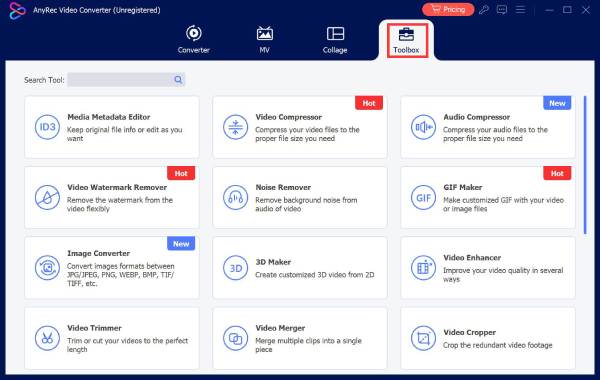
Step 1.Launch the software on your computer and click "Toolbox" at the top. Then, select "Video Merger" to enter the video merging interface.
Step 2.Click the "Add" button in the bottom-left corner, then select the videos you want to combine.
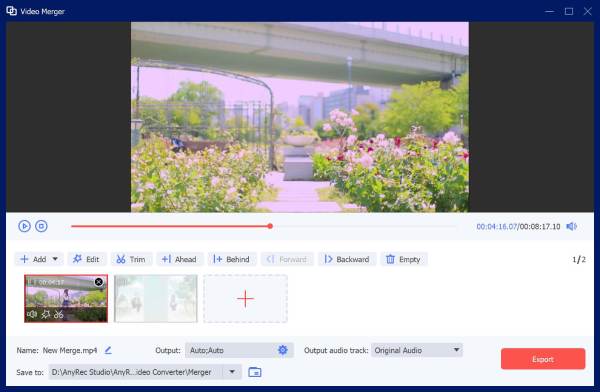
Step 3.Optionally, use the built-in editing tools to edit or trim your videos before merging.
Step 4.Choose your desired output format and click "Export" to start merging.
How to Merge MP4 Videos via the Windows Photos App
Best for: Windows users who prefer using a built-in tool with basic video editing functionalities.
Many Windows users don't know that the Photos app, typically used for viewing pictures, also offers lots of editing features, including merging MP4 video files. If you are using Windows 10 or 11, this is the simplest way without installing a third-party MP4 joiner.
Step 1.Click the "Start Menu", type "Photos" in the search bar, and open it in the search results.
Step 2.Under the "New Video" tab, click "New Video Project" to create a new project, then name it.
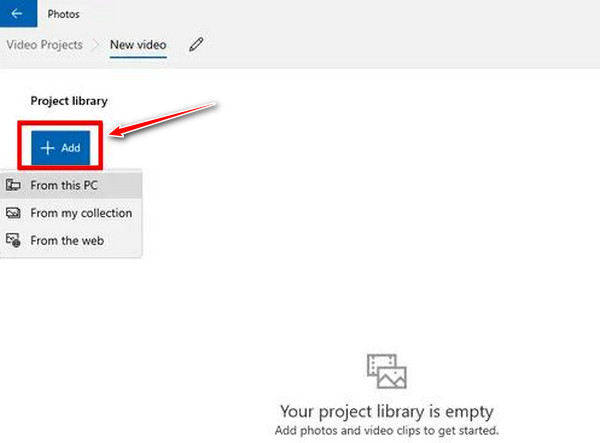
Step 3.Click the "Add" button and choose the MP4 videos you want to merge from your computer.
Step 4.Drag the videos to the "timeline" at the bottom of the screen. Make sure they are in the correct order before proceeding.
Step 5.You can choose to add effects, transitions, text, or background music for the merged video. Click "Video" to proceed.
Step 6.Choose the quality that suits your needs. Click "Export" and select the destination folder on your computer to save the merged MP4 video.
How to Merge MP4 Videos with QuickTime Player
Best for: Mac users who want to merge MP4 videos without installing third-party software.
If you're using a Mac, you also have a built-in option. QuickTime Player, the default media player on macOS, offers basic video editing features that allow you to merge MP4 video files into one easily.
Step 1.Go to "Finder" > "Applications" > "QuickTime Player", or search for it using Spotlight.
Step 2.In the top menu bar, click "File" > "New Movie Recording".
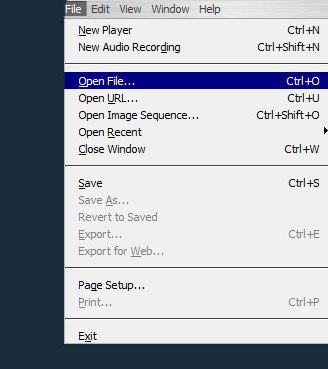
Step 3.Click "File" again, then select "Open File". Add the MP4 videos and rearrange them in the correct order.
Step 4.Click on "File" > "Export As", and choose the export resolution of the merged video. After that, save the video to the chosen location.
How to Merge MP4 Videos with VLC
Best for: Users who already have VLC installed and need a free, reliable tool for merging videos.
VLC (VideoLAN Client) is one of the most popular and widely used open-source media players today. It works on Windows and MacOS, and can play almost any audio or video format. But it's more than a media player - VLC also includes a variety of additional features, including merging MP4 videos.
Step 1.Open VLC Media Player on your computer.
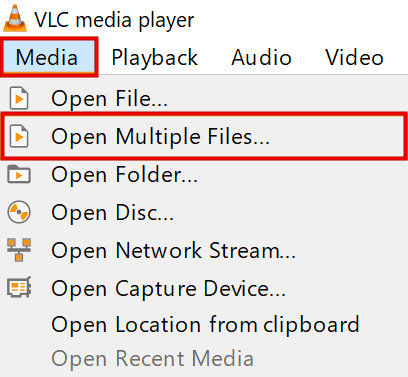
Step 2.Click on the "Media" tab. From the dropdown menu, choose "Convert/Save" to open the media selection window.
Step 3.Click the "+" button to add the MP4 video files you want to merge. You can trim the videos to your desired length.
Step 4.After adding all your MP4 files, click the "Convert/Save" button.
Step 5.Choose MP4 as the export format and click the "Start" button to begin the merging process.
Troubleshooting Fixes for Merging MP4 Videos
Here are some common problems you might encounter when merging MP4 files, and how to fix them:
Problem 1: After merging, the audio and video are out of sync, or the video plays without sound.
How to fix:
Sometimes re-encoding the video can help resolve sync issues. If the sync issue persists, try using a professional video editor to manually adjust the audio and video tracks. Tools like AnyRec Video Converter or VLC can help with this.
Problem 2: The videos are not merging in the correct sequence.
How to fix:
Make sure the videos are arranged in the correct order on the timeline. If needed, drag the clips into the proper order before starting the merge process.
Problem 3: Some MP4 videos don't merge when using FFmpeg to merge audio and MP4 videos.
How to fix:
If the videos are encoded in different codecs, try converting them to a common codec before merging, such as H.264 for video and AAC for audio. Alternatively, use software like AnyRec Video Converter to convert all videos to the same format and codec before merging.
Conclusion
Whether you're on Windows or Mac, merging MP4 video files is easy. You can merge MP4 videos using QuickTime Player on Mac, the Photos app on Windows, VLC for more advanced needs, or AnyRec Screen Recorder for an all-in-one video editing toolkit. Start your journey by creating amazing content!
Secure Download
Secure Download
Related Articles
About Our Author




