
Hot

AnyRec Screen Recorder
Record and screenshot any video on Windows and Mac.
Secure Download
5 Proven Practical Ways to Screen Record on an HP Laptop

Screen recording on an HP laptop is a useful skill for creating tutorials, capturing gameplay, recording meetings, or saving important on-screen activities. However, many users are unsure which method works best or how to get started. Fortunately, there are several practical ways to record your screen on an HP laptop, ranging from built-in Windows tools to professional software and online solutions. In this guide, you will learn multiple proven methods to screen record efficiently based on your needs.
Guide List
The Most Powerful Way to Screen Record on HP Laptops How to Screen Record on an HP Laptop with Xbox Game Bar A Default Solution to Screen Recording on HP Laptops via Windows OBS Studio: A Solid Choice For Screen Recording on HP Laptops A Web-Based Method to Screen Record on HP LaptopsThe Most Powerful Way to Screen Record on HP Laptops
For users who want high-quality recordings with advanced features, using a professional tool is the best option. AnyRec Screen Recorder provides a powerful and flexible solution for recording screen activities, system sound, microphone input, and webcam simultaneously. This section introduces how this tool can help you achieve smooth and high-quality screen recordings on your HP laptop.

Record video with system audio and microphone voice.
Add text, arrows, lines, and annotations to the video recording.
Screen record video in 4K up to 60 FPS with no lag.
Trim, merge, compress, boost volume, and edit metadata.
Secure Download
Secure Download
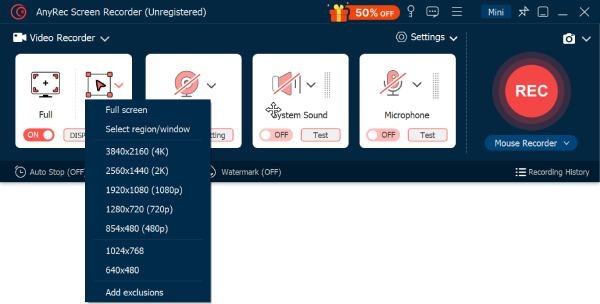
Step 1.Launch AnyRec Screen Recorder and click to select the desired way to start your recording from the area, webcam, system sound, or microphone.
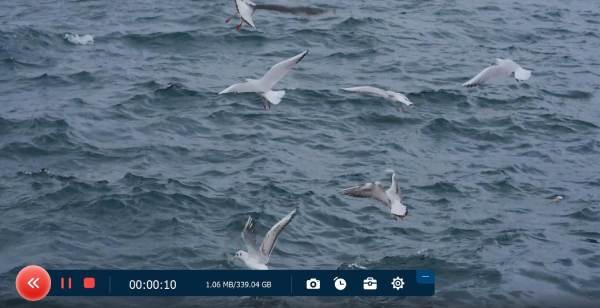
Step 2.Click the "Record" button to start recording the screen on your HP laptop. You can use the tool within the floating bar during the process.
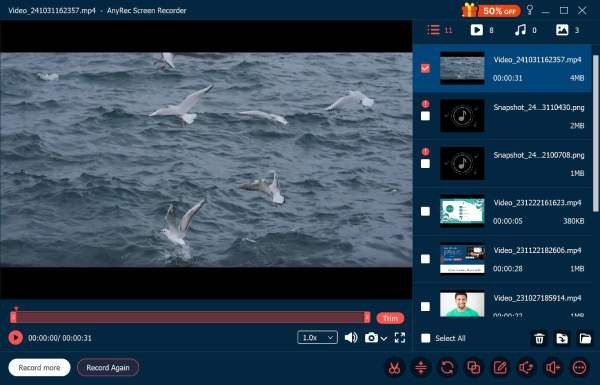
Step 3.Once finished, click the "Stop" button. You can edit your recording before clicking the "Export" button to save your work.
How to Screen Record on an HP Laptop with Xbox Game Bar
Xbox Game Bar is a built-in feature in Windows that allows users to record screen activities without installing additional software. In most cases, you can directly use your HP computer to start this process. It is especially useful for recording gameplay or simple tasks. In this section, you will learn how to use Xbox Game Bar to start recording on your HP laptop quickly.
Step 1.Press the "Win + G" buttons to summon the Xbox Game Bar. Click the "Record" button to screen record on your HP laptop.
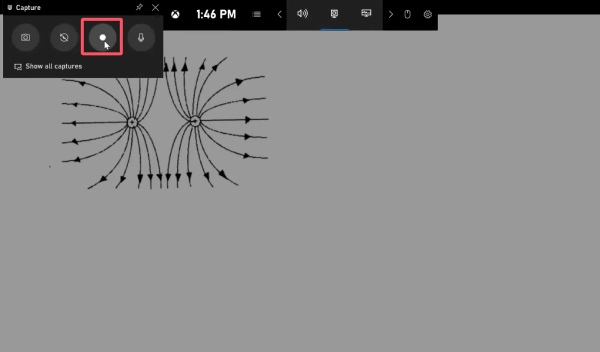
Step 2.When you finish your recording, click the "Stop Recording" button, and your recording will be saved automatically.

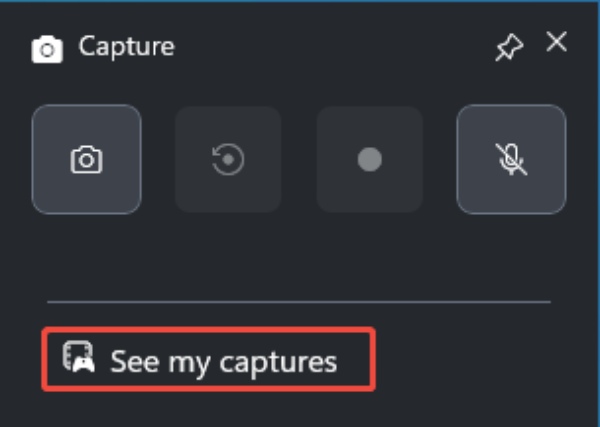
Step 3.To check your recording, press the "Win +G" buttons again. Click the "See my captures" button to see all your recordings.
A Default Solution to Screen Recording on HP Laptops via Windows
Windows also provides a native tool that can assist with screen recording tasks. Although primarily designed for screenshots, newer versions of the Snipping Tool include basic screen recording capabilities. This section explains how to record the screen on Windows 10 without the Xbox Game Bar.
Step 1.Press the "Windows + Shift + S" buttons to summon the snipping tool. Click the "Record" button to proceed.

Step 2.Now, select the area you want to screen record on your HP laptop. Once finished, click the "Start" button.
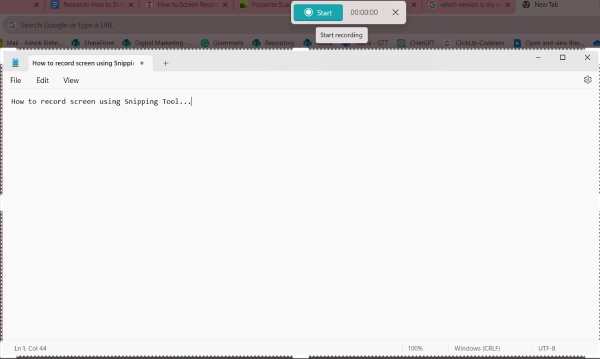
Step 3.When you finish the recording, click the "Stop" button. To save the recording, click the "Save as" button.
OBS Studio: A Solid Choice For Screen Recording on HP Laptops
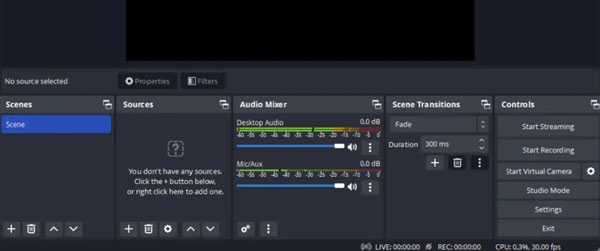
OBS Studio is a free and open-source recording software widely used for screen recording and live streaming. It offers powerful customization options and supports high-quality output, making it a popular choice for advanced users. In this section, you will learn how OBS Studio can be used for screen recording on an HP laptop.
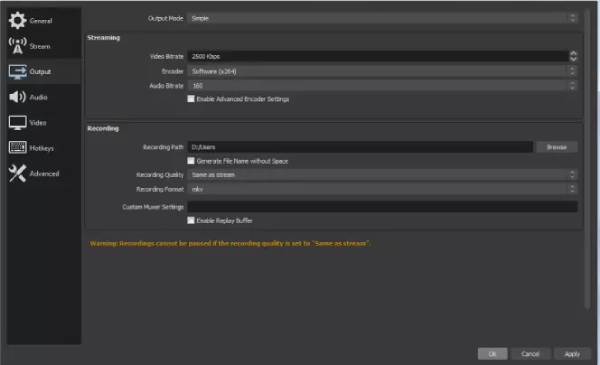
Step 1.Launch OBS Studio and preset your preference for the recording under the "Output" tab in "Settings".
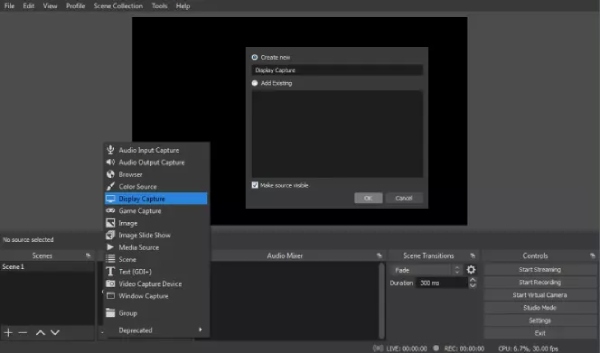
Step 2.Navigate to where you want to screen record on your HP laptop, and click the "Add" button under the "Sources" tab. Then, click the "Display Capture" button.
Step 3.Now, click the "Start Recording" button to start the recording process using OBS Studio.
A Web-Based Method to Screen Record on HP Laptops
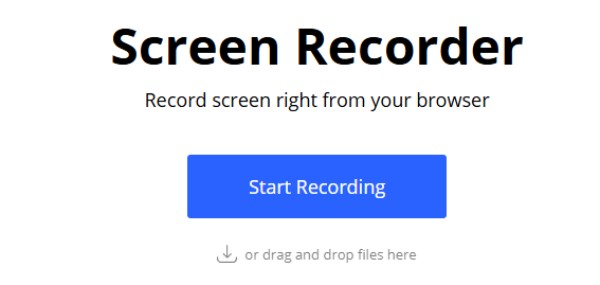
If you prefer not to install any software, web-based screen recorders provide a convenient alternative. These tools run directly in your browser and allow you to record website videos quickly. This section introduces how to use an online screen recorder for fast and simple recording on your HP laptop. You can follow the steps below to start the task immediately.
Step 1.Navigate to the official website of 123 Free Online Screen Recorder. Click the "Start Recording" button.
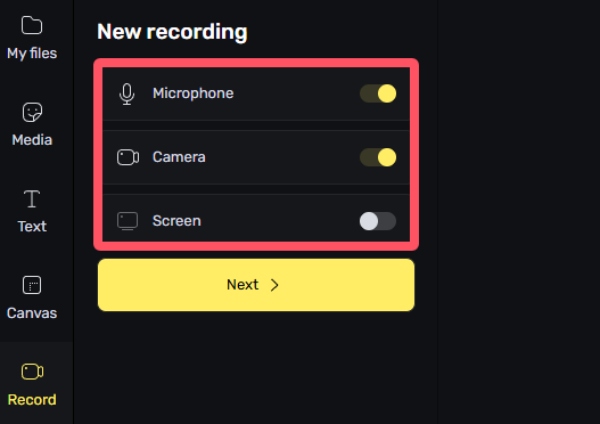
Step 2.In the new window, click to select the way you want to screen record on your HP laptop under the "New recording" tab.
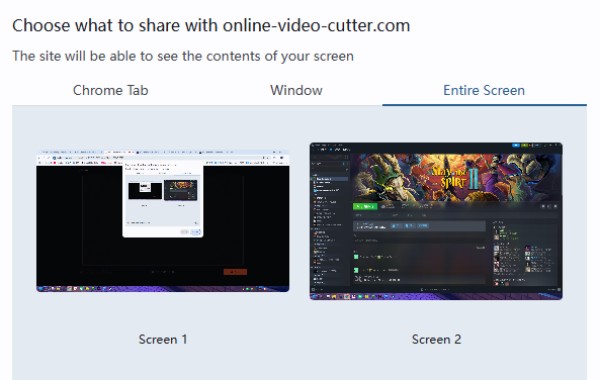
Step 3.Click to select the area you want to record from "Chrome Tab", "Window", or "Entire Screen" to proceed.
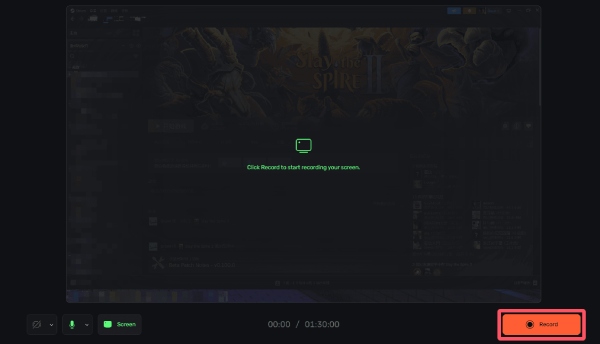
Step 4.Click the "Record" button to start recording the screen on your HP laptop. Once finished, click the "Stop" button.
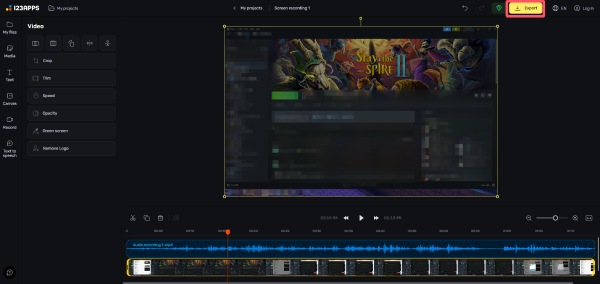
Step 5.You can edit your recording before ending the process. Click the "Export" button to save your recording.
Conclusion
Now, screen recording on an HP computer won't be a big issue for you. This post has provided you with many practical methods, including both default solutions and professional options. Among all these choices, AnyRec Screen Recorder can help you easily capture high-quality screen recordings for various purposes.
Secure Download
Secure Download
Related Article
About Our Author




