
 Best video, audio, and webcam recorder for everyone.
Top 5 Best Greenshot Alternatives for Windows, Mac, Linux

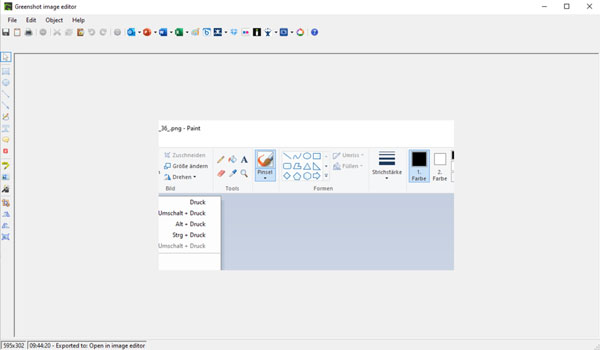
Greenshot has been a popular free screenshot tool on Windows and Mac for years. However, its limitations make people look for Greenshot alternatives. For example, there is no screen recording function in Greenshot. The Greenshot scrolling capture function works with Internet Explorer only. The Greenshot for macOS ($1.99) provides fewer features than Greenshot for Windows (free). So if you have been using Greenshot and feel like it is not keeping up with your needs, you are not alone. Check the following recommendations and pick one to fit your work.
Guide List
Why People Are Leaving Greenshot What to Look for in a Greenshot Alternative Top 5 Best Greenshot Alternatives Which Greenshot Alternative Should You ChooseWhy People Are Leaving Greenshot
The question can also be regarded as "What are Greenshot disadvantages?". Here are complaints from Greenshot users.
- • There is no cloud sync across devices.
- • Lack the video or GIF recording support.
- • No cloud integration or modern collaboration tools.
- • Greenshot may break down if you take multiple screenshots in a short time.
- • The Greenshot for Mac has fewer features and limited editors than the Windows version.
What to Look for in a Greenshot Alternative
Greenshot does the basic functions of screenshots well. But if you need more than a simple screenshot tool, it falls short. So, check before choosing a Greenshot replacement.
- • Cross-platform support, including Windows, Mac, and even Linux.
- • Screen recording and GIF capture.
- • Add annotations to recordings and screenshots.
- • Scrolling screenshot support. (See steps to take scrolling screenshots on Mac.)
- • Easy sharing. (Integrate with social media platforms; a direct link; clipboard copy, etc.)
- • Use hotkeys to control your workflow.
- • Free or affordable pricing.
Top 5 Best Greenshot Alternatives
Can't decide which program to replace Greenshot? Check those reviews and recommendations.
Top 1. AnyRec Screen Recorder
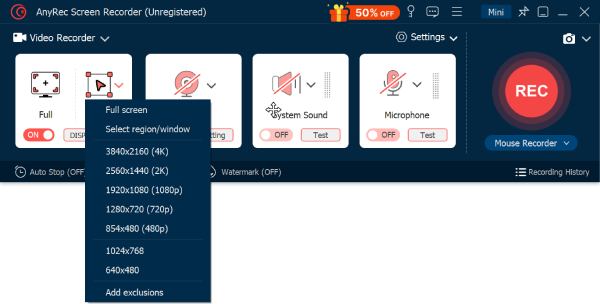
AnyRec Screen Recorder can be your all-around Greenshot alternative to record screen video, capture webcam, take scrolling screenshots, record audio, and add annotations. Moreover, you can use the built-in video editor to trim, merge, convert, and compress recording files before export.
- Pros
- Record screen and export as video or GIF.
- Scrolling capture works in any browser.
- Set scheduled tasks to automate recording.
- Built-in video editor.
- Cons
- The free plan has 5-minutes recording time limit.
Secure Download
Secure Download
Top 2. ShareX
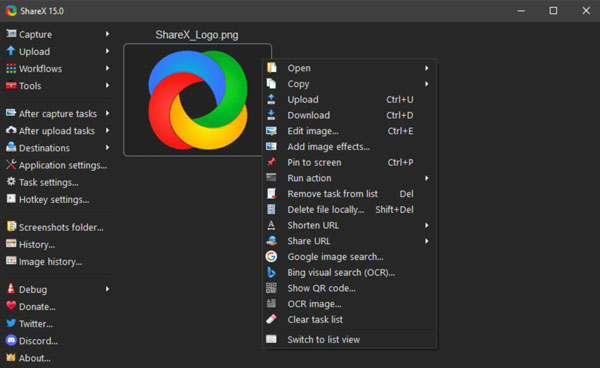
ShareX is a free and open-source screen capture program with full controls on Windows. You can do area capture, scrolling capture, screen recording, and GIF recording within this Greenshot alternative.
- Pros
- Free to screenshot and record on Windows.
- Set automatic upload to Imgur, Google Drive, Dropbox, and more.
- Get multiple capture modes.
- No watermark attached.
- Cons
- There is no ShareX for Mac version.
- The interface can be overwhelming for new users.
Top 3. Flameshot
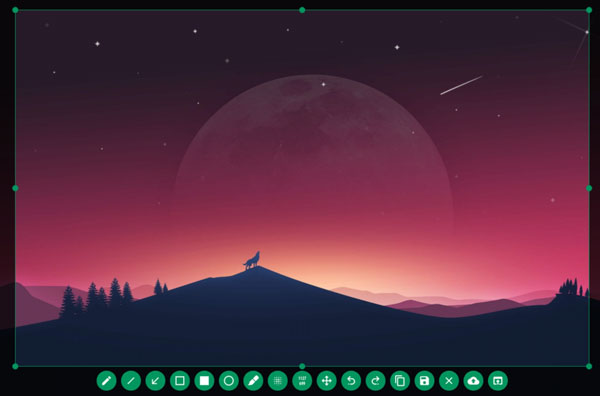
Flameshot is also an open-source screenshot tool, similar to Greenshot. After taking a screenshot, a toolbar pops up on the image. You can draw, add text, blur sensitive information, copy, or save the screenshot directly.
- Pros
- Flameshot works on Windows, Mac, and Linux.
- Get an instant annotation toolbar after capture.
- Free and open-source to use.
- Hide information on your screenshot with blur tool.
- Cons
- Can't take long screenshots.
- No video or GIF recording features.
Top 4. Lightshot
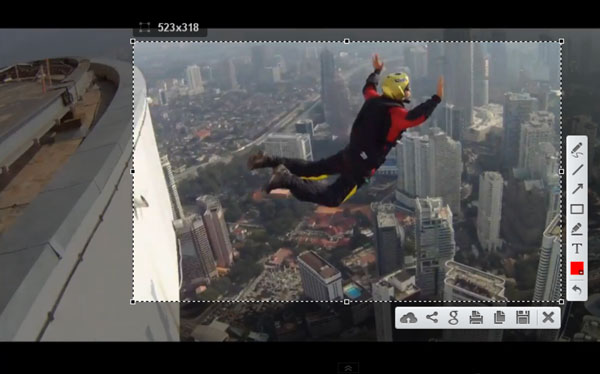
Lightshot allows users to finish the screenshot process in 3 steps. Just press a key, select an area, and then your screenshot is ready to edit or share in seconds. Just like Greenshot, you can get a share link and send your screenshot to anyone instantly.
- Pros
- Add arrows, text, and shapes with customizable colors.
- Share screenshots via short links.
- Available on Windows and Mac.
- Totally free. No paid subscriptions.
- Cons
- No cloud storage or team integrations.
- Your Lightshot screenshots are public due to shareable links.
Top 5. Shottr
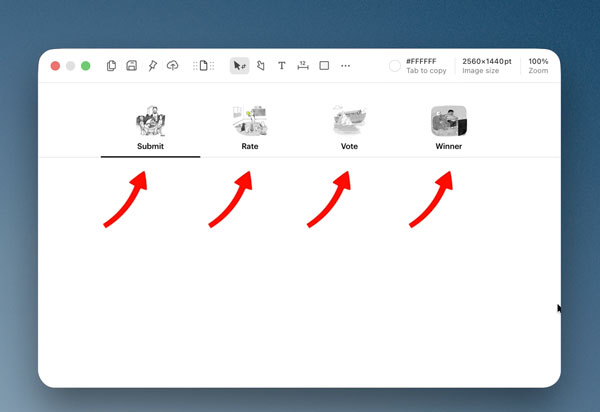
Shottr is a lightweight Mac screenshot tool with annotations and backgrounds. You can add shadows, rounded corners, and a beautiful background to your screenshot. What's more, its text recognition (OCR) can parse the text and even QR codes.
- Pros
- Pixelate or remove objects from your screenshot.
- Put several screenshots on the same canvas.
- Use OCR to make text copyable to the clipboard.
- Overlay images and add annotations.
- Cons
- Does not support video screen captures.
- Can't save screenshots to Dropbox and other cloud storage.
Which Greenshot Alternative Should You Choose
- • Need powerful screen recording and screenshot features: choose AnyRec Screen Recorder.
- • Want to get free screenshots on Windows: choose ShareX.
- • Switch to Linux and want to get Greenshot familiar experience: Choose Flameshot.
- • Take quick screenshots and share them often: choose Lightshot.
- • Get feature-rich screenshot tools for macOS (M1/M2/M3/M4/M5): choose Shottr.
| Tool | Platform | Video Recording | GIF Recording | Scrolling Screenshot | Last Major Update |
| AnyRec Screen Recorder | Windows, Mac | Yes | Yes | Yes | 2026 |
| ShareX | Windows | Yes | Yes | Yes | 2026 |
| Flameshot | Windows, Mac | No | No | No | 2025 |
| Lightshot | Windows, Mac | No | No | No | 2025 |
| Shottr | Mac | No | No | Yes | 2025 |
| Greenshot | Windows, Mac | No | No | Yes | 2026 |
Conclusion
Every program in this article does something better than Greenshot. But most of them only solve one part of the recording and screenshot problems. If you are looking for one tool that covers everything, AnyRec Screen Recorder does. It takes screenshots, records your computer, captures webcam and audio, casts phone screen and then records it. Just click the Free Download button below and give it a try.
Secure Download
Secure Download
About Our Author




