


Want to record a video without a watermark? Download software here.
Want to record a video without a watermark? Download software here.
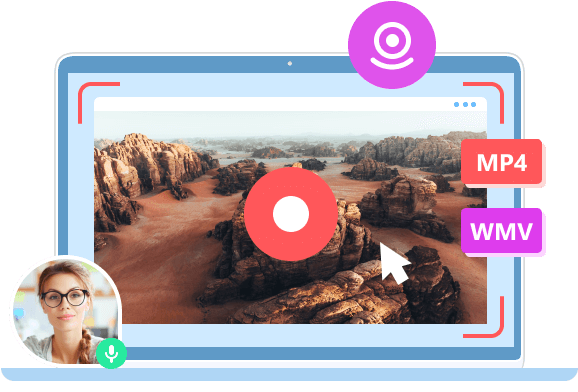
Full-screen recording
Browser tab recording
Window recording
Webcam recording
System audio recording
Microphone recording
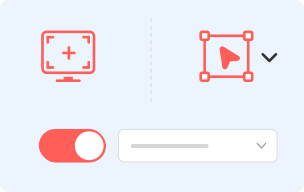
1 Select Recording Area
Click the "Start Recording" button. Set the screen recording area as full or custom screen.
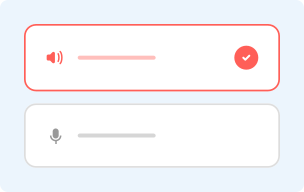
2 Choose Your Audio Source
Click the Audio button to allow audio recording. You can turn on webcam recording, too.
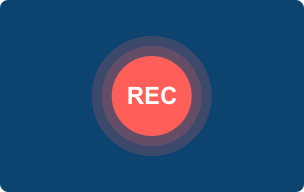
3 Start Recording
Now you can click the "REC" button to record the screen with audio for free.
Record work presentations
Capture tutorials and training videos
Screen record with system audio and microphone
Make product demos

Make reaction videos
Create gameplay clips
Record webcam + screen
Annotate the recording with text and drawings
Capture live streaming videos
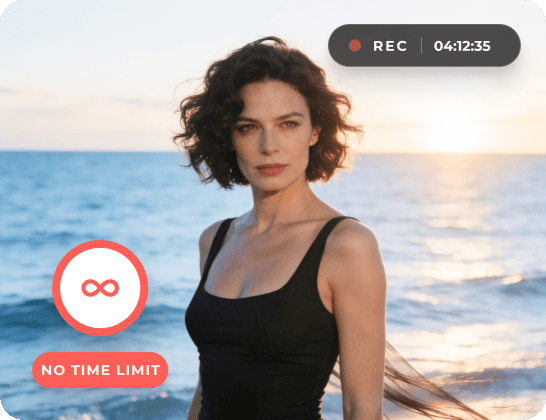
Many free screen recorders are just trials with a 5-minute limit. If you want to record a one-hour meeting, your current free screen recorder stops at 10 times. Now what? You don't need to stitch clips together or pay monthly for longer recordings. AnyRec Free Screen Recorder Online has no time limit.
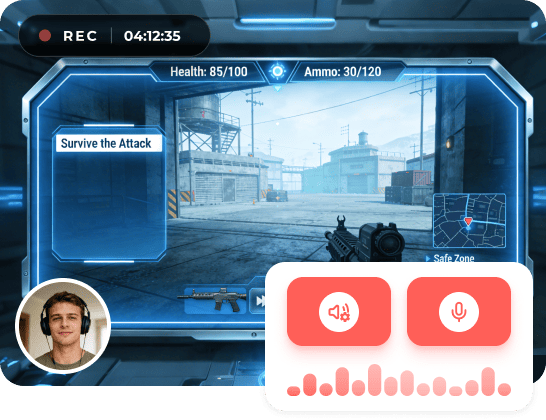
A good online screen recorder should capture the sound coming from your computer. No drivers. No virtual audio cables. No room noise bleeding in through the microphone. Just use the system audio recording feature to record computer sound along with the screen video. Thus, you can capture sound at the source of Zoom calls, app alerts, and more sources.
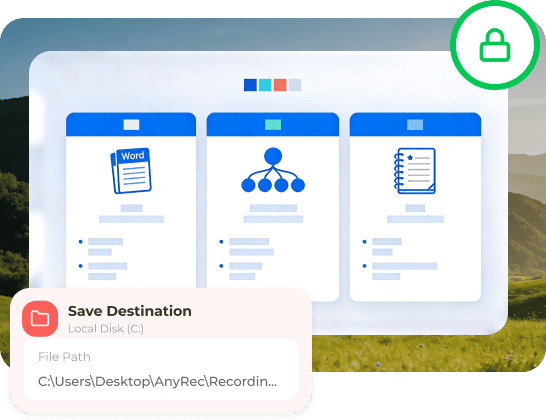
If you want to record something sensitive, it is highly suggested to store recording files locally. Your recording stays on your device instead of cloud saving or others' servers. No data leaving your machine without permission. Sensitive content stays exactly where it belongs. Later, you can decide whether to upload to Google Drive, Dropbox, iCloud, or more.
Is upgrading from the free online version to the full version necessary? It depends on your needs. Here is a comparison of the online screen recorder and desktop screen recording software. You can see what you can get for Windows/Mac/iPhone/Android screen recording.
| Feature | Online Recorder | Desktop Screen Recorder |
|---|---|---|
| No Time Limit | ||
| No Watermark | ||
| HD Quality | ||
| Webcam Recording | ||
| Audio Recording | ||
| Video Editing | ||
| Scheduled Recording | ||
| Advanced Settings |
Tips: The online screen recorder is free to use. You can record screen videos for unlimited time. No time limit. No watermark. No silent recordings.
100% Secure
100% Secure
The answers to your screen video and audio recording questions
Is AnyRec Free Screen Recorder secure and virus-free?
Yes. Using AnyRec Free Screen Recorder to screen capture on your browser and computer is completely safe. All recording files are stored in your local drive instead of the server. The others cannot access them.
Can I use AnyRec Free Screen Recorder offline?
Yes. After installing its launcher, you can record browser screens, program windows, and more desktop activities without the Internet.
Do I need an account to use AnyRec's free video recorder?
No. There is no user account or credit card required. You don't need to provide any personal information for free screen video recording.
How can I record my face and screen at the same time?
Turn on Webcam before recording with AnyRec Free Screen Recorder. If you fail, check if your computer has a built-in camera. If not, you can use an external camera for webcam recording. As for Mac users, you can get the desktop version to record webcam videos on Mac.
Where do my recorded videos go?
The default output folder is AnyRec Studio, which can be found in Documents on Windows and Mac. Or you can change the recording folder location in Settings within the online video recorder.
How do I upload my recorded video to YouTube?
Go to the Recording History section after recording. Find and click the Share button. Now, you can choose YouTube for video sharing.
Will the other person know if I screen record?
No. AnyRec Free Screen Recorder is a standalone screen recorder. Other platforms will not detect your screen record activity.
How long can I record a screen video?
There is no maximum time limit. You can record video and audio for hours or even days. Just make sure there is enough battery power and storage space.
How can I get support if I meet problems while recording?
If you encounter video or audio recording issues, you can email support@anyrec.io for professional help.
Florence Kelley


 I tried four different recorders before finding AnyRec Free Screen Recorder Online. All of them have time limits. Just stops after 5 minutes in the middle of my lesson recording. This free screen recorder lets me record the full class without interruptions. My students finally get complete video lessons. This is the one I stick with now.
Arthur Johnson
Most free recorders killed my game audio. There are zero sound from the game itself. AnyRec Free Screen Recorder Online captures system audio properly. My gameplay commentary and game sound are both captured clearly. No silent clips. It really works for gaming content.
Marsha Eells
I am not tech-savvy. AnyRec Free Screen Recorder Online is straightforward. Open a browser. Choose what to capture. Click record. Done. There is no need to read any manual. I recorded my first product demo in under two minutes. Sent it to a customer the same day. Simple tools win every time.
Connie Sanchez
My old recorder crashed twice during a one-hour meeting recording. Lost everything both times. Then I switched to AnyRec Free Screen Recorder Online. Recorded a 90-minute session without a single problem. The recording file is clean at the end. No crash. I was nervous the whole time waiting for something to go wrong. Nothing did. Solid and reliable.



Record everything. Pay nothing. No time limit.
 follow us on Facebook
 follow us on X (Twitter)
 follow us on YouTube
Copyright © 2026 AnyRec Studio. All Rights Reserved.

