
Hot

AnyRec Video Converter
120× faster video conversion and editing. No waiting.
Secure Download
How to Brighten a Video without Overexposure or Reshooting

A dark video does not always mean you need to shoot it again. Maybe the room was poorly lit, the recording was made at night, or the camera simply underexposed the scene. In most cases, you can make the footage brighter with a few adjustments. Brightness, exposure, shadows, and contrast can all help. The tricky part is not going too far. Push them too much, and hidden grain and noise can become much more noticeable, especially in low-light footage.
Guide List
How to Brighten a Video with AnyRec Video Converter How to Brighten a Video Without Making It Look Washed Out Tips for Brightening Different Types of VideosHow to Brighten a Video with AnyRec Video Converter
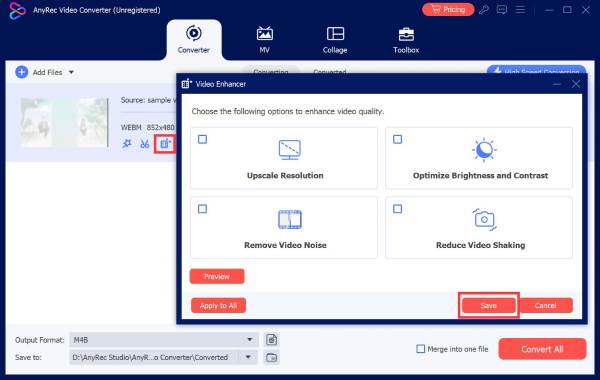
If your video looks too dark, AnyRec Video Converter gives you a simple way to improve it without opening a complicated editor. Its Video Enhancer is available from the Toolbox and includes an option to optimize brightness and contrast. You can also remove video noise, which can be useful because brightening dark footage often makes grain more visible.

Adjust video brightness, contrast, saturation, and hue precisely.
Fix shaky and noisy videos in clicks.
Add subtitles, audio tracks, filters, and more to your video.
Edit videos with 20+ tools by trimming, cropping, etc.
Secure Download
Secure Download
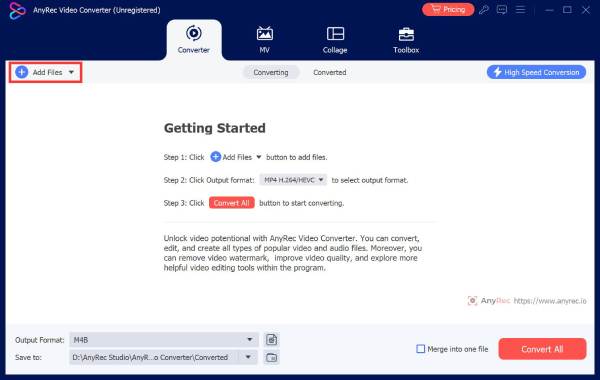
- 1. Open AnyRec Video Converter. Click the "Add Files" button. Then upload your video.
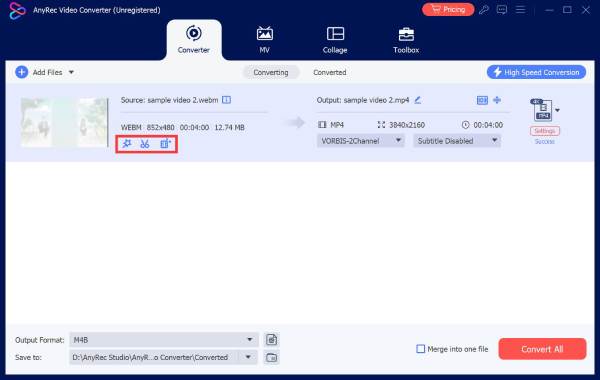
- 2. Click the "Edit" button under this video.
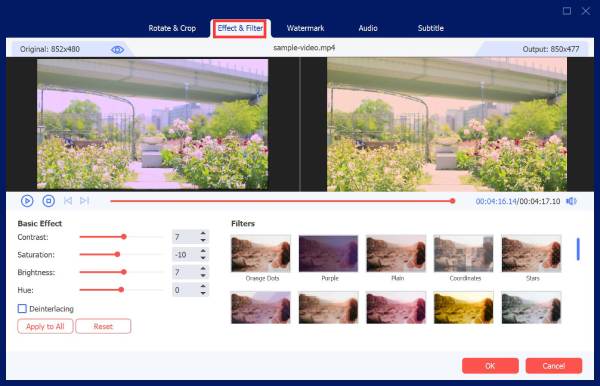
- 3. Go to the "Effect & Filter" section. Move the slider next to "Brightness" to make a dark video brighter. You can adjust other sliders to make this video clearer and brighter, too.
- 4. Moreover, you can click the "Enhance Video" button to improve the overall video quality in clicks. Click the "Save" button to save changes.
How to Brighten a Video Without Making It Look Washed Out
Making a dark video brighter is easy. Making it look naturally brighter takes a little more care. If you push the brightness too high, faces can lose detail, white areas may turn completely white, and the whole video can look flat. Instead, make small adjustments and check the result as you go.
- Increase brightness gradually. Raise it a little at a time instead of moving the slider to the maximum.
- Adjust contrast when needed. If the brighter video looks gray or washed out, a small contrast adjustment can bring back some depth.
- Watch the highlights. Check faces, windows, lights, and white clothing. If they become pure white, you've probably gone too far. (Or you may want to blur faces in a video to protect privacy.)
- Compare with the original. Switch between the original and edited versions to make sure you're actually improving the footage.
- Don't overexpose faces or white objects. A brighter face is useful, but important details should still be visible.
If the footage is both dark and noisy, brightness adjustments can make the grain more noticeable. In that case, noise reduction can help clean up the result. AnyRec Video Enhancer includes Remove Video Noise as well as Optimize Brightness and Contrast. Therefore, you can handle both problems in the same workflow.
Tips for Brightening Different Types of Videos
A dark video doesn't always need the same fix. A video shot indoors may just need more light and some noise reduction. Older footage may need upscaling too. It also helps to avoid pushing the brightness too far. Here are a few tips for different types of footage.
Brighten Dark Indoor Videos
Indoor videos can turn out dark when the room doesn't have enough light. Start with a small brightness increase and see how it looks. If you notice a lot of grain afterward, add some noise reduction. Don't brighten the video too much, or the details may look washed out.
Brighten Night Videos
Night footage is harder to fix. If the camera didn't capture details in the dark areas, you can't fully bring them back by raising the brightness. Too much brightness can also make the noise more obvious. A small adjustment usually gives a better result.
Brighten Face Videos
Take a little more care when you brighten videos with faces. Keep an eye on the skin tones while you adjusting the image. Too much brightness can make faces look pale and unnatural. Instead, try a mix of exposure and contrast to bring out the face while keeping the skin looking normal.
Brighten Old Videos
Old footage often has several problems at once. Besides being dark, it may have low resolution or visible noise. In this case, you can combine brightness adjustment with upscaling and noise reduction to make the video cleaner and easier to watch. Moreover, you can delete background noise and unwanted sounds from videos to clean up a video effectively.
Conclusion
There's more than one way to brighten a video, and the right method depends on how dark and how damaged the footage is. For a quick fix, basic editor controls are enough. But if the clip is grainy, blurry, or just old, AnyRec Video Converter brings brightness, contrast, noise reduction, and resolution upscaling together. So, you can fix everything in one pass instead of starting over each time.
Secure Download
Secure Download
Related Articles:
About Our Author




