
5 Best Video Speed Controller Extensions for Chrome/Safari

A video speed controller extension can help you bypass the platform limitations effectively. YouTube stops at 2x. Netflix stops at 1.5x. Udemy stops at 2x. But what if you want to go 3x or 0.5x of a video in different scenarios? To watch HTML5 videos faster than the platform allows, you can add a video speed controller extension. Continue reading and see what these extensions do, which one to choose, and how to fix potential problems.
Guide List
What The Video Speed Controller Extension Can and Can't Do Top 5 Best Video Speed Controller Extensions for Chrome/Safari/Firefox/Edge Troubleshoot Common Problems with Video Speed Controller Extensions Bonus Tips to Adjust Video Playback Speed for Offline WatchingWhat The Video Speed Controller Extension Can and Can't Do
At present, HTML5 is widely used by YouTube, Vimeo, Netflix, Udemy, Twitch, Coursera, and many other LMS platforms. Most video playback speed controller extensions inject a speed control layer on top of any HTML5 video player in your browser. They read the video element and then override the playback rate. You can use keyboard shortcuts to control the video playback speed instantly. A small overlay or widget can show the current video playback speed in the corner of this video. And some speed controller extensions can remember your preferred speed on per webite.
However, many browser playback speed controller extensions cannot control Flash-based players. It is not supported to speed up or slow down a downloaded video. Moreover, some sites use DRM-locked custom players to block all extensions. So, video playback rate controller extensions cannot override them.
Top 5 Best Video Speed Controller Extensions for Chrome/Safari/Firefox/Edge
To start with, make sure which browser (Chrome, Edge, Firefox, and more) and platform (YouTube only? Any HTML5 site?) you mainly watch on. Later, decide whether you want the extension to remember speed per site, provide fine-grained control, and extra features.
1. Video Speed Controller (by igrigorik)
Best for: Students and everyday users can use this free HTML5 video speed controller for Chrome and other browsers.
Supported browser: Chrome, Edge (and a community-patched Firefox port)
Speed range: 0.07x to 16x
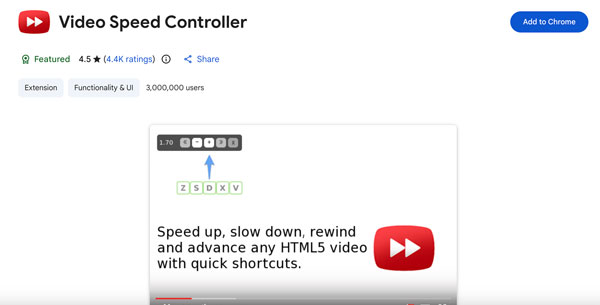
This Chrome video speed controller extension adds a speed indicator to the top left corner of any HTML video. You can hover over it or use keyboard shortcuts to adjust the playback speed. With 4.4k+ ratings and 3,000,000 users, Video Speed Controller by igrigorik has been the top choice for Chrome users for years.
- Pros
- Works on YouTube, Netflix, Udemy, Vimeo, and most HTML5 video sites.
- It is actively maintained. It has been updated to version 0.10.0 in April 2026.
- Cons
- Reset or ignore video speed settings occasionally.
- Does not remember your preferred playback speed per site.
2. Super Video Speed Controller
Best for: Get percentage-based custom speed control across many websites.
Supported browser: Chrome, Edge
Speed range: Custom. You can set the video speed as a percentage, such as 183% and more.
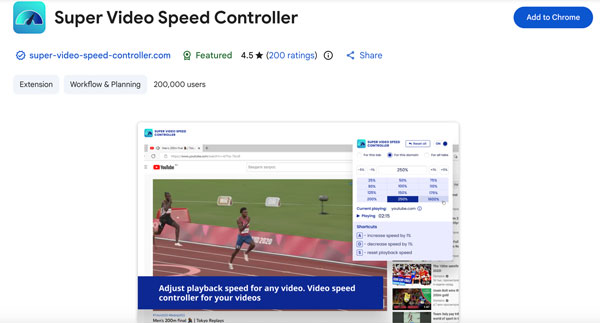
Different from other controller extensions, Super Video Speed Controller allows users to set the playback speed by percentage instead of 1.5x or 2x. It works on both large platforms and lesser-known video players.
- Pros
- Get reliable speed controls with responsive hotkeys.
- Use the percentage-based input to type a certain video playback speed.
- Cons
- The video speed is controlled through a pop-up window. Not an on-video overlay like igrigorik's version.
- Lack customizable shortcuts and speed presets.
3. YouTube Playback Speed Control
Best for: Get keyboard-first speed control on YouTube without any on-screen clutter.
Supported browser: Chrome, Edge
Speed range: Custom. Default increment is 0.25x per keypress. You can adjust it to any increment in Settings.
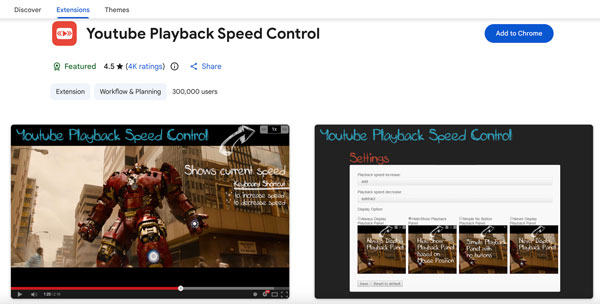
Just as the name shows, you can use YouTube Playback Speed Control to speed up and slow down YouTube videos online. It also works on embedded YouTube players on other websites, as long as the player is in focus.
- Pros
- Support Shift + Mouse scroll to adjust the speed of YouTube videos.
- The overlay position is fully adjustable. You can move it to the top left, top center, top right, bottom left, bottom center, and bottom right.
- Cons
- It is YouTube-focused. You may run into issues on non-YouTube sites.
- Audio does not work above 4x speed.
- No multilingual support.
4. Video Speed Controller (by Code Bicycle)
Best for: No-frills Firefox HTML5 video speed controller that mirrors the Chrome original one.
Supported browser: Firefox
Speed range: 0.07x to 16x
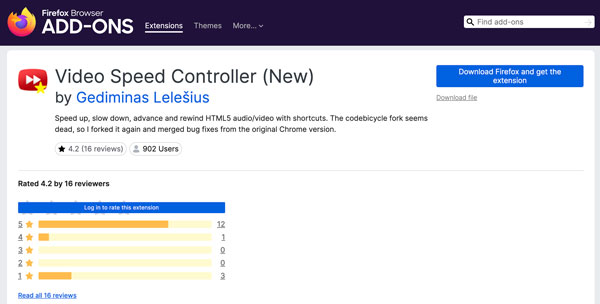
This Firefox video speed controller add-on lets you adjust playback speed with a lightweight overlay on the video. It merges bug fixes from the original Chrome Video Speed Controller version. You can check both listings on the Firefox add-on page.
- Pros
- Get HTML5 video speed control in Firefox.
- Get the same keyboard shortcut logic as the Chrome version.
- Cons
- No per-site speed memory.
- There is no dark mode or visual themes.
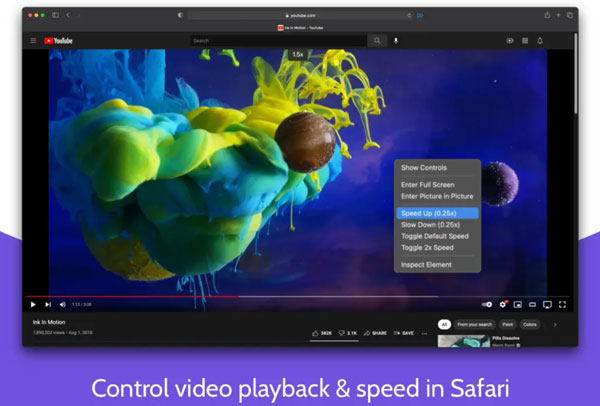
5. Accelerate for Safari
Best for: Mac, iPhone, and iPad users can get picture-in-picture and customizable shortcuts from this free Safari video speed controller.
Supported browser: Safari (macOS 11+, iOS 15+)
Speed range: 0.25x to 16x (adjustable in 0.25x increments)
You can control the video playback speed on Safari of YouTube, Twitch, Netflix, Apple TV+, Prime Video, and more. It supports personalized keyboard shortcuts for play, pause, skipping, muting, picture-in-picture, and full-screen toggle.
- Pros
- Supports most HTML5 video sites in Safari with picture-in-picture and AirPlay support.
- Does not interfere with Netflix HD quality.
- Cons
- When you change the video speed, the video continues, but the audio drops for a split second occasionally.
- There is no visible speed indicator on the video unless you are actively changing it.
Troubleshoot Common Problems with Video Speed Controller Extensions
Here are problems and related solutions about the above video speed controllers. Most of them are pulled from Chrome Web Store and GitHub issue reports.
- • Controls stop showing up. It usually happens after browser or extension updates. You can reinstall the speed controller extension or revert it to an older version.
- • Black screen on YouTube. You can refresh the page once or twice to resolve it.
- •Speed reset between videos. The video speed controller extension cannot remember the last speed. You need to set it again for every new video.
- • Conflicts with other extensions. Sometimes, ad blockers and other video extensions may clash with speed controllers.
Bonus Tips to Adjust Video Playback Speed for Offline Watching
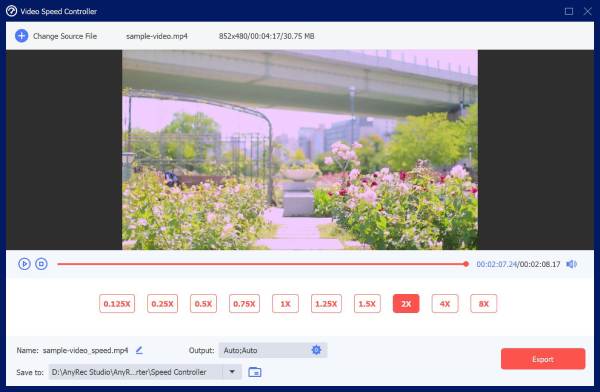
As for non-HTML5 videos, you can use AnyRec Video Converter to change the video speed permanently. The available video speed options start from 0.125x to 8x. What's more, you can trim, reverse, loop, crop, compress, edit, and convert videos in 1000+ formats within the program. There is no need to switch tools. It is not a replacement for a browser video speed controller extension. You can use the speed controller extension for everyday watching. Then use AnyRec Video Converter when you need to edit the video itself.

Permanent speed control from 0.125x to 8x.
120x faster conversion with GPU acceleration.
Include a video enhancer to fix grainy and blurry footage.
Built-in video editor, compressor, and 20+ tools.
Secure Download
Secure Download
Conclusion
Browser extensions solve the speed problem of HTML5 videos fast. You can install a browser video speed controller extension, press a key, and then be done. For Chrome users, Video Speed Controller by igrigorik is a safe starting point. As for Safari users, Accelerate for Safari gets the job done. While Firefox users can consider the Code Bicycle version of Video Speed Controller. If you want to save the speed change into the video itself, you need AnyRec Video Converter. You can adjust the video speed in 0.125x, 0.25x, 0.5x, 0.75x, 1x, 1.25x, 1.5x, 2x, 4x, and 8x. It also compresses, converts, and trims videos in the same place. Pick the extension that fits your browser. Then grab AnyRec Video Converter for everything else.
Secure Download
Secure Download
About Our Author




