
Step-by-Step: How to Merge Videos with FFmpeg Quickly

You may have heard of the quick method of merging videos using FFmpeg. Yes, this method is extremely efficient. But at the same time, it also implies that it is not a straightforward operation, especially for those users who are not familiar with coding. For beginners, merging videos with FFmpeg may seem complex at first, but with the right guidance, it becomes a straightforward process. In this guide, you will learn how to merge videos using FFmpeg step by step.
Guide List
Preparation: How to Install FFmpeg Environment Detailed Steps for Merging Videos with FFmpeg A More Convenient Way to Merge Videos Than FFmpegPreparation: How to Install FFmpeg Environment
Before getting into how to merge videos with FFmpeg, you have to set your device up for the operation. That is to say, install the FFmpeg environment first. This step can be confusing for beginners. But you don't have to worry, you can follow the detailed steps below to install the FFmpeg environment on your device and ensure that all commands run smoothly and your system can process video files without errors.
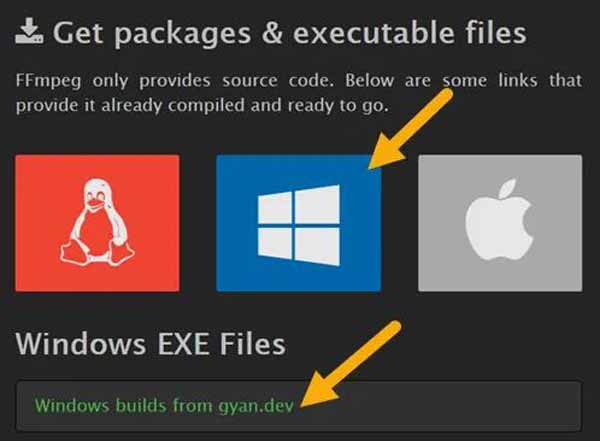
Step 1.Navigate to the official website of FFmpeg and download the package that suits your operating system.
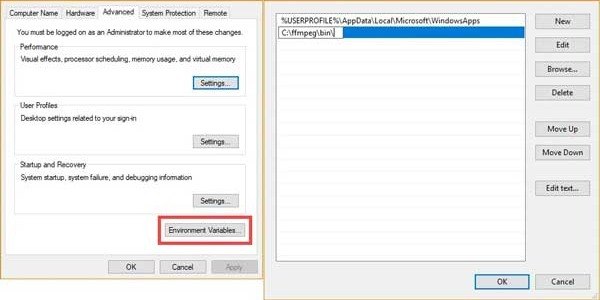
Step 2.Unzip the ZIP file from your folder. Then, click the "Environment Variables" button and then the "OK" button.
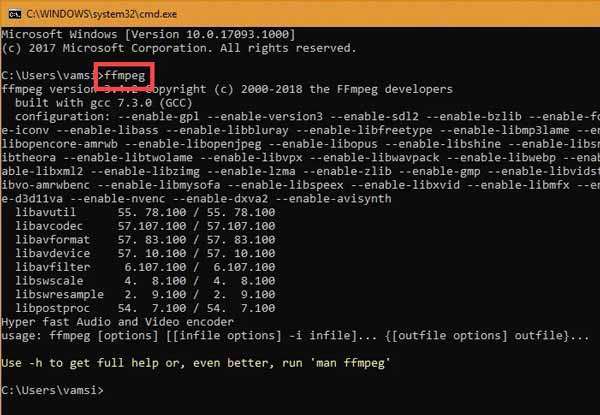
Step 3.Now, press the "Win + R" buttons and type "cmd" to open the Command Prompt. Type "ffmpeg" and press the "Enter" button.
Detailed Steps for Merging Videos with FFmpeg
Once FFmpeg is properly installed, you can start merging videos using different methods depending on your needs. Whether you want to combine clips sequentially, display videos side by side, or merge audio with video within FFmpeg, it provides flexible command options. Below are several common scenarios and how to merge videos on Windows 10.
1. How to Use FFmpeg to Merge Two Videos
The most basic command to merge two videos with FFmpeg is to merge two simple video files. This command allows you to merge two videos into one continuous file. The output file can present your content in sequence without re-encoding, ensuring fast processing and minimal quality loss. In this part, you will learn how to merge videos efficiently using FFmpeg commands.
Step 1.Create a text file and name it "files.txt" as follows:
file 'clip1.mp4'
file 'clip2.mp4'
file 'clip3.mp4'
Tips
If you want to merge video files of other formats, like merging MKV videos, simply change the file extension.
Step 2.Now, use the Command Prompt to run FFmpeg. Type the following command and press the "Enter" button:
ffmpeg -f concat -safe 0 -i files.txt -c copy output.mp4
2. How to Use FFmpeg to Merge Videos Side by Side
If you want to display two videos simultaneously, side-by-side merging is a useful technique. This method is often used for comparisons, tutorials, or reaction videos. You can use FFmpeg to merge two videos side by side, positioning videos next to each other within a single frame.
Run FFmpeg on the Command Prompt and type the command as follows:
FFmpeg -I s1.mp4 -i s2.mp4 -filter_complex "[1:v][0:v]scale2ref[wm][base];[base][wm]hstack=2" final.mp4
3. How to Use FFmpeg to Merge Audio and Video
Sometimes, you may need to combine a separate audio track with a video file. FFmpeg makes it easy to synchronize and merge audio and video without re-encoding into a single output file. This is especially useful for adding background music or replacing original audio.
Run FFmpeg on the Command Prompt and use the command as follows:
ffmpeg -i video.mp4 -i audio.aac -c:v copy -c:a copy output.mp4
A More Convenient Way to Merge Videos Than FFmpeg
While you can use FFmpeg to merge videos quickly, it may not be the most convenient option for users who prefer a graphical interface. AnyRec Video Converter provides a more user-friendly way to merge videos without dealing with complex commands. With its intuitive interface, you can combine multiple clips, adjust order, and export high-quality videos quickly, making it an ideal alternative for beginners.

Enables users to edit videos with filters and effects when merging.
Reposition media from behind, ahead, forward, and backward.
Support various video formats to merge together in no time.
Compress or enlarge the combined videos to a suitable size.
Secure Download
Secure Download
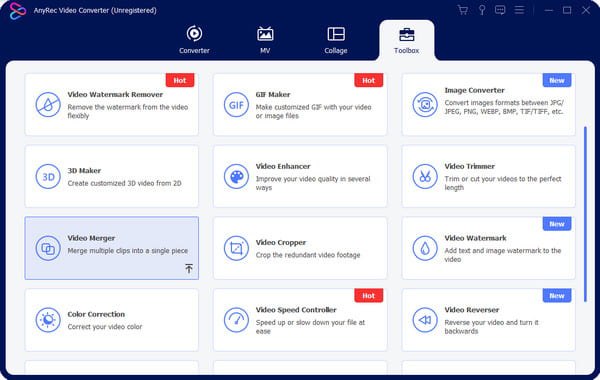
Step 1.Launch AnyRec Video Converter on your device and click the "Video Merger" button under the "Toolbox" tab.
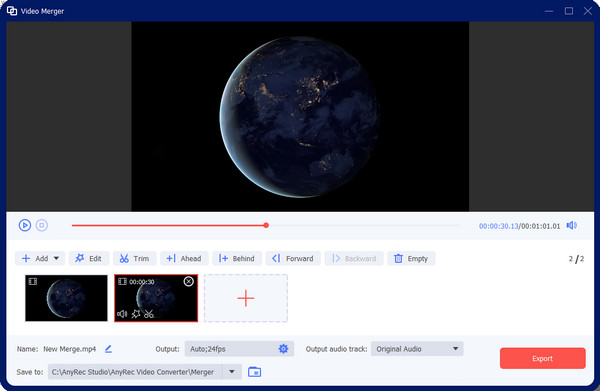
Step 2.In the pop-up window, click the "Add" button to import the videos for merging without FFmpeg.
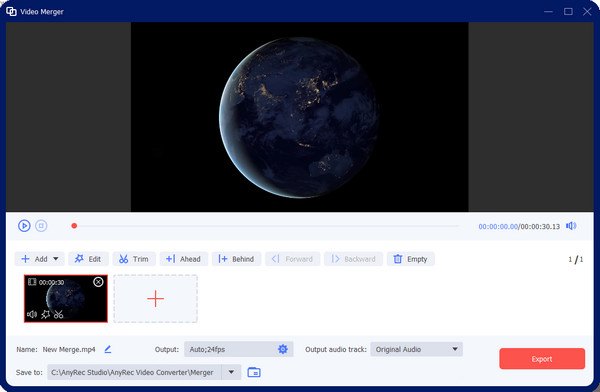
Step 3.Now, you can preview to check if the videos are merged the way you want. Finally, click the "Export" button to save the merged video file.
Conclusion
In conclusion, you can use FFmpeg command to merge audios and videos efficiently only if you get the knack of the method. If you are not familiar with coding skills, this post provides you with the simple steps to complete the task. However, it can still be complex for most users. If you prefer a simpler and more intuitive approach, AnyRec Video Converter can make the process much easier.
Secure Download
Secure Download
Related Articles:
About Our Author




