
4 Workable Methods to Crop Videos in Premiere [Complete Guide]

As the most renowned tool in the video editing industry, Premiere offers multiple methods for cropping videos. Using Premiere to crop videos to the appropriate aspect ratio ensures optimal viewing across various media platforms. Follow the three methods below, and if they seem complex or difficult to implement, this article also provides simple, user-friendly alternatives.
Guide List
Basic Editing Functions for Cropping Videos in Premiere Tips for Cropping Videos in Premiere Pro An Easier Alternative to Crop Video in PremiereBasic Editing Functions for Cropping Videos in Premiere
Premiere offers multiple methods for cropping video, such as preview handles and percentage-based croping. Read the following steps to select the method best suited to your situation, enabling you to crop your videos more quickly and achieve the desired effect.
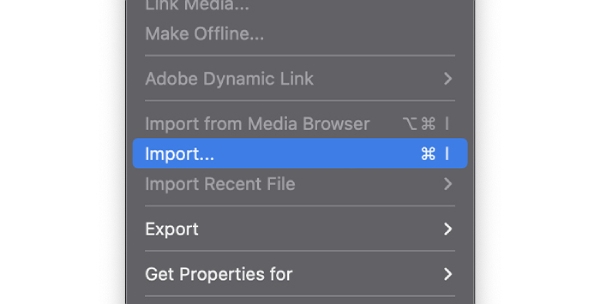
Step 1.Click "File" in the top menu bar, then select "Import Files". Drag and drop the video clip into the timeline area.
Step 2.Open the Effects menu, search for "Crop" to find the cropping option.
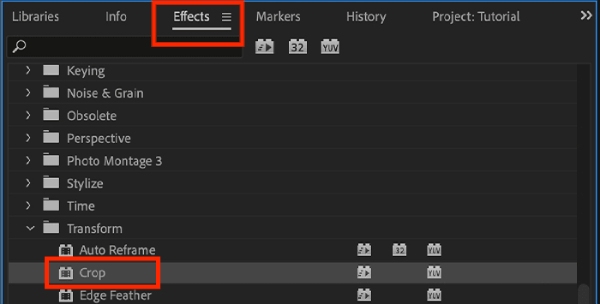
Step 3.Drag it onto the segment of the timeline you wish to crop.
Step 4.After adding the new effect to the video on the timeline, a new section named "Crop" will appear in "Effects Controls".
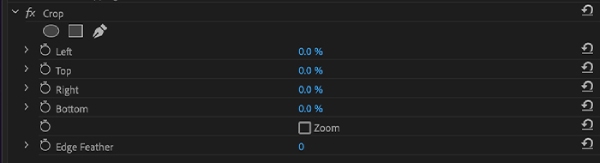
There are three ways to crop video: control handles in preview, percentage adjustment, and sliders.
Preview Handles:
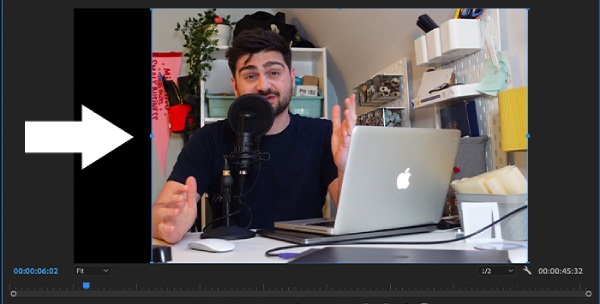
Step 1.Click "Crop", slide to the video preview position.
Step 2.Drag the handles around the video to adjust the margins and crop the video.
Sliders:
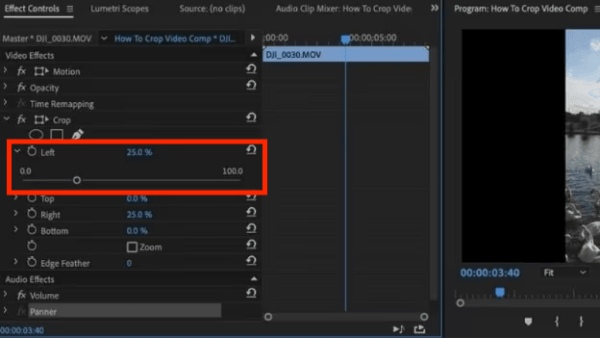
Step 1.In the "Effect Controls" panel, scroll to "Crop". Click the arrow to reveal the left, top, right, and bottom controls.
Step 2.Use the sliders to crop the left, top, right, and bottom edges of the video, adding or cropping black borders around it.
Percentages Adjusting:
For more precise adjustments, you can opt for percentage cropping.
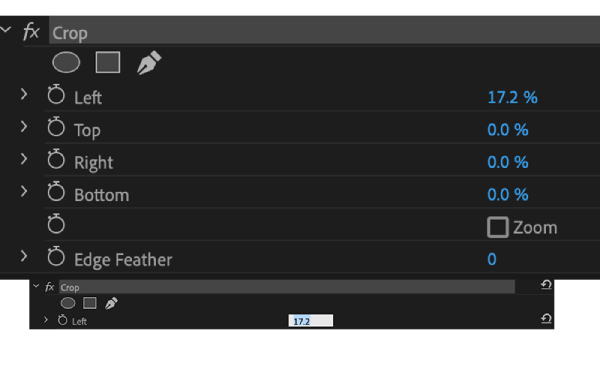
Step 1.Open the video effects controls, then locate the crop controls. Click the left arrow to display the top, left, right, and bottom percentage controls.
Step 2.Hover your cursor over a percentage and drag to begin cropping the edge of the video.
Step 3.Double-clicking a percentage allows you to enter the exact number you desire.
Tips for Cropping Videos in Premiere Pro
For more polished video editing, check out these tips below. They'll help you better understand the effects of different cropping techniques and Premiere's features.
• Prioritize Using Effect Controls Over Direct Scaling
Cropping essentially involves non-resampling cropping of pixel areas without interpolating or enlarging the remaining image; scaling, however, triggers pixel resampling and interpolation calculations, which may result in reduced video size and quality during enlargement.
• Configure Sequence Settings Before Editing
If your project requires specific resolutions or aspect ratios, configure sequence settings before beginning the cropping process. This approach minimizes the need for subsequent manual cropping and allows you to remove unwanted areas through positional adjustments.
• Keyframe Crop Values for Dynamic Reconstruction
Adjust the crop boundaries over time to smoothly guide the viewer's gaze without cutting clips to alter the composition. This method relies on parametric interpolation rather than timeline editing, resulting in smoother animation and greater flexibility during modifications.
An Easier Alternative to Crop Video in Premiere
For users with extensive editing experience, Premiere is a solid choice for cropping videos. However, for newcomers, Premiere's complex features can be challenging to master. In such cases, consider a simpler, more user-friendly alternative: AnyRec Video Converter. Its cropping function is convenient and practical, requiring no editing skills. With a clean interface and intuitive operation, it's perfectly suited for users without video editing experience.

Simple to operate, with customizable aspect ratios and preset options.
Support over 1000 video formats, including MOV and MKV. Import and crop instantly.
Further merge, rotate, flip, add text, and watermarks to cropped videos.
Add background music, themes, filters, and subtitles to cropped videos.
Secure Download
Secure Download
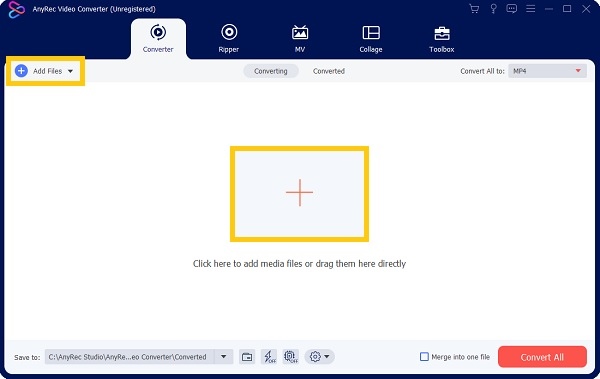
Step 1.Launch AnyRec Video Converter, then click the "Add Files" button, or simply drag and drop all videos to import them.
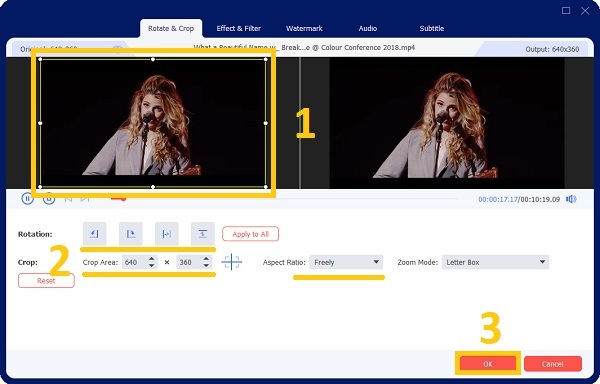
Step 2.Click the "Edit" button. Then adjust the rectangular frame to crop the video. You can also enter specific values. Then click "OK".
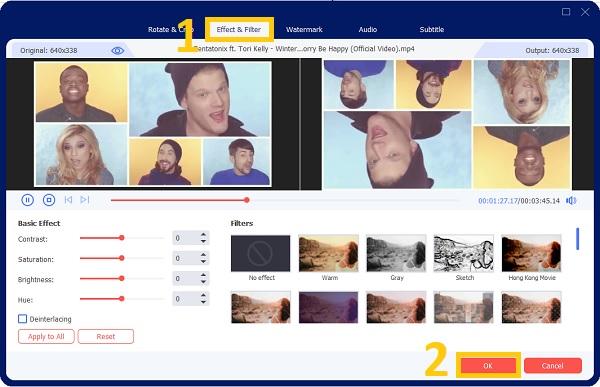
To enhance your video quality and make it more visually appealing, you can add filters and effects. Simply click the "Effects and Filters" button, then select your desired filter. Once finished, click the "OK" button.
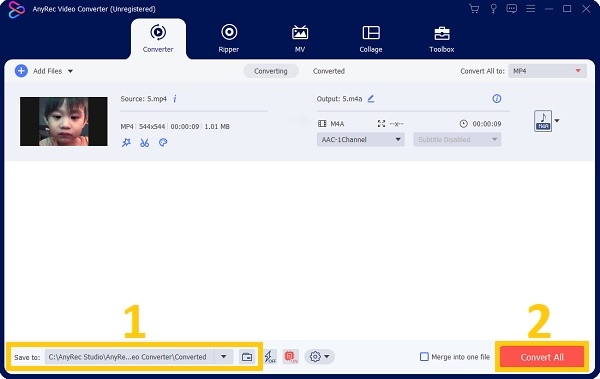
Step 3.Finally, after selecting the save location in the lower-left corner, click "Convert All" to crop videos on Windows 10/11 or Mac.
Conclusion
The above outlines how to crop videos in Premiere. You can try these methods and choose the one that's both simple and precise for you. If Premiere's approach feels too complex, you can also try AnyRec Video Converter. It offers straightforward operation, accurate cropping, and additional editing features to enhance your videos and add creativity. Download it and crop your videos with it now.
Secure Download
Secure Download



