
5 Ways to Transfer Android Contacts to iPhone in Minutes

Switching from Android phone to a new iPhone is an exciting upgrade, but moving data like contacts can feel like hard work. Since contacts hold important phone numbers, knowing how to transfer phone contacts from Android to iPhone is crucial. Fortunately, this guide shares five practical ways to migrate contacts from Android to iPhone, including built-in tools, cloud services, and manual methods. Move contacts between devices without hassle today!
Guide List
Transfer Contacts from Android to iPhone with AnyRec PhoneMover Sync Contacts from Android to iPhone with Google Account Move Contacts from Android to iPhone with Export as vCard (.vcf) File Transfer All Contacts from Android to iPhone with Move to iOS Copy Contacts from Android to iPhone with SIM CardTransfer Contacts from Android to iPhone with AnyRec PhoneMover
Start with AnyRec PhoneMover, one of the most reliable and friendly tools you can try to import contacts from Android to iPhone without any loss. Unlike cloud-based solutions, this tool performs transfer while minimizing syncing errors and incomplete contact information. In addition to that, you can preview contacts before transferring, making it easier for you to select only the ones you need and avoid duplicates. It is your excellent choice for full control and accuracy for moving contacts from Android to iPhone.

Transfer Android contacts to iPhone without relying on cloud syncing.
Keeps original contact details, including names, email, phone numbers, etc.
Preview the contact list so you can pick specific names to move.
Delivers faster and more stable transfer via a secure USB connection.
Secure Download
Step 1.Use high-quality USB cables to pair both Android phone and iPhone to the same computer. Open AnyRec PhoneMover and wait until the program recognizes both devices. Once detected, set the Android as the source device and iPhone as the target device.
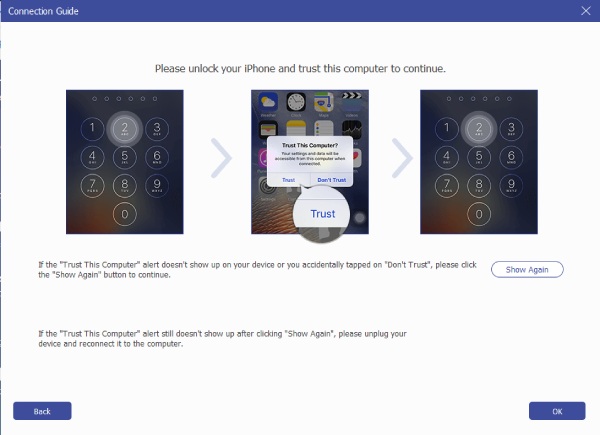
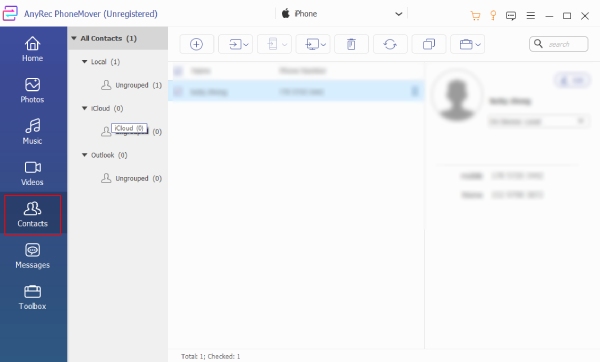
Step 2.Click "Contacts" in the left sidebar to load all entries from your Android. Scroll through it and preview details to confirm accuracy. Check the boxes next to the contacts to move to your iPhone.
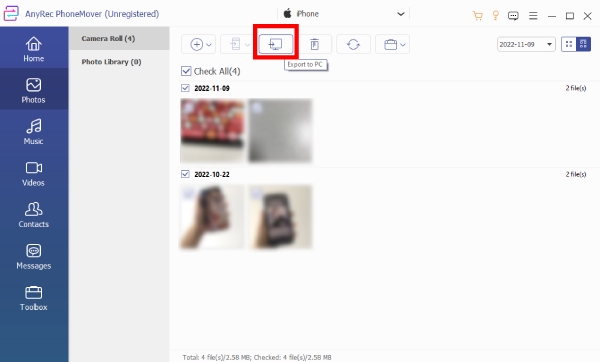
Step 3.Once done with your selections, click the "Export to Device" button and select iPhone as the destination. Let the program process it, then once done, open the "Contacts" app on your iPhone to verify all selected contacts have been moved.
Secure Download
Sync Contacts from Android to iPhone with Google Account
Moving on to a cloud-based solution, here's how to copy contacts from Android to iPhone using Google Account. Since most Android devices already have Google Contacts, this method is just easy to set up. However, syncing issues may happen if multiple accounts are enabled or if settings are not set properly.
- Pros
- Free and wireless; automatically keeps contacts synced and updated.
- Cons
- Needs a stable internet; possible duplication may happen if they are already on iPhone. You need to delete multiple contacts on iPhone manually.
Step 1.On your Android device, open "Settings", go to "Account", then select "Google". There, enable "Contacts Sync" and make sure it gets complete.
Step 2.After that, open your iPhone's "Settings" app, head to "Contacts", then select "Accounts".
Step 3.Add the same Google account and go to "Contacts". Wait to import Google contacts to iPhone successfully.
Move Contacts from Android to iPhone with Export as vCard (.vcf) File
Alternatively, you can transfer Android contacts to iPhone by exporting contacts as a vCard (.vcf) file. Here, you can have higher level of control over what gets moved. This approach is perfect for manually managing contacts and lessening syncing conflicts.
- Pros
- Works offline after the transfer; full control over contacts.
- Cons
- Not great for a large contact list; may lose contact photos or notes.
Step 1.Open the "Contacts" app on Android. Tap "Export Contacts" and save them as a .vcf file. You can transfer a VCF file via email or cloud storage.
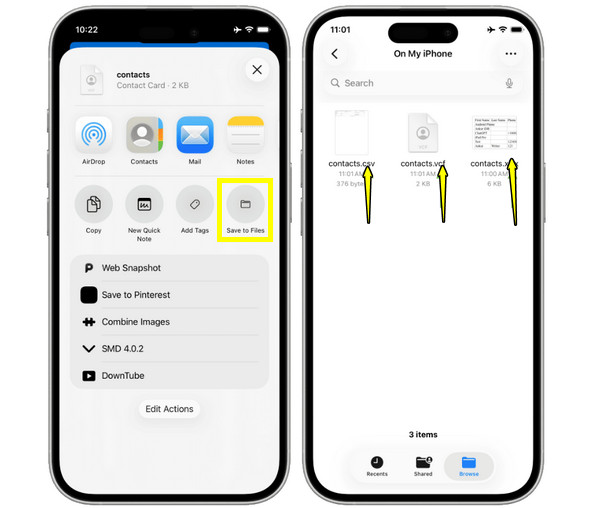
Step 2.Now, on your iPhone, open the VCF file, save it to files first.
Step 3.There, locate the file, and tap "Add All Contacts" to import them successfully.
Transfer All Contacts from Android to iPhone with Move to iOS
Meanwhile, Apple has the Move to iOS app made specifically for switching from Android to iPhone, letting you transfer contacts from Android to iPhone. This method works great during the initial setup, and it moves contacts automatically; however, it sometimes has an issue if the connection drops.
- Pros
- No computer required; can transfer contacts automatically.
- Cons
- Cannot preview contacts; only works in the initial setup.
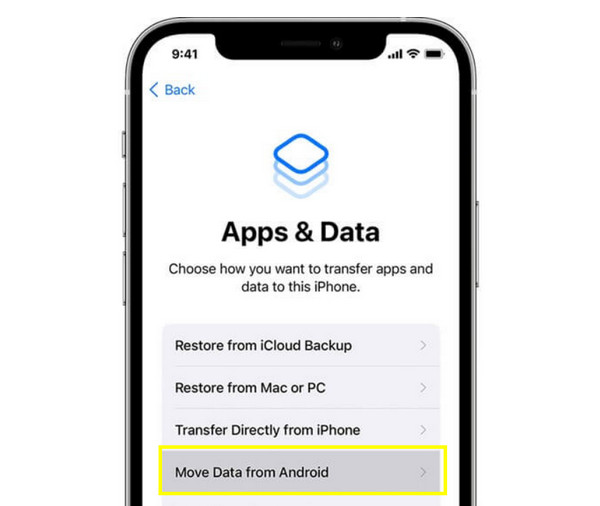
Step 1.Start your new iOS device until you reach the "Apps & Data" screen.
Step 2.There, choose the "Move Data from Android" option.
Step 3.Next, enter the code that pops up on your iPhone, choose "Contacts" and begin the transfer.
Copy Contacts from Android to iPhone with SIM Card
At last, using a SIM card is a standard but limited solution to transfer contacts from Android to iPhone. This approach works very well for basic phone numbers, but often has missing fields like contact photos or email addresses. If you don't mind, here's how a SIM card works to export contacts from Android to iPhone.
- Pros
- Simple and quick for basic contacts; no apps or internet needed.
- Cons
- Not ideal for a large contact list; high risk of missing fields.
Step 1.On your Android phone, export contacts to the SIM card. Then, insert the SIM card into your iPhone carefully.
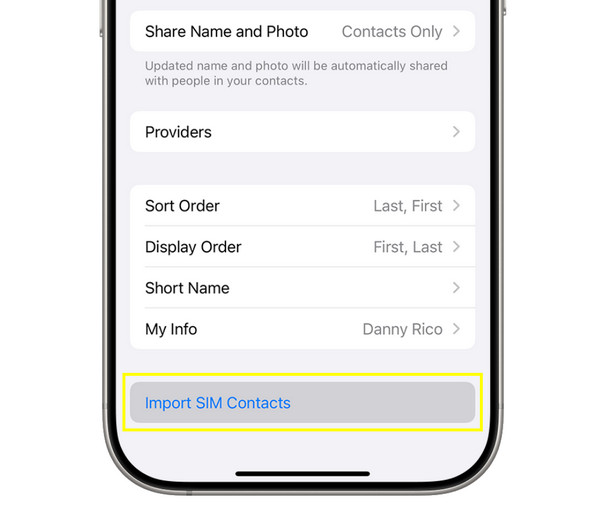
Step 2.From your iPhone, go to "Settings", then head to "Contacts".
Step 3.Then, tap "Import SIM Contacts" and select where to store the contacts.
Conclusion
As you have seen here, switching from Android to iPhone does not mean you have to start over with an empty contact list. From cloud syncing to SIM card transfer, each approach here has its own strengths and limitations, so choosing the right one depends on how many contacts you have and the control you want. But among them, for the smoothest and most accurate transfer experience, use AnyRec PhoneMover. It lets you preview and selectively transfer Android contacts to iPhone, helping you avoid syncing errors or incomplete details. It is an excellent solution for anyone who wants a fast, stress-free switch to their new iPhone.
Secure Download



