
Hot

AnyRec Video Converter
120× faster video conversion and editing. No waiting.
Secure Download
What is MP4? Meanings, Uses, Conversions and More

What is MP4 format? MP4 (MPEG-4 Part 14) has become one of the most widely used containers because of its high visual quality and small file size. It is widely used in video streaming, editing, and sharing. But to understand why it remains the standard, look at its core features and the best tools that handle it. This article explains what MP4 video format is, highlights three reliable apps for managing MP4 files, and provides simple steps on how to open videos on different devices.
Guide List
Features and Application of MP4 Convert Other Formats to MP4 with Compatibility Online Convert Other Formats to MP4 How to Open MP4 FilesFeatures and Application of MP4
Before going through the side of MP4 conversions, learn more about what MP4 is, with its features and applications. Due to its efficient compression and broad compatibility, the format works smoothly across devices, platforms, and editing projects. With these strengths, it has become the worldwide standard for video distribution.
Why Use MP4:
- • Supports Multiple Data Types. Aside from video and audio, the MP4 file format includes subtitles, menus, and chapter information.
- • High Compression Efficiency. MP4 keeps file sizes small while keeping excellent video and audio clarity. Or you can compress MP4 online for smaller file sizes.
- • Streaming-Friendly Structure. The format works very well with streaming services for smooth playback with varying internet speeds.
- • Broad Device and Platform Compatibility. It plays smoothly on phones, tablets, computers, smart TVs, gaming consoles, and all media players.
- • Flexible and Editable. Many tools, like video editors and converters, accept the .mp4 extension for uploading and exporting projects.
MP4 Usage:
- • Online Streaming. Platforms like YouTube, Vimeo, and more prefer MP4 for quick loading and consistent video quality.
- • Social Media Uploads. This includes posts, stories, reels, and ads, usually in the MP4 format video.
- • Video Editing. For video editing, editors use the format for exports and sharing due to its compatibility.
- • Video Recording. Smartphones, cameras, screen recorders, and drones use MP4 as the default format.
- • Archiving and Sharing. Because of its small file size, MP4 is perfect for storage, email attachments, and cloud sharing.
Convert Other Formats to MP4 with Compatibility
Finally have a better idea about what MP4 is! To transform various video formats into this format with impressive visual clarity, use none other than AnyRec Video Converter. This program supports more than a thousand video and audio types, making it a dependable all-around software for every use. It guarantees you to deliver smooth, high-quality results, whether you're handling a single video file or an entire batch of files. Also, you can enjoy its built-in editor that allows you to trim, rotate, crop, merge, apply filters, and more before exporting your final MP4 output.

Converts 1000+ formats from and to MP4, including MOV, MKV, AVI, etc.
Adjustable output settings, like resolution, codec, frame rate, and bitrate.
High-speed conversion by hardware acceleration, with no quality loss.
Batch conversion to process multiple files into MP4 simultaneously.
Secure Download
Secure Download
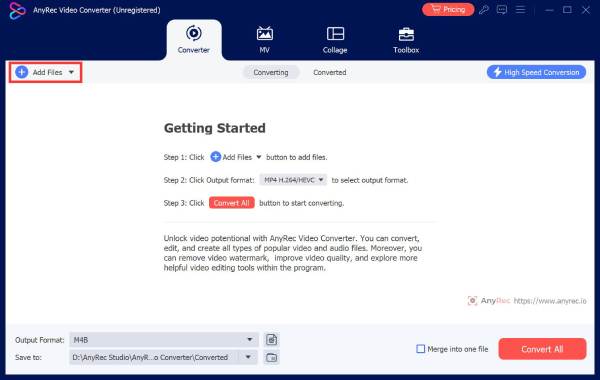
Step 1.Open AnyRec Video Converter. Click the "Add Files" button to import your MP4 video.
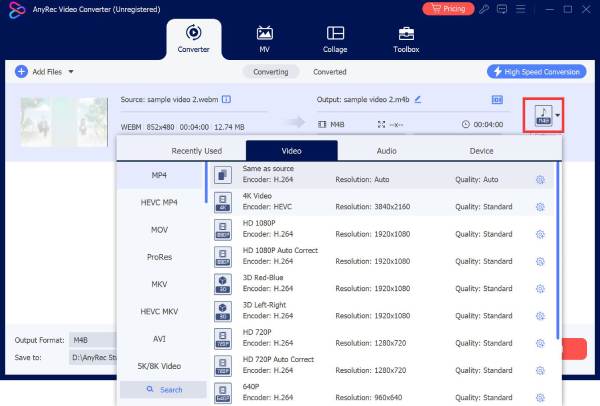
Step 2.pen the "Format" dropdown menu. Select "MP4" in the "Video" category. You can adjust video resolution, frame rate, codec, or bitrate through "Custom Profile" if necessary.
Step 3.Choose the output folder and name the file if desired from the main screen. When everything is ready, click the "Convert All" button to begin converting your videos to MP4.

Secure Download
Secure Download
Online Convert Other Formats to MP4
For more options, this time online, to convert video formats to MP4, several online solutions offer fast and reliable processing. The following web-based tools make the conversion process convenient when you need a quick format transformation.
1. CloudConvert
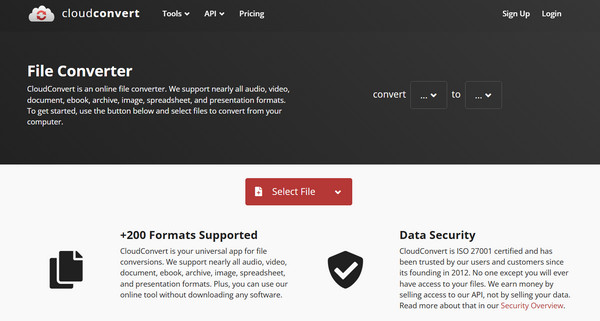
CloudConvert is a versatile converter that covers numerous input formats and converts videos to MP4 with excellent quality. It also has adjustable settings for resolution, codec, and bitrate to fine-tune the results according to your plan.
Step 1.Open CloudConvert on your browser, then click the "Select File" button to upload your video from your device.
Step 2.Next, open the format menu and choose "MP4" as your desired format.
Step 3.Adjust optional settings like resolution if needed. Then click the "Convert" button.
2. Convertio
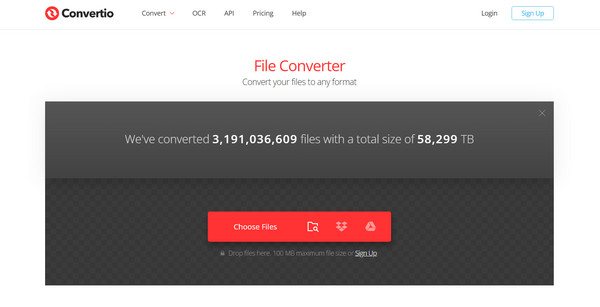
Convertio can convert video formats to MP4. It works entirely in the cloud, so the process won't use your resources. It also supports batch MP4 video conversion and customization options.
Step 1.Open Convertio on your browser.
Step 2.Upload your video from your device storage, Google Drive, Dropbox or URL.
Step 3.From the format list, choose "MP4", and open the "Settings" icon for more adjustments if needed.
Step 4.Click the "Convert" button to finalize.
How to Open MP4 Files
Once you have converted your video file to MP4, you may want to know how to play MP4 on your devices. Since almost all players support it, it is very easy to access.
On a Computer: Double-click on the MP4 file. You can open MP4 videos with almost all media players, such as VLC, QuickTime, or other players.
On Web Browser: Drag and drop the MP4 video in Chrome, Microsoft Edge, or Firefox.
On a Smartphone: Using your default video player, simply tap or select the MP4 video in your gallery or file manager.
Conclusion
That's everything for MP4 introduction. Shared here are its features and applications that can help you choose the right one for sharing, streaming, or storing videos. With online converters like CloudConvert and Convertio, converting video formats to MP4 becomes so much easier. For a faster and more powerful way, use AnyRec Video Converter. It not only converts videos to MP4 but also has hardware-accelerated speed, batch processing, and built-in editing tools. After getting high-quality results, you can have smooth playback on almost any device.
Secure Download
Secure Download
Related Article
About Our Author




