
Comprehensive ScreenFlow Review with 5 Best Alternatives

ScreenFlow, a favorite among Mac users, is it worth trying for its features? Based on existing user reviews highlighting its pros and cons, is there a perfect alternative? This article will review ScreenFlow's features and capabilities, along with five practical alternatives suitable for both Windows and Mac users.
Guide List
Review of Features, Pros, and Cons of ScreenFlow Why Look for ScreenFlow Alternatives? 5 Alternatives to ScreenFlow for Both Windows and Mac The Comparison and Summary of ScreenFlow and AlternativesReview of Features, Pros, and Cons of ScreenFlow
ScreenFlow is an all-in-one screen recording and video editing software designed specifically for macOS. It integrates screen capture, camera recording, audio capture, and video editing into a single workflow. It can simultaneously record camera and system audio during capture, and directly transition to the timeline editing interface for post-recording editing. Overall, it is particularly well-suited for creating instructional content such as software tutorials, online course lectures, and product demonstration videos.
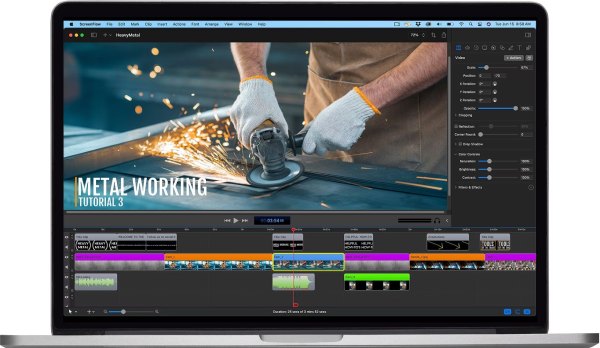
Screen Recording Features
ScreenFlow can simultaneously record screen activity, camera feeds, microphone audio, and system sounds, supporting multi-track synchronous recording.
Video Editing Features
ScreenFlow integrates comprehensive video editing tools, including trimming, splitting, transitions, animation effects, subtitle insertion, and zoom functions. Post-production can be completed entirely within the same software after recording.
Screen Operation Highlighting and Annotation
The software offers mouse-click highlighting, keyboard input display, magnification effects, annotation shapes, and text tools to clearly illustrate operational processes.
Audio Processing and Optimization
ScreenFlow supports volume adjustment, audio separation, background noise reduction, and multi-track management. Users can process microphone audio and system sounds independently.
Why Look for ScreenFlow Alternatives?
Platform Compatibility Requirements
ScreenFlow only supports macOS, meaning Windows or Linux users cannot utilize it. Cross-platform teams or those needing to work across different operating systems may require tools compatible with multiple systems.
Resource Usage and Performance
ScreenFlow consumes significant system resources (CPU, memory) when recording high-resolution, multi-track content. Users with older hardware may find lighter-weight software more suitable.
More Professional Editing Needs
While ScreenFlow offers robust built-in screen recording and editing features, its depth of editing and fine-grained control fall short of professional video editing software for professional creators.
Live Streaming and Interactive Capabilities
ScreenFlow's core focus is recording and editing, not live streaming. For tasks requiring live streaming, real-time interaction, and simultaneous recording, platforms like OBS that support both are more suitable.
5 Alternatives to ScreenFlow for Both Windows and Mac
If you're searching for ScreenFlow alternatives, this section introduces five screen recording tools that can serve as viable replacements. By exploring these five screen recording tools compatible with both Windows and Mac systems. After knowing their respective pros and cons, you can select the best option to replace ScreenFlow.
1. AnyRec Screen Recorder
The first useful alternative to ScreenFlow is the AnyRec Screen Recorder! This Windows and Mac-compatible tool can capture any on-screen activities on your computer. It supports recording your computer’s entire screen, a specific portion, and an active window. Moreover, it records your screen without limitations, watermarks, or lag, even in the free version. Furthermore, you can record on-screen activity at 4K Resolution and 60 Frames per Second, providing high-quality output.
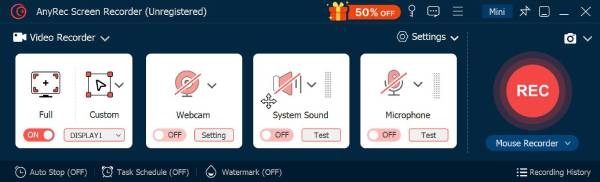

Support the Real-Time Drawing and lets you add annotations during recording.
Infused with an Advanced Editor, you can trim or crop unwanted parts from your recordings.
Convert your recorded videos to any format you want to send or share them easily.
Equipped with a Phone Recorder, you can capture on iOS and Android devices with high quality.
Secure Download
Secure Download
2. OBS Studio (Windows/Mac/Linux)
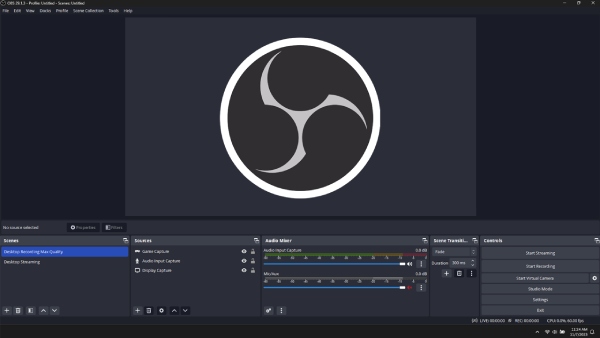
If you're looking for a more well-known alternative to ScreenFlow, OBS Studio is exactly what you need. OBS can record screen activity and content from various sources, and it also lets you share and publish your recorded videos to platforms like YouTube and Twitch. It allows you to adjust streaming and recording outputs, making it suitable for users with live streaming needs. You can modify the output bitrate, encoder, and audio bitrate. However, if you're a beginner, you might find this tool a bit complex.
- Pros
- Simultaneously record your screen, camera, audio, window, or game footage.
- Supports custom scenes and multi-track management.
- Supports live streaming.
- Cons
- The interface and settings are complex.
- It does not support editing features such as trimming and transitions.
3. ScreenPal (Windows/Mac)
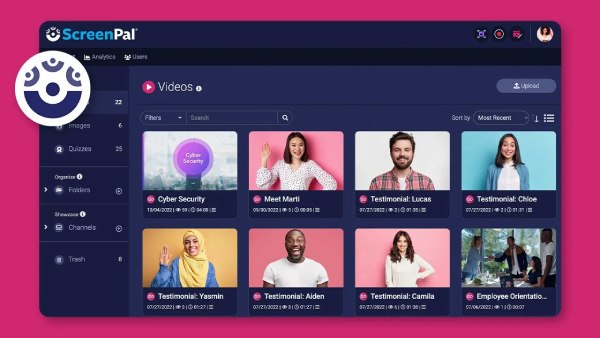
Another tool you can use as a ScreenFlow alternative is ScreenPal. This tool is much easier to use than ScreenFlow, which shares the same features. This tool offers a simple, easy-to-understand interface. One of its capabilities is to record your screen with an overlaid webcam and an active microphone for narration. It also includes a video editor that lets you add text, shapes, and images for free. Moreover, it offers Stock media files you can apply to your recordings.
- Pros
- The interface design is clean and simple.
- Support multiple platforms, including Windows, macOS, iOS, and Android.
- Enables video uploading, hosting, and direct sharing to social media.
- Cons
- Advanced editing features are limited.
- The free version has time limits on recordings and other features.
4. Snagit (Windows/Mac)
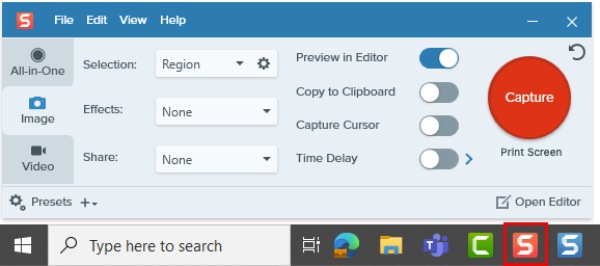
If you missed out on Snagit as an alternative to ScreenFlow, that's a real shame. The same in Snagit review applies to the first-mentioned screen recorder tools; Snagit is also designed to record the entire screen and a scrolling screen for lengthy subjects. Additionally, it also supports capturing picture-to-picture during screen recording. Moreover, it is equipped with real-time screen captures, graphical stamps, ready-made templates, and more, which you can apply to your recordings.
- Pros
- Capture and recording operations are extremely fast.
- It not only supports screen recording but also offers rich screenshot features, annotation tools, and scrolling capture.
- Cons
- Video editing capabilities are limited.
- Primarily designed for short videos and screenshots, it is not suitable for long videos.
5. Loom (Windows/Mac)
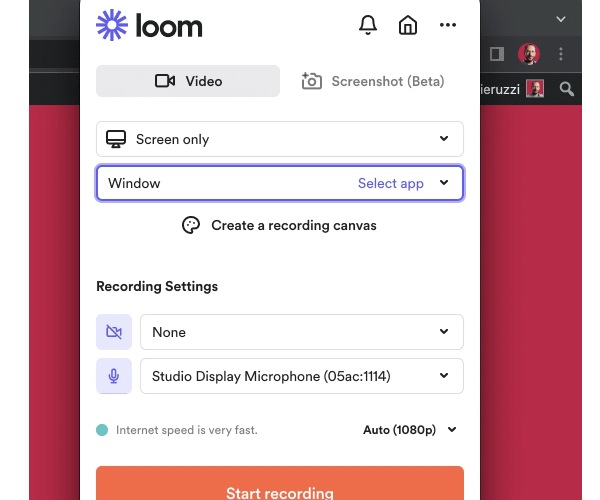
Last but not least is the Loom. It's a screen recording tool that's easier to use than ScreenFlow. This tool simultaneously records your screen, camera, and microphone. Moreover, despite its simplicity, it allows you to share your recordings with recipients via a link. They can watch them without creating or signing into an account.
- Pros
- Automatically uploads recordings to the cloud and generates shareable links.
- Support multiple platforms and even works with browser extensions.
- Cons
- Editing and effects features are limited.
- Free plans often restrict recording duration and the number of recordings.
The Comparison and Summary of ScreenFlow and Alternatives
| Maximum Recording Resolution | Frame Rate Options | Output Video Formats | Audio Recording Capabilities | |
| ScreenFlow | Up to 5K | Typically >30 fps; depends on display refresh (5K/60fps common) | MP4, ProRes, GIF | Supports microphone + system audio simultaneously |
| AnyRec Screen Recorder | Up to 3840×2160 (4K) with custom aspect ratios | 12–60 fps | MP4, MOV, WMV, AVI, MKV, GIF | Supports system + microphone; customizable sample rate |
| OBS Studio | Customizable, supports 4K/8K depending on hardware | User-customizable (common: 30/60 fps, can go higher depending on hardware) | FLV, MP4, MOV, MKV, TS, etc. | Multi-track, multi-source audio mixing |
| ScreenPal | Simple: fullscreen/window recording; exact max unknown | Simple: basic smooth frame rates; exact values unknown | MP4, FLV, AVI, GIF | Supports microphone + system audio |
| Snagit | Simple: fullscreen/window recording; exact max unknown | Simple: mainly for tutorial videos, common 30 fps | MP4 (mainly) | Supports microphone + system audio |
| Loom | Simple: mostly 1080p; some versions may limit | Up to 30/60 fps; bitrate may limit quality | MP4 (cloud encoding) | Supports microphone + system audio (automatic cloud processing) |
What Scenarios are They Best for?
- • ScreenFlow / AnyRec → Professional tutorials or demo videos
- • OBS Studio → High flexibility recording and live streaming
- • ScreenPal / Loom → Quick sharing and lightweight tutorials
- • Snagit → Documentation with screenshots and short tutorial clips
Conclusion
After reading the latest ScreenFlow review, you’ll see how powerful this tool is. If those disadvantages bother you from using this tool, you can choose from the featured ScreenFlow alternatives that you think will meet your screen recording needs! But among them, the AnyRec Screen Recorder tool is the best choice! Download it now and try unlimited screen recording.
Secure Download
Secure Download
About Our Author




