
5 Easy Ways to Record on Snapchat Without Holding the Button

You are probably here after searching for a way to record on Snapchat without holding the button. Well, you are definitely done with holding the record button the entire time, especially when you are trying to film yourself, keep both hands free, or capture videos more comfortably. That can be inconvenient and limit your movements. Thankfully, there are five easy ways here that you can use to record a Snapchat video without holding the button. Dive in below!
Guide List
The Built-In Way: Slide to Lock (Works on iPhone and Android) The Built-In Way: Snapchat Video Timer iPhone-Specific Method: iOS AssistiveTouch Android-Specific Method: Physical Workaround Record Snapchat Videos on a Computer Troubleshoot Snapchat Video Recording IssuesThe Built-In Way: Slide to Lock (Works on iPhone and Android)
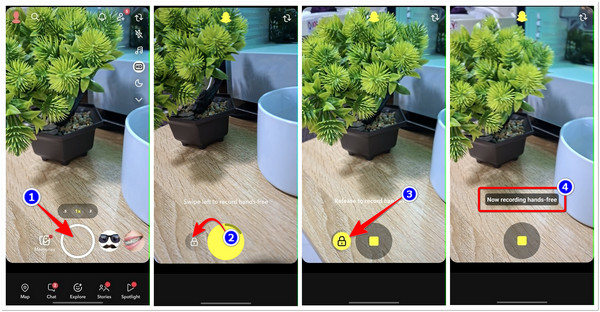
Your concern has actually already been heard by Snapchat, and it has provided a built-in feature that enables you to record hands-free on Snapchat. The first iPhone and Android-available feature you can use is its Slide to Lock. It lets you continue recording after releasing your finger, making it the perfect feature for filming yourself while keeping both hands free.
Step 1.Run Snapchat on your Android or iPhone. After that, press and hold the "Record" button with the Circle icon to initiate the recording process.
Step 2.After pressing and holding the record button, slide your finger to the left until it reaches and overlays the "Lock" icon.
Step 3.Next, take your finger off the "Lock" icon, and Snapchat will continue recording without the need to keep pressing the record button. And that's the step-by-step process on how to record without pressing the button on Snapchat using its Slide to Lock feature.
The Built-In Way: Snapchat Video Timer
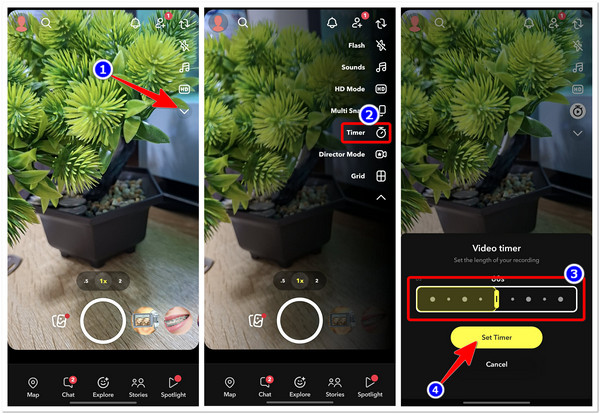
Another built-in feature that you can use to record a Snapchat video without hands is through its Video Timer. The same goes with Slide to Lock; this feature also enables you to easily film yourself or any subject without the need to keep your finger pressing the record button. However, this one only lets you record for a maximum of 2 minutes. Here's how you can use this one:
Step 1.Launch the Snapchat app and tap the "dropdown" button icon on the left to access the other features.
Step 2.Next, select the "Timer" option with the "Stopwatch" icon. Then, tap it once again to activate video recording. After that, set your preferred recording length by sliding the slider to the left. After that, tap "Set Timer" to set it.
Step 3.Once set, tap the "Record" button to start the recording process, which will last based on the set recording length. There you go! Those are the steps on how to record a Snapchat video without holding the button using the Video Timer feature.
iPhone-Specific Method: iOS AssistiveTouch
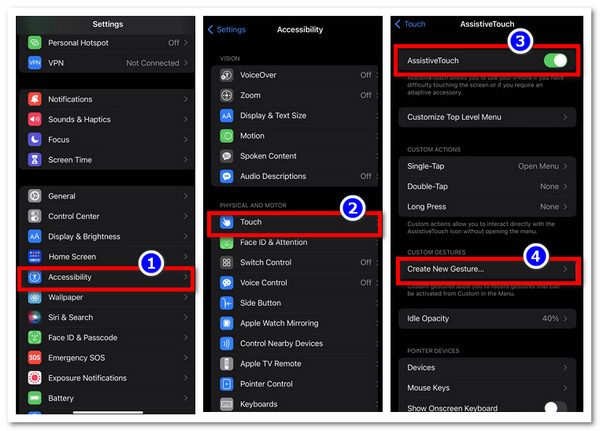
Aside from Snapchat's built-in features, did you know that you can also record on the platform without pressing and holding the record button by using your iPhone's AssistiveTouch? Yes, you can, and you're lucky if you're using an iPhone. So, how to take a snap video without holding the button through AssistiveTouch? Here are the steps you need to follow to screen record on iPhone via AssistiveTouch:
Step 1.Head to your iPhone's Settings app. After that, select the "Accessibility" option from the list, tap "Touch", and switch on the "AssistiveTouch" if it hasn't yet been enabled. Then, tap "Create New Gesture…"
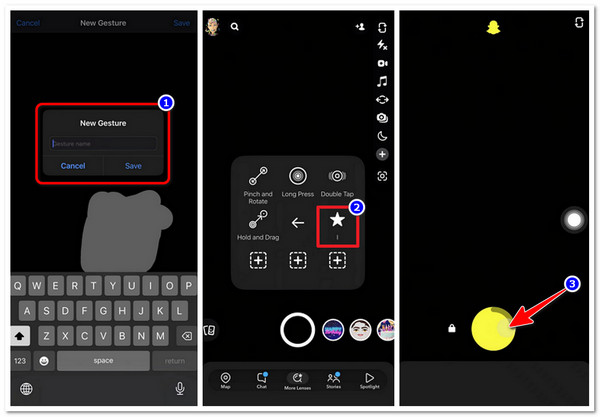
Step 2.Next, press and hold your finger on your phone's screen to create the preferred gesture that will help you do the recording. After that, save it when the progress bar at the bottom is complete.
Step 3.Then, go to Snapchat, tap "AssistiveTouch", choose "Custom", and select the gesture you created earlier. After that, a grey icon will appear on your screen. You need to drag it to the "Record" button.
Step 4.The gesture you created earlier will hold the "Recording" button for you so you can film yourself without the need for your finger. And those are the steps on how to record video on Snap without holding the button using AssistiveTouch.
Android-Specific Method: Physical Workaround
Now, unlike iPhone's AssistiveTouch, Android doesn't have the same feature that lets you record on Snapchat without holding the button. In that case, you can use Snapchat's built-in features instead. However, if the built-in features aren't available on your Android device, some users try a simple physical workaround.
This involves wrapping a rubber band (make sure it is a strong one) around your phone so that it gently holds down the "Volume Up" button. Once the button is pressed, Snapchat should begin recording. This Android screen recording method will allow you to capture videos without manually holding the button. So, how do you record on Snapchat without pressing the button on Android? A rubber band will be your physical workaround.
Record Snapchat Videos on a Computer
There you have it! Those are the easy methods, along with their steps, on how to video record on Snapchat without holding the button. Apart from those methods, you can also use AnyRec Screen Recorder to record Snapchat videos on your computer, allowing you to keep your hands off your phone completely. This tool supports a Phone Recorder feature that enables you to mirror your phone's screen and record any Snapchat videos directly on your computer. In fact, you can use it not only to record Snapchat videos but also to watch them on a bigger screen in high quality. Isn't that nice?
Allows you to take snapshots of your Snapchat content.
Let's you control your phone's Snapchat on your computer while mirroring.
Support a high-quality Snapchat display with smooth and standard quality options.
Enables you to mirror the phone speaker and microphone.
Secure Download
Secure Download
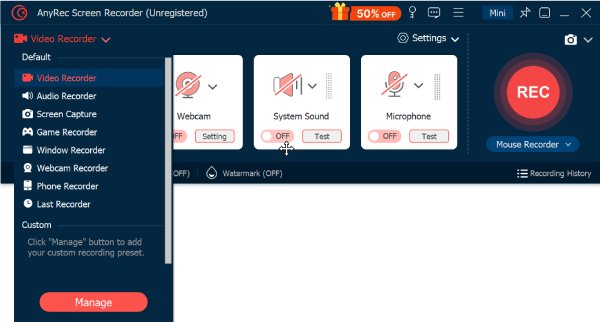
Step 1.Download and install the AnyRec Screen Recorder on your computer, and afterward, launch it. Next, click the "Recording Mode" dropdown button on the left and select "Phone Recorder".
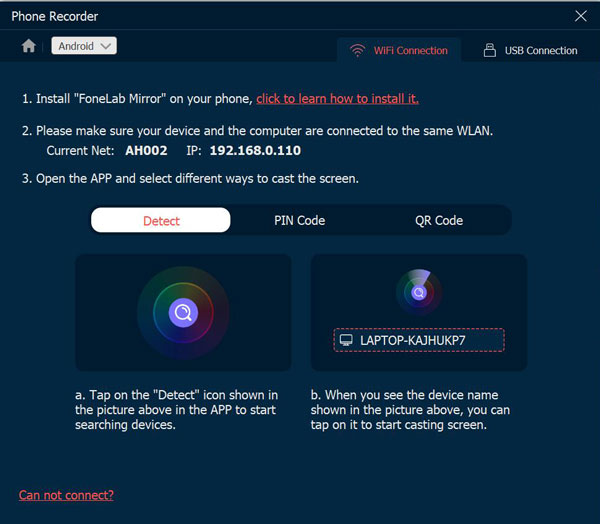
Step 2.Then, choose your device type and make sure that your phone and computer are linked to the same network. After that, follow the on-screen instructions on how to connect both devices.
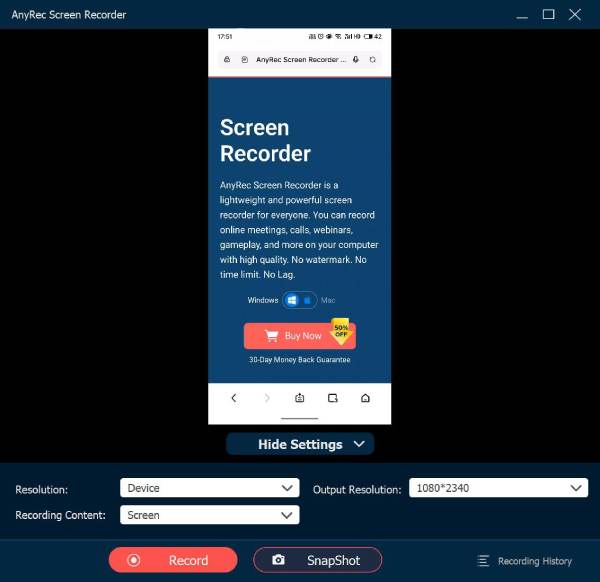
Step 3.Once both devices have successfully initiated screen mirroring, head to your phone and launch Snapchat. Then, you can now record any content or film yourself after clicking the "Record" button.
Troubleshoot Snapchat Video Recording Issues
Having those solutions or methods above to record on Snapchat without holding the button definitely brings you a better and more comfortable way to film yourself or any other subjects. Now, ff you run into problems while recording on Snapchat without holding the button, here are some simple fixes you can try:
- • Slide to Lock feature isn't appearing: Make sure you're pressing and holding the "Record" button before sliding to the lock icon. If it still doesn't appear, you can try updating your Snapchat to the latest version and restarting it.
- • The first few seconds of the hands-free clip are unwanted: Start recording first, then quickly move into position. If needed, trim the beginning of the video before sending or saving it.
- • The recording stops before you're finished: Snapchat limits the length of each video recording. If your recording stops automatically, you can simply start a new recording to continue.
- • The Volume Up button doesn't start recording: Not all Android devices support using the "Volume Up" button to record on Snapchat. If it doesn't work on your phone, use Snapchat's built-in features instead, which are mentioned above.
- • Snapchat keeps crashing or freezing: Close and reopen the app, clear its cache in your phone's Settings app, or update it to the latest version. If the issue persists, reinstalling it may help.
Conclusion
So, how to record Snapchat video without holding the button? Well, this post's five featured methods can help you film yourself without the need to hold Snapchat's record button. You can use them to record Snapchat content in the most natural, comfortable, and limitless way possible. You have probably already tried one, and hopefully, it gives you the best Snapchat recording experience. Now, if you wish to record Snapchat videos in high quality or watch them on a much bigger screen, AnyRec Screen Recorder is the best option you can get! Try it now.
Secure Download
Secure Download
Related Articles
About Our Author




