
Top 10 Online Video Editor No Watermark (Free & Easy)

Finding a solid video editor means paying for a subscription or having a logo stamped on your export for the free version. Conveniently, online no-watermark video editors have evolved to help you trim, apply transitions, add captions, and more to your content directly inside a browser. However, some online platforms come with a catch. To save you from searching and heartbreak, the top 10 free online video editors with no watermark are here, plus more to get clean videos.
Guide List
What Should You Look for in a No-Watermark Online Video Editor Top 10 Online Video Editors Without Watermark Online Video Editor Is Not Enough? Try This Desktop Alternative Troubleshoot Common Problems with Online Video EditorsWhat Should You Look for in a No-Watermark Online Video Editor
Beyond being a simple free online video editor no watermark, the option should give you control over your final output. Detailed below are the essential factors to look for before picking a platform:
- • No Watermark. First, check what the platform actually considers a free export. Some tools claim to be watermark-free but include secret brand logo overlays or force a logo when you use stock music or filters.
- • Export Resolution and Quality. After exporting, check your output quality. Many free tiers limit your download resolution to 720p or heavy compression.
- • Wide File Compatibility. File support is critical. The editor should smoothly accept formats such as MP4, MOV, and WebM, as well as audio files, without requiring pre-conversions.
- • Advanced Editing Tools. Make sure the editor fits your workflow. It must have multitrack editing, trimming, splitting, and overlays.
- • Processing Speed and Performance Limits. Finally, consider how the editor app handles rendering. Check if it sets monthly limits or file upload sizes.
Top 10 Online Video Editors Without Watermark
Now that you know what to look for in a browser video editor no watermark, jump straight into the top 10 options that won't clutter your finished project.
1. Media.io
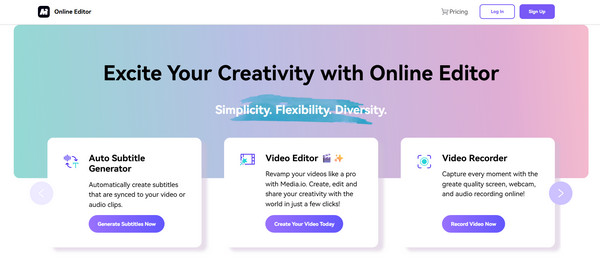
Media.io is a great, easy choice for performing quick edits. Powered by smart AI tools, this online video editor no watermark makes background removal, trimming, and auto captioning fast.
2. Clipchamp
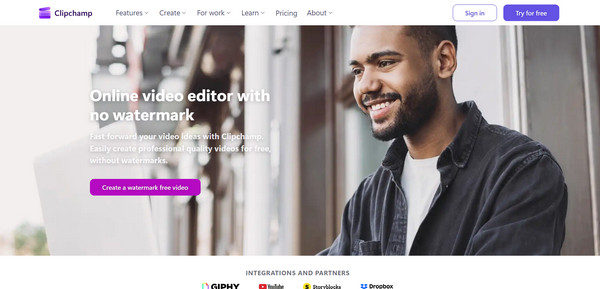
As Microsoft's official video editor, Clipchamp stands out for its generous free plan, which supports 1080p exports and screen recording. It offers a desktop-like experience despite being an online video editor.
3. Canva
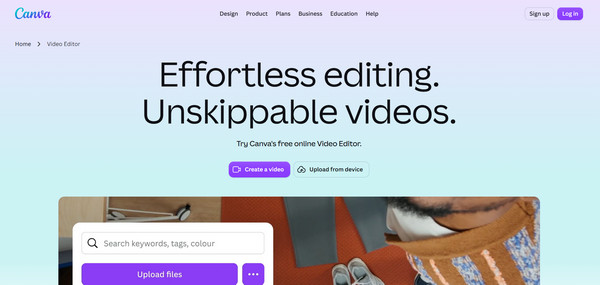
While mostly known for its graphic design, Canva, as an online video editor is capable of creating short-form content, reels, and presentations. It makes combining text, visuals, and audio so easy. (See steps to remove Canva watermark.)
4. Adobe Express
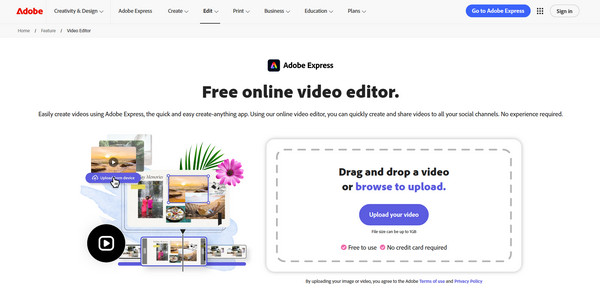
Adobe Express here brings a touch of Adobe's powerful editing into a browser-friendly format. This online video editor version is ideal for quickly trimming, converting, and making eye-catching social media posts.
5. VEED.io
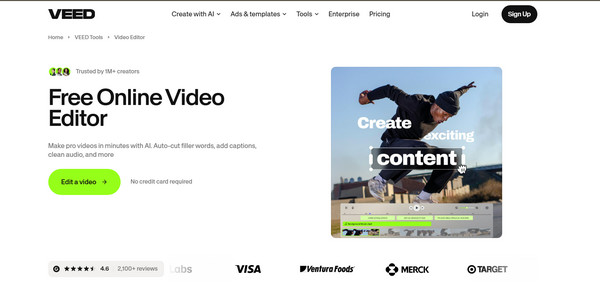
Up next for a free online video editor without watermark: VEED.io. The favorite among social media creators thanks to its slick interface and auto-subtitle features.
6. Online Video Cutter
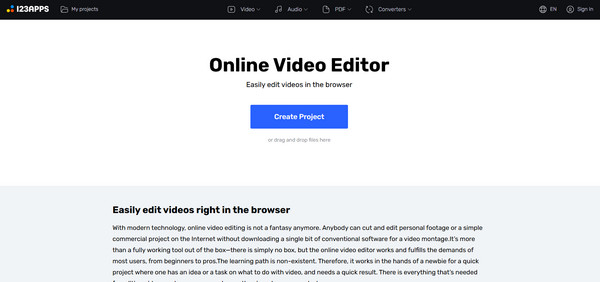
If you only need to rotate, crop, or trim a clip without loading heavy timelines, Online Video Cutter is the tool for you! It is one of the web-based editors that offers a minimalist, fast, and easy process without requiring an account for basic edits.
7. Clideo
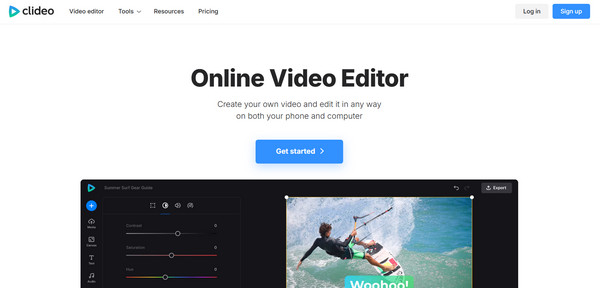
Clideo offers a complete set of individual video tools, letting you merge, loop, compress, or adjust speed easily. Its clean layout is perfect for simple file adjustments, making it one of the best online video editors no watermark.
8. Kapwing
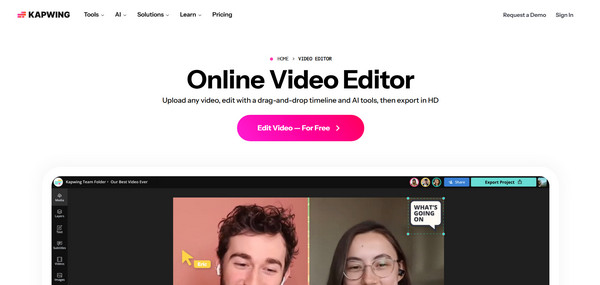
Designed with a modern focus on collaboration, Kapwing works much like Google Docs. Using its workspace, you can create memes, add subtitles, and edit multiple tracks, with your teams able to jump in and work together.
9. FlexClip
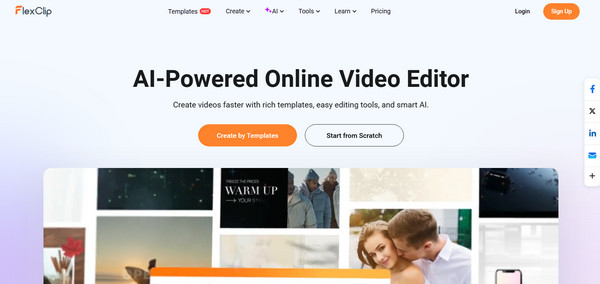
Meanwhile, FlexClip keeps both simplicity and creativity. This online video editor no watermark tool offers rich templates, useful for beginners building promo videos and slideshows.
10. CapCut Online
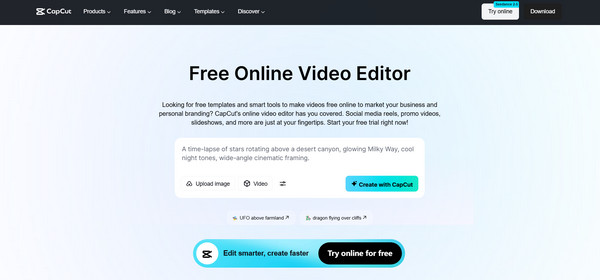
CapCut Online shares its trending effects, background removal, text styles, and voiceovers with web browsers. It remains one of the most feature-rich free choices for Instagram and TikTok creators.
Top 10 Online Video Editor Summary
| Online Video Editor | Export Quality | Supported Formats | Key Highlights |
| Media.io | 1080p | MP4, MOV, MKV, AVI, etc. | AI-powered quick tools and smart audio captions |
| Clipchamp | 1080p | MP4, MOV, WebM, etc. | Desktop-grade timeline and stock media library |
| Canva | 1080p | MP4, MOV, GIF, PNG, etc. | Pre-made templates for social media content and presentations |
| Adobe Express | 1080p | MP4, MOV, PNG, JPG | Quick branding edits and high-quality design assets |
| VEED.io | 1080p | MP4, MOV, AVI, WebM | Auto-subtitles and social media reel formats |
| Online Video Cutter | 1080p | MP4, MOV, FLV, AVI, 3GP | Quick trimming and basic adjustments |
| Clideo | 1080p | MP4, MOV, WMV, AVI, etc. | One-click file conversions, merging, and compression |
| Kapwing | 720p | MP4, WebM, MOV, GIF | Real-time collaboration and subtitle creation |
| FlexClip | 720p | MP4, MOV, WebM | Easy promo templates and business slideshows |
| CapCut Online | 1080p | MP4, MOV | Visual effects, transitions, and AI voice tools |
Online Video Editor Is Not Enough? Try This Desktop Alternative
Moving your workflow to a dedicated computer opens up more possibilities for heavy-duty tasks, such as processing large 4K files or long screen recordings. For sure, those online video editors won't be enough, making AnyRec Video Converter worth jumping to. Well, it offers no watermark too, and an amazing set of video editing tools like trimmer, cropper, rotator, effects, transitions, and more. Whether you need to trim hours of footage or edit multiple clips at once, this desktop editor delivers fast, stable performance. You will also never worry about internet connections interrupting your progress or strict size limits stopping your projects.
Edit, convert, and compress 4K videos without browser crashes.
Batch processing for editing and saving video clips simultaneously.
Lightning-fast exporting without compromising on video quality.
Real-time preview of all applied edits before finalizing.
Secure Download
Secure Download
Step 1.To get started, launch AnyRec Video Converter. Click the "Add Files" button in the corner or drag and drop your files directly to add your large 4K files.
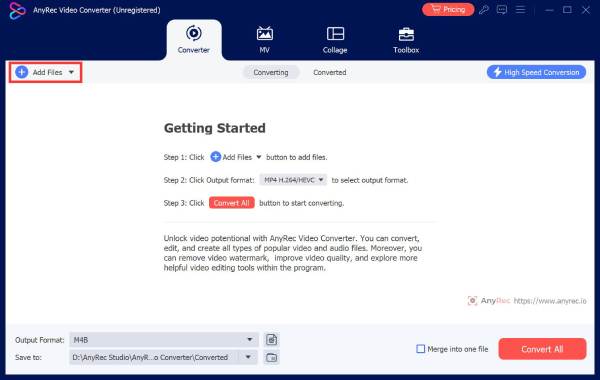
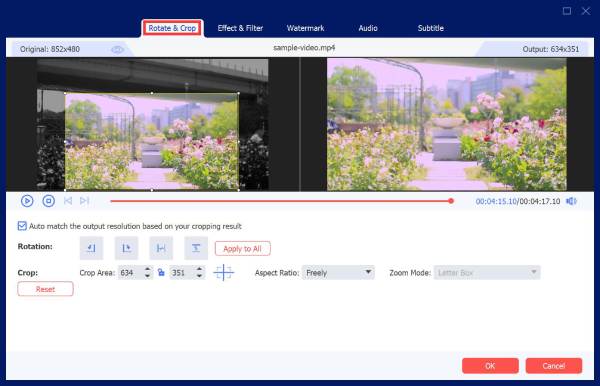
Step 2.After your videos are loaded, click the "Edit" button to open the editing window, where you can crop your frames, add visual effects, and more. Or click the "Trim" (Scissors icon) button to trim unwanted parts.
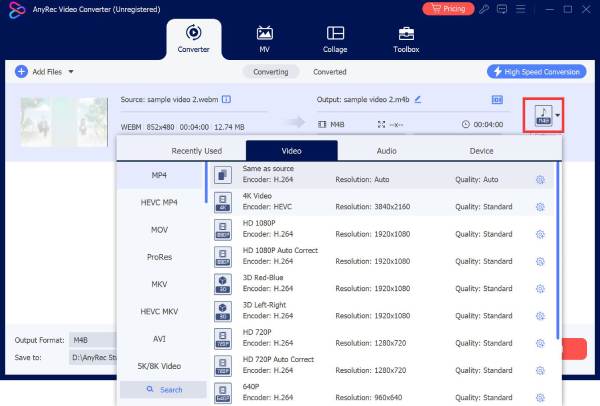
Step 3.Once you're happy with your edits, click the "Format" dropdown menu, choose your preferred output format (e.g., MP4, MOV, MKV), and select your desired resolution.
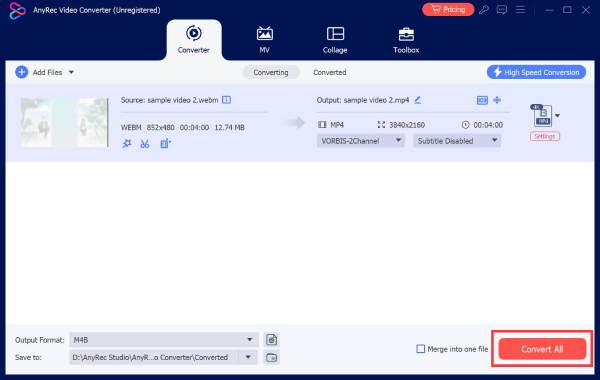
Step 4.Pick your destination folder and new name for your edited file. And finally, click the "Convert All" button, and the program will then process and export your video quickly.
Troubleshoot Common Problems with Online Video Editors
After the smooth creation process, knowing that there could be technical hiccups can be frustrating. But the bright side here is that most issues with web-based tools are quick to fix.
1. Exported Video Has a Watermark. Free plans often have brand logos included in your final export.
Fix: Upgrade to a plan that removes watermarks, or check beforehand whether the editor offers a free watermark removal option. Or you can look for a truly free online video editor no watermark.
2. Upload Takes Too Long or Fails. High resolutions, large file sizes, or an unstable connection.
Fix: Compress your video before uploading. Or switch to a stable internet connection and clear your browser's cache.
3. Video Quality Drops After Editing. Online editors may compress videos to process them faster, or your export settings might be set to a lower quality.
Fix: Double-check your export settings and check if you have selected 1080p or 4K. Make sure the original files were recorded in high quality.
4. Video Playback Lags. Browsers use RAM and GPU when rendering multiple tracks.
Fix: Close extra tabs and apps. Enable Hardware Acceleration in your browser settings.
5. Audio and Video Out of Sync. Frame-rate mismatches or footage recorded on smartphones might cause audio drift.
Fix: Convert footage to a CFR first. Or you can detach it manually and realign it with visuals after.
Conclusion
When you know your editing goals and needs, the online video editor without watermark will come to you. All the options offer unmatched convenience for quick edits on your browser. Yet still, keeping a reliable desktop alternative like AnyRec Video Converter on standby is nice. You won't be held back by web browser issues or file size limits; instead, you'll enjoy a smooth offline workflow for your large files.
Secure Download
Secure Download
Related Articles
About Our Author




