
Hot

AnyRec Video Converter
120× faster video conversion and editing. No waiting.
Secure Download
How to Increase MP3 Volume in PC, Mobile, and Web in 7 Ways

Knowing how to increase MP3 volume is important when the audio files sound too quiet or have an uneven loudness. This usually happens due to recording or export issues, like low gain or poor compression. When that happens, you often have to turn the volume all the way up just to hear the audio clearly. Fortunately, there are seven simple and safe ways to make audio louder without compromising sound quality, and you can find all of them here. Dive in.
Guide List
Why Is My MP3 File So Quiet Increase MP3 Volume with AnyRec Video Converter Increase MP3 Volume Online [5 Volume Boosters + Steps] Make MP3 Audio Louder on iPhone Increase MP3 Loudness on Android FAQs about Increasing MP3 VolumeWhy Is My MP3 File So Quiet
Before trying to boost your MP3 volume, it is suggested to understand why some files might be quieter than others first. Check those reason:
1. Audio Player Settings - Equalizers, volume normalization, or other sound enhancements can make audio files play quieter than intended.
2. Original Recording Quality - Another reason could be the source of your audio. If the original recording was low in volume, simply increasing it later can also amplify background noise or distortions. You need to remove background noise from audio with third-party tools after recording.
3. Low Bitrate Files - MP3s with a lower bitrate often sound quieter and less clear. Higher bitrate files usually have stronger and more balanced volume.
4. Improper Normalization - Normalization is meant to level out the volume across a track. If your MP3 wasn't properly normalized during its creation, it can end up quieter compared to other files in your library.
5. Compression Effects - The MP3 compression process can lower the overall volume. It will be obvious if the original audio had significant differences between the loudest and softest parts.
By identifying which of these factors affects your file, you can choose the best method to increase the volume level of MP3 without harming sound quality.
Increase MP3 Volume with AnyRec Video Converter
AnyRec Video Converter provides a volume booster to achieve the best sound. It allows you to increase or decrease the volume of your MP3 file either by using a volume slider or by setting a specific volume percentage. Although this tool's volume booster is easy to use, it delivers excellent output and effectively addresses the reasons why your MP3 file is so quiet.

Includes a preview feature to check the loudness of your MP3 after adjusting its volume.
Allows you to adjust the audio delay if you plan to embed the MP3 file into a video.
Supports an option to trim your MP3 file to remove those unnecessary parts.
Enables you to convert your MP3 audio to a higher-quality version.
Secure Download
Secure Download
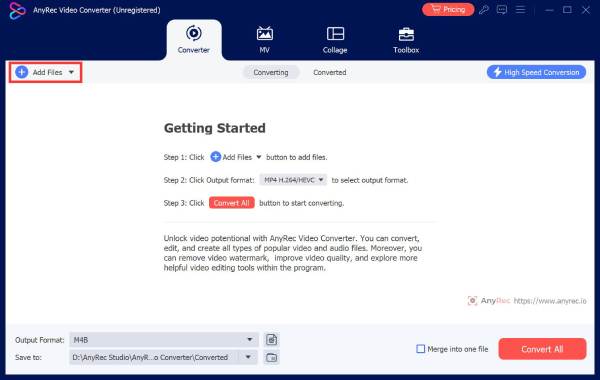
Step 1.Download and install the AnyRec Video Converter on your Windows or Mac PC. After that, launch the tool and click "Add Files" to import the MP3 file.
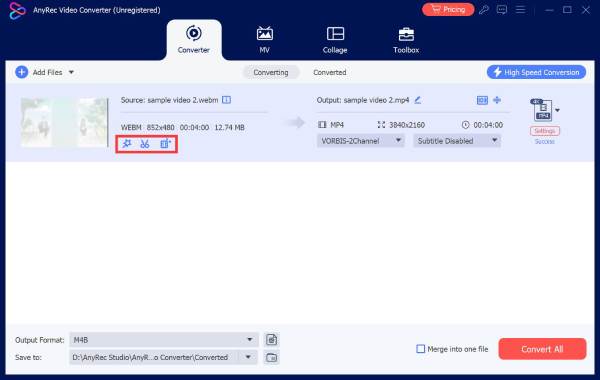
Step 2.Next, click the "Edit" button with the "Starwand" icon, and the tool will automatically bring you to the edit audio section.
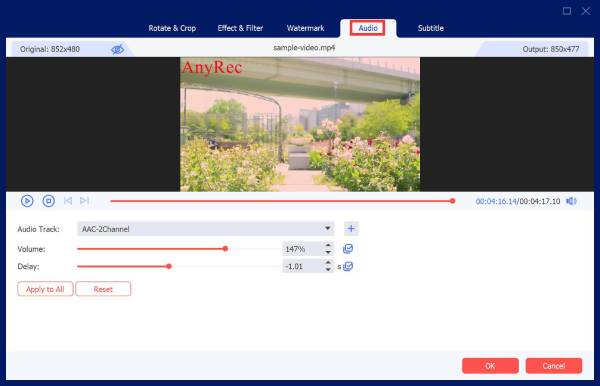
Step 3.Then, slide the "Volume Slider" to the right to increase your MP3 file's volume up to 200%. Once done, click "OK", and then click "Convert All" to save it with the increased volume.
Secure Download
Secure Download
Increase MP3 Volume Online [5 Volume Boosters + Steps]
Apart from desktop-based volume changers, there are also online audio volume boosters you can use to increase the volume of MP3 files. Here are the 5 best online tools you can try.
1. MP3Louder
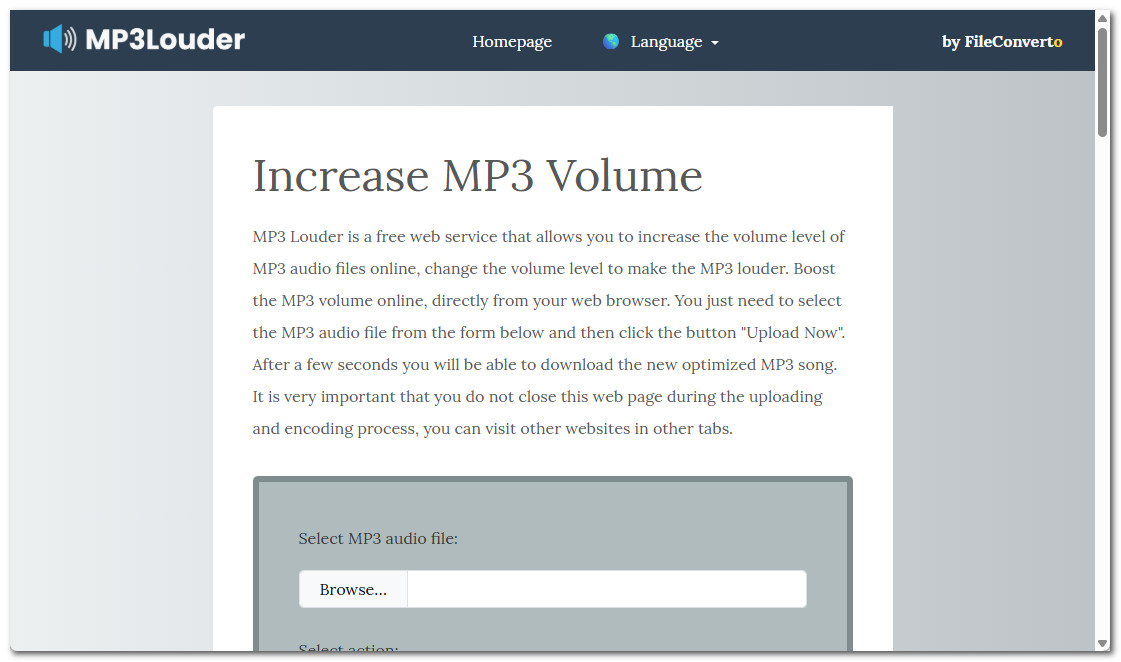
MP3Louder allows you to quickly make quiet MP3 files louder without installing anything. Simply upload your file, choose how much to boost the volume (based on decibels), and download the louder version. You can also adjust individual channels within the MP3 volume booster. The downside is that increasing the volume may not be easy, especially if you're not familiar with decibels.
2. MP3 Cutter
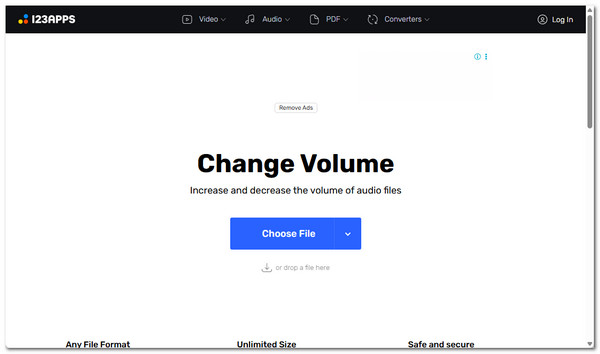
Another tool you can use to boost audio volume is MP3 Cutter's Volume Changer. Unlike MP3Louder, MP3 Cutter lets you easily raise or lower the volume of your MP3 files using a slider. You simply set the desired volume. In addition, the tool shows a visual waveform of your audio, so you can see which parts are quiet or loud before adjusting. However, the interface may feel a bit tricky at first, especially if you're not used to working with audio waveforms.
3. OnlineConverter
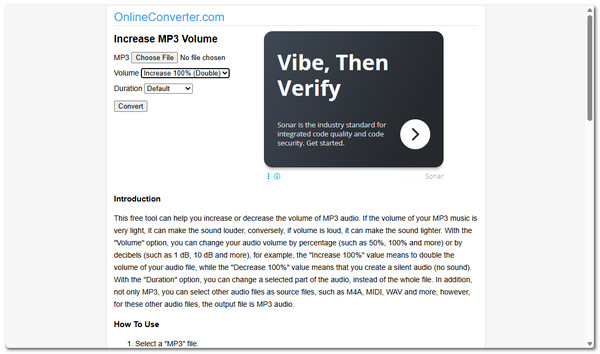
You should also try OnlineConverter, as it can increase the volume of MP3 files. The process of MP3 volume increasing is somewhat similar to the first featured tool. Unlike MP3 Cutter, this online audio volume increaser requires you to choose a specific loudness percentage. The downside is that it doesn't offer advanced controls for fine-tuning audio, so you're limited to basic volume adjustments.
4. Audio Trimmer
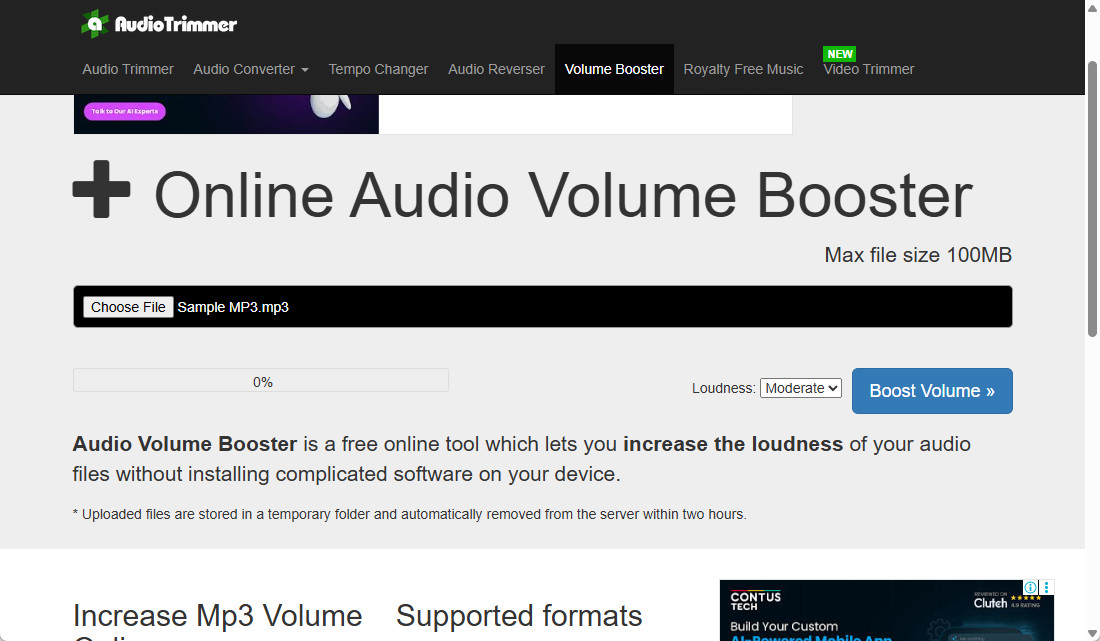
Apart from those tools, Audio Trimmer's online audio volume booster also lets you increase MP3 volume with Mild, Moderate, High, or Extreme levels. So you can boost the overall volume of your MP3 file online. The downside is that it only offers preset options. As a result, you cannot fine-tune the volume beyond the available levels.
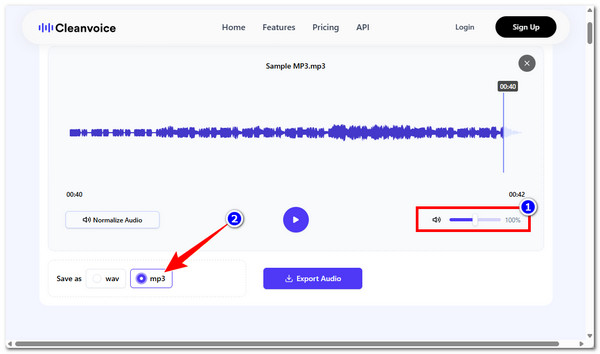
5. CleanVoice
The last tool that can increase MP3 audio volume is CleanVoice. This free web-based tool lets you increase or decrease audio using a simple slider or by choosing from preset normalization options, keeping your audio clear and balanced without distortion. Unfortunately, it may feel a bit overwhelming for beginners because of the multiple normalization settings and options.
Step 1.Visit the CleanVoice webpage on your browser. Then, click the "Select audio" button to import the MP3 file.
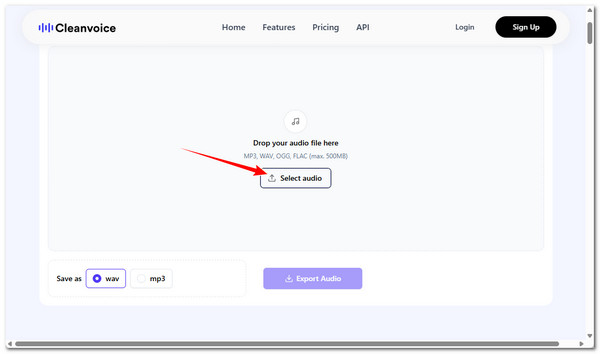
Step 2.Then, increase the MP3 file's audio by dragging the volume slider to the right, and select the "mp3" option in the "Save as" section.
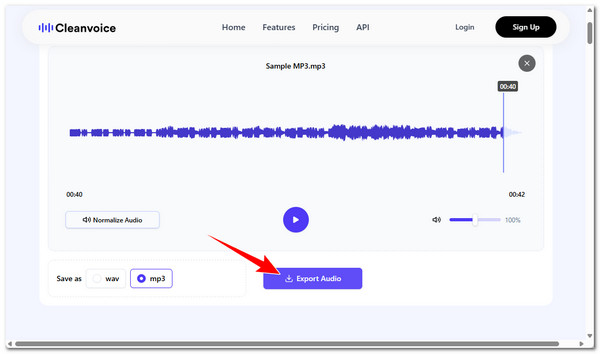
Step 3.Once satisfied with the output, click the "Export Audio" button to save the MP3 file with boosted audio.
Make MP3 Audio Louder on iPhone
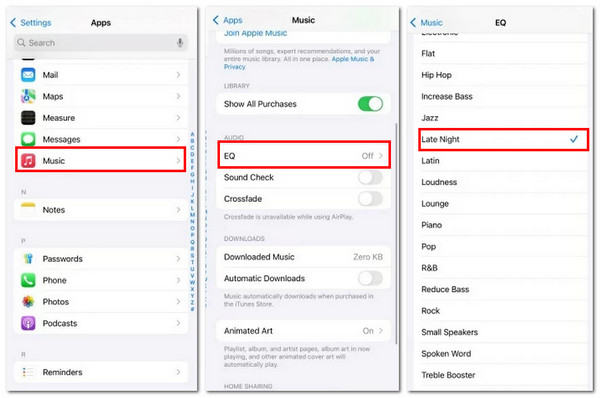
If you are using an iPhone and notice that the MP3 file you are listening to is too quiet, you can use the built-in EQ feature to make it sound louder during playback. The Late Night preset works exceptionally well because it boosts the softer parts of the audio and evens out the volume levels. Here's how you can increase MP3 volume on iPhone:
Step 1.Open the Settings app on your iPhone. After that, scroll down and select the "Music" option.
Step 2.Next, look for the "EQ" option from the list and tap it. After that, browse through the list of presets.
Step 3.Lastly, select the "Late Night" option from the list to change MP3 volume.
Increase MP3 Loudness on Android
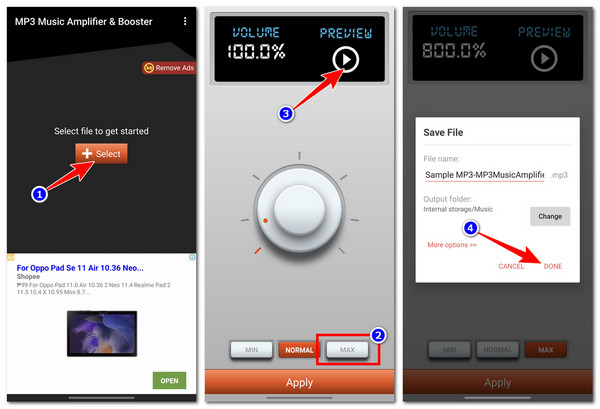
Otherwise, if you are utilizing an Android device and find that your MP3 files are too quiet, you can use a third-party app like the MP3 Music Amplifier & Booster app to boost their volume. This free app allows you to increase the loudness of your MP3 files easily without compromising sound quality. Or you can use audio quality enhancers to improve the overall quality manually. Here are the steps on increase audio volume on Android:
Step 1.Install the MP3 Music Amplifier & Booster app on your phone by getting it on the Google Play Store. After that, launch it, tap the "Select" button, and select your MP3 file.
Step 2.Next, tap the "MAX" button below to increase the volume of the MP3 file. You can tap "Play" to check how the option affects your file.
Step 3.If you are satisfied with the loudness of your MP3 file, tap the "Apply" button. At last, tap the "DONE" button.
FAQs about Increasing MP3 Volume
-
1. Why does my MP3 sound distorted after boosting the volume?
That's because you cause clipping, push the digital signal past its limit (0 dBFS) or overdrive your playback hardware. So, there are crack sound. During this time, you can lower digital gain, user an equalizer, or normalize carefully to see the differences.
-
2. My MP3 is still too quiet on my phone. What can I do?
Check phone settings first, including volume sliders, Do Not Disturb, Reduce Loud Sounds, and similar functions. Restart your phone and re-play the audio.
-
3. How can I safely increase MP3 volume without ruining the sound?
Use normalization to adjust peaks to near 0dB. Then raise the quieter parts and control peaks to make the audio track louder without harsh distortion.
Conclusion
Now you can enjoy listening to your MP3 files at the exact loudness you want. If you are looking for the most reliable way to increase an MP3 file's volume without compromising its quality, consider using AnyRec Video Converter. So, you can make audio louder and get dozens of audio editing tools with easy options.
Secure Download
Secure Download
Related Article
About Our Author




