
Hot

AnyRec Blu-ray Player
Open DAV files seamlessly on Windows 11/10/8/7 and Mac.
Secure Download
How to Play DAV Files & Convert DAV to MP4

DAV files are usually generated by CCTV systems and surveillance cameras, making them very different from standard formats like MP4. DAV files cannot be played with regular players or mobile devices. So, you need the right DAV player when trying to open DAV files on computers. In this guide, three reliable players are introduced alongside the main reasons why these files don't play directly and ways to convert DAV files for mobile phones. Jump right in!
Guide List
Why You Can't Play WAV Files Directly Use 3 DAV File Players to Open DAV Videos on Windows and Mac Convert DAV to MP4 to Play DAV Files on iPhone and Android Troubleshoot DAV Not Playing FAQs About How to Play DAV VideosWhy You Can't Play WAV Files Directly
DAV files are created for specialized purposes rather than everyday playback. That's why you can't play DAV files directly like regular videos. Since they are generated by CCTV systems and security cameras, most standard players and mobile devices are not able to recognize or decode these files correctly. As a result, it leads to playback errors, black screens, or unsupported format error messages.
Knowing the reasons behind this will help you choose the right solution. See the listed reasons below:
- • Proprietary video encoding. DAV files usually use proprietary codecs by surveillance manufacturers, which aren't supported by media players.
- • Missing or unsupported codecs. Most devices don't have the codec installed to decode DAV video and audio streams.
- • Designed for security systems. DAV files are optimized for storage and playback within DVR software and not for viewing on phones or computers.
- • Lack of mobile compatibility. iOS and Android players do not natively support DAV files.
- • Restricted playback. They are intended to be played only within the original DVR or the provided player.
Use 3 DAV File Players to Open DAV Videos on Windows and Mac
After knowing why you can't play DAV files directly, the next step is choosing a compatible DAV file player that can properly decode and display these video files. Check out the three reliable DAV format players below for Windows and Mac, each suited for different playback needs and skill levels.
1. AnyRec Blu-ray Player
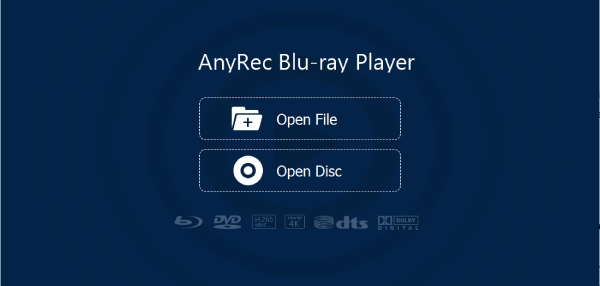
AnyRec Blu-ray Player can play .dav files on Windows and Mac, as well as other rare formats. With the advanced decoding technology, you can get smooth playback without needing additional codecs. Plus, this DAV file player delivers clear visuals and stable performance. With its clean and intuitive main screen, anyone can effortlessly open and control their DAV videos.

Play DAV video files alongside a wide range of video and audio formats.
Offers clear and detailed sound with advanced decoding technology.
Allows you to switch audio tracks and manage subtitles during playback.
Supports high-resolution video and audio playback, including DAV files.
Secure Download
Secure Download
Step 1.Open AnyRec Blu-ray Player. From the main interface, click the "Open File" button to browse and import the DAV file.
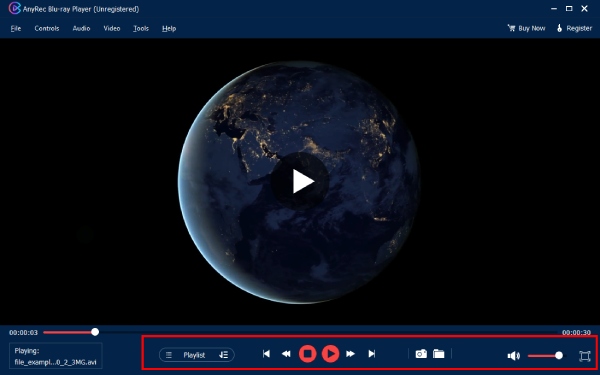
Step 2.You can adjust the playback speed, volume, or take snapshots with the "Camera" button while playing DAV videos. To view previously opened files, click the "Playlist" button.
2. Dahua Smart Player
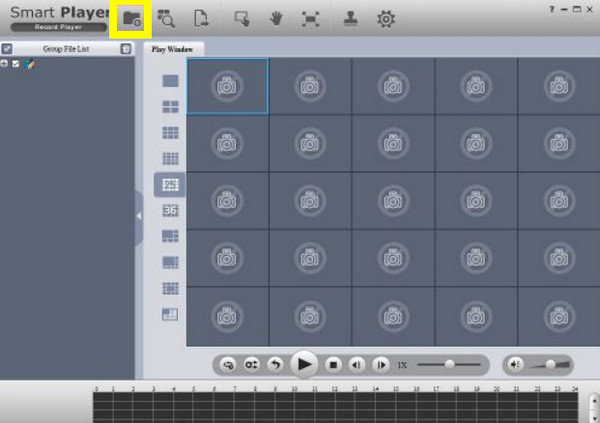
Dahua Smart Player is a specialized DAV file player made for videos recorded by Dahua surveillance systems, so it can handle these files without additional plugins. While its interface is more technical, it remains among the most reliable options for playing DAV files.
See below to play DVR/DVR DAV files using Dahua Smart Player:
Step 1.Open the Dahua Smart Player on your computer, and click the "File" or "Open" from the menu to browse your system and select the DAV file you wish to play.
Step 2.Once it is loaded into the player, it will begin playback. Use the built-in controls to navigate through the timeline.
3. VLC Media Player (with K-Lite Codec Pack)
Here's VLC Media Player as the last DAV file player in this list. While it does not natively support all DAV codecs, with the K-Lite Codec Pack, the player becomes a flexible option for playing DAV files. The setup process may need extra time; once properly configured, it is a practical choice for anyone who wants an open-source solution. (See solutions to fix VLC freezing or lagging.)
Here's how to view DAV files with VLC:
Step 1.Install the K-Lite Codec Pack to get the missing video codecs.
Step 2.Then restart your computer to apply the additional codec changes.
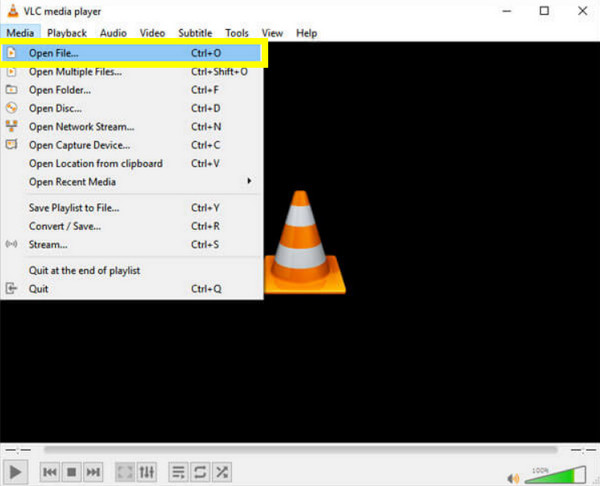
Step 3.Next, launch VLC Media Player, click "Media" then "Open File", then select the DAV file and start playback.
Convert DAV to MP4 to Play DAV Files on iPhone and Android
Designed to convert videos into MP4 quickly and smoothly, AnyRec Video Converter is a practical solution for anyone who wishes to play DAV files on iPhone and Android devices. Doing so, you won't need a DAV file player and troubled with DAV incompatibility issues. Moreover, you can trim extra footage, rotate the frame, crop the video, or apply effects before exporting. With compatibility on both Windows and Mac, it offers a convenient process for mobile-ready conversion.

Converts DAV to MP4 and supports thousands of video and audio formats.
Custom output settings, including resolution, frame rate, codec, and bitrate.
High-speed conversion by hardware acceleration with minimal quality loss.
Batch conversion to process multiple DAV videos at the same time.
Secure Download
Secure Download
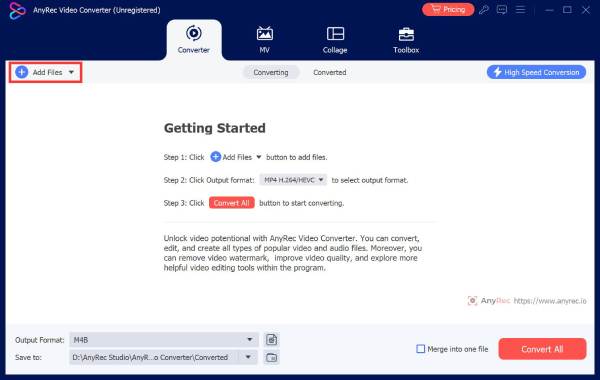
Step 1.Launch AnyRec Video Converter on your computer. Click "Add Files" to import your DAV video.
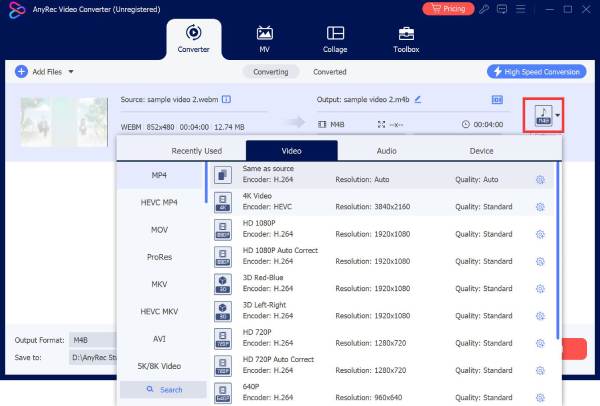
Step 2.Click the "Format" option, go to the "Video" category, and choose "MP4" as the output format. If needed, open the "Custom Profile" to fine-tune settings like resolution, codec, bitrate, etc, for mobile playback.
Step 3.Choose an output folder and rename the file if necessary. Once everything is set, click "Convert All" to start converting the DAV file into MP4. Later, you can play videos with non-DAV players.

Secure Download
Secure Download
Troubleshoot DAV Not Playing
Even with the right DAV video player, these files may still fail to play due to issues like codec limitations, file corruption, or compatibility issues. The table below outlines the most common DAV playback problems and practical solutions you can try.
| Issues | Quick Fixes |
| DAV file won’t open | Use a dedicated DAV player or convert the file into a compatible format. |
| No audio during playback | Try another player and make sure the audio settings are enabled. |
| Unsupported format error | Install the needed codec or use a surveillance video player. |
| Video plays, but there is only a black screen only | Convert the DAV file to a format like MP4. |
| Playback is lagging | Lower playback resolution or convert the file. |
| The file plays partially | Re-export the DAV file from the DVR system. |
FAQs About How to Play DAV Videos
-
Why won't my DAV files play on Windows or Mac?
Most media players on Windows and macOS do not support the codecs used in DAV files, so when you try to open them, you may see an unsupported format error. Using a DAV-compatible player usually fixes the issue.
-
Why is there no sound when playing a DAV file?
The missing audio issue happens when the audio codec is not supported by the player. In some cases, the surveillance recording may not have audio at all, so try a different player that can help.
-
Is converting DAV files to MP4 safe?
Yes, converting DAV files is safe as long as you use reliable software. Doing so simply creates a new version in a more compatible format like MP4, which is the best option to play DAV videos on multiple devices.
Conclusion
Throughout this post, you'll learn why DAV files cannot be played, see three reliable players to play .dav video files on PC and Mac, and learn how to convert DAV to MP4 files for mobile playback. No matter you want to open DAV files with or without DAV players, knowing these options can help you avoid playback errors. And if you simply want a smooth and hassle-free way to watch DAV files, AnyRec Blu-ray Player is a highly suggested choice. It supports DAV playback without needing codecs, delivers stable performance, and offers a clean, friendly interface on the desktop. It is the excellent solution you need for handling DAV and other file formats.
Secure Download
Secure Download



