
Hot

AnyRec Video Converter
120× faster video conversion and editing. No waiting.
Secure Download
Change Amazon Prime Video Aspect Ratio: All You Want to Know

- What is the standard Amazon Prime video aspect ratio: 4:3, 1.66:1, 16:9, 1.85:1, 2:1, 2.20:1, 2.35:1, 2.39:1, 2.40:1
- How to change aspect ratio on Prime: Go to Amazon Settings, then change the aspect ratio and resolution.
- How to fix Prime video wrong aspect ratio: Select multiple aspect ratios with AnyRec Video Converter (free download below). Or use VLC as an alternative player.
Secure Download
Secure Download
Amazon is a streaming service that provides movies and TV series for entertainment. With its remarkable platform, people enjoy watching suitable aspect ratio of Amazon Prime videos on smart TV such as Hisense, Samsung, Sharp, and so on. Unfortunately, several complaints are experiencing stretched images and cut-off words, which spoil the experience. In this case, you will learn how to set Amazon small screen on your TV and other essential details to keep a high-resolution movie watching.
Guide List
The Standard Aspect Ratio of Amazon Prime Video How to Change Amazon Prime Video Aspect Ratio How to Fix Amazon Prime Video in Wrong Aspect Ratio Troubleshoot Amazon Prime Aspect Ratio Problems FAQs about Amazon Prime Video Aspect RatioThe Standard Aspect Ratio of Amazon Prime Video
What is an aspect ratio? It is a proportional image as the ratio of height and width. Separated by colons, width, and height are set to show how wide a video is formatted and how it can be fitted to the viewing screen. Regarding Amazon Prime Video aspect ratio, the platform recommends the best settings to set on your device.
| Mezzanine Requirement | Display Aspect Ratio |
| SD mezzanines | 4:3, 1.66:1, 16:9, 1.85:1, 2:1, 2.20:1, 2.35:1, 2.39:1, 2.40:1 |
| HD mezzanines | 4:3, 1.66:1, 16:9, 1.85:1, 2:1, 2.20:1, 2.35:1, 2.39:1, 2.40:1 |
| 4K HDR mezzanines | 4:3, 1.66:1, 16:9, 1.85:1, 2:1, 2.20:1, 2.35:1, 2.39:1, 2.40:1 |
| 4K UHD mezzanines | 4:3, 1.66:1, 16:9, 1.85:1, 2:1, 2.20:1, 2.35:1, 2.39:1, 2.40:1 |
Here are the preferences of the aspect ratio for specific videos:
- Common SD videos - 4:3
- HD videos - 16:9
- The UK, US widescreen releases - 1.85:1
- 70 mm film standard - 2.20:1
- 35 mm (1970) - 2.35:1
- 35 mm (1970) - 2.39:1
- Blu-ray film releases at 1920×800 - 2.40:1
How to Change Amazon Prime Video Aspect Ratio
After learning the different aspect ratios for Amazon Prime Videos, it is possible to change them. But this is only sometimes the case, especially if your device is a smartphone, laptop, or smart TV. The good thing is that there is a standard aspect ratio per device, and you change it by following the demonstration below:
Step 1.Open the Amazon app and navigate the "Settings" menu.
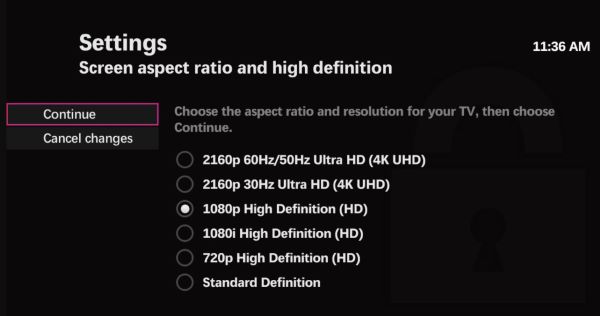
Step 2.From the "Video" menu, you can change the desired aspect ratio from the "Change Size" option. You can also click the "Zoom" button to fit the video to the screen.
Alternatively, you can check some standard aspect ratios to set on different devices:
- 4:3 ratio is best for VHS and SD broadcasts.
- 16:9 for full screen on any device.
How to Fix Amazon Prime Video in Wrong Aspect Ratio
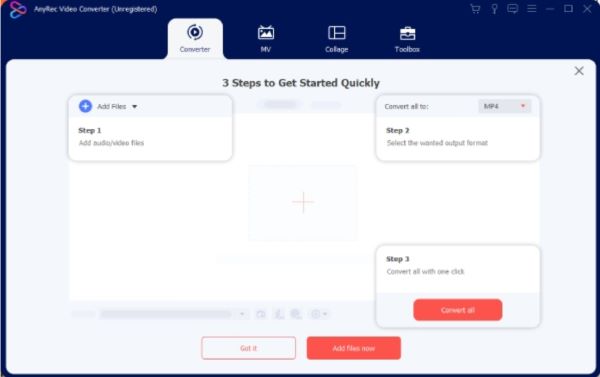
Given the different Amazon aspect ratios, you would still want a fixed length for your smart TV. To solve this, you can choose AnyRec Video Converter. It has a straightforward interface where you can edit the aspect ratio, filter, audio, and resolution without delay. While editing, you can change the output settings, such as format, quality, frame rate, bitrate, etc. On the other hand, AnyRec offers various presets for devices, which allow the output video to play on Samsung, LG, and other devices. Try it for free by clicking the "Free Download" button.
Have an AI-based tool to change the aspect ratio of Amazon Prime Video.
Support any video file format, including MP4, MKV, VOB, MOV, WMV, etc.
Edit videos with a watermark remover, audio sync, and volume booster.
Enable to change resolution to 720p, 1080p, 4K, and 8K with high quality.
Secure Download
Secure Download
Troubleshoot Amazon Prime Aspect Ratio Problems
Sometimes Amazon Prime Video gets the aspect ratio wrong, mainly with older TV shows. Sometimes it squashes them too much, sometimes it stretches them too much. Fiddling with the PC's display settings often doesn't work for streaming video. Here are the common scenarios of wrong aspect ratio of Amazon Prime videos.
Problem: 4:3 content (old TV shows) showing with stretched image to fill 16:9 screenCause: TV set to "Full" or "Zoom" mode instead of "Normal" or "Just Scan".Fix: Change TV picture size to "Normal", "Just Scan", or "4:3", which accept the black bars on the sides. The black bars are correct. The content was produced for a 4:3 display.
Problem: Black bars on top and sides (letterbox + pillarbox)Cause: Black bars may appear on sides of the content in 2.35:1 or wider on a 16:9 TV. If the TV is set to 4:3 mode, the bars help keep the original 4:3 proportions.Fix: Set TV to 16:9 mode. The top/bottom bars will remain (they're part of the content) but the side bars will disappear.
Problem: Prime Video interface (menus, logo) is cut off at edgesCause: TV overscan setting is on. Overscan crops a few percent of the image at all edges, which is a legacy feature from CRT TV days.Fix: Find and disable "Overscan" in your TV's picture settings. On Samsung, you can tap Picture, Expert Settings, Auto Wide, and Off to find it.
Problem: Correct ratio for some titles, wrong for othersCause: Different content has different native aspect ratios. This is expected behavior. A 4:3 sitcom from the 1990s and a 2.35:1 cinematic film will both look different on a 16:9 TV. There is no single setting that makes all content look "correct" to everyone.Fix: The fastest way to identify the cause is to compare several titles, check whether the Prime Video interface is also affected, and test another app or input.
FAQs about Amazon Prime Video Aspect Ratio
-
1. What is the default aspect ratio on Amazon Prime Video?
The usual aspect ratio of the streaming platform is fullscreen, especially for new movies and TV series. However, some shows are made from old TV standards, so that you might see some in 4:3 or other aspect ratios.
-
2. How to troubleshoot Amazon Prime Video's wrong aspect ratio?
Check if the app is current on your Smart TV’s settings. The most software update is on the settings and support. Another troubleshooting you can do is to switch to another title, as some videos have issues, especially for rentals and free shows. If there is no change, contact the customer service.
-
3. What is the best resolution for a 16:9 Amazon aspect ratio?
One of the best resolutions you can partner with 16:9 is 4K or 3840 px by 2160 px. As for content that isn't natively 4K, upscaled 1080p is the practical best quality. Not all Prime Video content is available in 4K. Many titles max out at 1080p regardless of your display's capabilities.
-
4. How to change the image quality of Amazon Prime Video?
Open the app and go to the Settings menu. Navigate to the Steam & Download section to choose the quality based on your need. Click the "Always Ask" button for a flexible setting to choose the quality before downloading the video.
Secure Download
Secure Download
Related Articles:
About Our Author




