
7 Proven MP4 Repair Methods to Try (Plus Prevention Tips)

A wedding toast, a work presentation, or a gaming highlight, there's nothing like a sinking feeling of wanting to watch these MP4 videos only to be met with an error. While MP4 files are notoriously fragile, it does not mean they cannot be fixed. There are a bunch of MP4 repair methods, from simple player swaps to technical fixes, shared today! You'll also see some tips you need to keep your MP4 footage safe in the future and avoid MP4 video errors all over again.
Guide List
How MP4 Files Get Corrupted What to Try Before Using a Repair Tool Why Do VLC and FFmpeg Not Work Repair MP4 Files on Windows and Mac Repair an MP4 Video Online Tips to Prevent MP4 CorruptionHow MP4 Files Get Corrupted
As you know, the MP4 format is a popular container format for video, audio, and metadata. Since these files rely on a specific internal architecture, even a minor interruption can render them unreadable. First, determine the event that led to the error to apply the best way to repair a corrupted MP4 video:
- • Recording interrupted. If a device loses power mid-capture, the final index is never saved.
- • SD card pulled out without ejecting. This prevents the writing process, and results in an incomplete file structure.
- • SD card failure. Physical damage to the card can compromise the data.
- • Incomplete file transfer. Moving files between drives can fail, giving you only half a video.
- • Incomplete download. An unstable connection can leave an MP4 file looking finished even when it's missing data.
- • System crash or power failure. A sudden blackout prevents the file structure from saving properly.
- • Virus or malware. Since this target file headers, your data will be inaccessible.
- • Storage device failure. Old drives or cheap USB stickers can fail, and data can just fade away.
- • Conversion or compression error. Sometimes, the software used to change the format is facing glitches.
What to Try Before Using a Repair Tool
Before diving into more expensive repair software to fix damaged MP4 video, take a breath. In many scenarios, trying a manual MP4 video file repair method first can make those errors go away.
1. Try a Different Media Player
Different players use different engines to play video, so try a robust, open-source player that can bypass glitches right away.
2. Try Re-Downloading or Re-Transferring
If you transfer a file from a phone to a laptop over the internet, the transfer might not finish correctly. Thus, try to redownload the file.
3. Check if the File Is Just the Wrong Format
Sometimes, your file is facing an identity crisis. It might have had .mp4 in its name when it was originally an MOV video, which can confuse your media player.
Use VLC's Built-In Repair Feature
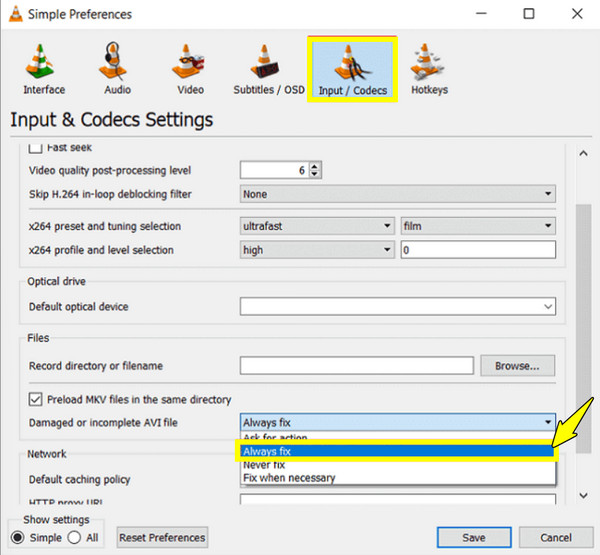
Moving on to more hands-on MP4 repair methods, VLC Media Player offers a built-in hidden fix. While it was originally designed for AVI files, it can open MP4s and reorganize them enough to play.
Step 1.Launch VLC Media Player, head to the top menu, and click the "Tools" then choose "Preferences". Then, go to the "Inputs/Codecs" section.
Step 2.There, look for "Files" near the bottom, then switch the setting to "Always fix" for the "Damaged or incomplete AVI file".
Step 3.Click the "Save" button, then try opening your video again to see if the player fixes it.
Use FFmpeg (Free, Command Line)
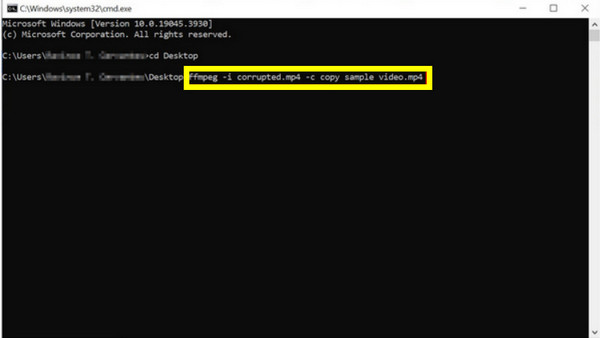
Taking the MP4 repair method a step further, use a powerful tool called FFmpeg. Think of this like taking the contents out of a damaged box and putting them into a brand-new one.
Step 1.Open FFmpeg on your desktop. Then, launch the "Command Prompt"; type "cd" followed by the location of your corrupted MP4 video.
Step 2.After that, enter this command: ffmpeg -i [name of your broken video].mp4 -c copy fixed_video.mp4.
Step 3.Press "Enter" then the program will try to fix the error and copy the healthy file into a fresh, working video.
Why Do VLC and FFmpeg Not Work
While VLC and FFmpeg can be great tools for fixing broken or unreadable MP4 videos, they are not magic. Despite your best efforts, your MP4 video may still refuse to play. Below are the reasons why these methods aren't working, and it's time to look for a more specialized solution to repair corrupted MP4s:
- • Severe data corruption. If the raw data is missing, there's nothing for these methods to fix.
- • Header damage is too complex. VLC's solution is primarily for AVI files, so it might lack the logic needed to fix the MP4 header.
- • Protected files. If the video is encrypted, these tools cannot bypass the security layer.
- • A piece of data is missing. MP4 files need specific data, such as mov atoms, to serve as an index. If there's nothing, methods will have no map to follow.
- • Incorrect FFmpeg syntax. While it is powerful, it is too sensitive. Wrong commands can lead to a failed repair.
Repair MP4 Files on Windows and Mac
When all the basic MP4 repair methods fail, AnyRec Video Repair is here to rescue! This tool uses a clever AI-driven algorithm that pieces MP4 files together, carefully analyzing their frame structure to ensure both video and audio stay perfectly in sync. Throughout the process, it ensures that all parameters, such as frame rate, bitrate, and resolution, are restored. Whether your MP4 footage was ruined by a failed transfer or a sudden power outage, this Windows and Mac software works effectively to bring it back to life.
Automatically detects and fixes complex errors within the MP4 container.
Watch the restored footage in real-time to verify before saving.
Sample file matching from the same device for perfect repair.
Optimized for everything, from mobile videos to 4K professional footage.
Secure Download
Secure Download
Step 1.Start AnyRec Video Repair on your PC or Mac. On the left side, click the "Add" button to upload the corrupted MP4 file.
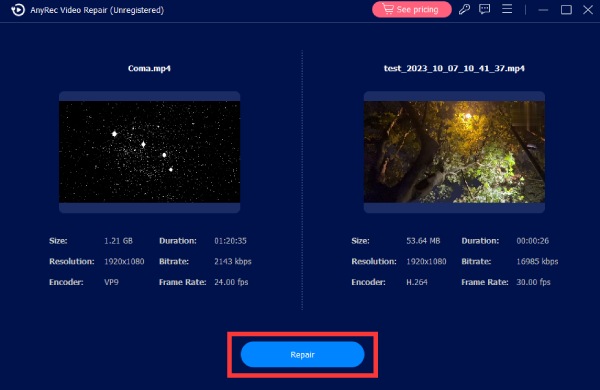
Step 2.Then, click the "Add" button on the right to upload a working sample video, recorded with the same settings. Once both files are ready, click the "Repair" button.
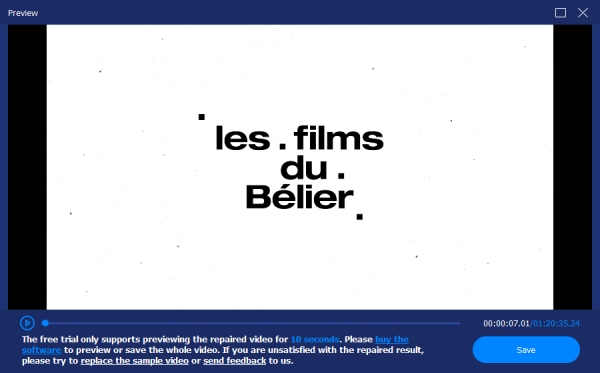
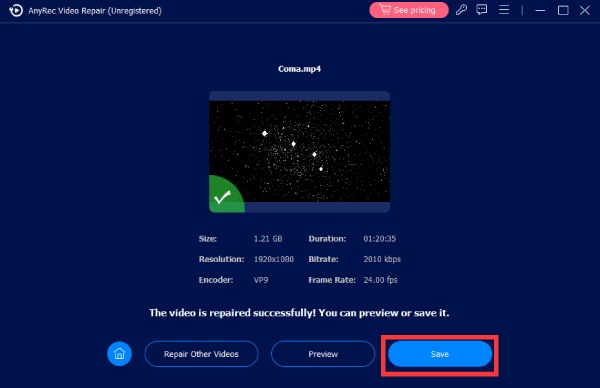
Step 3.When it is finished, click the "Preview" button to check the visuals and sound. If both look good, click the "Save" button to save your fixed MP4 video to your chosen folder.
Repair an MP4 Video Online
Suppose you only have one or two small files to fix and don't wish to install anything. Online MP4 repair tools are a convenient alternative. Check out the table to see the comparison of the best three tools to repair MP4 videos.
| Tool | Pros | Cons | Best For |
| OnlineConverter.com | Completely free; very easy | No sample file; lower success rate for severe damage | Quick fixes |
| Fix.video | 4K/8K support; handles many camera types | Can be slow; needs payment for full download | High-res footage |
| Clever Video Repair | Uses a healthy sample file; offers a very high success rate | Its screen may be more technical; file limits on the free version | Precise restoration |
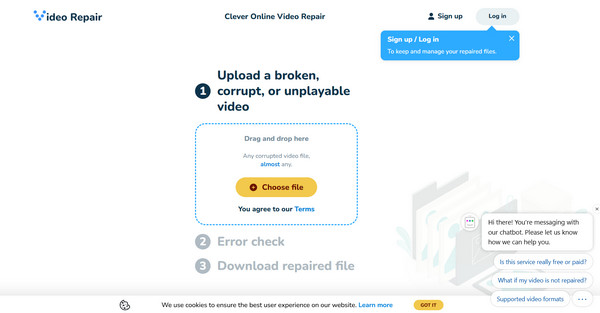
Steps for Clever Video Repair:
- 1. Inside the website, click "Choose File" to upload your broken MP4.
- 2. Then, click the prompt to add a "Sample File".
- 3. After that, the site will analyze the file and restore the broken data.
- 4. Later, watch the preview and download the fixed MP4.
Tips to Prevent MP4 Corruption
Prevention is always better than having to repeat MP4 repair methods. The following tips can save you from this headache in the future, such as black screen in videos and more.
- • Always pull an SD card or USB drive properly.
- • Avoid recording if your device's battery is low.
- • Move files to a cloud service or secondary hard drive.
- • Use reputable brands to avoid errors.
- • Wait for your video to finish processing.
- • Check your storage devices for malware.
Conclusion
By working your way through the MP4 video repair methods, you can find a path back to a playable file. Beyond just fixing the corrupted file, remember the tips, too, to save you from most broken file scenarios. Also, if you have tried all the manual tracks first, even the VLC and FFmpeg methods, and your videos still won't play, AnyRec Video Repair is your best bet! This dedicated solution uses an AI-driven approach to precisely reconstruct broken files. With a healthy sample video, you can fix the most severely damaged MP4s, all while keeping everything synced.
Secure Download
Secure Download
About Our Author




