Hot

AnyRec Blu-ray Player
Play Blu-ray & DVD on PC and Mac. Hear every detail.
Secure Download
5 Best 4K Video Players for Windows and Mac: Top Picks

Looking for a 4K video player can mean two different things. You can play regular 4K files such as MP4, MKV, or MOV. Or you can watch a 4K UHD Blu-ray disc or ISO with its menus and audio tracks. These tasks are not always handled equally well by the same player. VLC is a strong free option for everyday video files and supports hardware decoding, HDR, 10-bit video, and many formats. However, its 4K Blu-ray playback can require extra setup and may still have menu or HDR issues. Don't know which one to choose? Just continue reading.
Guide List
What Makes a Good 4K Player 5 Best 4K Video Players for Windows and Mac Quick Comparison TableWhat Makes a Good 4K Player
A good 4K video player should handle more than just 4K resolution. The codec, bitrate, HDR format, and your computer's hardware all affect playback. Check these key factors to get the best 4K media player.
- 4K and UHD support
- HEVC/H.265 and other codec support
- Hardware acceleration
- HDR and 10-Bit video
- Subtitle and audio track support
5 Best 4K Video Players for Windows and Mac
Not every 4K player solves the same problem. Some are better for regular video files, while others handle HDR, subtitles, or Blu-ray content better. Here are five worth actually trying, what each one is good at, and where users say it falls short.
Best for 4K Blu-ray: AnyRec Blu-ray Player
Best for: 4K UHD Blu-ray discs, ISO files, BDMV folders, and movie files
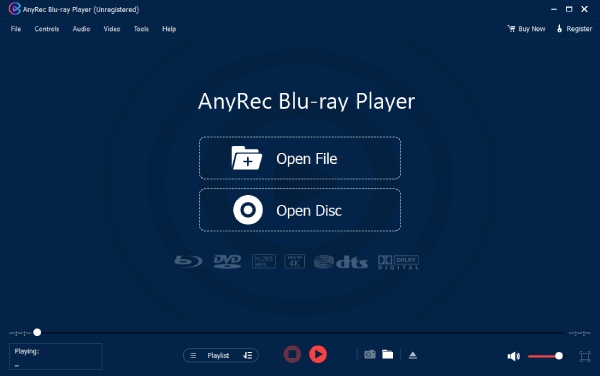
AnyRec Blu-ray Player supports 4K UHD video, HEVC, HDR, Dolby Vision, ISO files, and BDMV folders. You can also open a Blu-ray ISO directly without mounting it first. It supports multiple subtitles and audio tracks, including Dolby Atmos and DTS:X.
This is useful for users who do not want to spend time configuring codecs or mounting disc images. It also makes more sense than VLC if your main goal is to watch Blu-ray movies rather than open MP4 or MKV files.
- Pros
- Play Blu-ray discs, folders, and ISOs at full 4K UHD without downscaling.
- No region lock. You can play discs bought abroad or from a different market.
- Support menu navigation and chapter selection on Blu-ray discs.
- Cons
- The free version plays Blu-ray discs with watermark.
Secure Download
Secure Download
Best Free Player: VLC Media Player
Best for: Free playback of common 4K video files
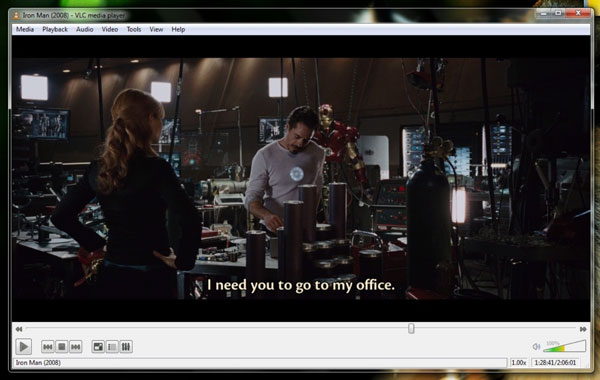
VLC opens almost every common video format and works on all platforms, including Windows, Mac, Linux, iPhone, and Android. That makes it convenient if you regularly switch among MP4, MKV, MOV, HEVC, and other file formats.
VLC has a good reputation, but it isn't perfect. Some users have reported stuttering with 4K videos. Slow seeking and HDR issues also come up. A Reddit user had trouble playing a 4K file even after changing the settings. Another user said VLC became slow when seeking through 2K and 4K videos.
- Pros
- Pick different subtitles or audio tracks without installing anything else.
- No ads or watermarks. You don't need to pay for more features.
- Cons
- VLC stutters on high-bitrate HEVC or HDR files, even on hardware that should handle it fine.
- The interface hides many useful customization options. There is a learning curve before you can access advanced controls.
Best 4K Player for Mac: IINA
Best for: Mac users who want a clean, native-feeling 4K player.
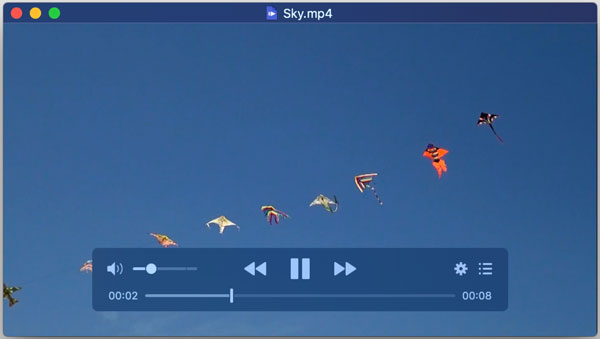
IINA is designed for macOS and uses the mpv playback engine. It is a good 4K video player for Mac if you mainly watch local 4K files and want something that feels more natural. IINA is a good choice for people who mainly watch local 4K files and want a simple interface. However, it does not make sense if you need Windows support or dedicated Blu-ray playback.
- Pros
- Native macOS integration, Force Touch, Touch Bar, and Picture-in-Picture all work the way you'd expect.
- Built on the mpv engine, which users say gives it noticeably more stable playback than VLC on the same 4K files.
- Cons
- Smaller community than VLC, meaning fewer plugins and slower fixes when something breaks.
- Have format support gaps compared to VLC, mostly with older or more obscure container types.
Best for Advanced Users: MPC-HC (with LAV Filters)
Best for: Windows users who want low resource usage.
MPC-HC is a good choice if you prefer a simple Windows 4K video player without a lot of extra features. It has a lightweight interface and supports hardware-accelerated playback through compatible systems. MPC-HC can be a practical option for users who want to keep CPU and memory usage low. However, it does not focus on Blu-ray playback like a dedicated Blu-ray player.
- Pros
- Granular control over hardware decoding, renderer, and audio output, exactly what people want when troubleshooting a specific stutter issue.
- No ads, no bloat. MPC-HC hasn't changed much in years, which longtime users see as a plus for stability.
- Cons
- Setup isn't plug-and-play, getting LAV Filters configured correctly takes real effort and isn't beginner-friendly.
- Windows only. The default install without proper filter configuration can actually perform worse than VLC out of the box.

Best for Advanced Windows Users: PotPlayer
Best for: High-bitrate 4K playback and detailed controls.
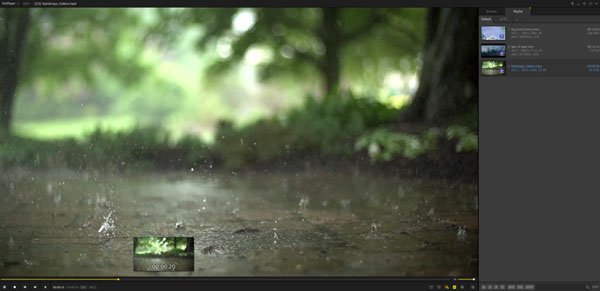
PotPlayer is a Windows-only 4K player for users who want more control. It offers hardware acceleration and many settings for video rendering, subtitles, audio, and playback. It is also a popular choice for high-bitrate 4K files.
The downside is its large number of settings. Beginners may need some time to get comfortable with it. If you like adjusting playback behavior and fine-tuning video quality, though, PotPlayer gives you plenty to work with.
- Pros
- Low CPU usage even on demanding HEVC files.
- Codec support is built in. There is no separate pack to install, as some older players require.
- Handles niche stuff too, 360-degree and 3D video, which most competitors skip entirely.
- Cons
- The interface is dense. Many PotPlayer settings are buried in menus that aren't intuitive at first.
- Default settings aren't always optimal. You need to enable hardware decoding manually before the stutter goes away.
Quick Comparison Table
Instead of long paragraphs, you can get quick information about those 4K players here.
| 4K Video Player | Best For | Windows | Mac | 4K / HEVC | Hardware Acceleration | 4K Blu-ray | Main Drawback |
| AnyRec Blu-ray Player | 4K Blu-ray & movies | Yes | Yes | Yes | Yes | Yes | Have watermark on trial. |
| VLC Media Player | Free, everyday playback | Yes | Yes | Yes | Yes | Limited | Can stutter with some high-bitrate files. |
| PotPlayer | Advanced Windows users | Yes | No | Yes | Yes | Limited | Too many settings for beginners. |
| IINA | Mac users | No | Yes | Yes | Yes | No | Mac only. |
| MPC-HC | Lightweight Windows playback | Yes | No | Yes | Yes | No | Requires more setup for some files. |
- Play 4K Blu-ray or ISO files? Choose AnyRec Blu-ray Player.
- Want something free? Try VLC Media Player.
- Use Windows and want more control? Try PotPlayer.
- Use a Mac? Try IINA.
- Want a lightweight Windows player? Try MPC-HC.
Conclusion
There is no single best 4K player for everyone. Casual users may prefer a free player, while advanced users may need more playback controls. However, watching 4K movies from Blu-ray discs requires more than basic format support. AnyRec Blu-ray Player is designed for this purpose, allowing you to play 4K UHD videos, Blu-ray discs, ISO files, and folders with support for HDR and lossless audio. It is a practical choice for home theater lovers.
Secure Download
Secure Download
Related Articles:
About Our Author