
Hot

AnyRec Screen Recorder
Capture every moment. Record like a pro.
Secure Download
The Most Recommended Webcam Recorders with High Quality

A webcam recorder is almost considered a standard for many scenarios. Whether you are a streamer, online teacher, gamer, or content creator, recording with your webcam enables you to create stronger engagement, helping you establish a personal connection. However, so many options are provided online, one may wonder which tool can be trusted. This guide collects the most powerful webcam recorders for Windows, Mac, and browsers, helping users select the most suitable tool for professional-looking videos without unnecessary complexity.
Guide List
[For Windows] How to Record with Webcam with a Camera [For Mac] Photo Booth as A Default Webcam Recorder [Compatible] A Versatile Webcam Recorder for All Scenarios An Online Webcam Recorder to Consider in 2026[For Windows] How to Record with Webcam with a Camera
For Windows users, the built-in Camera app provides a straightforward way to record webcam footage without installing extra software. It supports photo and video shooting and offers basic adjustment options such as resolution and camera switching. While it is simple enough for beginners, understanding how to configure the Camera app properly is crucial for achieving clear, stable, and smooth webcam recordings.
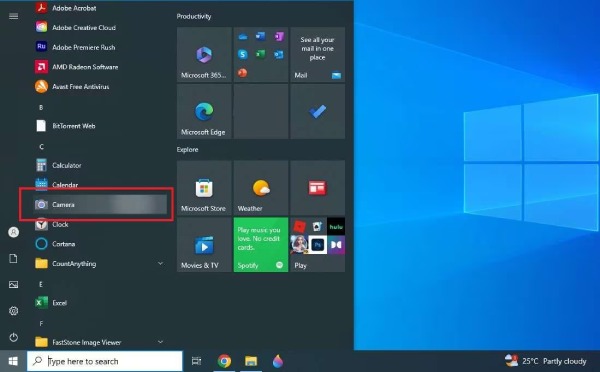
Step 1.Access the Windows tab by clicking the "Windows" button or simply pressing the "Windows" button on your keyboard. Launch Camera.
Step 2.Adjust your webcam to a proper angle. Click the "Take Video" button to start recording yourself.
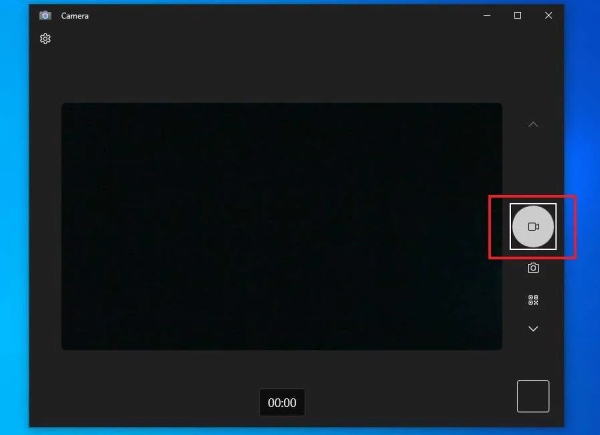
Step 3.When you finish the recording, click the "Stop" button, and the content recorded will be saved automatically.
[For Mac] Photo Booth as A Default Webcam Recorder
Mac devices come with Photo Booth, an easy-to-use tool designed to capture webcam videos instantly. With a playful interface and multiple visual effects, it is reliable for recording quick clips, messages, and short presentations. Although the tool doesn't provide advanced editing or high-end recording controls, mastering its core settings can help users generate well-lit and expressive webcam content in seconds.
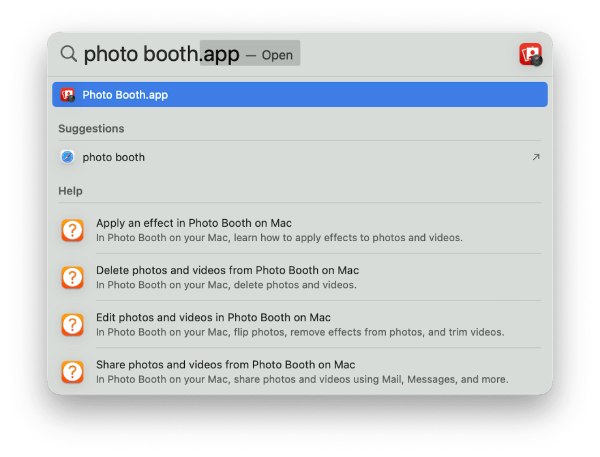
Step 1.Launch Photo Booth from the Application or using Spotlight on your Mac.
Step 2.When launched, the green light will come on if the camera works. And you can see yourself from the pop-up window.
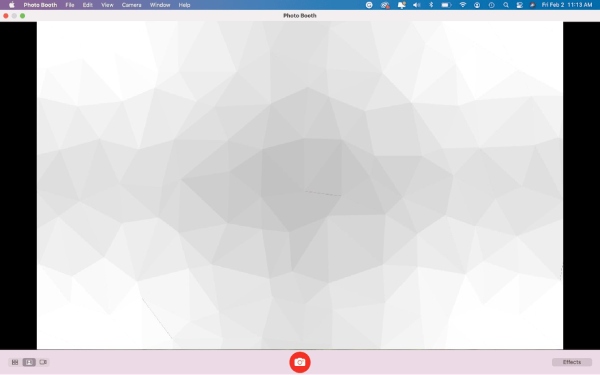
Step 3.Click the "Record" button to start recording with your webcam. When finished, click the "Stop" button.
[Compatible] A Versatile Webcam Recorder for All Scenarios
If you expect more than basic webcam recording, then you need simultaneous screen and webcam capture, real-time filters, custom layouts, noise cancellation, and HD/4K output. And all these effects can be achieved with AnyRec Screen Recorder. This versatile webcam recorder that works across Windows and Mac becomes the perfect choice in these cases. It is especially suitable for live presentations, gameplay, product demonstrations, training sessions, and professional video production where both clarity and flexibility are essential.

Use your webcam during the screen recording process.
Stably connect your webcam to ensure the recording.
The AI algorithm supports to make your webcam recording clearer.
Preview to check if your webcam recording is clear enough.
Secure Download
Secure Download
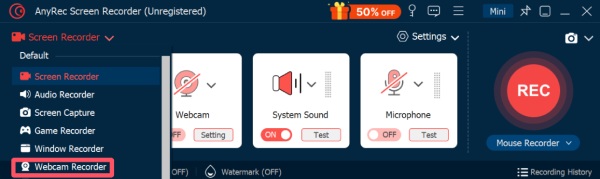
Step 1.Launch AnyRec Screen Recorder on your device and click the "Webcam Recorder" button under the "Screen Recorder" tab.
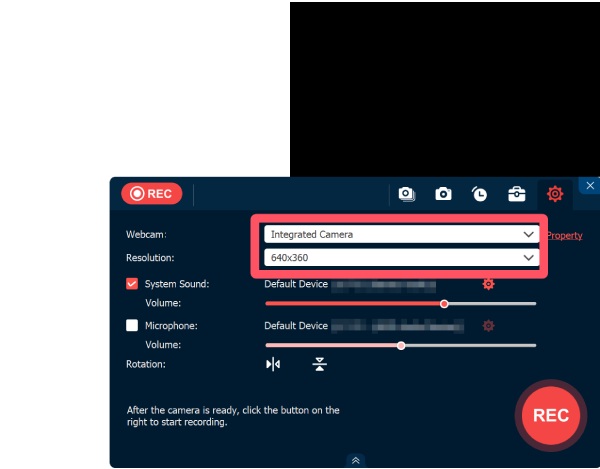
Step 2.Under the "Webcam" tab and the "Resolution" tab, you can select the desired parameter. And you can also choose the system sound and the microphone.
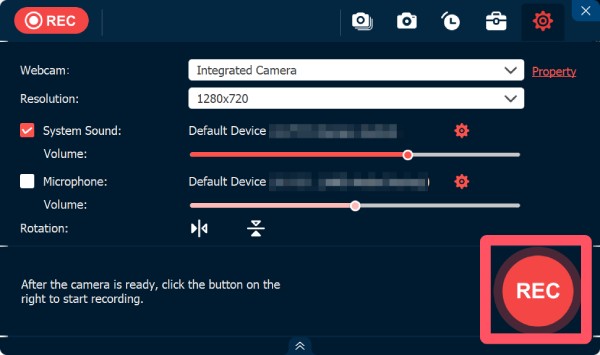
Step 3.When you finish the preparation, click the "Record" button to start webcam recording with AnyRec Screen Recorder.
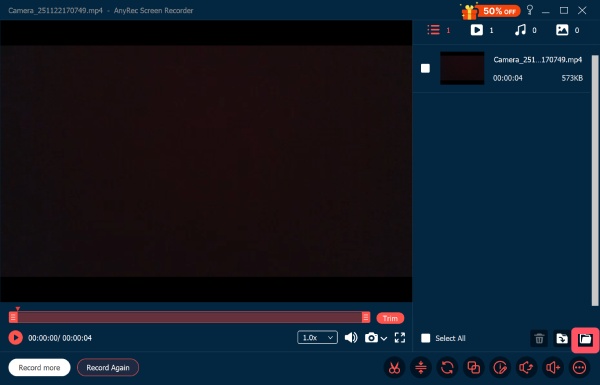
Step 4.Click the "Stop" button when the recording is over. A window will pop up for you to save the recording. You can find it by clicking the "Open Folder" button.
An Online Webcam Recorder to Consider in 2026
For users who prefer not to install desktop software, online webcam recorders provide an efficient alternative. Modern browser-based webcam tools not only support recording screens with their webcam, but also feature background replacement, customizable layouts, and direct video exporting. They are ideal for quick personal introductions, online courses, and social content creation. With just a stable connection and a webcam, recording becomes highly accessible from anywhere. This section will introduce 123 Online Video Recorder that has the same powerful functions as those best voice recorder apps.
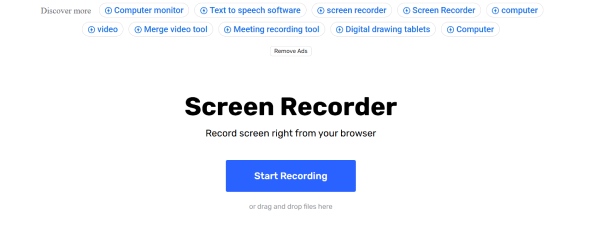
Step 1.Navigate to the official website of 123 Online Video Recorder and click the "Start Recording" button.
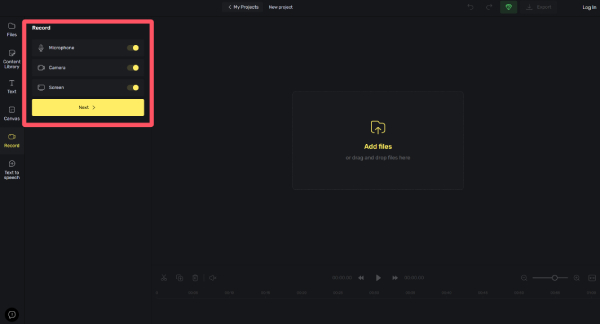
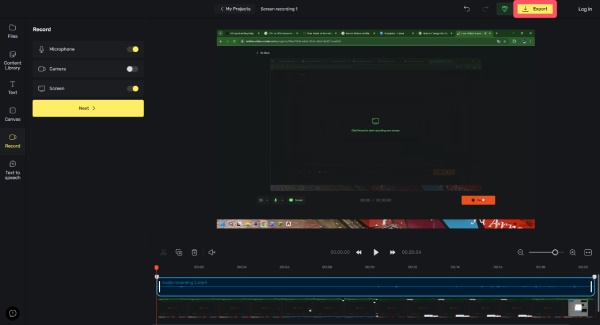
Step 2.Under the "Record" tab, click the "Camera" button to make sure the webcam is applied during the recording process.
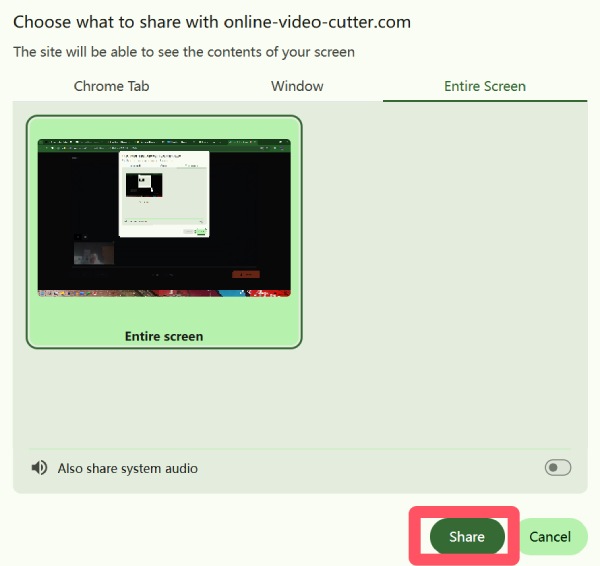
Step 3.A window will pop up, asking you to choose the area for recording. Choose and click the "Share" button.
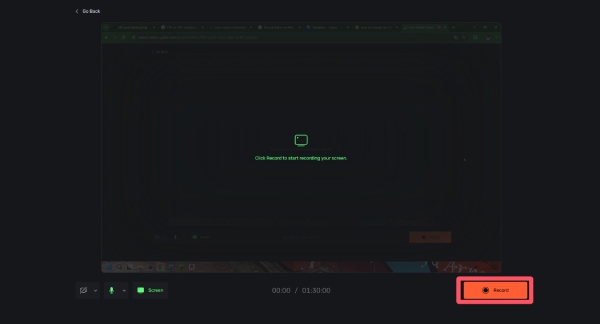
Step 4.Click the "Record" button to record video. And click the "Stop" button when you finish.
Step 5.Click the "Done" button and return to the main interface. Finally, click the "Export" button.
Conclusion
In general, it's not a difficult job to find a proper webcam recording program according to your requirements. Whether you prefer a quick solution or seek a personal method, there's always a tool designed for your device. If you still fail to figure out the best option, then AnyRec Screen Recorder is the versatile one that consistently meets your requirements. You can download and try it for free right now.
Secure Download
Secure Download
Related Article
About Our Author




