Hot

AnyRec Video Converter
120× faster video conversion and editing. No waiting.
Secure Download
Top 12 Best Recommended Video Reversers for Making Popular Videos

When you scroll through your newsfeed and something catches your attention; you want to try and jump into the trend. Making a revere video is exactly what you need, and it always bring some funny effects. Thus, you need the best video reverser in the market to help you. In this post, you are about to know the best video reversers for Windows and Mac. You can pick the best ones through the features offered. Let's get into it.
Guide List
Comparison of 12 Video Reversers on PC/Online Powerful Video Reverser for Fluently Reversing on PC/Mac iClooPlayer- Easily Reverse Videos Within the Video Player Videopad Video Editor - Comprehensive but Complex in Video Reversal VSDC Free Video Reversal with Motion Tracking Technology Pinnacle Studio - Creative Video Reverser with One-Click Reversal iMovie - Reverse Playback Works Well with iPhone 6 Convenient Online Video Reversers Worth Trying FAQs about Video Reversers to Play Videos BackwardsComparison of 12 Video Reversers on PC/Online
There are some video reversers that are free and good enough. But if you want the best outcome for your video, you need to consider the video reverser to be available for your device or packs with valuable features. You can refer to this table for a quick overview of their features.
| Software | Supported Systems | Features | File Size Limitation |
| AnyRec Video Converter | Windows, Mac | Reverse video in a few seconds with high quality. | No file size limit. |
| iCloo Player | Windows | Provide high-speed video camera analysis. | 10-second playback in the free version. |
| VideoPad Video Editor | Windows, Mac | Professional features for video editing. | No file size limit. |
| VSDC Free Video Editor | Windows | Deliver essential features like Chromakey for background removal. | No file size limit. |
| iMovie | Mac | Built-in video editor for Apple devices. | 60-minute video length. |
| Pinnacle Studio | Windows | Enable to edit 4K and 360° videos. | 10-minute video length. |
| Ezgif | Windows, Mac | Support key formats like MP4, AVI, WebM, etc. | Maximum file up to 100MB. |
| Kapwing | Windows, Mac | Accessible tools like volume booster, smooth transitions, etc. | 250MB file limit. |
| Online Video Reverser – Media.io | Windows, Mac | Reverse speed provided high and slow video speed. | 100MB file limit. |
| Powtoon | Windows, Mac | Great for editing high-quality videos. | 45-second video length for the free version. |
| Kizoa | Windows, Mac | Ability to merge video clips, images, and others in one clip. | 100MB file limit. |
| ClipChamp | Windows, Mac | Easily share video files to YouTube and other social platforms. | No file size limit. |
Powerful Video Reverser for Fluently Reversing on PC/Mac
AnyRec Video Converter is an all-in-one tool that includes many features for video editing. As a video reverser, it allows you to upload files in any file format. It supports many important video formats like MOV, MKV, WMV, HEVC, MP4, and more. In just a few clicks, you will be able to reverse videos and share them on social media platforms.

Supports multiple video formats for output and input, such as MP4, MOV, and more.
Real-time preview available after reverse playback, with watermark-free export.
Comes with a set of editing tools for instant trimming or filter application.
Customize video parameters like frame rate and bitrate to ensure high-quality output.
Secure Download
Secure Download
How to use AnyRec Video Converter to reverse a video:
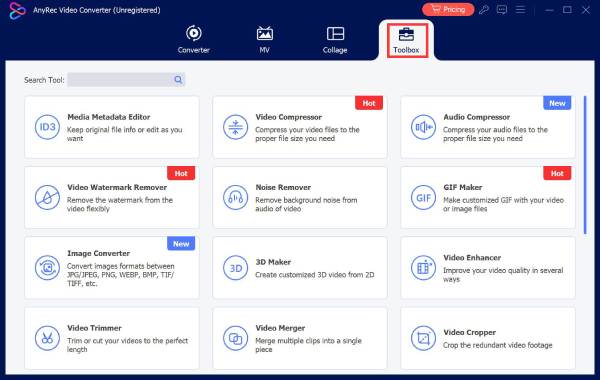
Step 1.Install and launch the software on your device. Click the "Toolbox" button on the main screen. Then find the "Video Reverser".
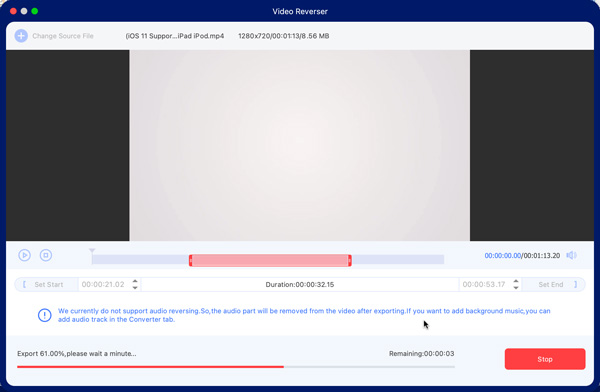
Step 2.Click "Add Files" to import a video file. You can reverse the video clip by adjusting the Time Bar starting and ending positions, or directly use "Set Start/End".
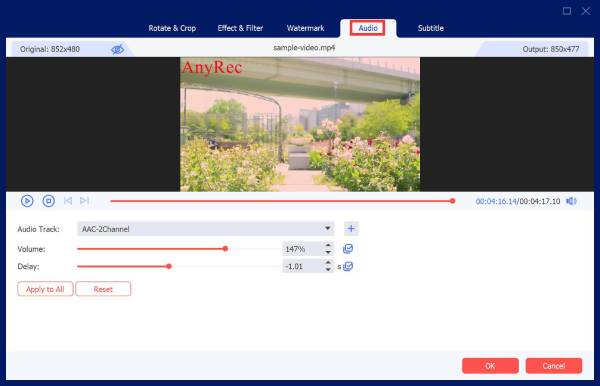
If you are looking for other editing tools, click "Toolbox", "MV", and "Collage" to check. You can add background music, apply effects or filters, and make your customized watermark. Moreover, you can upscale the resolution, reduce video shakiness, optimize brightness, and more.
Step 3.Once you are satisfied with the changes, click "Save To" to choose a destination folder. Finally, click "Export" to start video reversal.
Secure Download
Secure Download
iClooPlayer- Easily Reverse Videos Within the Video Player
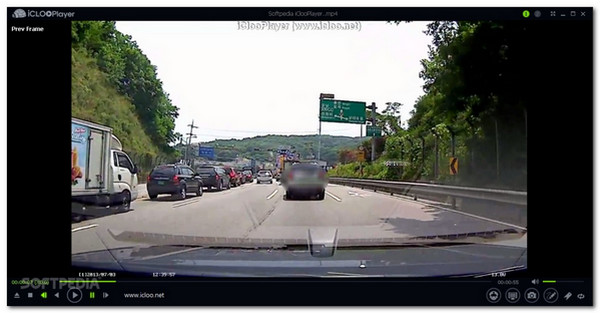
The best thing about this tool is it is both a video player and a video reverser. Its selling point is to play a video in reverse without converting it. This tool works well with people who want to analyze something in the video. It does not fall short when you want to save your video in reverse.
- Pros
- Reverse video clip frame-by-frame without conversion.
- Bookmark video when you exit the tool.
- Cons
- Watermarks the reversed video clip.
Videopad Video Editor - Comprehensive but Complex in Video Reversal
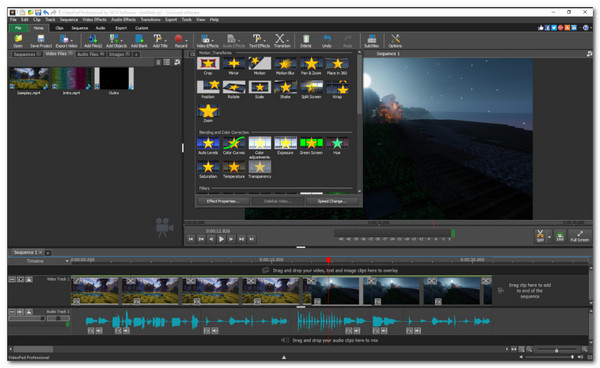
You can try the free version of VideoPad Video Editor on Windows or Mac. To experience its greatness, you need to purchase the Pro version, which is only $39.95 (Home Edition). When you unlock the pro version, you will be able to easily reverse video clips, edit audio, and edit 2D or 3D videos on this video reverser.
- Pros
- Fine-tune color other visual effects.
- Direct sharing to YouTube and other social platforms.
- Cons
- Too complex for beginners.
VSDC Free Video Reversal with Motion Tracking Technology
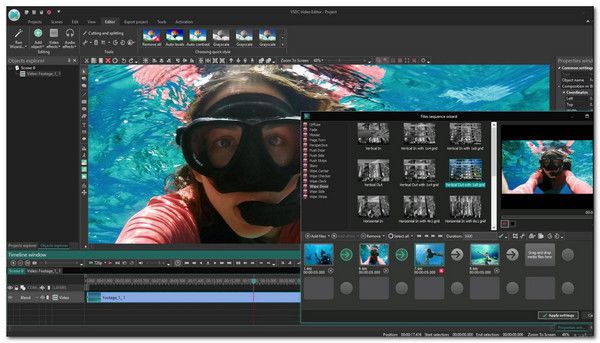
If you don't want to spend money on a video reverser subscription, try the VSDC Free Video Editor. The tool is equipped with features that will surely enhance and beautify your reversed video. Although the video reverser's interface looks complicated, it is easier than it seems, so you can learn to navigate it in no time.
- Pros
- Use motion-tracking for an object's movement trajectory.
- Record voiceovers in real-time.
- Cons
- No hardware acceleration on the free version.
Pinnacle Studio - Creative Video Reverser with One-Click Reversal
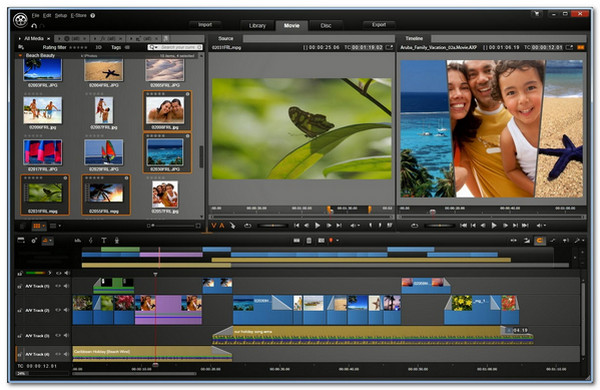
This video reverser has been around for a very long time and is being updated with powerful features. A good reason for choosing this video reverser is it has three versions: Studio, Studio Plus, and Studio Ultimate. You can decide to upgrade to one of these versions after trying its fantastic reverse tool in the free trial.
- Pros
- Select clips in the timeline to reverse playback with a single click.
- Support adjusting playback speed during reverse playback.
- Reverse-rendered footage remains smooth with minimal stuttering or audio-visual desynchronization.
- Cons
- Frame-level reverse control is limited.
- Reversed audio may introduce noise, requiring separate audio track processing.
- Reverse logic is fixed without complex temporal distortion or fluid algorithms.
iMovie - Reverse Playback Works Well with iPhone
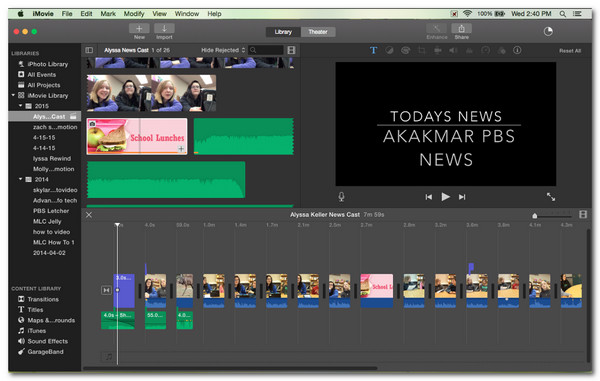
This video editor is a default video reverser for Mac users. If you are using a Mac, you don't need to go far away searching for a good video reverser. Just import the video clip you want to reverse, and it will only take a couple of clicks to achieve what you need. Moreover, you can trim, rotate, and crop videos in iMovie.
- Pros
- Works seamlessly with features like trimming, splitting, and adding background music.
- Runs stably with excellent compatibility on iOS devices.
- Cons
- Does not support advanced features such as reverse playback speed curves.
- Processes specially encoded videos with low efficiency.
- Supports a limited range of file formats.
Further Reading
 Speed Up and Slow Down a Video with iMovie
6 Convenient Online Video Reversers Worth Trying
1. Ezgif
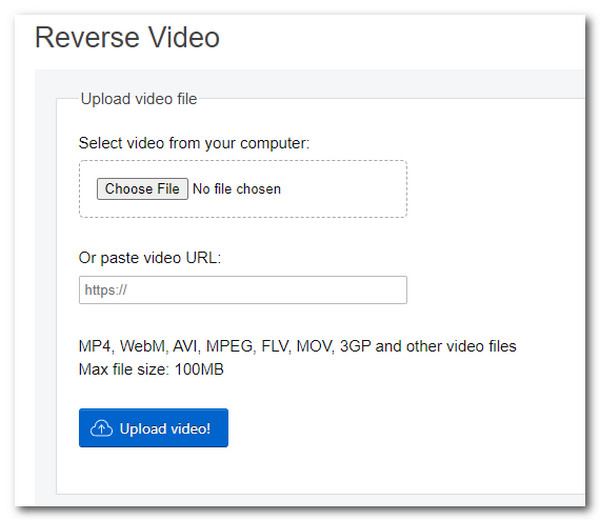
Ezgif is an online video reverser that allows you to reverse a YouTube video by pasting a URL. It allows you to import video with formats such as MPEG, MOV, 3GP, WebM (get WebM video editor), AVI, and more. However, you need to be aware that the online video reverser is very slow in processing the reversed video. Ensure that you have a stable connection whenever you use Ezgif.
- Pros
- Simple interface.
- Offer many video editing tools.
- Cons
- Prolonged process.
2. Kapwing
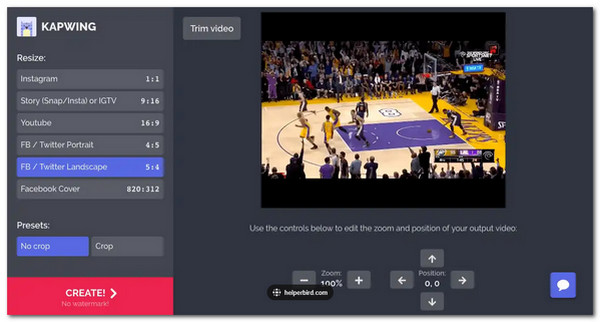
Similar to Ezgif, Kapwing is an online video reverser equipped with helpful tools. You can use the online video reverser by signing up, and you will be able to enjoy its fantastic functions for reversing or editing video. Moreover, you can make GIF animations or memes in Kapwing. However, you can only upload clips with a 250MB file size (reduce large video size online).
- Pros
- Fast exporting process.
- High-quality reversed video.
- Cons
- Watermark applied.
3. Online Video Reverser – Media io
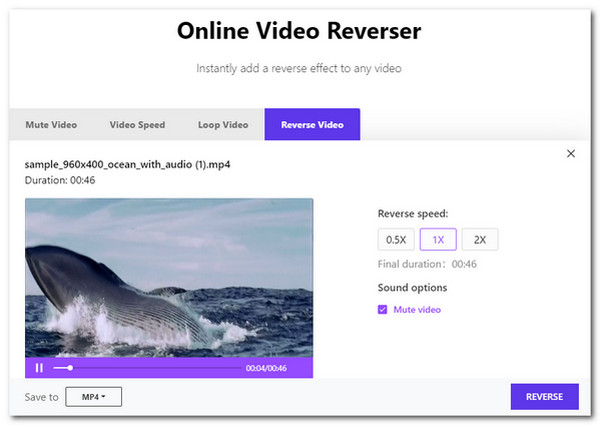
This online video reverser created by the Media is another straightforward tool. The tool is dedicated merely to reverse video with some basic editing tools included like speed, sound options, change format, and more. If a complex-looking video reverser does not fancy you, this online video reverser is for you.
- Pros
- Reverse video in a few clicks.
- User-friendly.
- Cons
- Slow saving and exporting process.
4. Powtoon
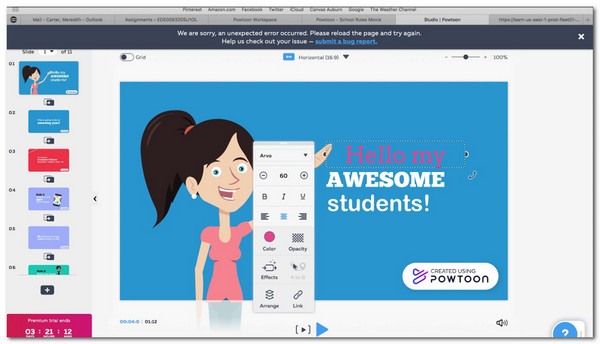
Customize your video before reversing it with Powtoon. This online video reverser works well with beginners and does not waste your time learning it. Excellent functions await you to perform video reversing and directly share to Facebook, Instagram, Snapchat, and more. Create more high-quality reversed videos with Powtoon.
- Pros
- Intuitive interface.
- Produce high-quality content like tutorials reverse videos.
- Cons
- Only allows 45-second video length.
5. Kizoa
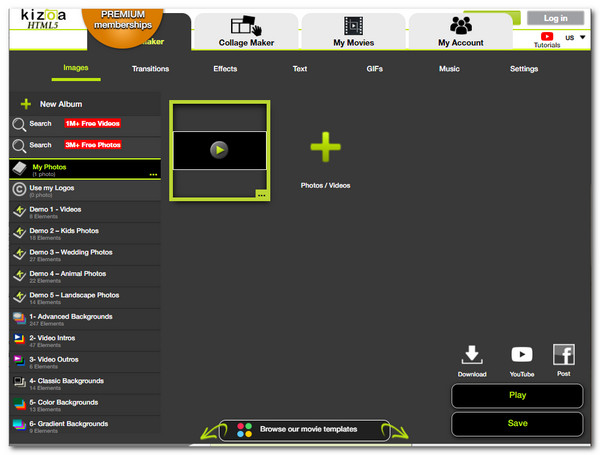
A powerful online video reverser like Kizoa should have millions of videos and photos to add to the reversed video. You can freely use the photos just by searching through the website. It also provides settings to improve the video quality up to 4K (upscale 1080p to 4K). What's more, you can beautify by applying effects and filters.
- Pros
- Huge collection of features and effects.
- Merge video, images, other media into one file.
- Cons
- The interface looks outdated.
6. ClipChamp
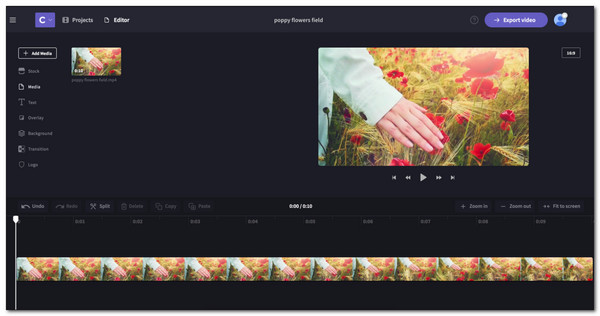
ClipChamp is a professional online video reverser providing special features for thousands of users. You can use the free trial of ClipChamp and see how it is ideal for video reversing. Of course, you can still reverse video with basic editing tools such as trimming, cutting, and direct sharing to social media platforms.
- Pros
- Work well with any device.
- User-friendly.
- Cons
- Watermark included.
FAQs about Video Reversers to Play Videos Backwards
-
What is the best video reverser for Android?
There are video reverser apps you can consider trying, such as PowerDirector, VivaVideo, Reverse Movie Reverse Backwards, Reverse Video Player, and more.
-
Is it possible to reverse subtitles with video?
Unfortunately no. If it's the external CC subtitle, you can't reverse it. And for the inline subtitles, you can only reverse it completely with the wrong order.
-
How does video reversing work?
It is simple: A video reverser exchanges the starting and ending point of a video clip and plays it frame-by-frame. Thus, if you watch a glass of water and it goes back to a glass, the reversed video looks like magic.
Conclusion
Now that you have checked the best-recommended video reversers, you can use one of them as a primary tool or an alternative. Among the 12 best video reversers, AnyRec Video Converter got your back. Its powerful features can be seen even on the free trial version. No file size limit and high-quality reversed videos can only be found in AnyRec Video Converter.
Secure Download
Secure Download
Related Articles
About Our Author